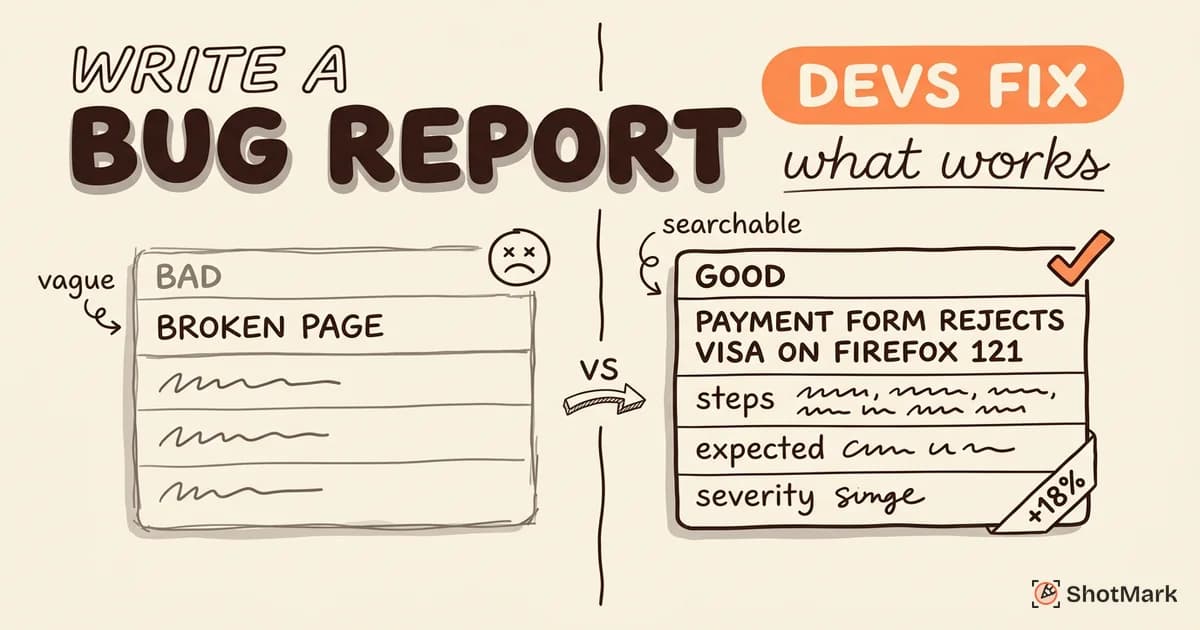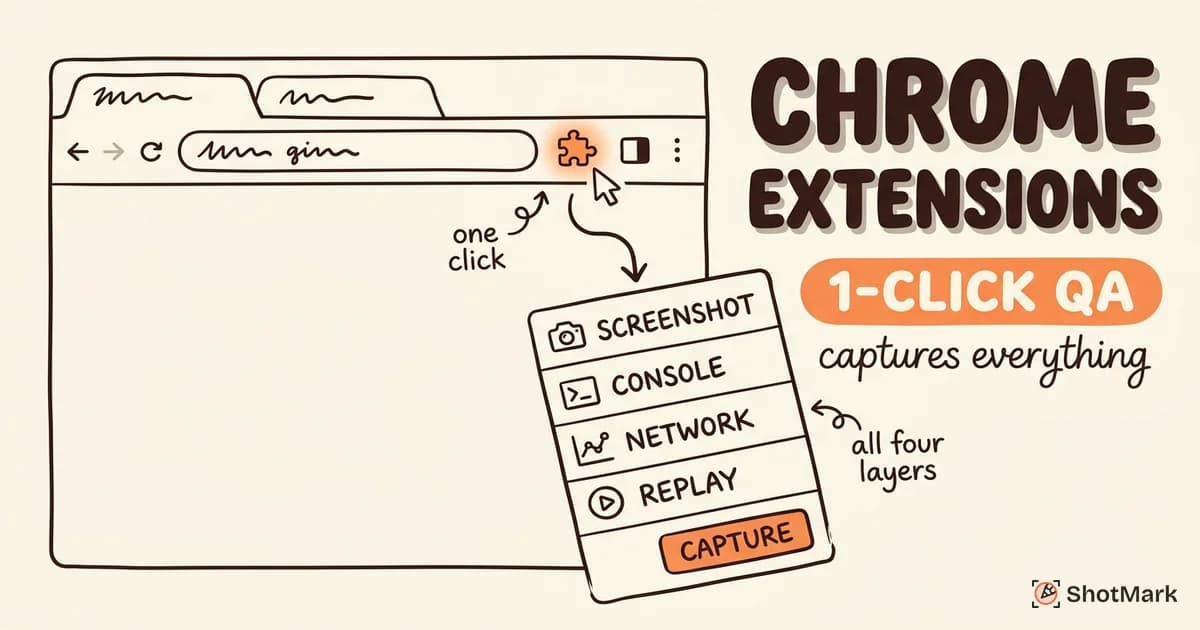
A bug report Chrome extension turns your browser into a one-click bug reporting tool. Instead of switching between DevTools, a screenshot app, and your issue tracker, the right extension captures everything your developer needs in a single action.
We tested six extensions built for QA workflows, then compared them against general-purpose screenshot tools. This guide covers what a proper bug capture extension should record, how six popular options stack up, and how to set one up across a QA team without creating new friction.
What a Bug Report Chrome Extension Should Capture
Most QA engineers already have a screenshot tool installed. The issue is that a screenshot alone rarely tells a developer enough. A bug report needs technical context, not just a picture of the broken UI.
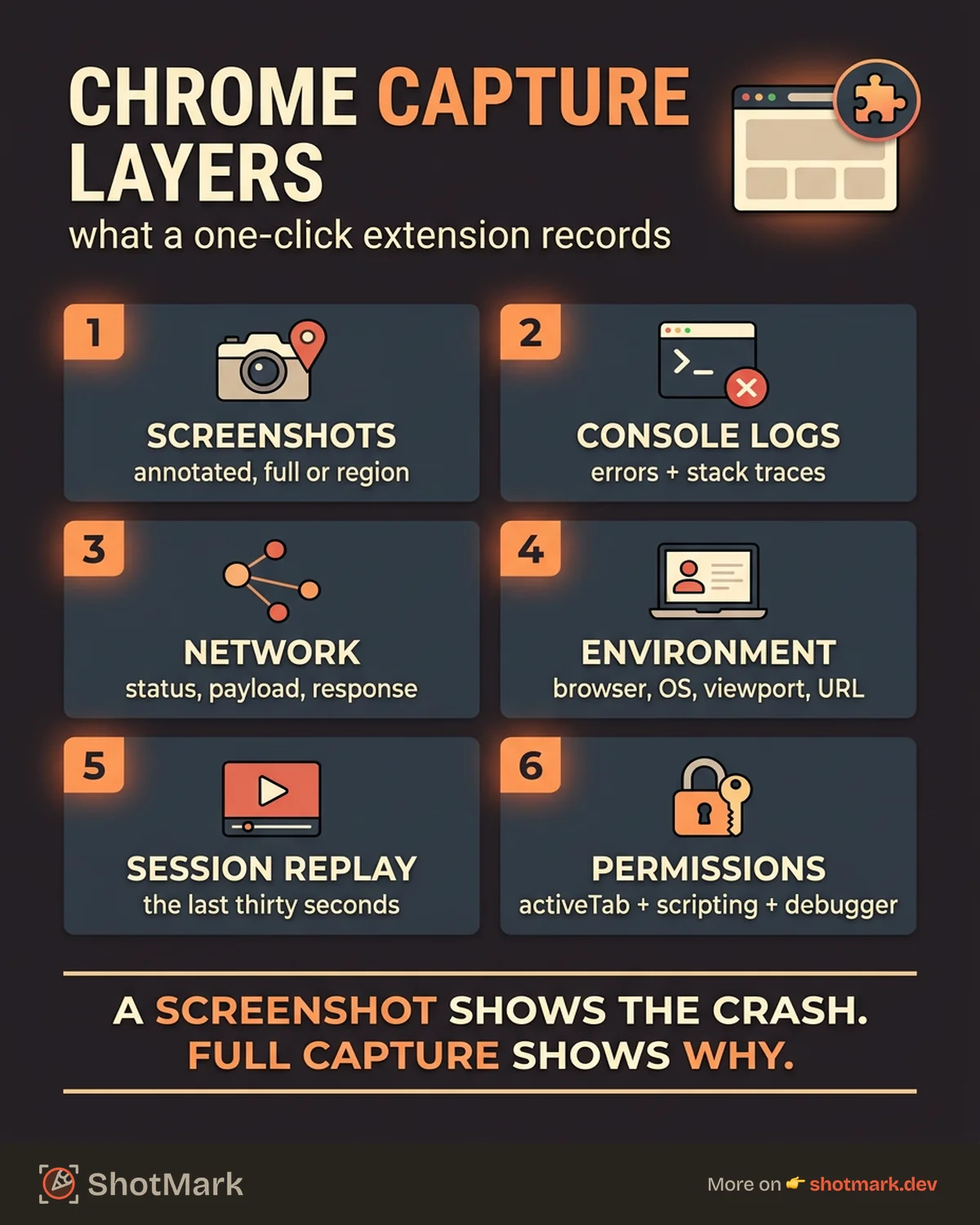
A capable bug report Chrome extension captures several layers of data at once:
- Screenshots: full page, visible area, or a selected region with annotations
- Console logs and JavaScript errors: the stack traces developers normally ask for over Slack
- Network requests and failed API calls: status codes, payloads, and response bodies
- Environment data: browser version, OS, viewport size, and the exact URL
- Session replay or screen recording: the 30 seconds of clicks that led to the bug
The last layer is where generic screenshot tools fall short. A screenshot shows the crash. A full capture shows why it happened.
Why basic screenshot extensions aren’t enough for QA
A typical Chrome screenshot extension produces an image and maybe a shareable link. That’s fine for marketing teams annotating mockups. For QA, it means the developer still has to ask: What browser? What console errors? Which API call failed? Those follow-up questions add roughly 30 minutes per bug, and they’re the reason structured reporting matters.
If you want a deeper look at tool selection across categories, we keep an updated full bug reporting tools comparison for QA leads evaluating platforms.
6 Bug Report Chrome Extensions Compared
We looked at six extensions available in the Chrome Web Store and evaluated each on capture depth, integrations, free tier, and setup time. Three are purpose-built bug reporting tools. The others lean more toward feedback or general capture.
ShotMark
ShotMark captures screenshots, console logs, network requests, and session replay in a single click from the browser toolbar. Captured data maps directly to Jira, Linear, or GitHub fields, so QA engineers stop copying and pasting between tabs.
Strengths: Full technical context in one click. Open-source SDK for teams that need self-hosting. Auto-populates environment data (browser, OS, viewport, URL). Session replay shows the 30 seconds before the bug.
Weaknesses: Currently in early access, available through the waitlist. Mobile app capture is not supported yet.
Best for: QA teams that want depth and speed in one extension, without stitching together three separate tools.
Jam.dev
Jam.dev packages console logs, network activity, and short replays into a link that developers can open without installing anything. Their positioning is developer-focused rather than product-focused, which shows in the technical depth of the capture.
Strengths: Clean developer-friendly output. Strong console and network capture. Free tier is generous for small teams.
Weaknesses: Replay length caps can cut off longer reproductions. Annotation tooling is lighter than dedicated feedback tools.
Best for: Engineers filing bugs for their own product during internal testing.
Marker.io
Marker.io targets agencies and client-feedback workflows. It overlays a feedback widget on any site and pushes captures into Jira, Trello, Asana, or GitHub. The Jira integration is one of the most polished in this category.
Strengths: Deep Jira and Asana integrations. Good annotation tools. Widget mode works well for client sign-off workflows.
Weaknesses: Pricing scales with reporters, which gets expensive for large QA teams. Replay and console capture are available but less developer-oriented than Jam.
Best for: Agencies collecting structured feedback from non-technical clients.
BetterBugs
BetterBugs offers one-click bug reports with AI-generated debugging notes. The extension captures screenshots, logs, and network data, then produces a summary that suggests likely causes.
Strengths: AI summaries save triage time. Simple setup. Integrates with most common issue trackers.
Weaknesses: AI suggestions need human verification, especially for complex bugs. Smaller community compared to Jam or Marker.
Best for: Small QA teams that want faster triage on routine bugs.
Usersnap
Usersnap blends screenshot capture, user feedback widgets, and in-app surveys. It’s broader than a pure bug report tool, which is useful if your team also runs UX research or beta feedback programs.
Strengths: Combines bug reporting with user feedback collection. Good widget customization. Works for both internal QA and external beta users.
Weaknesses: Developer-focused technical capture (console, network) is less detailed than Jam or ShotMark. Pricing reflects the broader feature set.
Best for: Product teams that want one tool for bug reports, beta feedback, and user surveys.
Awesome Screenshot
Awesome Screenshot is a general-purpose chrome screenshot extension with annotation and screen recording. It’s one of the most installed extensions of any type on the Chrome Web Store.
Strengths: Free tier is very generous. Fast screenshot and short recording workflow. Simple annotation tools.
Weaknesses: No console log or network capture. No direct integrations with Jira or Linear for auto-filing bugs. Designed as a screenshot tool, not a bug reporting tool free of follow-up questions.
Best for: Quick visual feedback when technical context isn’t needed.
Comparison Table
| Extension | Screenshots | Console Logs | Network Requests | Session Replay | Issue Tracker Integrations | Free Tier |
|---|---|---|---|---|---|---|
| ShotMark | Yes | Yes | Yes | Yes | Jira, Linear, GitHub | Early access |
| Jam.dev | Yes | Yes | Yes | Yes | Jira, Linear, GitHub | Generous |
| Marker.io | Yes | Yes | Yes | Partial | Jira, Asana, Trello | Trial only |
| BetterBugs | Yes | Yes | Yes | Yes | Jira, GitHub, Trello | Limited |
| Usersnap | Yes | Partial | Partial | No | Jira, Asana, Slack | Trial only |
| Awesome Screenshot | Yes | No | No | Yes (recording) | None native | Yes |
For teams on a strict budget, we also maintain a list of free bug reporting tools that covers what each tool actually gives you at zero cost.
Can a Chrome extension capture console logs for bug reports?
Yes. Extensions with the right Chrome permissions (activeTab, scripting, debugger) can read console output and attach it to a bug report. ShotMark, Jam, Marker.io, and BetterBugs all do this. Awesome Screenshot, GoFullPage, and most pure screenshot extensions don’t, because they only request screen capture permissions.
If console logs are non-negotiable for your team, filter extensions by whether they request the debugger or scripting permission during install. No permission, no logs.
How to Set Up a Bug Report Extension for Your QA Team
Rolling out a bug report Chrome extension isn’t just about installing it. You need consistent capture settings, tracker integrations, and a shared workflow so every QA engineer files reports the same way.
Install and configure for team-wide use
Pick one extension and standardize on it. Mixing tools across a QA team creates inconsistent reports and breaks triage workflows. Most bug reporting extensions support team workspaces, which let admins push configuration to every member.
Walk new hires through the install during onboarding. Verify that the extension has the right permissions (screen capture, clipboard, debugger, host access) so captures work on internal staging domains.
Connect your issue tracker
Configure the integration once per workspace so QA engineers don’t re-authenticate every time. Map captured fields to your tracker’s schema:
- Screenshot and annotations to the attachment field
- Console logs and network data to a custom technical-context field
- Environment data (browser, OS, viewport, URL) to the environment field
- Session replay link to the description
For Jira specifically, make sure custom fields exist for environment and technical context. Otherwise, captured data gets dumped into the description as a wall of text.
Set default fields and templates
Create a reusable template so every bug report starts with the same structure. A typical template includes summary, steps to reproduce, expected vs. actual result, and a placeholder for captured technical context.
Templates reduce cognitive load during testing sessions. QA engineers aren’t rewriting the same report scaffold every time, which shaves minutes off each bug.
Train your QA team on the workflow
Run a 30-minute walkthrough with your QA team covering the capture shortcut, annotation tools, and how captured data lands in Jira or Linear. Record the session so new hires can watch it later.
If you want to pair this with smart routing rules and auto-assignment, our guide on automated bug reporting covers the end-to-end pipeline from capture to triage.
Screenshot Extensions vs. Bug Report Extensions
The line between a screenshot chrome extension and a bug report tool matters more than it seems. Both produce images. Only one produces a report a developer can actually act on.
Screenshot-only tools
Tools like Awesome Screenshot, GoFullPage, and Lightshot are screenshot-first. They’re great at capturing visible areas, full pages, or selected regions with basic annotations. They don’t capture console logs, network activity, or environment data.
Use these when the bug is purely visual: a layout shift, a misaligned button, a broken image. Visual bugs with no technical context are the one case where a plain screenshot extension is enough.
Bug report tools
ShotMark, Jam, BetterBugs, and Marker.io capture screenshots plus the surrounding technical context. They’re designed around the idea that a bug report without console logs, network data, and environment info isn’t really a bug report. It’s a starting point for a back-and-forth conversation.
Use these for any bug where “it doesn’t work” isn’t a sufficient diagnosis. Which is most bugs.
The capture depth spectrum
Capture tools fall along a spectrum:
- Screenshot only: Awesome Screenshot, Lightshot, GoFullPage
- Screenshot plus annotation: Marker.io’s lightweight mode, Usersnap
- Screenshot plus annotation plus technical context: ShotMark, Jam, BetterBugs, Marker.io full mode
Where your team should sit depends on the bugs you file. Product feedback and UX issues live at level one. Production bugs and QA sessions live at level three. Most QA teams need level three.
What Chrome extensions do QA teams use for bug reporting?
In our testing and interviews with QA leads, the most common rotation is Jam, Marker.io, and ShotMark at the bug-reporting end, plus Awesome Screenshot or GoFullPage as a lightweight visual-feedback fallback. Teams rarely stop at one. They use a dedicated bug reporting tool for real bugs and a quick screenshot tool for everything else.
What is the best browser extension for filing bugs?
There’s no single winner. The best bug reporting tool depends on your stack and your team:
- Engineering-led QA teams: Jam or ShotMark, because console and network depth matters more than widget design
- Agency client feedback: Marker.io, because the widget flow and Jira polish are purpose-built
- Mixed product + bug feedback: Usersnap, because it handles both without a second tool
- Budget-constrained small teams: Jam’s free tier or Awesome Screenshot, paired with a structured bug template
If you’re rolling out bug reporting software across an engineering org, prioritize capture depth and tracker integration first, then evaluate pricing against your actual reporter count.
What Comes Next
The right bug report Chrome extension eliminates context-switching during QA sessions. Instead of jumping between DevTools, screenshot apps, and Jira, your team captures everything a developer needs with one keyboard shortcut, then sends the full report straight to the issue tracker.
ShotMark is built for this workflow: one-click capture of screenshots, console logs, network requests, and session replay, plus an open-source SDK for teams that want to self-host. Join the waitlist for early access and start filing bug reports that developers actually have enough context to fix.
Get new posts in your inbox.
One email when we publish: notes on QA, AI, and shipping faster. No spam, unsubscribe anytime.