Linear bug tracking is fast becoming the default for developer-led teams who find Jira too heavy for their workflow. But Linear was not built as a bug tracker first, so getting the most out of it for QA takes some intentional setup.
We have spent time testing Linear as a dedicated bug tracking tool for small and mid-size dev teams. This guide covers how Linear handles bugs, how to configure it for QA workflows, and how it compares to Jira when bug tracking is the primary use case.
How Linear Handles Bug Tracking
Linear organizes work around issues, labels, cycles, and projects. There is no dedicated “Bug” issue type like Jira has out of the box. Instead, you use labels and issue types to separate bugs from feature work. Check the Linear documentation for the full breakdown of issue properties.
Is Linear good for bug tracking? Yes, with some configuration. Out of the box, Linear gives you:
- Issue types and labels to tag and filter bugs separately from features and tasks
- Workflow states that map to a bug lifecycle: Triage, Backlog, In Progress, In Review, Done
- Priority levels (Urgent, High, Medium, Low, No Priority) for bug triage
- Cycles to batch bugs into time-boxed sprints
Linear’s speed is its biggest advantage as bug tracking software. Everything loads instantly. Keyboard shortcuts let QA engineers file, triage, and assign bugs without touching the mouse. The search is fast and the filtering is precise. For teams that move quickly, this matters more than field customization.
How do you track bugs in Linear? Create a “Bug” label (or use the built-in Bug issue type if your workspace has it enabled), set up filtered views that show only bugs, and use priority levels to sort your backlog. The next section walks through this setup step by step.
Setting Up Linear for QA-Driven Bug Tracking
Getting Linear to work well as a bug tracking tool takes about 30 minutes of upfront configuration. Here is the setup we recommend.
Step 1: Create a Bug Label or Dedicated Team Workspace
For smaller teams, a “Bug” label works fine. Apply it to any issue that represents a defect. For larger teams, consider creating a separate team workspace called “Bugs” or “QA” so that bug issues do not clutter the main product backlog.
Step 2: Set Up Bug-Specific Templates
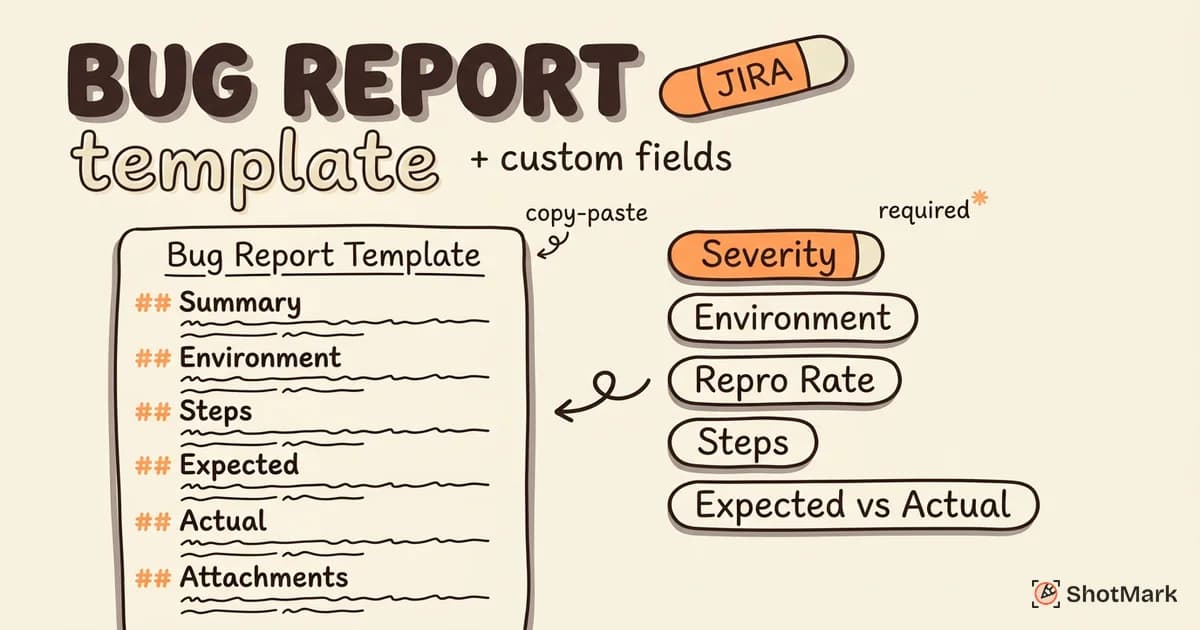
Linear supports issue templates. Create one for bugs with these sections:
- Summary: One-line description of the defect
- Steps to Reproduce: Numbered list
- Expected vs. Actual: Two short statements
- Environment: Browser, OS, URL
- Attachments: Screenshots, console logs
Templates keep reports consistent and save QA engineers from typing the same structure every time.
Step 3: Configure Triage Workflows
Set up auto-assignment rules so new bugs land in a Triage state and get assigned to a team lead. Linear’s automation features let you route bugs by label, priority, or project. High-priority bugs can trigger immediate Slack notifications.
Step 4: Create Views and Filters
Build a custom view that shows all open bugs sorted by priority. Pin this view to your sidebar. QA leads can use this as their daily dashboard. Add filters for assignee, cycle, or label to drill down further.
Step 5: Connect Linear to Slack
Linear’s Slack integration sends notifications when bugs are created, assigned, or change status. Configure a dedicated #bugs channel so the team sees new issues without checking Linear constantly.

Linear vs. Jira for Bug Tracking
How does Linear compare to Jira for bug tracking? The answer depends on your team size, workflow complexity, and how much customization you need.
Speed and UX
Linear is significantly faster. Page loads, transitions, and searches all feel instant. Jira’s interface has improved with the cloud version, but Linear’s UX is built for speed. For QA engineers filing 20 or more bugs per day, the time savings add up.
Custom Fields
Jira wins here. Jira lets you create custom fields for anything: reproduction rate, affected customer segment, browser version. Linear keeps fields minimal and standardized. If your bug tracking process requires extensive custom metadata, the Jira bug tracker is the better fit. For teams setting up Jira for this purpose, our Jira bug tracker setup guide covers the full process.
Integrations
Jira has a larger marketplace with hundreds of plugins. Linear covers the core developer tools (GitHub, GitLab, Slack, Figma, Sentry) and does them well. For most dev teams, Linear’s integrations are sufficient. For enterprise teams with complex toolchains, Jira’s ecosystem is broader. See our Jira integration guide for details on connecting external tools to either platform.
Pricing
Both offer free tiers for small teams. Linear’s free plan covers unlimited issues for up to 250 members with some feature restrictions. Jira’s free tier supports up to 10 users with full functionality. For paid plans, Linear starts at $8/user/month, Jira at $7.75/user/month.
When to Choose Which
Choose Linear if your team is developer-led, values speed over configurability, and wants a clean interface for bug triage. Choose Jira if you need deep field customization, a large integration ecosystem, or your organization already uses Atlassian products. The Jira bug tracker remains the default for enterprise QA, but Linear is a strong alternative for teams under 50 people.
Connecting Bug Capture Tools to Linear
The fastest bug tracking workflow pairs Linear with a browser extension that captures technical context automatically. Manual bug reports in Linear still require typing reproduction steps, copying console errors, and uploading screenshots by hand.
A bug reporting tool like ShotMark captures screenshots, console logs, network request data, and environment details in one click from the browser. The captured data flows into Linear as a complete issue, with attachments and structured fields already filled in.
GitHub Integration
Linear’s GitHub integration links commits, branches, and pull requests to bug issues. When a developer creates a branch from a Linear bug issue, the connection is automatic. Merging the PR can auto-close the bug. This keeps your bug backlog accurate without manual status updates.
Slack Integration
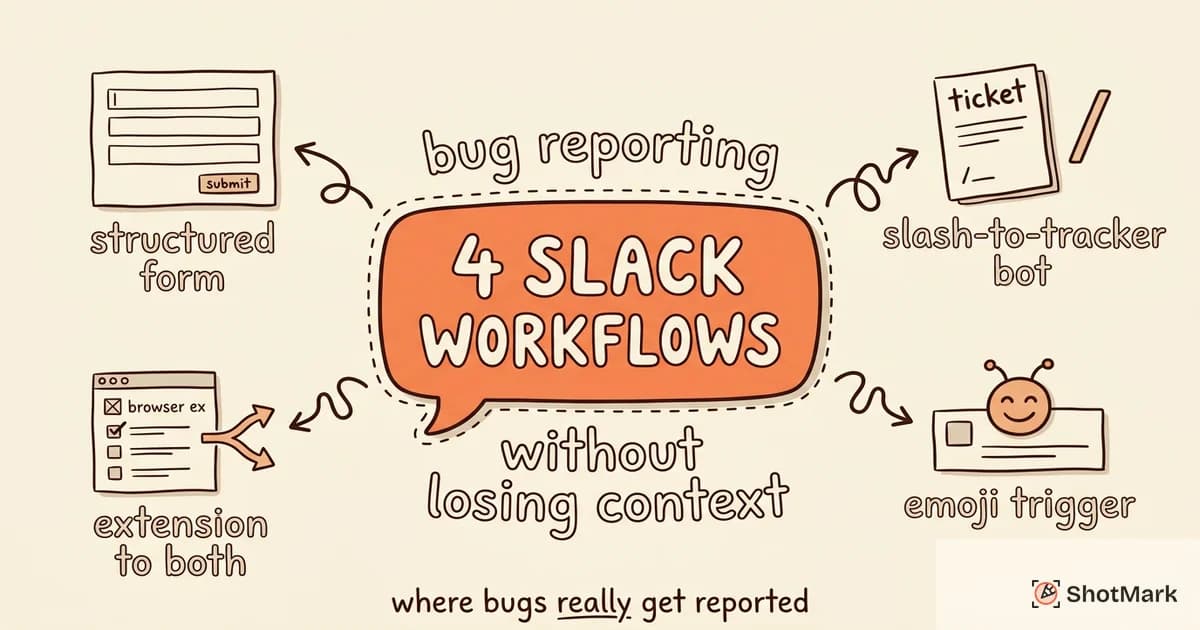
For teams that triage bugs from chat, Linear’s Slack integration lets you create issues directly from Slack messages. Tag the message with a bug label, set priority, and assign it, all without leaving Slack. We have written more about Slack bug reporting workflows and how to keep context intact.
For a broader look at how different tools handle bug capture and tracking, see our bug reporting tools compared guide. It covers Linear integrations alongside other options.
What Comes Next
Linear’s clean interface and speed make bug tracking less painful for developer-led teams. The setup takes minimal effort, and the keyboard-driven workflow fits how developers already work. Pair Linear with a capture tool like ShotMark to fill the gap that Linear does not cover on its own: automatic technical context. Screenshots, console logs, and network data flow directly into Linear issues, so your team spends less time documenting bugs and more time fixing them.
Get new posts in your inbox.
One email when we publish: notes on QA, AI, and shipping faster. No spam, unsubscribe anytime.