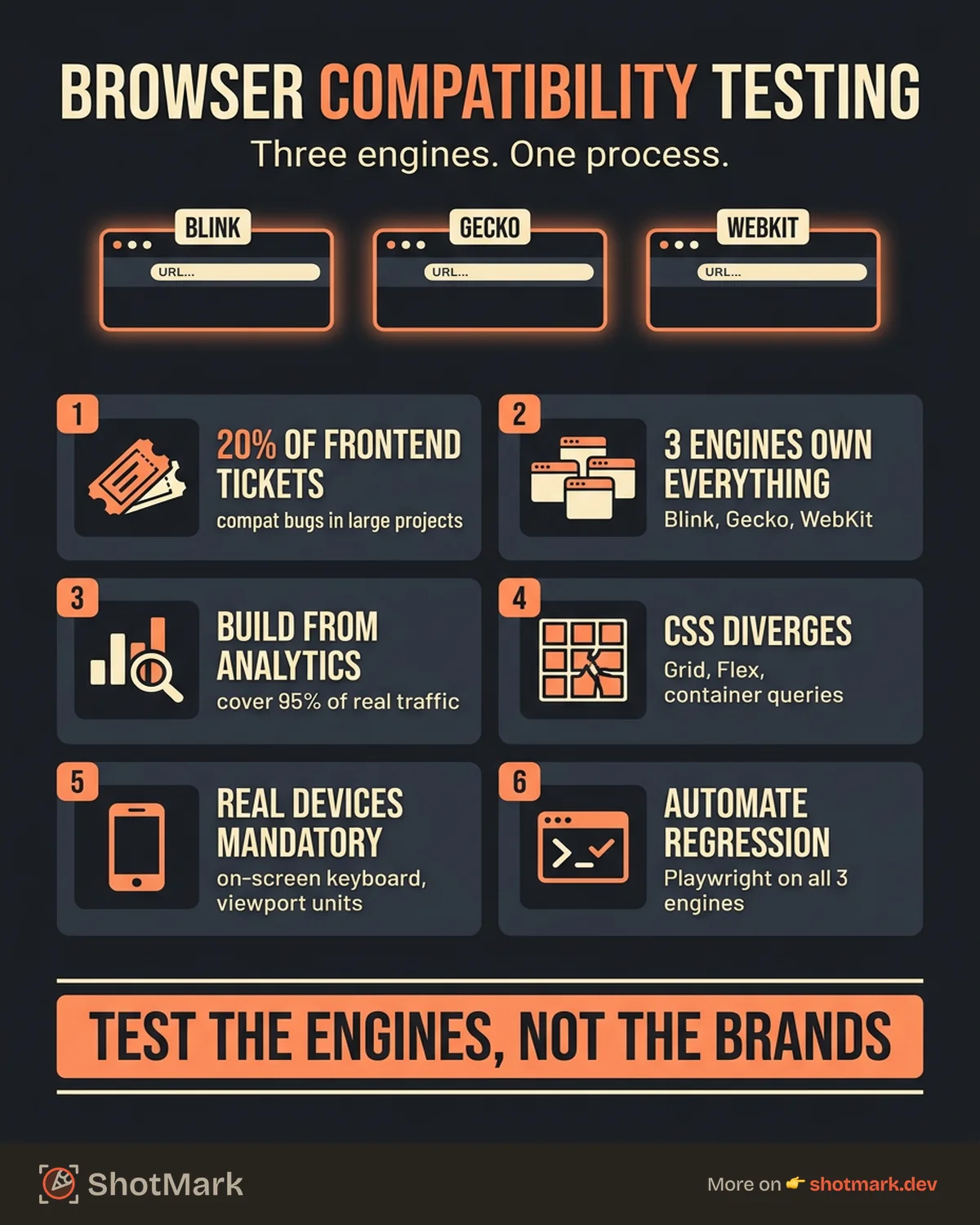
A layout that looks perfect in Chrome can collapse in Safari. A form that validates in Edge can silently fail in Firefox. Browser compatibility bugs account for roughly 20% of frontend tickets in large web projects, and most of them are preventable. The gap between browsers has narrowed over the years, but it has not closed. Modern CSS features, JavaScript APIs, and mobile rendering engines still introduce enough variation to break production sites.
Browser compatibility testing is the practice of verifying that your web application works consistently across browsers, devices, and operating systems. It is different from cross-browser testing tools, which focus on the platforms and frameworks you use. Browser compatibility testing is about the process: what to test, how to test it, and how to fix the bugs you find.
Why Browser Compatibility Still Breaks in 2026
You might expect browser compatibility to be a solved problem by now. It is not, for four reasons.
Modern CSS features have uneven adoption timelines: Container queries shipped in Chrome months before Safari. The :has() selector, subgrid, and @layer all landed at different times across engines. If you use a feature that Chrome supports but Safari does not, your layout breaks for every iOS user.
JavaScript API differences persist: The Clipboard API, Web Bluetooth, Payment Request, and View Transitions API all have different support levels. MDN Web Docs tracks these differences, but most teams do not check before they write code.
Mobile browsers use different rendering engines: iOS forces all browsers to use WebKit, regardless of whether the user installed Chrome, Firefox, or Edge. Samsung Internet uses a customized version of Blink. These mobile engines behave differently from their desktop counterparts in ways that affect layout, scrolling, and input handling.
Teams test in Chrome and assume consistency: Chrome dominance makes it the default development browser. When developers only test in one engine, compatibility bugs reach production undetected. This is the single most common cause of browser compatibility issues in modern web apps, and it is also the easiest one to fix.
The Three Rendering Engines That Matter
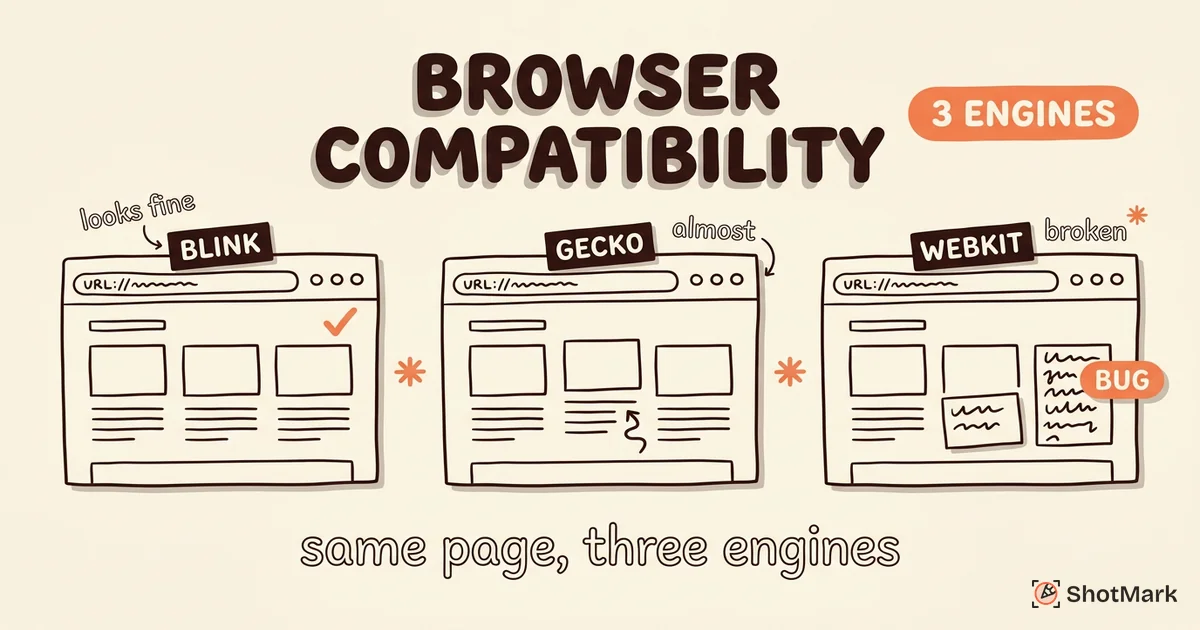
Every browser compatibility issue traces back to one of three rendering engines. Understanding them changes how you test.
Blink powers Chrome, Edge, Opera, Brave, and Samsung Internet. It holds the largest market share, around 70% of desktop traffic according to StatCounter . Blink tends to implement new features first and has the most forgiving rendering behavior. If it works in Blink, it might still break in the other two.
Gecko powers Firefox. It is the only independent engine not controlled by a major platform vendor. Gecko renders some CSS properties differently from Blink, particularly around grid layout and form element styling. Firefox market share is small but concentrated among technical users who file detailed bug reports.
WebKit powers Safari and every browser on iOS. Apple enforces WebKit on all iOS browsers, which means your “Chrome on iPhone” users are actually running WebKit. WebKit has the strictest standards interpretation and the longest feature implementation delays. If your app works in Safari, it probably works everywhere. If it breaks anywhere, it breaks in Safari first.
Knowing the engine matters more than knowing the browser name. Testing across Blink, Gecko, and WebKit gives you coverage for every major browser without testing each one individually. This is how to test browser compatibility for web apps efficiently: target the three engines, not the dozens of browser brands.
A Step-by-Step Browser Compatibility Testing Process
Step 1: Define Your Browser Matrix Based on Analytics Data
Open your analytics tool. Export the browser and device breakdown for the past 90 days. Sort by usage share. Your browser matrix should cover combinations that represent 95% or more of your traffic.
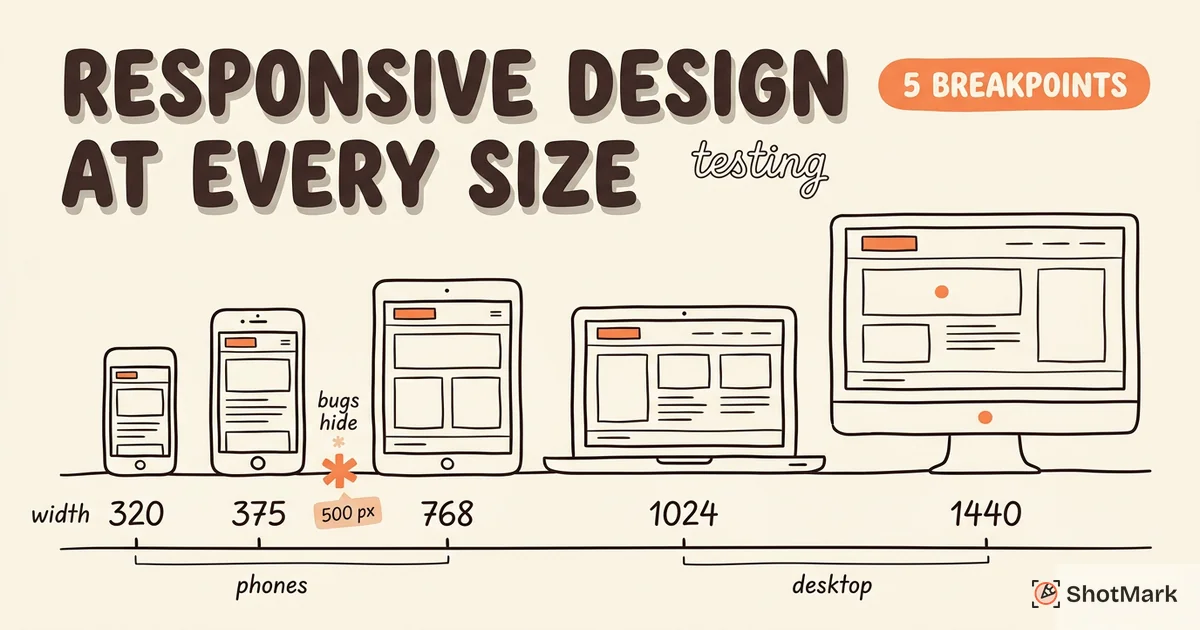
Most teams end up with a matrix like this: Chrome (latest two versions) on Windows and macOS, Safari (latest two versions) on macOS and iOS, Firefox (latest version) on Windows and macOS, Samsung Internet on Android, and Edge on Windows.
Skip browsers and devices below 1% of your traffic. Add them back if users report issues.
Step 2: Test Layout Rendering Across Engines
Run your application through all three rendering engines. Focus on layouts that use CSS Grid, Flexbox, sticky positioning, and container queries. These are the areas where engines diverge most. Pay attention to alignment properties like align-items and justify-content when combined with gap, since Safari handles these combinations differently from Chrome and Firefox.
Check Can I Use before you test. It tells you which CSS properties and JavaScript APIs are supported in each browser version, so you know where to look for problems.
Step 3: Test Interactive Features
Forms, modals, drag-and-drop, animations, and custom scroll behavior all behave differently across browsers. Test form validation specifically. Date inputs, select dropdowns, and file upload controls render differently and fire different events. A dropdown that uses a click-outside listener to close might not register the event correctly on iOS Safari because of how WebKit handles touch event delegation.
Test keyboard navigation and focus management. Tab order and focus-visible styles vary across engines. Accessibility testing is part of responsive testing, not a separate activity. These browser compatibility issues in modern web apps are easy to miss during development because Chrome handles most of these interactions smoothly.
Step 4: Test Progressive Web App Features
Service workers, push notifications, offline mode, and install prompts have inconsistent browser support. Safari’s service worker implementation has stricter cache size limits than Chrome. Firefox handles push notifications differently from Blink-based browsers. Test each PWA feature individually across your matrix.
Step 5: Test on Real Devices for Mobile Browsers
Emulators and simulators do not catch all mobile rendering bugs. Real devices handle touch events, viewport units, the on-screen keyboard, and hardware-accelerated animations differently. Test on at least one real iOS device (for WebKit) and one real Android device (for Blink). The on-screen keyboard alone causes a category of layout bugs that are invisible on desktop: fixed positioning behaves differently, viewport height changes, and scroll containers resize in ways emulators do not replicate.
Cloud platforms like BrowserStack and LambdaTest provide real device access without the cost of maintaining a device lab. If you are serious about how to fix cross-browser rendering bugs on mobile, real device testing is where you start.
Step 6: Automate Regression Checks
Write automated tests with Playwright targeting Chromium, Firefox, and WebKit. Run them on every pull request. Automated tests catch regressions before they reach QA, which frees your team to focus on exploratory testing and edge cases.
For a deeper look at the testing tools available, see our guide to frontend testing tools for every layer of your application.
Common Browser Compatibility Bugs and How to Fix Them
CSS Grid and Flexbox Gaps in Safari
Safari had a long-standing bug where gap in Flexbox containers was not supported. This was fixed in Safari 14.1, but users on older versions still encounter broken layouts. The workaround is to use margin-based spacing as a fallback or to check feature support with @supports. Even with the fix, complex Grid layouts with nested containers and implicit rows can render differently in WebKit compared to Blink. Best practices for browser compatibility testing include adding a visual regression tool that screenshots your layout across all three engines.
Date Input Behavior Variations
Date inputs render differently across every browser. Chrome shows a calendar picker. Firefox shows a text input with minimal formatting. Safari’s date picker varies between desktop and mobile. Test date inputs on every browser in your matrix and consider using a consistent third-party date picker if the native implementations cause confusion.
Scroll Behavior Inconsistencies
scroll-snap, overscroll-behavior, and smooth scrolling behave differently across engines. Safari’s scroll-snap implementation is stricter than Chrome’s. Firefox handles overscroll-behavior differently on touch devices. Test any custom scroll behavior on real devices.
Font Rendering Differences
Browsers render fonts differently because of subpixel antialiasing, hinting, and default font-smoothing. The same font can look bolder in Safari than in Chrome. Use font-smoothing properties carefully and test with your actual typography stack, not system fonts.
Tools That Help With Browser Compatibility Testing
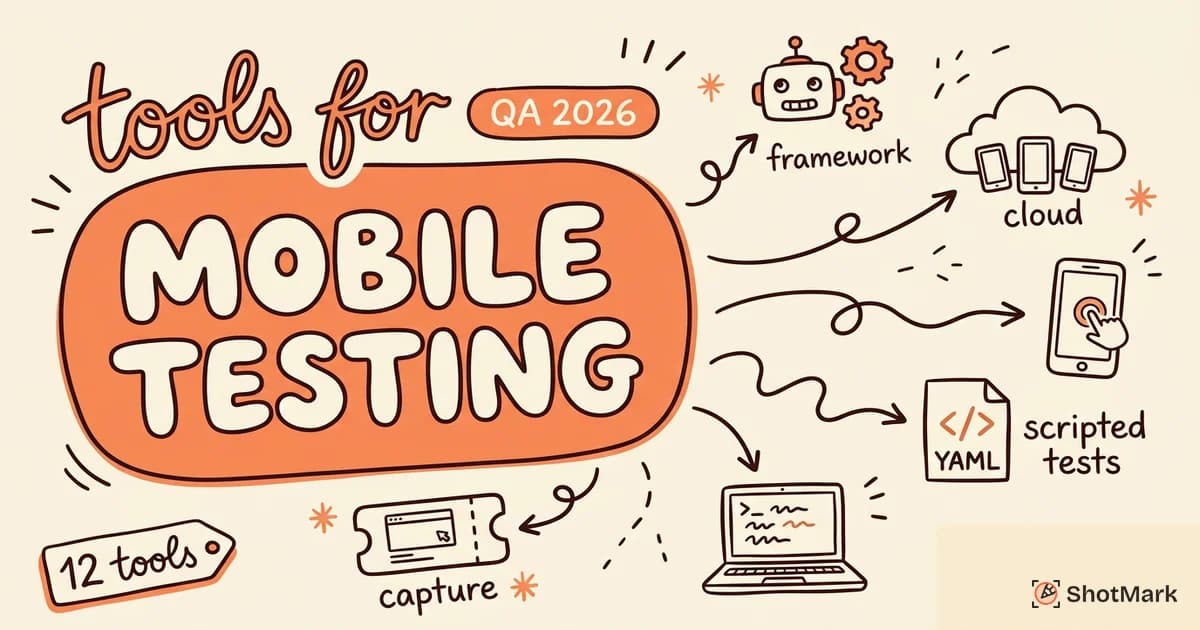
BrowserStack and LambdaTest provide cloud-based access to real browsers and devices. Use them for manual testing sessions and automated test execution. Both platforms integrate with popular CI tools, so you can run your browser compatibility test suite on every commit without leaving your workflow.
Can I Use lets you check feature support before you write code. It is the fastest way to avoid compatibility bugs: look up the property or API, check the support table, and write a fallback if needed. Make this part of your code review process. If a pull request introduces a CSS property or JavaScript API without checking support, flag it.
Playwright and Cypress automate regression testing across browsers. Playwright supports all three engines natively. Cypress runs on Chromium with experimental support for others. Choose based on your team’s expertise and coverage needs.
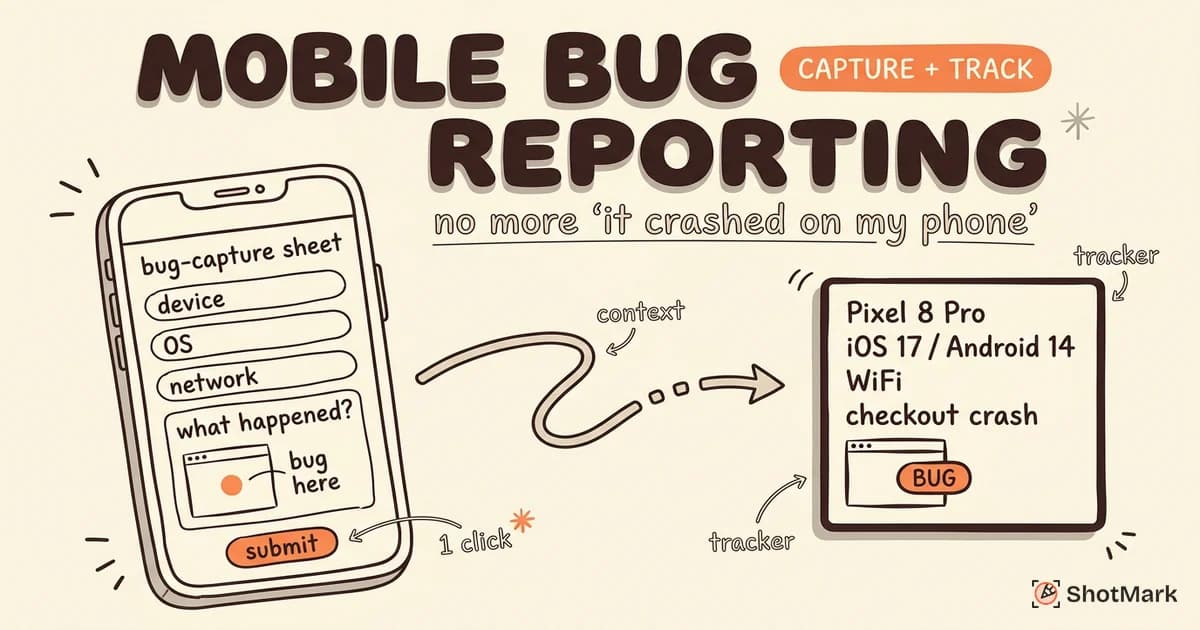
ShotMark captures visual bugs with full technical context. When you find a browser compatibility issue, one click captures the screenshot, browser version, operating system, viewport, console errors, and network requests. Developers get everything they need to reproduce and fix the bug without asking for clarification.
Build a Browser Compatibility Checklist for Your Team
A browser compatibility checklist keeps your team consistent. Here is a template you can adapt. This browser compatibility testing checklist covers the areas most likely to break across engines, ordered by how often we see issues reported.
Layout: Grid, flexbox, container queries, responsive breakpoints, viewport units, overflow handling.
Forms: Input types (date, email, file, range), validation messages, submit behavior, autocomplete, focus management.
Media: Images (responsive srcset, lazy loading), video (autoplay policies, codec support), custom fonts (loading strategy, fallback stacks).
Animations: CSS transitions, keyframe animations, scroll-driven animations, prefers-reduced-motion support.
APIs: Clipboard, notifications, service workers, payment request, geolocation, web storage.
Accessibility: Screen reader behavior, keyboard navigation, focus-visible styles, ARIA support, color contrast. Test with actual assistive technology, not just automated audit tools, because real screen reader behavior varies across browsers in ways that automated checks cannot detect.
Prioritize based on feature complexity and browser usage data. A simple marketing landing page needs less rigorous compatibility testing than a SaaS dashboard with drag-and-drop, real-time collaboration, and offline mode. Update your checklist when you add new features or when browser usage data shifts. A quarterly review of your browser matrix keeps the checklist relevant without adding unnecessary overhead.
Good browser compatibility testing is not about testing everything in every browser. It is about knowing where the gaps are, checking the features that matter, and making sure every bug report includes the context developers need. Use your free browser detection tool to confirm your testing environment, automate what you can, and keep the checklist short enough that your team actually follows it.
Get new posts in your inbox.
One email when we publish: notes on QA, AI, and shipping faster. No spam, unsubscribe anytime.