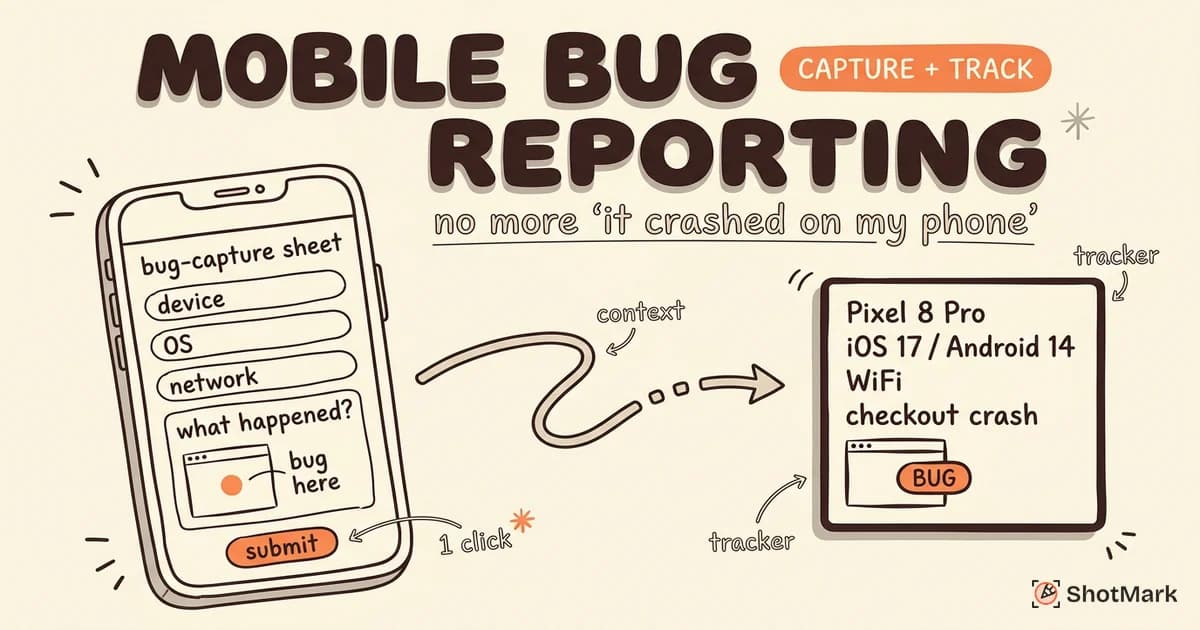
“It crashed on my phone.” That single sentence is the most common mobile bug report, and the least useful. Mobile bugs depend on device model, OS version, screen size, orientation, and network conditions. Without that context, developers spend more time reproducing the issue than fixing it.
Mobile bug reporting is harder than desktop QA for a reason. Testers rarely have the developer tools they rely on when debugging a web app, and the matrix of devices is enormous. This guide covers what a good report includes, how to capture bugs on web, native, and hybrid apps, and which tools actually help QA teams close the context gap.
Why Mobile Bug Reporting Is Harder Than Desktop
On desktop, opening browser DevTools is a reflex. On mobile, it’s a setup task. Safari and Chrome both support remote debugging, but most testers don’t bother connecting a cable and attaching an inspector every time they spot a defect. That gap alone explains why the average mobile report arrives with a screenshot and little else.
Device fragmentation makes things worse. Android ships on thousands of hardware configurations, and iOS adds its own split across iPhones, iPads, and OS versions. Testing on one device says nothing about how the app behaves on another screen size, a slower chipset, or a minor OS variant. If you already track a cross-functional QA process, you know how quickly bug reports that developers actually fix fall apart without device context.
Mobile bugs are also context-dependent in ways desktop bugs rarely are. Rotating the device, switching between WiFi and cellular, pulling down the keyboard, or tapping with two fingers can all surface bugs that disappear in lab conditions. A tester who writes “app froze” without noting orientation, network, or gesture has given the developer almost nothing to work with.
The result is predictable. Testers resort to screenshots and vague descriptions, developers chase phantom bugs, and tickets bounce between “needs info” and “cannot reproduce” until someone gives up. Structured mobile bug reporting fixes that loop.
What a Good Mobile Bug Report Includes
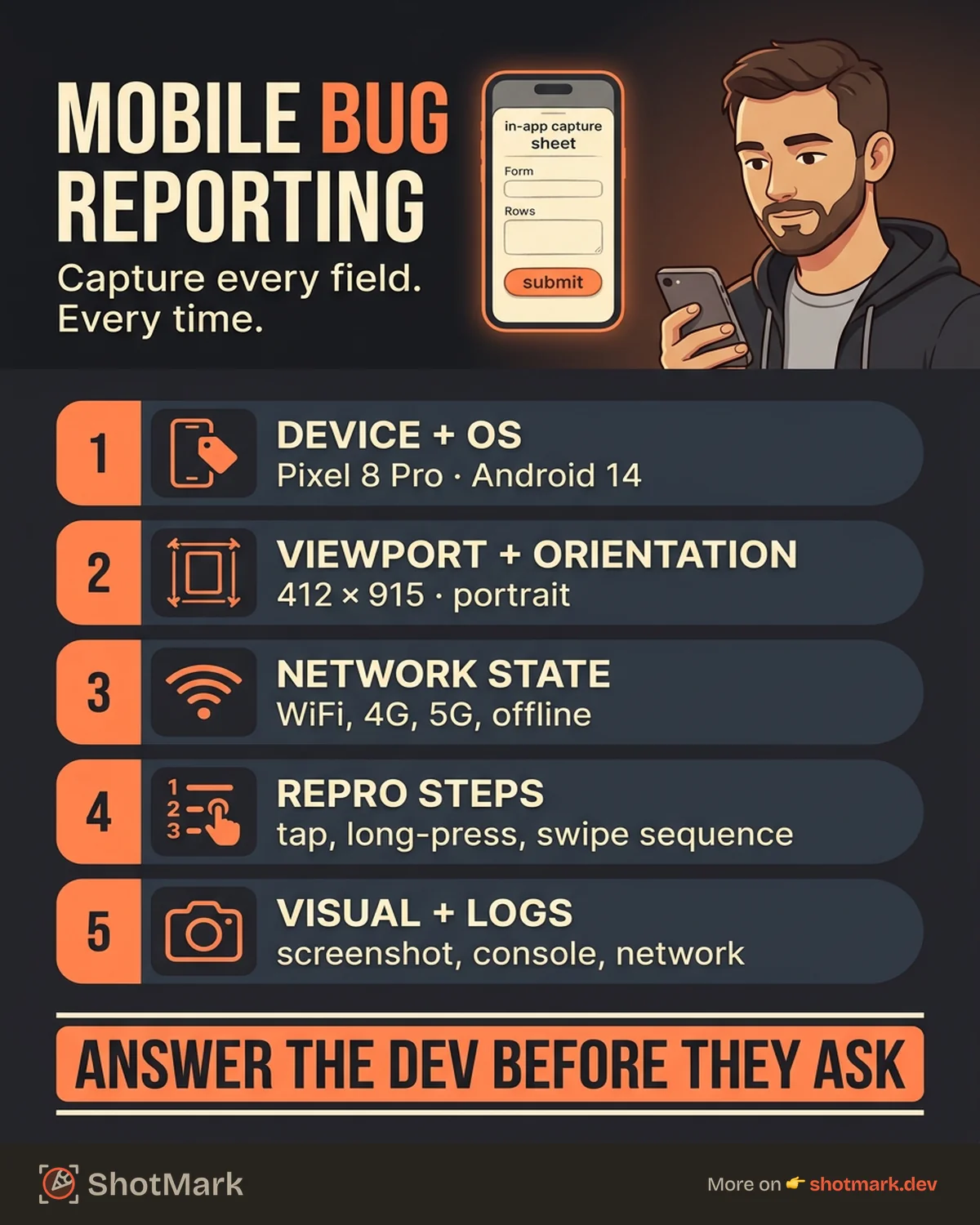
A useful mobile bug report is a checklist, not a paragraph. The goal is to give developers every signal they need so they can reproduce the defect on the first try. At minimum, a report should capture the following fields.
- Device model and manufacturer (for example, Pixel 8 Pro, iPhone 15)
- OS name and version (iOS 17.4, Android 14)
- App version or browser version
- Screen size and orientation at the time of the bug
- Network conditions (WiFi, 4G, 5G, offline, captive portal)
- Steps to reproduce, with touch gestures and keyboard input called out
- Screenshot, screen recording, or annotated visual evidence
- Crash log or console output where accessible
- Expected versus actual behavior in one or two sentences
The closer this looks to a standardized template, the faster triage becomes. Teams that file Jira tickets should start with a bug report template adapted for mobile and add device-specific fields as custom properties. A template works only if testers actually use it, so keep it short, make fields required where possible, and tie each field to a concrete question a developer would otherwise ask.
How to Capture Mobile Bugs Step by Step
Capture depends on what kind of app you’re testing. Mobile web, native, and hybrid apps each have different tooling and different blind spots. Pick the workflow that matches your stack, and standardize it across the QA team.
For Mobile Web Apps
Mobile web bugs live in the browser, which is both a blessing and a trap. Capture tools designed for desktop browsers often skip mobile viewports entirely. ShotMark works inside mobile browsers and grabs the active tab along with console logs and network requests, so QA engineers can file a complete report without switching devices.
When deeper inspection is needed, connect the device to a laptop and use Chrome DevTools remote debugging for Android or Safari Web Inspector for iOS . Both let you view the mobile page in a desktop inspector in real time. They’re powerful, but they take setup, so reserve them for bugs that need DOM or network traces you can’t grab any other way.
For API-heavy issues, a network proxy like Charles or Proxyman routes traffic from the device through your laptop. That’s the cleanest way to capture API payloads, response codes, and timings without baking instrumentation into the app.
For Native Mobile Apps
Native apps live outside the browser, so browser tooling doesn’t apply. Crash reporting SDKs like Firebase Crashlytics and Sentry Mobile automatically capture stack traces, device details, and breadcrumbs when the app crashes. They work silently in production and give developers most of what they need for hard crashes.
Bugs that don’t crash the app, but just behave wrong, need a different layer. In-app feedback widgets from Instabug, Shake, or Usersnap let testers shake the device to trigger a report, which grabs a screenshot, device info, and activity history automatically. That’s usually the cleanest path for logic bugs in native apps.
For very low-level diagnostics, the platforms themselves help. Android’s adb bugreport command packages logs, battery stats, and process details into a single archive, documented in the Android bugreport reference . Apple’s Feedback Assistant does something similar on iOS, collecting sysdiagnose logs for Apple engineering teams. These are heavy tools, but they’re invaluable when a bug touches the OS.
For Hybrid Apps
Hybrid apps, built with React Native, Capacitor, or Flutter, need both web and native capture. A hybrid bug might surface in the web view, the native bridge, or both. Pair remote DevTools for the web layer with a native crash SDK, and make sure your report template has a field for which layer the bug appears in. Hybrid reports that skip this field end up reassigned two or three times before landing on the right engineer.
Mobile Bug Reporting Tools Compared
No single tool covers every mobile QA scenario. The right mix depends on whether you’re shipping a web app, a native app, or both, and how much technical context your developers expect. Here’s how the common tools stack up.
| Tool | Platform | Auto Device Info | Screenshot | Crash Logs | Integrations |
|---|---|---|---|---|---|
| Instabug | iOS, Android | Yes | Yes | Yes | Jira, Slack, GitHub |
| Shake | iOS, Android, web | Yes | Yes | Yes | Jira, Linear, Asana |
| Firebase Crashlytics | iOS, Android, web | Yes | No | Yes | Firebase console, Slack |
| Sentry Mobile SDK | iOS, Android, web | Yes | Replay only | Yes | Jira, GitHub, Slack |
| ShotMark | Mobile web (Chrome, Safari) | Yes | Yes | Yes | Jira, Linear, GitHub (planned) |
Instabug and Shake lead the in-app SDK space. Both auto-attach device data, give testers a shake-to-report flow, and ship with integrations for common issue trackers. Instabug pushes harder on the enterprise side; Shake is lighter and easier to drop into a small team’s workflow.
Firebase Crashlytics and Sentry Mobile are crash-first tools, not general bug reporting tools. They excel at automated stack traces and session replay, but they don’t replace a tester-driven report with screenshots and reproduction steps. Use them alongside a report tool, not instead of one.
ShotMark fits the mobile web side of the stack. QA engineers testing responsive web apps or progressive web apps can capture screenshots, console logs, and network requests from mobile browsers in one click, with device and viewport metadata attached automatically. For teams that live in mobile Safari and Chrome, it removes the need for a separate SDK build.
Building a Mobile Bug Reporting Workflow
Tools alone don’t solve the problem. A workflow does. Five steps turn scattered reports into a predictable pipeline that developers trust.
- Standardize the template: Require device model, OS version, orientation, and network state on every ticket. Make them required fields, not optional ones.
- Equip testers with capture tools: Pick one in-app SDK and one browser-based tool, and make them the default. Consistency beats variety.
- Route reports to project management: Jira, Linear, and GitHub Issues all accept webhooks or API calls from capture tools. Pipe reports directly so nothing sits in a Slack thread.
- Reproduce on matching devices: Developers should use device labs or emulators that match the reported configuration before declaring a bug unreproducible.
- Verify fixes on the original configuration: Close tickets only after QA retests on the exact device and OS that originally reported the issue.
Teams that enforce these five steps cut mobile triage time significantly. BrowserStack’s guidance on mobile app testing is worth reading alongside this workflow, especially for the device selection strategy. If your team is still building out its stack, pair this with our guide on mobile app testing tools for QA teams in 2026 to choose the right device cloud and automation framework.
How Do I Report Bugs on Mobile Apps Without Developer Tools?
Most testers don’t have DevTools open when they find a bug. That’s fine. Capture what you can see and what the OS can tell you. A screenshot plus a screen recording usually conveys more than a text description. Pull device and OS info from the settings screen if your capture tool doesn’t attach it automatically.
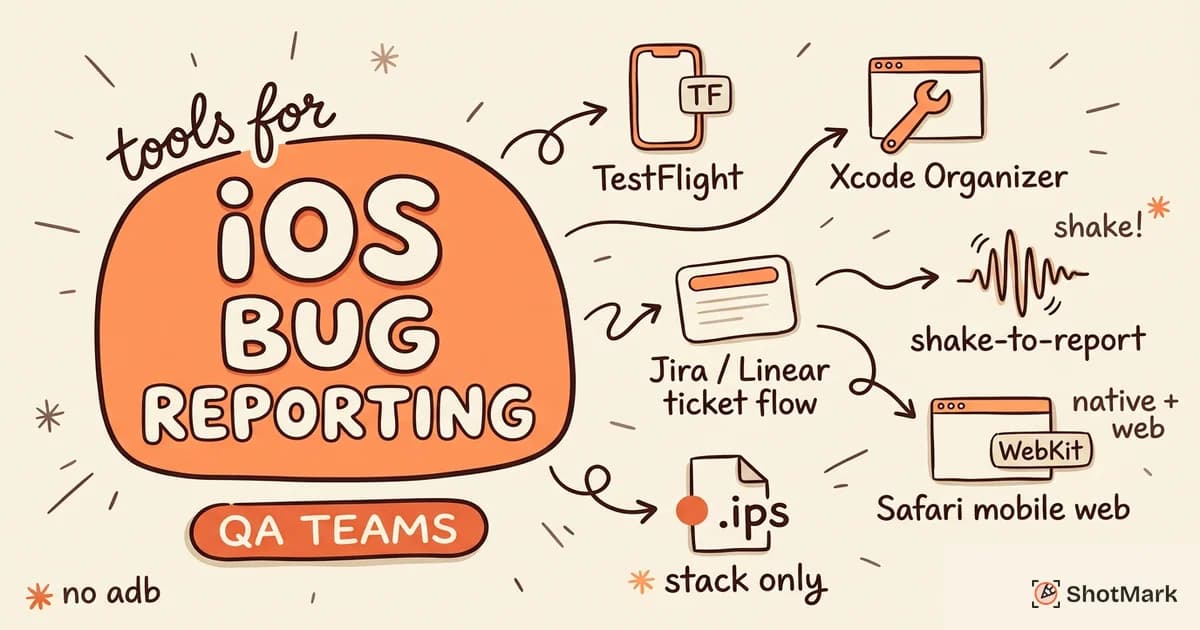
For Android-specific defects, follow our guide on how to capture an Android bug report step by step. For iOS, review iOS bug reporting tools for QA teams to pick the right path between TestFlight feedback, Feedback Assistant, and in-app SDKs. Each platform has its own quirks, and reporting works better when the capture tool respects them.
What Is the Best Way to Report Mobile Bugs to Developers?
The best report is the one that answers every question a developer would ask, before they ask it. That means device model, OS version, network state, reproduction steps, expected and actual behavior, and at least one visual artifact. Tools that auto-attach this data make the workflow sustainable. Without automation, testers skip fields under pressure, and reports degrade over time.
Stop Losing Context on Mobile Bugs
The gap between “it broke” and “here’s exactly what happened” is the difference between a five-minute fix and a two-hour investigation. Structured mobile bug reporting tools close that gap by capturing the technical context testers can’t easily grab by hand.
ShotMark handles one-click capture of screenshots, console logs, network requests, and session replay from mobile browsers, with an open-source SDK planned for native and hybrid apps later this year. If you’re tired of mobile bug reporting that leaves developers guessing, join the waitlist and try the extension on your next mobile QA session.
Get new posts in your inbox.
One email when we publish: notes on QA, AI, and shipping faster. No spam, unsubscribe anytime.