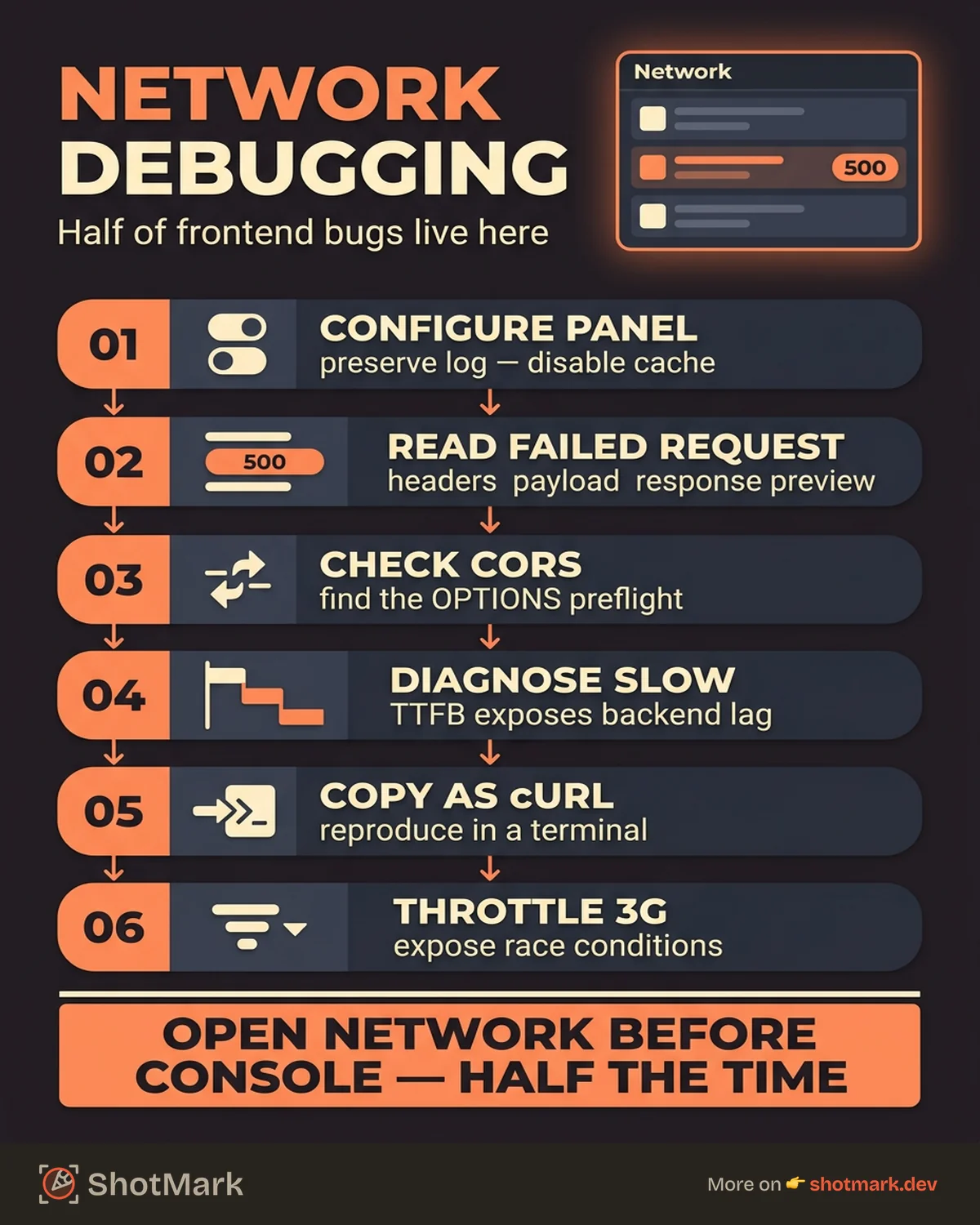
Half of frontend bugs trace back to the network layer. A failed API call, a misconfigured CORS header, a request that takes 8 seconds instead of 200 milliseconds. The Chrome DevTools Network panel is the primary tool for diagnosing these issues, but most developers only scratch the surface of network request debugging. This guide walks through the full workflow, from basic inspection to advanced techniques for isolating and sharing network problems.
Setting Up the Network Panel
Open Chrome DevTools (Cmd+Option+I on Mac, Ctrl+Shift+I on Windows) and click the Network tab. Before you start debugging, configure two settings that save time.
Preserve log: Check “Preserve log” to keep network requests visible across page navigations. Without this, every page change clears the panel, and you lose the request that caused the redirect. Familiarize yourself with the other Chrome inspect shortcuts to speed up your workflow.
Disable cache: Check “Disable cache” (only active while DevTools is open) to ensure you’re testing against fresh responses, not cached ones. Caching issues are a common source of “it works on my machine” bugs.
Filter by type: The toolbar lets you filter requests by type: Fetch/XHR (API calls), JS, CSS, Img, Media, Font, and more. When debugging an API issue, filter to Fetch/XHR to cut through the noise of static asset requests.
If you’re new to Chrome developer mode, start there for the fundamentals, then come back here for network-specific techniques.
Debugging Common Network Issues
Failed Requests (4xx and 5xx Errors)
Failed requests show up in red in the Network panel. Click any request to inspect it.
The Headers tab shows the request URL, method, status code, and all request/response headers. Check the authorization header first. Expired or malformed tokens are the most common cause of 401 and 403 responses.
The Payload tab shows what your frontend sent. Verify the request body matches what the API expects. A common bug: sending Content-Type: application/json with a URL-encoded body, or vice versa.
The Response tab shows what the server returned. For 400 errors, the response body often contains a validation message explaining what went wrong. For 500 errors, the response may be a generic error page (check your server logs for the real stack trace).
The Preview tab renders JSON responses in a collapsible tree, making it easier to inspect complex payloads than reading raw text.
CORS Errors
CORS (Cross-Origin Resource Sharing) errors produce a red failed request in the Network panel and a corresponding error in the Console. The tricky part: the browser often hides the actual response, showing only “CORS error” as the status.
Look for the preflight request. When your frontend makes a cross-origin request with custom headers (like Authorization), the browser first sends an OPTIONS request. If that OPTIONS request fails or returns without the correct Access-Control-Allow-Origin header, the real request never fires.
Diagnosis steps:
- Filter the Network panel to show the failed request
- Look for a preceding OPTIONS request to the same URL
- Check if the OPTIONS response includes
Access-Control-Allow-Originmatching your frontend origin - Verify
Access-Control-Allow-Methodsincludes your request method - Verify
Access-Control-Allow-Headersincludes your custom headers
The fix is always on the server: Configure your API to respond to OPTIONS requests with the appropriate CORS headers. Client-side workarounds (proxies, browser extensions) are development shortcuts that mask the real problem.
Slow Requests
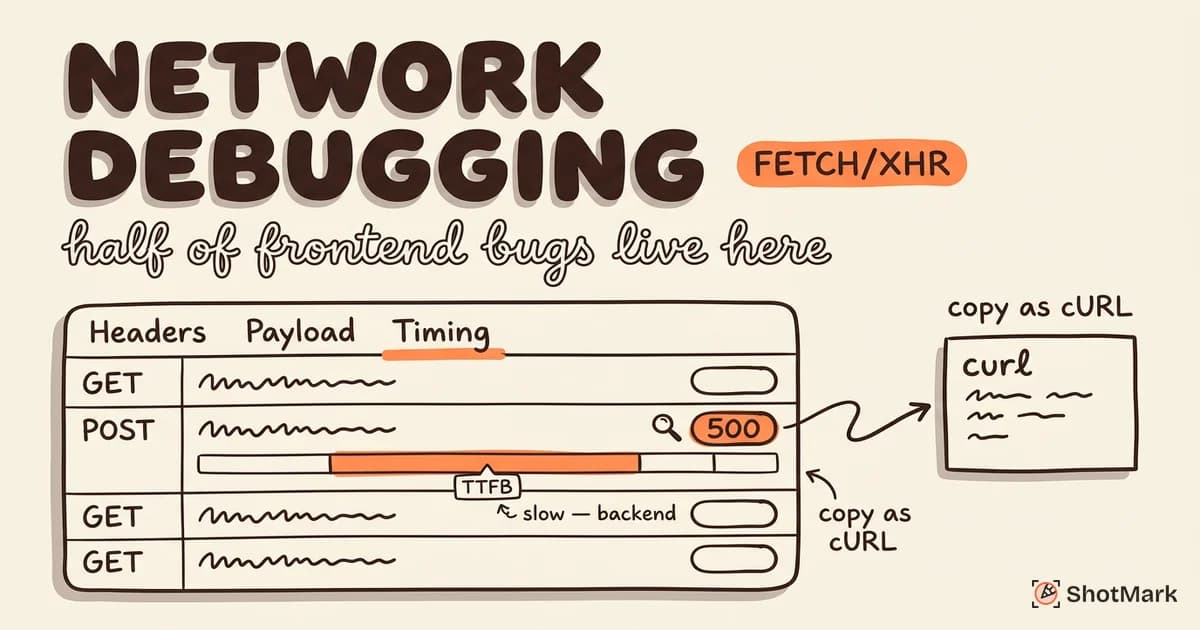
Click a request and look at the Timing tab. The waterfall breaks down every phase of the request:
- DNS Lookup: Resolving the domain name. High values indicate DNS issues.
- Initial Connection / SSL: Establishing the TCP connection and TLS handshake. Should be fast after the first request (connections are reused).
- Waiting for server response (TTFB): Time to First Byte. This is how long the server took to process the request and start sending the response. High TTFB points to a backend bottleneck (slow query, heavy computation, cold start).
- Content Download: Transferring the response payload. High values mean the response is large or the network is slow.
For most frontend developers, TTFB is the key number. If TTFB is 3 seconds on a request that should take 200ms, the problem is on the backend. Share the request details (URL, payload, timing breakdown) with your backend team.
Advanced Network Debugging Techniques
Copy as cURL and Replay
Right-click any request in the Network panel and select “Copy as cURL.” This gives you a terminal command that exactly reproduces the request, including headers, cookies, and body.
This is invaluable for two scenarios. First, you can replay the request from your terminal to confirm whether the issue is in the browser or in the server. Second, you can paste the cURL command into a Slack message or bug report so the backend developer can reproduce the exact request without setting up the frontend.
Exporting HAR Files
A HAR (HTTP Archive) file is a JSON-formatted log of all network requests captured during a session. It includes URLs, headers, payloads, response bodies, and timing data.
When to export: When a bug involves a complex sequence of API calls (authentication flow, multi-step form submission, race conditions between parallel requests), a single request screenshot is insufficient. The HAR file preserves the full sequence.
How to export: Right-click anywhere in the Network panel request list and select “Save all as HAR with content.” The resulting file can be opened in Chrome DevTools, shared with teammates, or uploaded to analysis tools.
Caution: HAR files contain sensitive data, including cookies, authentication tokens, and request/response bodies. Sanitize them before sharing externally.
Throttling for Real-World Testing
Your development machine has a fast, stable internet connection. Your users might not. The Network panel’s throttling dropdown lets you simulate slower connections.
Slow 3G simulates a mobile connection with ~400kbps download speed. Use this to test whether your loading states work, your timeouts are long enough, and your app remains functional under constrained bandwidth.
Offline mode lets you test your app’s offline behavior. Does the service worker serve cached content? Do failed requests retry gracefully?
Throttling reveals bugs that fast connections hide: race conditions between requests, timeout values that are too aggressive, and loading states that never appear because data arrives instantly on localhost.
Sharing Network Data in Bug Reports
Finding the network issue is one thing. Communicating it to the developer who can fix it is another.
Screenshots of the Network tab fall short: They capture the request list but not the headers, payload, or timing details. The developer receiving the screenshot will ask follow-up questions: “What was the request body?” “What did the response say?” “What were the headers?”
Manual HAR exports are thorough but cumbersome: Exporting a HAR file, sanitizing it, attaching it to a ticket, and then having the developer import it into their own DevTools works, but nobody wants to do that for every bug.
ShotMark captures network requests alongside screenshots and console logs automatically. When you capture a bug with ShotMark, the network data (request URLs, methods, status codes, timing, and payloads) travels with the visual context. The developer sees the broken UI, the console errors, and the failed API call in one view, not across three separate attachments.
This matters most for bugs that involve a chain of requests. An authentication token expired mid-session, causing a 401 on a data fetch, which triggered a redirect to the login page, which broke the user’s unsaved form data. That story is hard to tell in a screenshot. It’s easy to tell when the network log is attached.
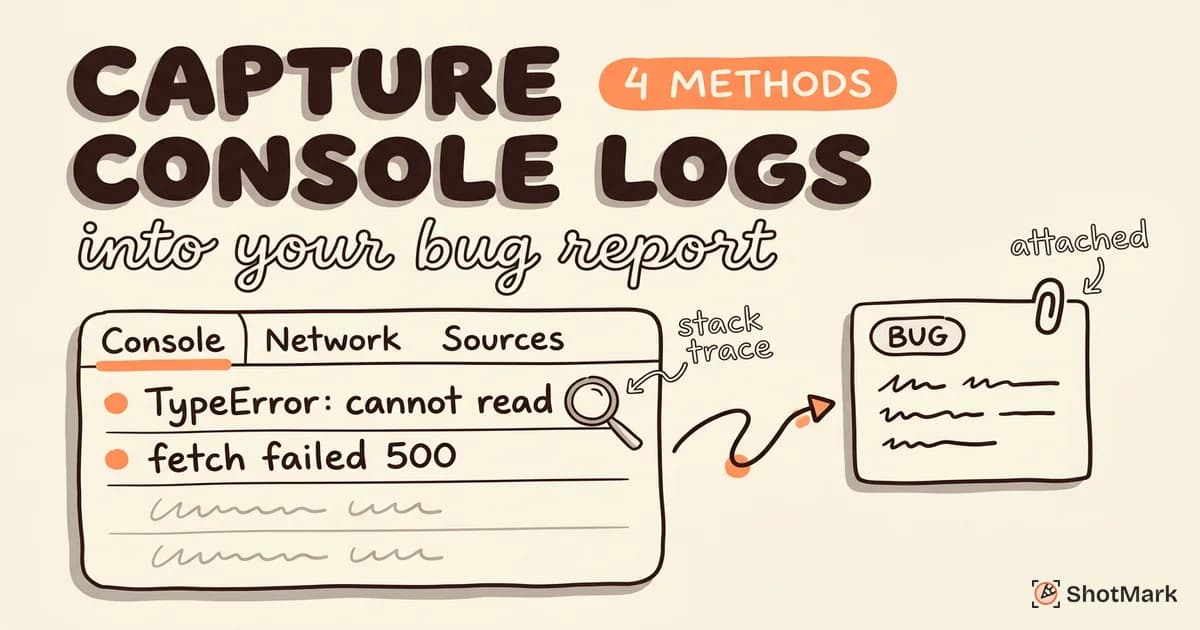
For more on capturing console logs for bug reports, we’ve published a companion guide. And for a broader look at developer productivity tools that complement network debugging, see our curated list.
The Skill That Separates Senior From Junior
Network request debugging is a skill that compounds. Junior developers see a failed request and say “the API is broken.” Senior developers inspect the headers, check the timing breakdown, reproduce the request with cURL, and file a bug report that points to the exact backend handler, the malformed request body, or the expired token.
Build the habit of opening the Network panel before the Console. Half the time, the console error is a symptom of a network failure, and the Network tab shows you the cause.
When you find the issue and need to share it, ShotMark captures the network requests, console output, and page screenshot in one click. No more “can you send me the HAR file?” Join the waitlist .
Get new posts in your inbox.
One email when we publish: notes on QA, AI, and shipping faster. No spam, unsubscribe anytime.