Accessibility testing catches usability issues that affect 16% of the global population, according to the WHO . Yet most QA teams skip it entirely. The problem isn’t awareness. It’s that teams don’t know where to start, which tools to trust, or how to build accessibility checks into their existing workflow.
We’ve seen teams treat accessibility as a pre-launch checkbox instead of an ongoing practice. That approach always fails. Accessibility testing works best when it’s woven into every sprint, not bolted on at the end.
What Is Accessibility Testing (and Why QA Teams Can’t Skip It)
Web accessibility testing means verifying that your website or application is usable by people with disabilities. This includes visual, auditory, motor, and cognitive impairments. The WCAG 2.2 standard defines three conformance levels:
- Level A: Minimum requirements. Things like text alternatives for images and keyboard operability.
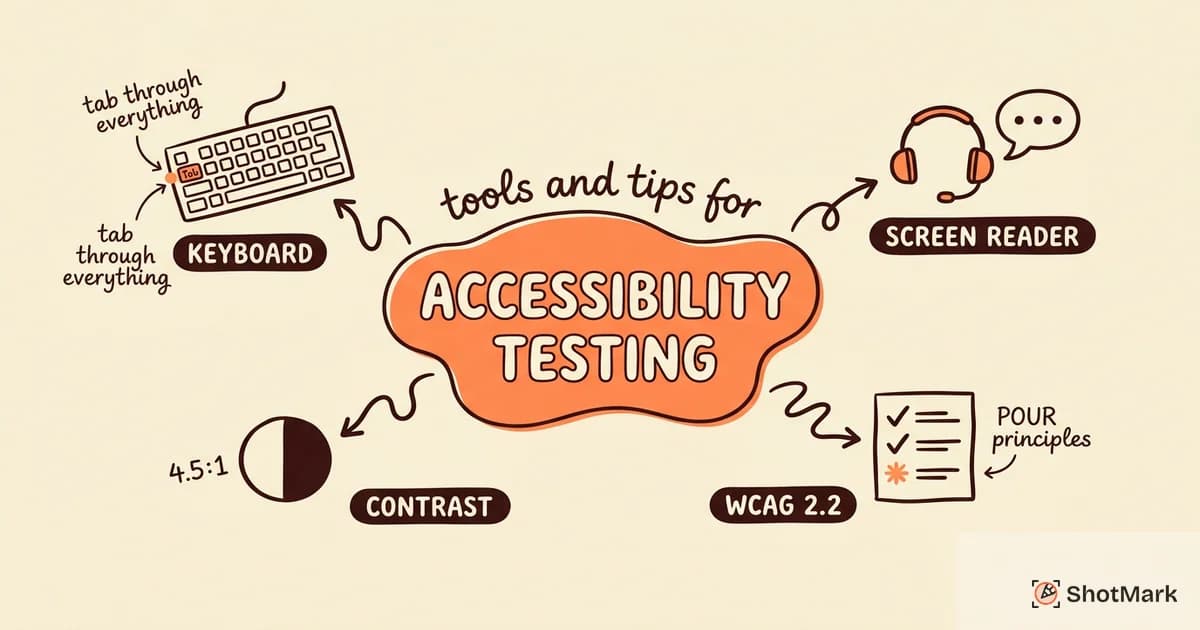
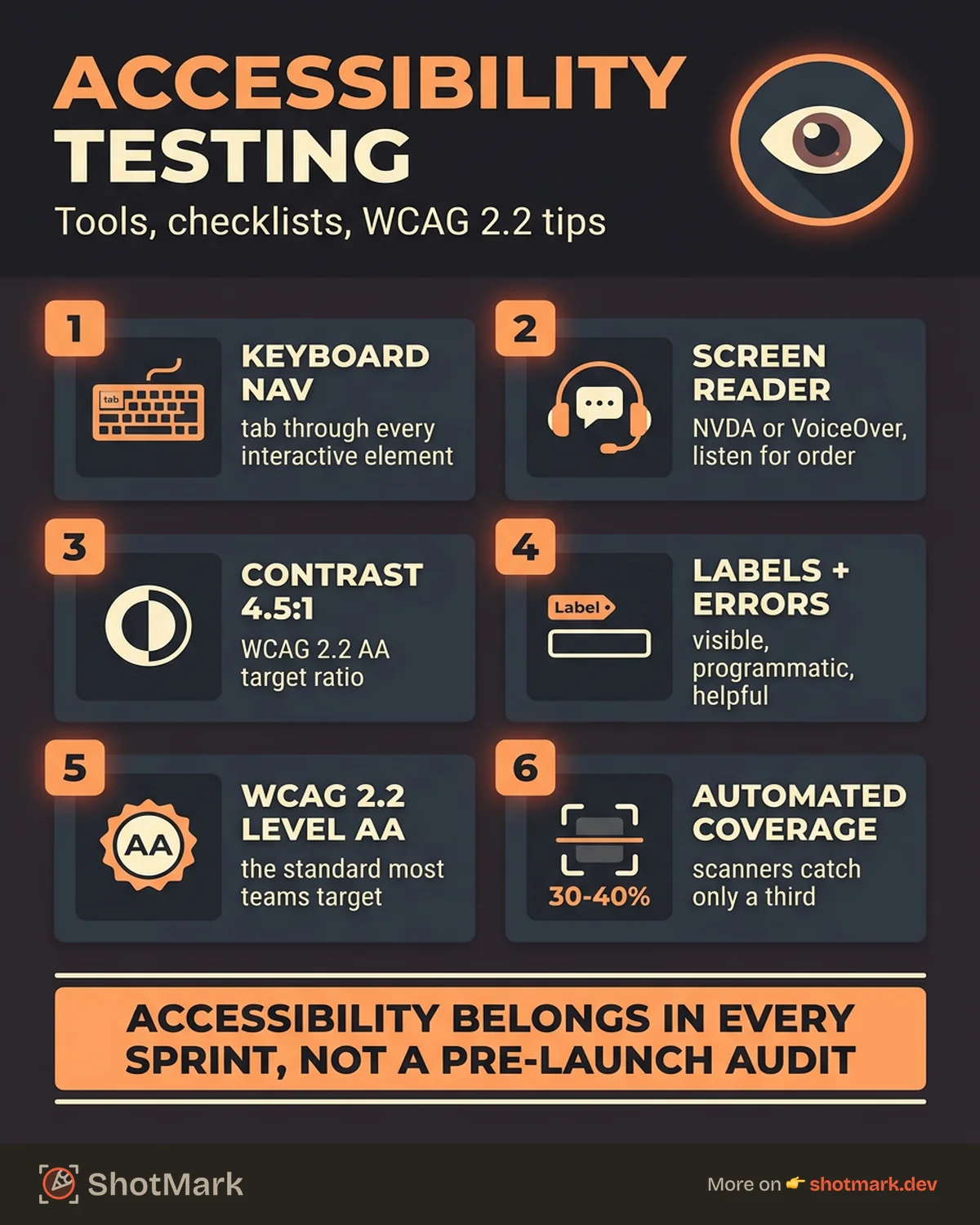
- Level AA: The standard most organizations target. Covers color contrast ratios (4.5:1), meaningful link text, and consistent navigation.
- Level AAA: Enhanced requirements. Rarely targeted as a blanket standard because some criteria conflict with each other.
Legal exposure is real. ADA digital accessibility lawsuits continue to rise year over year, tracked by organizations like UsableNet . Compliance isn’t optional, and “we didn’t know” isn’t a defense.
The business case extends beyond legal risk. Accessible sites serve more users, rank better in search engines, and generate fewer support tickets. When forms have proper labels and error messages, fewer people email your support team.
Accessibility belongs in QA, not as a surprise audit two days before launch.
Manual Accessibility Testing Techniques
Automated tools catch roughly 30-40% of WCAG issues, a figure consistently cited in WebAIM’s research . The rest requires manual testing. Your accessibility checklist should include these core techniques.
Keyboard-Only Navigation
Unplug your mouse. Tab through every interactive element on the page. Can you reach all buttons, links, and form fields? Does the focus indicator show clearly? Does the tab order follow the visual layout? If you get stuck in a modal or skip a dropdown, that’s a failure.
Screen Reader Testing
Use NVDA on Windows or VoiceOver on macOS and iOS. Navigate your app with the screen reader active. Does the content announce in a logical order? Are images described? Do dynamic updates (toasts, modals, cart counts) get announced?
Screen reader testing reveals problems that no scanner can detect. ARIA labels might be present but read in a confusing order. Custom widgets might trap focus or skip announcements entirely.
Color Contrast and Visual Checks
Browser DevTools include contrast ratio checkers. Use them. Also test your page at 200% and 400% zoom. Text should remain readable, layouts shouldn’t overflow, and interactive elements shouldn’t collapse.
Check form labels and error messages. Every input needs a visible, programmatic label. Error messages must describe the problem and suggest a fix, not just say “invalid input.”
Best Accessibility Testing Tools for Web Teams
Manual testing is essential, but tools speed up the process. Here’s how we categorize the options.
Automated Scanners
axe DevTools from Deque is the most widely used accessibility scanner. It integrates with browser DevTools, CI pipelines, and testing frameworks. WAVE provides a visual overlay that highlights issues directly on the page. Google’s Lighthouse accessibility audit gives a quick score with actionable suggestions.
These tools share a critical limitation: they catch syntax-level issues (missing alt text, empty links, low contrast) but miss semantic and interactive problems (wrong ARIA roles, broken focus management, confusing screen reader output).
Browser Extensions
- axe : Fast automated scans from the browser toolbar
- ARC Toolkit : Detailed diagnostics with guided fixes
- Accessibility Insights : Microsoft’s tool with both fast and detailed scan modes
Extensions work well for quick checks during development. Run them on every page before submitting a pull request.
CI/CD Integration
For continuous accessibility testing, integrate axe-core with Jest or Playwright tests. pa11y runs automated checks in your pipeline and fails builds on regressions.
// Example: axe-core with Playwright
const { axe } = require('axe-core');

test('homepage has no accessibility violations', async ({ page }) => {
  await page.goto('/');
  const results = await page.evaluate(() => axe.run());
  expect(results.violations).toHaveLength(0);
});
Design-Stage Tools
Catch issues before code exists. Stark is a Figma plugin that checks contrast ratios and simulates color blindness during design. The Colour Contrast Analyser from TPGi does similar checks outside the browser.
A Practical WCAG Checklist for Every Sprint
The WCAG principles organize into four categories. Here’s a checklist your team can use per sprint, with the issues automated tools miss most often.
Perceivable
- All images have meaningful alt text (not “image” or “spacer”)
- Video content has captions and transcripts
- Color is not the only way information is conveyed
- Text resizes up to 200% without loss of content
Operable
- All functionality works with keyboard alone
- Focus order follows the visual layout
- No keyboard traps exist anywhere on the page
- Users have enough time to read and interact with content
Understandable
- Form fields have visible, programmatic labels
- Error messages identify the problem and suggest a fix
- Navigation is consistent across pages
- Language is defined in the HTML attributes
Robust
- ARIA attributes are used correctly (not overused)
- Custom widgets follow ARIA authoring practices
- Dynamic content updates are announced to assistive technology
- The page validates without critical HTML errors
What Automated Tools Miss
Dynamic content changes, custom dropdown menus, modal focus trapping, and ARIA live regions all require manual verification. Automated tools also can’t judge whether alt text is meaningful or whether the reading order makes sense.
Fix Level A issues first, then move to AA. Embed this checklist into your QA sign-off process so every feature gets reviewed before it ships.
Fitting Accessibility Testing Into Your QA Workflow
The most effective teams shift accessibility left. Designers check contrast during mockups. Developers run axe on every pull request. QA does manual audits per sprint.
Here’s a practical cadence:
- Automated scans on every PR via axe-core or pa11y in CI
- Keyboard and screen reader spot checks per sprint for new features
- Quarterly deep audits covering the full application
When you file accessibility bugs, include the screen reader behavior you observed, the current DOM state, and the ARIA attributes in play. Generic reports like “the modal isn’t accessible” don’t help developers fix the problem.
ShotMark captures the context that makes accessibility bug reports actionable. When a tester finds a keyboard trap or a missing ARIA label, the extension records the DOM state, focus position, and page structure alongside the screenshot. Developers get everything they need to reproduce and fix the issue without asking follow-up questions.
Accessibility testing is one layer of a complete QA strategy. Teams that build it into their workflow catch issues early, ship faster, and serve every user who interacts with their product.
Get new posts in your inbox.
One email when we publish: notes on QA, AI, and shipping faster. No spam, unsubscribe anytime.