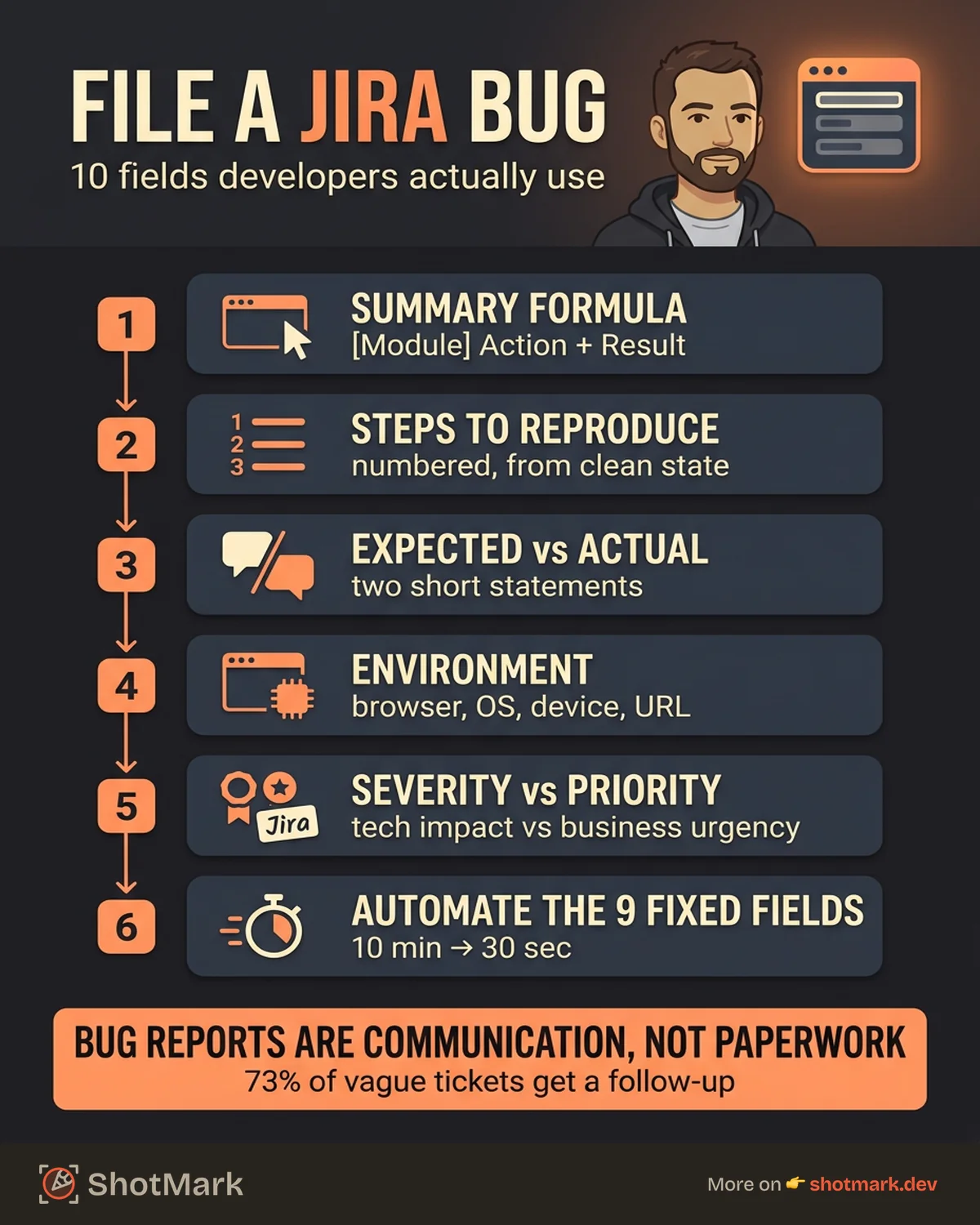
A Jira bug report takes the average QA engineer 10 minutes to file manually, and developers still ask follow-up questions 73% of the time. The problem is not Jira itself. The problem is that most teams treat bug reporting as a form-filling exercise instead of a communication tool.
This guide walks through every step of creating a bug report in Jira that is clear, complete, and actionable. We cover the fields that matter, show real before-and-after examples, and explain how to automate the slowest parts of the process.
What Is a Jira Bug Report?
In Jira, a bug report is an issue with the type set to “Bug.” It is the standard way teams document software defects, track their status, and assign them to the right developer.
Jira supports several issue types (Story, Task, Epic, Sub-task), but the Bug type comes with specific fields and workflows designed for defect tracking. When you set up Jira as a bug tracker, the Bug issue type gives you fields like severity, environment, and steps to reproduce that other issue types do not include by default.
Bug Report vs. Defect Report
Some teams use “bug report” and “defect report” interchangeably. In practice, they mean the same thing. “Bug report” is the more common term in agile teams, while “defect report” tends to show up in formal QA documentation aligned with ISTQB testing standards. What is the difference between a bug report and a defect report? Functionally, nothing. The distinction is mostly cultural.
Structured bug reports in Jira reduce resolution time because they give developers everything they need in one place. No Slack threads. No screen-share calls. No guesswork.
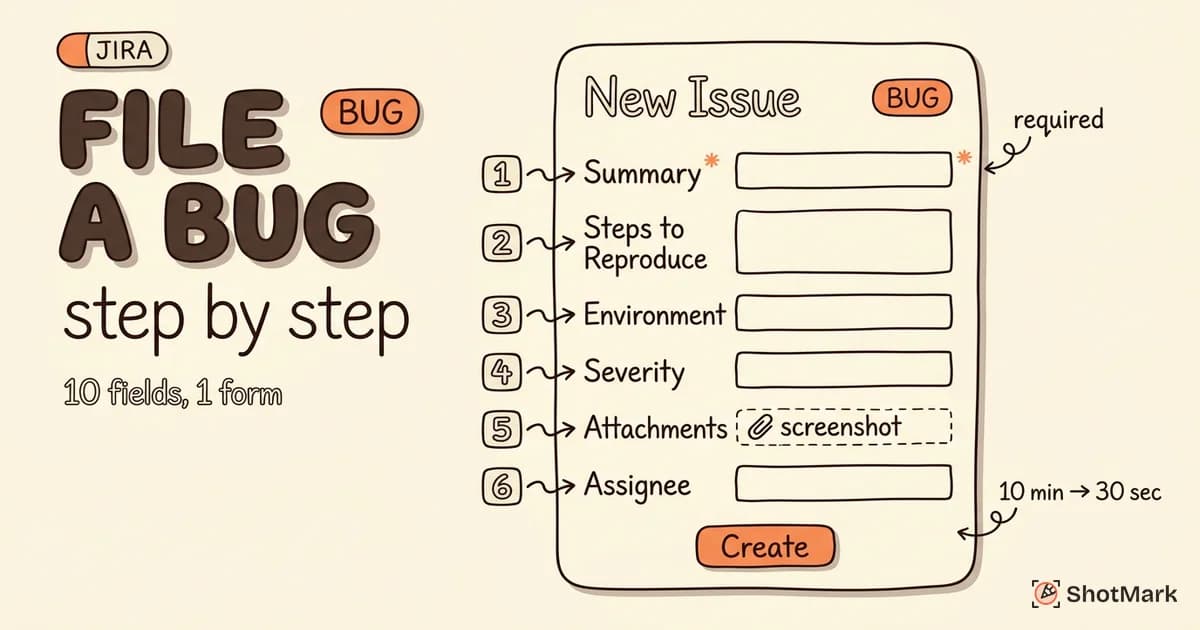
The 10 Fields Every Jira Bug Report Needs
Every Jira bug report should include these 10 fields. Skip one, and you will almost certainly get a follow-up question. You can download a ready-made Jira bug report template to get started, or reference Atlassian’s official bug report template for the default field layout.
Summary (Title)
Use a formula: [Module] Action that fails + observed result.
Good: “[Checkout] Submit order button returns 500 error on Safari.” Bad: “Button doesn’t work.”
The summary is the first thing a developer reads in their backlog. Make it specific enough that they can triage without opening the ticket.
Description
Provide context that does not fit neatly into other fields. Include prerequisites (user must be logged in, cart must have three or more items), relevant account details, and any initial observations about the root cause.
Steps to Reproduce
Numbered, precise, starting from a clear starting state.
- Log in as a test user on staging.
- Add three items to the cart.
- Navigate to checkout.
- Click “Submit Order.”
- Observe: 500 error returned, order not created.
If you cannot reproduce the bug reliably, note the reproduction rate (e.g., “Occurs 3 out of 5 attempts”).
Expected Result vs. Actual Result
Two short statements.
- Expected: Order is created and confirmation page displays.
- Actual: 500 error returned. No order created. Console shows
TypeError: Cannot read property 'id' of undefined.
Environment
Browser, OS, device, screen resolution, and whether the bug occurred on staging or production. This field eliminates the most common follow-up question from developers.
Priority and Severity
These are not the same thing. Severity measures technical impact (Critical, Major, Minor, Trivial). Priority measures business urgency (Highest, High, Medium, Low, Lowest). A typo on the homepage is low severity but potentially high priority.
Components and Labels
Use components to map bugs to code areas (Frontend, API, Auth, Payments). Use labels for cross-cutting concerns (regression, flaky, accessibility). These help teams filter and triage efficiently.
Attachments
Screenshots, screen recordings, console log exports, HAR files. Visual evidence eliminates ambiguity. Annotate screenshots to highlight the exact area of the bug.
Assignee and Reporter
Set the reporter to whoever found the bug. Assign it to the responsible developer or team lead. If you are unsure, assign to the team lead for triage.
Affected Version / Fix Version
Affected version tells developers when the bug was introduced. Fix version tells them which release should include the fix. Both are important for release planning and regression tracking.
Step-by-Step: Creating a Bug Report in Jira
Here is the complete process for filing a Jira bug report, from opening Jira to clicking submit.
Step 1: Navigate to Your Project and Click “Create”
Open your Jira project and click the Create button in the top navigation bar (or press C as a keyboard shortcut). This opens the issue creation dialog.
Step 2: Select “Bug” as the Issue Type
In the issue type dropdown, select Bug. This loads bug-specific fields like severity and environment. If you do not see the Bug type, your project admin needs to add it to the issue type scheme.
Step 3: Write a Clear, Descriptive Summary
Follow the formula from earlier: [Module] Action + Observed Result. Keep it under 80 characters so it displays fully in backlog views.
Step 4: Fill in the Description Using a Structured Template
Use a template to keep descriptions consistent across your team. A solid template includes sections for prerequisites, steps to reproduce, expected and actual results, and technical context.
You can also reference BrowserStack’s Jira bug report tutorial for an alternative description format that works well for web application testing.
Step 5: Set Priority and Severity
Choose severity based on technical impact. Choose priority based on business need. When in doubt, set severity accurately and let the product owner adjust priority during triage.
Step 6: Add Environment Details
Fill in the environment field with browser name and version, OS, device type, and the URL where the bug occurred. Copy-paste your browser’s user agent string if you want to be thorough.
Step 7: Attach Screenshots and Evidence
Drag and drop screenshots, screen recordings, or log files into the attachment area. Annotate screenshots to point out exactly where the problem appears. If the bug involves a network error, export the request as a HAR file and attach that too.
Step 8: Assign to the Right Developer or Team
If your team uses component leads, assign based on the affected component. If not, assign to the team lead or leave it unassigned for triage.
Step 9: Add Labels and Components
Tag the bug with relevant labels (regression, P0, accessibility) and assign it to the correct component. This makes filtering and dashboard views accurate.
Step 10: Review and Submit
Before clicking Create, read through the full report. Check that your steps to reproduce are clear to someone who has not seen the bug. Verify attachments uploaded correctly. Then submit.
Jira Bug Report Example: Before and After
The difference between a useful Jira bug report and a useless one comes down to specificity.
The Bad Report
Summary: “Checkout broken” Description: “The checkout doesn’t work. It shows an error.” Steps to Reproduce: (empty) Environment: (empty) Attachments: (none)
A developer receiving this report has to find the reporter, schedule a call, reproduce the bug themselves, and figure out the environment. That is 30 or more minutes before they have even started debugging.
The Good Report
Summary: “[Checkout] Submit order returns 500 on Safari 17.2 when cart has 3+ items”
Description: “After adding 3 or more items to the cart and proceeding to checkout, clicking Submit Order returns a 500 error. The order is not created. Console shows TypeError: Cannot read property 'id' of undefined at checkout.js:142. This only occurs on Safari. Chrome and Firefox work correctly.”
Steps to Reproduce:
- Log in as testuser@example.com on staging.
- Add 3 items to cart (any items).
- Go to /checkout.
- Click “Submit Order.”
- Observe 500 error.
Expected: Order created, redirect to /confirmation. Actual: 500 error, no order created, console error at checkout.js:142. Environment: Safari 17.2, macOS Sonoma 14.3, MacBook Pro 16”. Attachments: Annotated screenshot, console log export, HAR file.
This report gives the developer everything. They can start debugging immediately. In our testing, teams that use structured Jira bug reporting like this spend 30% less time on clarification follow-ups.
How to Automate Jira Bug Reports With Browser Extensions
Filing a complete bug report manually takes time. Capturing a screenshot, opening dev tools, copying console errors, noting the URL and browser version, writing reproduction steps, then pasting it all into Jira. That is 10 minutes per bug on a good day.
Browser extensions compress this to about 30 seconds. Tools like ShotMark capture screenshots, console logs, network requests, and environment data in one click. The captured data maps directly to Jira fields, so you are not copying and pasting between tabs.
The integration flow works like this: the browser extension captures technical context from the active tab, packages it into a structured report, and sends it to Jira via API. Fields like environment, attachments, and description are auto-populated. The QA engineer adds reproduction steps and a summary, then submits.
For teams that want to connect bug reporting tools to Jira, the setup typically involves authenticating with your Jira instance and mapping captured data to custom fields.
The time difference is significant. Manual Jira bug tracking means 10 minutes per report. Automated capture brings that down to 30 seconds of active effort, with richer technical context than a manual report would typically include.
Does Jira Have Built-in Bug Tracking?
Yes. Jira has native bug tracking built into every Software project. The Bug issue type comes with default fields for severity, environment, and reproduction steps. Jira also includes workflow states (Open, In Progress, In Review, Done) that map to a standard bug lifecycle. For a deeper look, Atlassian documents their Jira bug tracking features on their product page.
You can also set up automation rules in Jira to auto-assign bugs based on component, escalate bugs that sit in Triage for more than 48 hours, or notify teams in Slack when a critical bug is filed.
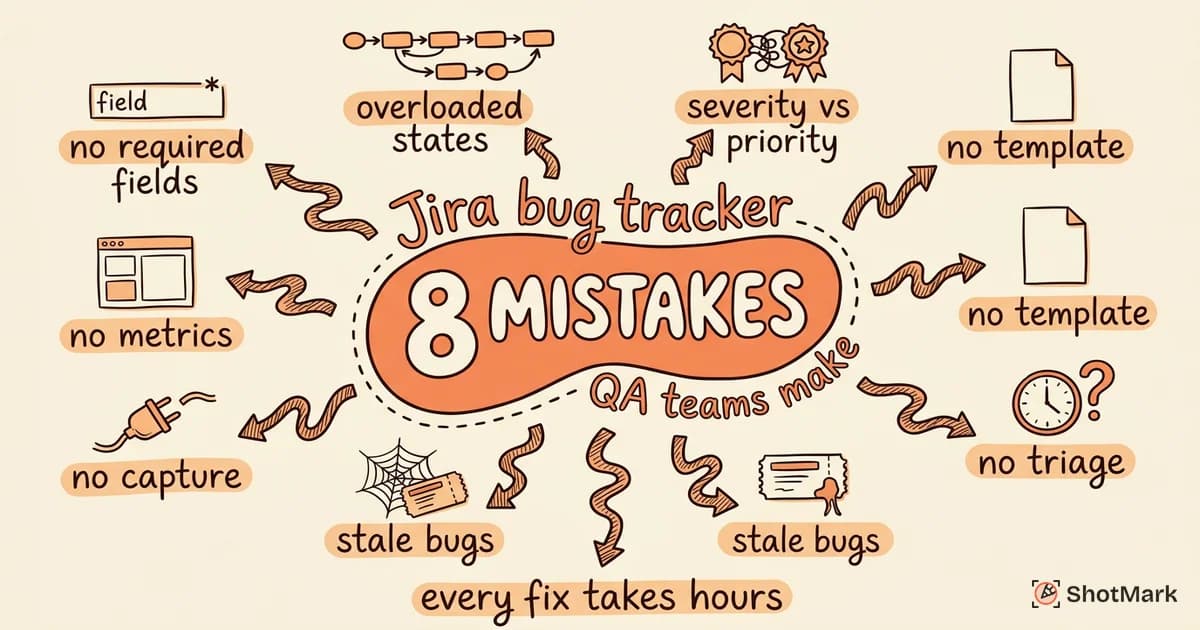
Five Mistakes That Make Jira Bug Reports Useless
We see the same mistakes across teams of every size. Here are the five that waste the most developer time.
1. Vague titles: “Something is broken” tells the developer nothing. A good title identifies the module, the action, and the failure. Use the formula: [Module] Action + Result.
2. Missing steps to reproduce: If a developer cannot reproduce the bug, they cannot fix it. Numbered steps, starting from a known state, are non-negotiable. Even if the bug seems obvious, write the steps down.
3. No environment details: “It doesn’t work” on which browser? Which OS? Staging or production? Missing environment details are the number one reason developers ask follow-up questions. Learn more about common Jira bug tracker mistakes and how to avoid them.
4. Multiple bugs in one ticket: One ticket, one bug. Combining issues makes it impossible to track status, assign correctly, or verify fixes independently.
5. No visual evidence: A screenshot with an annotation takes 10 seconds to capture and saves 10 minutes of back-and-forth. Screen recordings are even better for bugs that involve user flows or animations.
What Comes After Filing the Bug
A Jira bug report does not end when you click Create. Here is what happens next in a healthy workflow.
Triage: The team lead or product owner reviews new bugs, confirms severity and priority, and assigns them to a sprint or backlog. Many teams run daily or weekly triage meetings for this.
Investigation: The assigned developer reviews the report, reproduces the bug, and begins debugging. Complete reports (with logs, screenshots, and environment data) let developers skip the information-gathering phase and go straight to root cause analysis.
Fix and verification: The developer implements a fix and moves the ticket to In Review. QA verifies the fix in the specified environment and either closes the ticket or reopens it with additional context. For a detailed breakdown of how bugs flow through Jira workflows, check this Jira workflow setup guide .
Regression testing: After the fix ships, QA checks that the bug does not reappear in subsequent releases. Tagging bugs with the affected version and fix version makes regression tracking straightforward.
The entire cycle moves faster when the initial Jira bug report is complete. ShotMark auto-captures the technical context developers need (screenshots, console logs, network requests, environment data), so QA teams spend less time writing reports and more time testing.
Get new posts in your inbox.
One email when we publish: notes on QA, AI, and shipping faster. No spam, unsubscribe anytime.