Jira is the most widely used bug tracker in software development, but out-of-the-box Jira isn’t optimized for bug reporting. Default projects treat a crashing checkout button the same as a product backlog idea, which means QA engineers end up filing tickets that developers can’t act on without follow-up.
This guide shows how to turn a plain Jira instance into a proper jira bug tracker with the right custom fields, workflows, and dashboards. We’ll cover the opinionated setup QA teams actually need, not just the features Atlassian documents.
Why Jira Needs Configuration for Bug Tracking
Jira ships with a generic Bug issue type. It has a summary, description, priority, and assignee. That’s enough to file a ticket, but it isn’t enough to debug one. A real bug tracking software setup needs structured fields that match how QA teams work: severity, environment, reproduction rate, steps to reproduce, and attachments.
Without those fields, developers open a ticket and immediately ask three questions. Which browser? Which environment? Can you reproduce it? Every one of those follow-ups costs 10 to 20 minutes of back-and-forth, and that time compounds across a sprint.
There’s a meaningful difference between a “Jira project that has bugs in it” and a “jira bug tracker.” The first is any Jira project where someone filed a ticket with type Bug. The second is a project specifically configured around bug-finding, bug-fixing, and bug-verification workflows. Atlassian’s own Atlassian bug tracking guide documents the features but leaves most of the opinionated choices to you.
Is Jira Good for Bug Tracking?
Yes, when it’s configured properly. Jira’s strengths are its customization depth, integration ecosystem, and reporting. The weakness is that “default Jira” is tuned for generic project management, not defect tracking. If your team lives in Jira for sprint planning and releases, using it for bugs keeps everything in one place. If your team is purely QA-focused with no engineering overlap, a lighter-weight tool might feel faster.
For most software teams shipping web or mobile products, Jira wins on integration depth alone. The real question is whether you’ll take 30 minutes to configure it well.
Setting Up a Jira Bug Tracking Project
Here’s the step-by-step sequence for standing up a Jira bug tracker from scratch. This works on Jira Cloud and Jira Data Center.
Step 1: Create or Configure a Bug Tracking Project
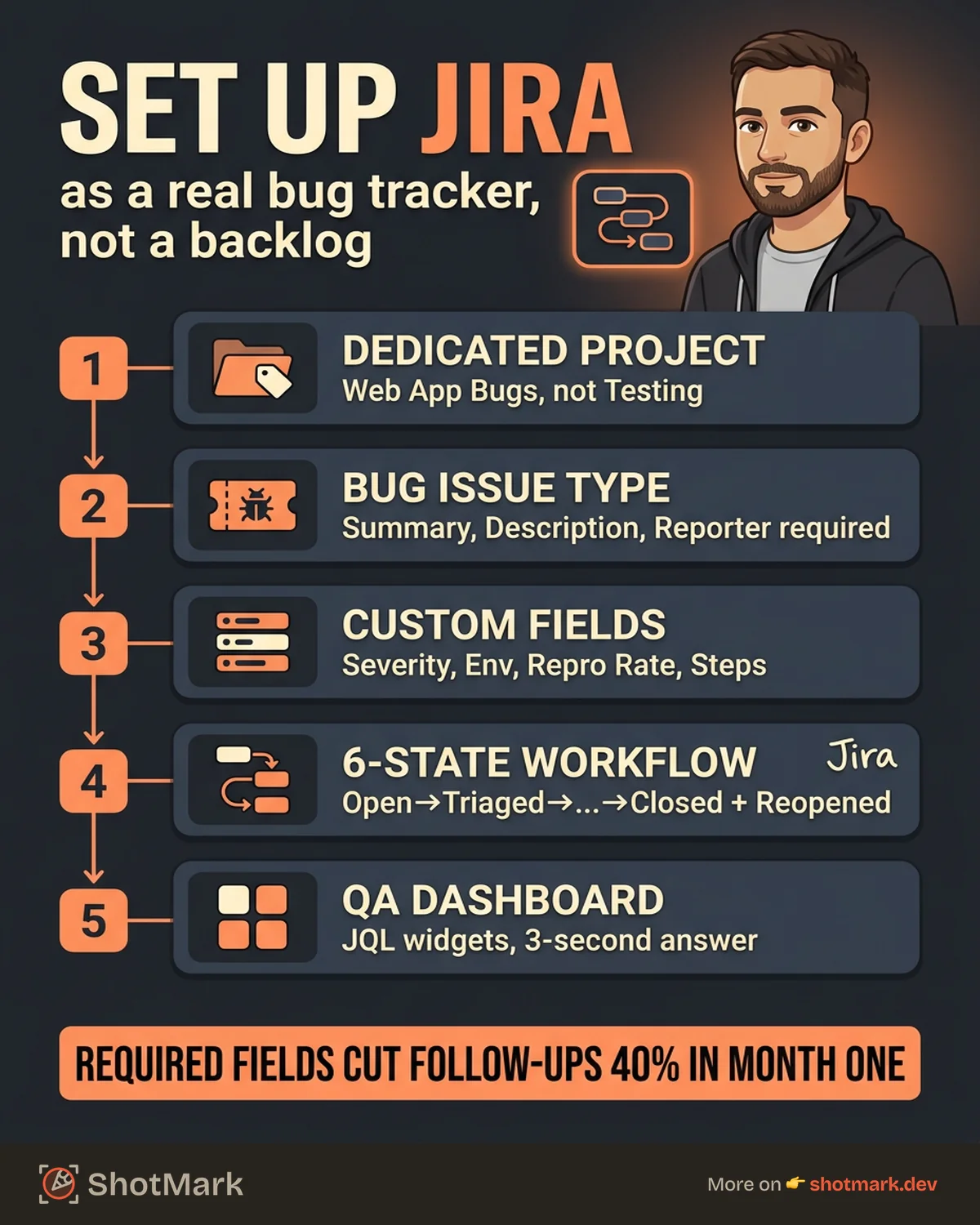
If you’re starting fresh, create a new Software project and pick either the Scrum or Kanban template. Both support the Bug issue type out of the box. If you’re modifying an existing project, go to Project settings > Issue types and confirm that Bug is enabled.
Name the project something clear like “Web App Bugs” or “Mobile QA.” Avoid generic names like “Testing” that drift in meaning over time. If your team already uses Jira for feature work, keep bug tracking in a separate project so reports and dashboards stay clean.
Step 2: Enable the Bug Issue Type and Required Fields
Open Project settings > Issue types > Bug. Confirm that Summary, Description, Priority, Assignee, and Reporter are required. Then add the fields QA teams actually need: severity, environment, steps to reproduce, expected vs. actual result, browser, and operating system.
Most of these don’t exist by default. You’ll create them as custom fields in the next step. Document the list now so you can set everything up in one pass instead of revisiting the configuration three times.
Step 3: Configure Severity, Environment, and Reproduction Fields
Severity is the most important custom field you’ll add. Priority alone mixes technical impact with business urgency, which causes confusion in triage. Add a severity field with four values: Critical, Major, Minor, Trivial.
Environment should be a text field or a select list depending on how standardized your environments are. If your team uses Staging, QA, Production, and Local, make it a select list. If environments vary across features, leave it as a text field so testers can describe specifics. For a deeper walkthrough of creating bug reports in Jira with these fields in action, see the companion guide.
Step 4: Build a Bug-Specific Workflow
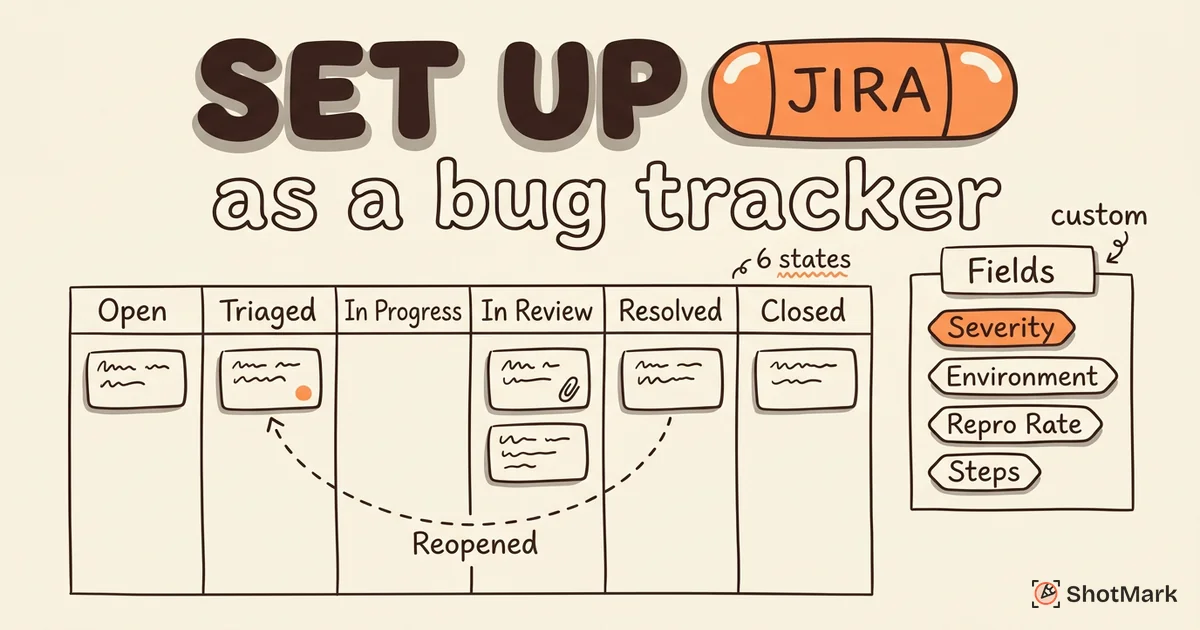
Jira’s default workflow (To Do, In Progress, Done) is too flat for bugs. A proper bug workflow has at least six states:
- Open, new bug, not yet triaged
- Triaged, severity and priority confirmed, assigned to a developer
- In Progress, developer actively debugging
- In Review, fix submitted, awaiting code review or QA verification
- Resolved, fix verified on the affected environment
- Closed, regression tested after release
Add a Reopened transition from Resolved and Closed back to Triaged, so QA can bounce a ticket without creating a duplicate. Jira’s workflow editor supports conditions and validators, which you’ll use in step five.
Step 5: Set Up a QA Dashboard With Bug Metrics
A dashboard turns raw tickets into visibility. Build one with four widgets: open bugs by severity, average resolution time, bugs by component, and recently resolved tickets. Use JQL queries like project = "Web App Bugs" AND severity = "Critical" AND status != Closed to power each widget.
Share the dashboard URL in your QA channel. Team leads should be able to answer “how are we doing on bugs?” in three seconds without opening a single ticket.
Custom Fields and Templates for Bug Reports in Jira
Custom fields turn vague bug reports into structured ones. The right set of fields covers everything a developer needs to reproduce and fix a bug without a follow-up conversation.
Recommended Custom Fields
Here are the fields every bug report in jira should capture:
- Severity (Critical, Major, Minor, Trivial)
- Environment (Production, Staging, QA, Local)
- Browser (Chrome, Safari, Firefox, Edge, plus version)
- Operating system (macOS, Windows, iOS, Android, plus version)
- Reproduction rate (Always, Sometimes, Rarely, Once)
- Steps to reproduce (numbered list in a text field)
- Expected result (one sentence)
- Actual result (one sentence plus error message if present)
- Affected version and Fix version
Atlassian’s Jira custom fields documentation covers the mechanics. What it doesn’t cover is which fields to create, and that’s where most teams get stuck. Start with the nine above and add more only when you see a recurring follow-up question in your triage meetings.
Building a Bug Report Template
Jira supports description templates that pre-populate when testers create a new bug. A solid bug report template jira pattern looks like this:
**Prerequisites**
(What state must the app be in before reproducing?)

**Steps to Reproduce**
1.
2.
3.

**Expected Result**

**Actual Result**

**Environment**
- Browser:
- OS:
- URL:

**Console/Network Errors**

**Screenshots/Attachments**
Paste this into the Description field’s default value via Project settings > Issue types > Bug > Description. Every new bug now starts with structure instead of a blank text box. For a ready-to-use version with field mappings, see our Jira bug report template.
Field Validation Rules
Validators stop incomplete tickets from entering the queue. Add a validator on the “Create Issue” transition that requires Summary, Description, Severity, and Steps to Reproduce. If a tester tries to submit without them, Jira rejects the create action and shows which field is missing.
This sounds strict. It’s also the single biggest quality lift you can make to a bug tracker. Teams that enforce required fields see 40% fewer follow-up questions in the first month.
Auto-Populating Fields With Browser Extensions
Manual entry is the slowest part of filing a bug. A tester finds a broken button, switches tabs, opens Jira, clicks Create, and retypes everything they just saw: URL, browser version, OS, console errors, network status codes. That’s 5 to 10 minutes per bug on top of actually identifying the issue.
Browser extensions collapse this to a single click. ShotMark, for example, captures the screenshot, console logs, network requests, and environment data from the active tab, then packages them into a structured payload that maps directly to Jira fields. The tester adds reproduction steps and a summary, and the rest is pre-filled.
Bug Tracking Workflows and Automations
Workflows move a ticket through states. Automations handle the boring work around those transitions. Together they’re what makes Jira feel like a real bug tracker instead of a shared spreadsheet.
Recommended Workflow Transitions
Every transition should have conditions and post-functions. A few that matter:
- Open → Triaged requires severity and priority to be set
- Triaged → In Progress assigns the ticket to the developer who picks it up
- In Progress → In Review requires a linked pull request or commit hash
- In Review → Resolved requires a QA verifier to be assigned
- Resolved → Closed happens automatically after 14 days with no reopens
Document these in a workflow diagram and link it from your team wiki. New engineers will thank you.
Automation Rules That Save Time
Jira’s automation engine runs on if-this-then-that logic. Four rules cover 80% of what QA teams need:
- Auto-assign by component: If Component = Frontend, assign to the frontend lead. If Component = API, assign to the backend lead.
- Notify on critical bugs: When Severity = Critical is set, send a Slack message to the on-call channel.
- SLA alerts: If a Critical bug sits in Triaged for more than 4 hours, escalate to engineering manager.
- Auto-close stale bugs: If a ticket is in Resolved for 14 days without reopening, move to Closed automatically.
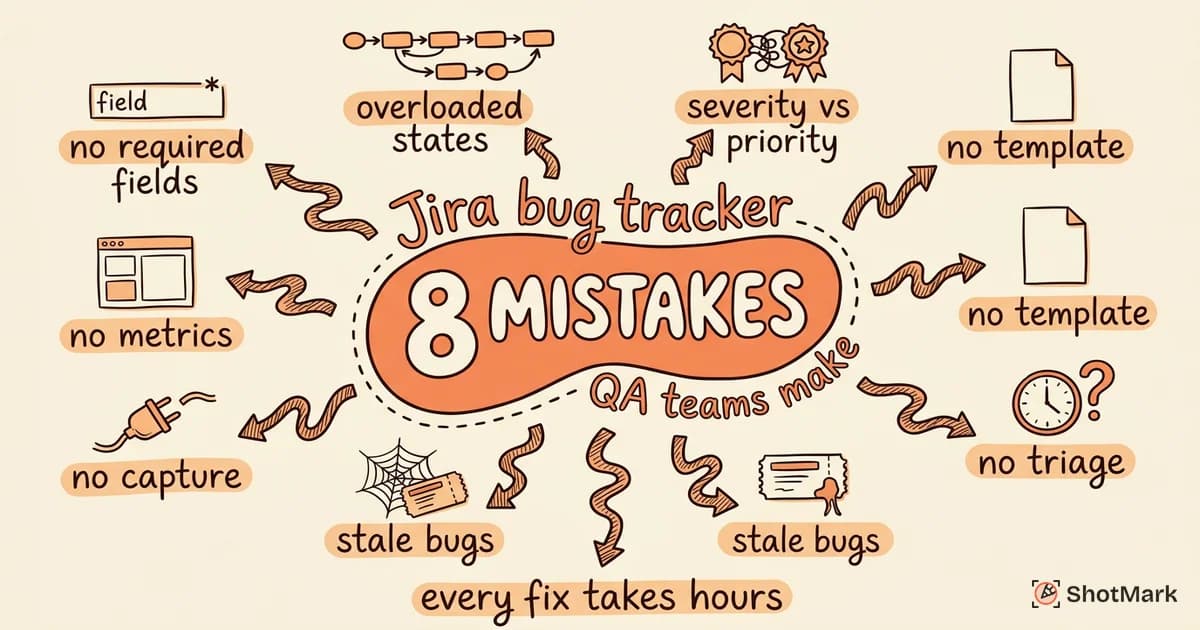
Atlassian’s Jira automation guide walks through the UI for each rule type. Build these four first, then add more as specific patterns emerge in your triage meetings. For a longer list of pitfalls that sneak in even with automations configured, see our breakdown of common Jira bug tracker mistakes.
Linking Bugs to Epics, Sprints, and Releases
Every bug should link to the work that introduced it, the sprint it’s scheduled to fix, and the release it’ll ship in. Use Jira’s “Link Issue” feature with relationships like “caused by,” “blocks,” and “relates to.” This turns a flat bug list into a traceable chain from symptom to root cause to fix.
For regression tracking, set the Affected Version when the bug is filed and the Fix Version when it’s resolved. Release managers can then query all bugs fixed in a release and include them in changelogs automatically.
What Is the Best Jira Workflow for Bug Reports?
The best workflow is the simplest one that still captures the handoffs between QA, engineering, and triage. Six states (Open, Triaged, In Progress, In Review, Resolved, Closed) plus a Reopened transition covers 95% of teams. Adding more states (Blocked, Waiting for Info, Deferred) is fine if those phases actually happen often. Adding them preemptively creates noise.
Keep the workflow linear. Branching workflows look impressive on a diagram and confuse everyone in practice.
Dashboards and JQL Queries for Bug Tracking
JQL is where Jira starts to feel powerful. A few queries every QA lead should bookmark:
- All open critical bugs:
severity = Critical AND status not in (Resolved, Closed) - Bugs waiting on triage longer than 24 hours:
status = Open AND created <= -1d - Reopened bugs in the current sprint:
sprint in openSprints() AND status changed FROM Resolved - Bugs by component over the last 30 days:
created >= -30d ORDER BY component
Save each as a filter and pin the dashboard widgets that reference them. JQL looks intimidating the first time, but a few hours of practice pays off for years.
What Comes Next
A well-configured Jira bug tracker handles the workflow side: custom fields, severity triage, automation rules, and dashboards that tell you where the bug backlog actually stands. That’s half the job.
The other half is capture. The fastest bug workflow in the world is still slow if a tester needs 10 minutes to screenshot, describe, and paste environment data into a form. This is where browser extensions change the equation. ShotMark captures one-click screenshots, console logs, network requests, and session replay, then sends a complete bug report directly to your Jira bug tracker with custom fields pre-filled. The open-source SDK is on the waitlist now.
For teams ready to wire the capture layer into their Jira setup, our guide to connect bug reporting tools to Jira walks through the API and field mapping details. Once both pieces are in place, filing a bug goes from a 10-minute chore to a 30-second action, and your jira bug tracker starts doing what it was always meant to do: get bugs fixed without back-and-forth.
Get new posts in your inbox.
One email when we publish: notes on QA, AI, and shipping faster. No spam, unsubscribe anytime.