Your Browser Is a Development Environment
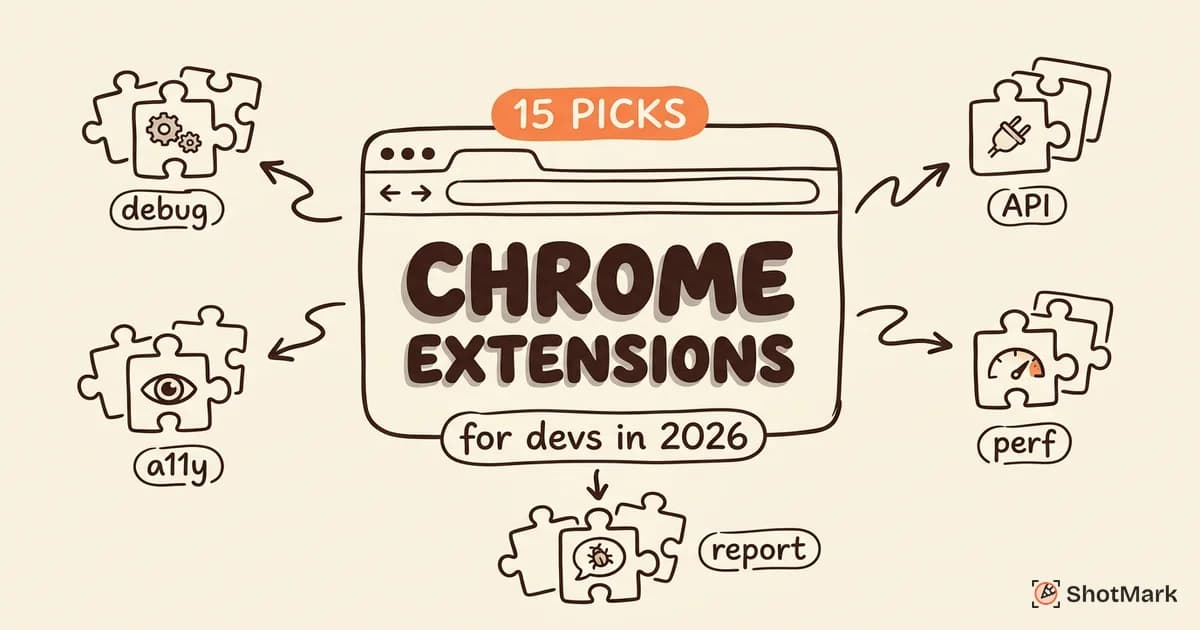
The right Chrome extensions for developers turn your browser into something far more powerful than a page viewer. They add framework-specific debugging, API testing, accessibility auditing, and one-click bug reporting directly into the tool you already have open all day.
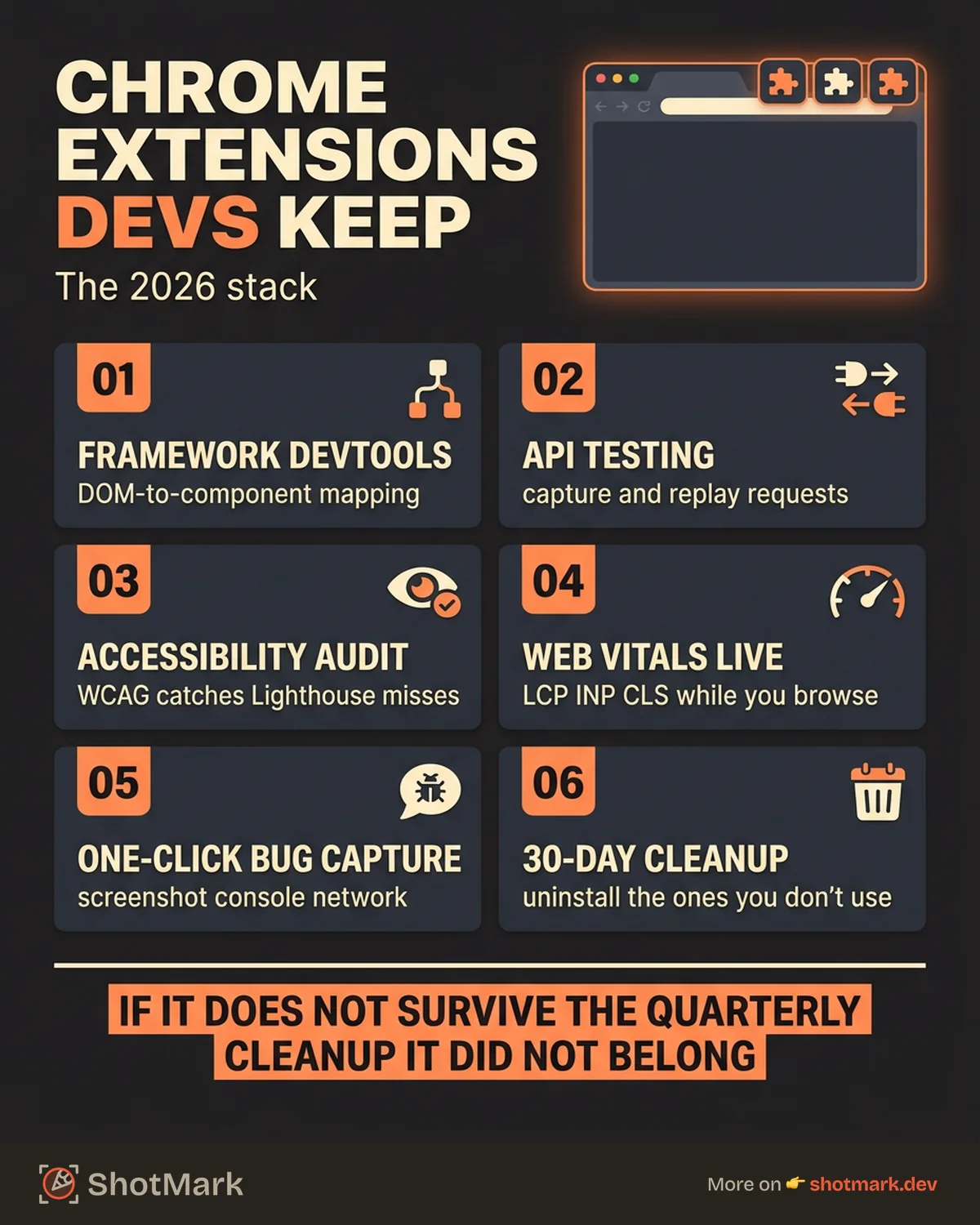
We picked 15 extensions that developers actually keep installed. Not the ones that look impressive in a demo, but the ones that survive the quarterly cleanup where you remove everything you haven’t touched in 30 days. Each extension below earns its place by solving a specific problem without slowing down your browser.
Debugging and Inspection Extensions
React Developer Tools
React Developer Tools adds a Components tab and Profiler tab to Chrome DevTools. You can inspect the React component tree, view props and state for any component, and profile render performance.
Why developers keep it: Debugging React without this extension means reading the raw DOM, which loses all component structure. With it, you can click any element on the page and immediately see which component rendered it, what props it received, and what state it holds.
Best for: Any developer working with React or React-based frameworks (Next.js, Remix).
Vue.js Devtools
Vue.js Devtools provides the same component inspection and state debugging for Vue applications. It shows the component hierarchy, Vuex/Pinia store state, and event timeline.
Why developers keep it: Vue’s reactivity system can make state changes hard to trace without tooling. This extension shows you exactly which data changed and when.
Best for: Vue 2 and Vue 3 developers.
Redux DevTools
Redux DevTools lets you inspect every action dispatched in a Redux store, time-travel through state changes, and export/import state snapshots.
Why developers keep it: Time-travel debugging is genuinely useful for complex state management. When a bug depends on a specific sequence of state changes, stepping backward through actions is faster than adding console.log statements everywhere.
Best for: Teams using Redux, Redux Toolkit, or any store that implements the Redux DevTools protocol (including Zustand with the devtools middleware).
Wappalyzer
Wappalyzer detects the technology stack behind any website. It identifies frameworks, CMS platforms, analytics tools, CDNs, and more.
Why developers keep it: Curiosity is one reason. The practical reason: when debugging cross-site issues or evaluating how a competitor built something, knowing the stack saves time. It also helps during client projects when you need to understand an existing site before making changes.
Best for: Frontend developers, consultants, and anyone who builds for the web.
API Testing and Network Extensions
Postman Interceptor
Postman Interceptor bridges Chrome and the Postman desktop app. It captures requests from your browser and sends them to Postman, where you can modify headers, payloads, and authentication, then replay them.
Why developers keep it: Building API requests from scratch in Postman is tedious when you can capture a working request from the browser and modify it. This extension eliminates that manual setup.
Best for: Backend and full-stack developers who test APIs regularly.
ModHeader
ModHeader lets you add, modify, or remove HTTP request and response headers. You can set custom headers for specific URLs without touching code or proxy configurations.
Why developers keep it: Testing authentication flows, CORS configurations, and feature flags often requires custom headers. ModHeader makes this a browser-level change instead of a code change, so you can test without modifying application code.
Best for: Developers debugging CORS issues, testing auth headers, or working with feature flags.
JSON Formatter
JSON Formatter automatically formats raw JSON responses in the browser with syntax highlighting, collapsible nodes, and clickable links.
Why developers keep it: Opening an API endpoint in the browser and seeing a wall of unformatted JSON is the default experience. This extension makes JSON responses readable instantly.
Best for: Everyone. This is a zero-friction extension that just makes browsing API responses better.
Performance and Accessibility
Lighthouse
Lighthouse is built into Chrome DevTools, but it’s worth mentioning because many developers don’t realize it’s there. It audits performance, accessibility, best practices, SEO, and Progressive Web App compliance.
Why developers use it: Running a Lighthouse audit before shipping gives you a quick scorecard on page quality. It catches missing alt text, slow loading resources, render-blocking scripts, and dozens of other issues.
Best for: Frontend developers who want a baseline quality check before deployment.
axe DevTools
axe DevTools runs accessibility audits against WCAG standards and generates actionable reports. It’s more thorough than Lighthouse’s accessibility checks and provides specific remediation guidance.
Why developers keep it: Accessibility compliance isn’t optional for many organizations. axe catches issues that Lighthouse misses, including color contrast failures on specific elements, missing ARIA labels, and keyboard navigation problems.
Best for: Teams that need WCAG compliance or want to build accessible products.
Web Vitals
Web Vitals displays Core Web Vitals (LCP, INP, CLS) in real time as you browse. A small badge shows green, yellow, or red based on current metrics.
Why developers keep it: Core Web Vitals affect search ranking and user experience. Seeing the metrics while developing (not just in production monitoring) helps you catch regressions before they ship.
Best for: Frontend developers optimizing page performance.
Bug Reporting and Feedback
ShotMark
ShotMark captures annotated screenshots, console logs, network requests, and browser metadata in one click. It packages everything into a bug report that includes the context developers need to reproduce issues.
Why it belongs on this list: Bug reporting is the most common workflow that Chrome extensions improve dramatically. Without a capture tool, reporting a bug means screenshotting the page, copying console errors, checking the Network tab, and writing reproduction steps manually. ShotMark replaces that entire process with a single click.
Best for: QA engineers, developers doing peer testing, and anyone who reports visual bugs.
Jam.dev
Jam captures bugs with automatic technical information including console logs, network requests, and device details. It integrates with Jira, Linear, Slack, and other project management tools.
Why developers use it: Similar approach to ShotMark with a focus on developer-to-developer bug reporting. Jam’s free tier is generous, and the auto-captured metadata reduces back-and-forth.
Best for: Developer teams that want lightweight bug reporting integrated with their existing tools.
Marker.io
Marker.io is built for agencies and client-facing teams. It adds a feedback widget to any website, letting clients report bugs with annotated screenshots that go directly to Jira, Trello, or Asana.
Why teams use it: Client feedback is notoriously vague. Marker.io forces structured reports with visual context, reducing the “can you describe what you saw?” follow-up cycle.
Best for: Agencies, freelancers, and teams that collect feedback from non-technical stakeholders.
Productivity and Utilities
Refined GitHub
Refined GitHub adds dozens of small improvements to the GitHub interface: one-click merge conflict resolution, file finder in PRs, comment timestamps, and more.
Why developers keep it: Each individual improvement is minor. Together, they smooth out friction points in the GitHub UI that you encounter dozens of times per day. It’s the kind of extension you forget about until you use GitHub on someone else’s machine and wonder why everything feels slower.
Best for: Anyone who uses GitHub daily.
Vimium
Vimium brings Vim-style keyboard navigation to Chrome. Press f and every clickable element on the page gets a letter label. Type the letters to click without touching the mouse.
Why developers keep it: Developers who use Vim or Neovim already think in keyboard shortcuts. Vimium extends that mindset to browsing. Even non-Vim users find the f (follow links) and T (search tabs) commands useful.
Best for: Developers who prefer keyboard-driven workflows. Pairs well with Chrome DevTools shortcuts.
Dark Reader
Dark Reader applies dark mode to every website. It dynamically generates dark color schemes using CSS filters and intelligent processing.
Why developers keep it: Late-night debugging is easier on the eyes with dark mode. Many documentation sites and internal tools don’t offer dark mode natively. Dark Reader fills that gap.
Best for: Developers who work at night or prefer dark interfaces.
How to Manage Extension Bloat
Performance Impact
Every Chrome extension adds memory overhead and can slow page loads. The impact scales with the number of extensions running.
We measured the impact of 15 active extensions on a MacBook Pro M3: roughly 300MB additional memory usage and a 200-400ms increase in cold page load times. That’s acceptable for most development machines, but it adds up if you’re running 30+ extensions.
Extension Profiles
Chrome supports multiple profiles. Create a “Development” profile with your dev extensions and a “Personal” profile without them. This keeps your development tools isolated and your personal browsing fast.
For developers who switch between frontend and backend work, you can create framework-specific profiles: one with React DevTools and another with Vue Devtools, for example.
Regular Cleanup
Every quarter, open chrome://extensions and review what’s installed. Remove anything you haven’t used in 30 days. Disable extensions you use occasionally instead of uninstalling them.
The goal: keep your best chrome extensions for developers list under 15 active extensions. Beyond that, the performance cost starts to outweigh the benefits.
Build Your Extension Stack
The best chrome extensions for developers are the ones that match your daily workflow. A React developer needs React DevTools but not Vue Devtools. A backend developer needs Postman Interceptor but not axe DevTools. Start with the debugging and bug reporting extensions that match your stack, then add productivity tools as needed.
For developer productivity tools beyond browser extensions, our guide covers the full stack from editors to terminals to metrics.
ShotMark is the one-click bug reporting extension that captures screenshots, console logs, and network requests automatically. Join the waitlist .
Get new posts in your inbox.
One email when we publish: notes on QA, AI, and shipping faster. No spam, unsubscribe anytime.