A user reports a bug. You ask them to describe what happened. They say “I clicked a button and it broke.” That’s not enough to debug anything. What is session replay, and why have so many developer and product teams adopted it as their answer to this exact problem?
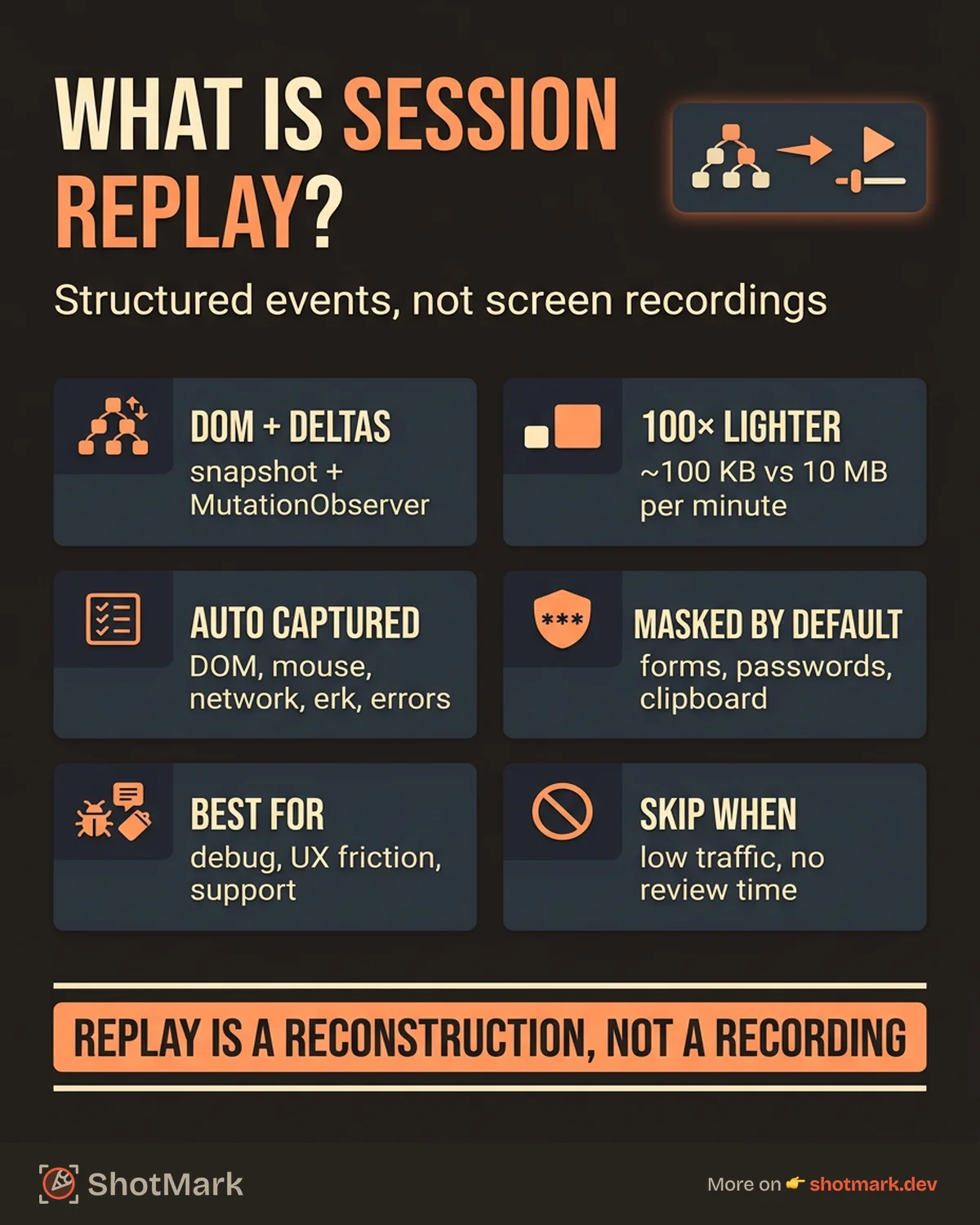
Session replay is a technique that reconstructs a user’s browser session by recording DOM changes and user interactions, then playing them back in a viewer that looks like video but isn’t. It gives developers and product teams a visual, frame-by-frame account of what a user actually did, without requiring a literal screen recording.
What Is Session Replay?
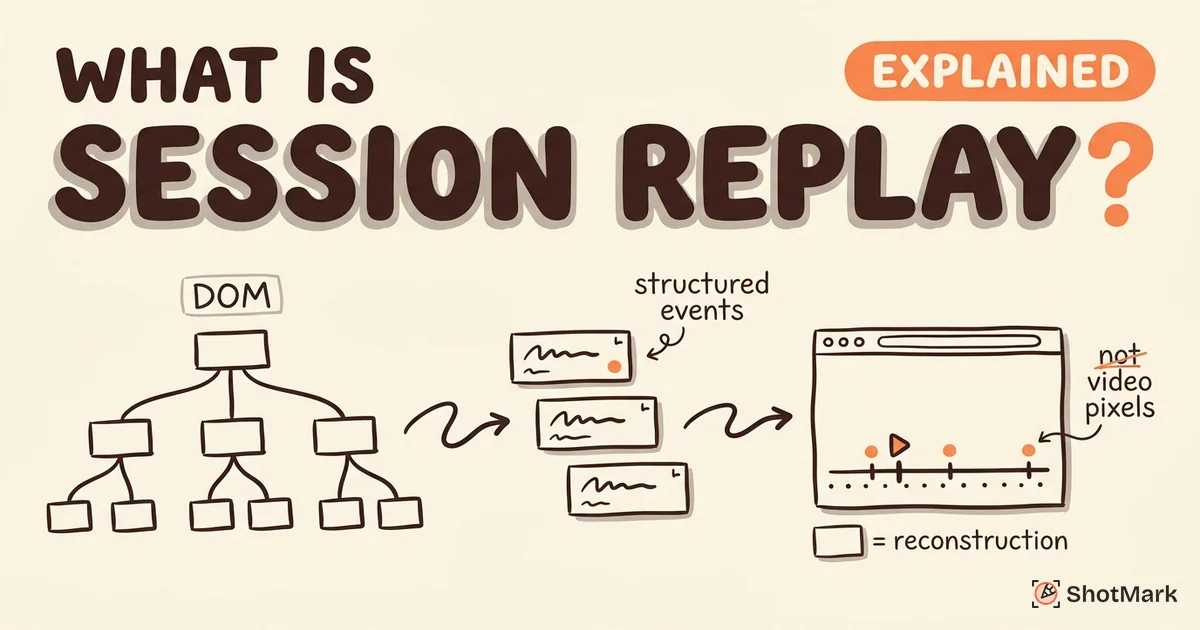
At its core, session replay captures a structured event stream from the browser: DOM mutations, mouse movements, clicks, scrolls, page navigations, and JavaScript errors. A replay viewer reassembles these events into a visual playback that shows exactly what the user saw.
This is different from a screen recording. A screen recording captures pixels at a fixed frame rate, producing a large video file. Session replay captures data structures and events, producing a lightweight stream that can be reconstructed in any browser.
It’s also different from heatmaps and analytics dashboards. Heatmaps aggregate click patterns across thousands of sessions. Analytics dashboards show event counts and conversion rates. Session replay shows the full story of a single user’s experience, from page load to exit.
Datadog’s session replay documentation describes it as “a visual reconstruction of user sessions that captures DOM snapshots, user interactions, and network requests.” FullStory takes a similar approach, positioning it as a way to “see your product through your users’ eyes.”
How Session Replay Works Under the Hood
DOM Mutation Observers and Snapshot Diffing
When a session replay SDK initializes on a web page, it takes a full snapshot of the DOM (the document’s tree of HTML elements, their attributes, and their styles). This initial snapshot is the baseline.
After that, the SDK uses the browser’s MutationObserver API to watch for changes. Every time an element is added, removed, or modified, the SDK records the delta (the difference from the previous state).
Mouse coordinates, click events, scroll positions, and keyboard inputs are captured as timestamped events alongside the DOM mutations. The result is a compact timeline of everything that changed on the page and everything the user did.
Libraries like rrweb (which powers session replay in PostHog, Sentry, and others) implement this pattern as an open-source standard. The initial snapshot is typically a few hundred kilobytes. Subsequent mutations are often just a few bytes each.
What Gets Captured (and What Doesn’t)
Captured by default:
- DOM element additions, removals, and attribute changes
- CSS class changes and inline style updates
- Mouse movements, clicks, and scroll positions
- Page navigations and URL changes
- Network request timing (URL, status code, duration)
- Console log entries and JavaScript errors
Not captured by default:
- Form field values (especially password and payment inputs)
- Personally identifiable information (names, emails, addresses)
- Clipboard content
- File upload contents
Session replay SDKs apply privacy masking at the capture level. Text in input fields is replaced with placeholder characters before it ever leaves the browser. Some tools (like PostHog and FullStory) let you configure masking at the element level, blocking specific components from being recorded.
Session Replay vs Screen Recording
These terms get confused often, but they describe fundamentally different technologies.
| Session Replay | Screen Recording | |
|---|---|---|
| Capture method | DOM snapshots + event stream | Pixel-level video capture |
| File size (1 min) | 50-200 KB | 5-20 MB |
| Bandwidth impact | Minimal | Significant |
| Replay fidelity | High (but CSS edge cases) | Pixel-perfect |
| Privacy control | Element-level masking | Redaction post-capture |
| Typical use | Production monitoring | Local debugging, demos |
Session replay wins on efficiency and scalability. You can record thousands of sessions per day with minimal performance impact. Screen recording wins on fidelity: what you see is exactly what happened, pixel for pixel.
For most production monitoring use cases, session replay is the right choice. For local debugging and internal demos, screen recording (or a visual capture tool like ShotMark) is often more practical.
When Session Replay Is Worth the Setup
Debugging Production Bugs
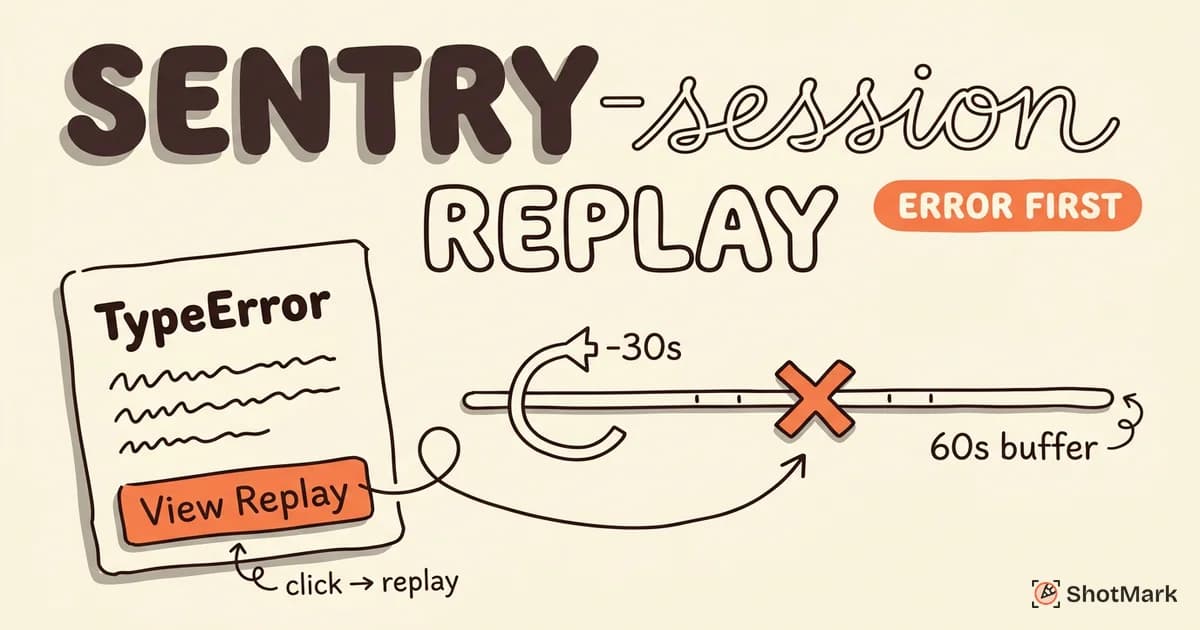
This is the highest-value use case. A user triggers a JavaScript error, and your error tracking tool (Sentry, LogRocket, Datadog) attaches a session replay to the error event. Instead of guessing at reproduction steps, the developer watches the exact sequence of actions that led to the failure.
Sentry’s session replay pairs replays with breadcrumb timelines, showing DOM mutations, console output, and network activity alongside the visual playback. This eliminates the most time-consuming part of debugging: figuring out what the user actually did.
Understanding UX Friction
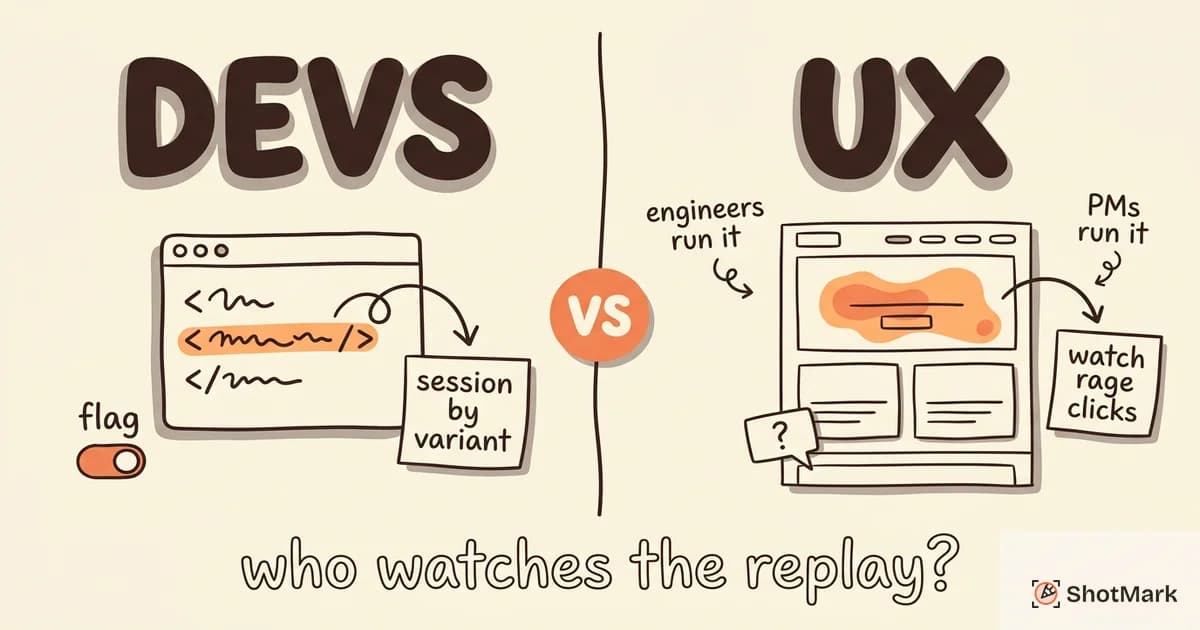
Product teams use session replay to identify patterns that analytics alone can’t reveal. Rage clicks (rapid, frustrated clicking on an unresponsive element), dead clicks (clicking on something that isn’t interactive), and form abandonment all become visible when you watch the session.
Hotjar and FullStory both highlight frustration signals automatically, surfacing the sessions most likely to reveal UX problems.
Supporting Customer Tickets
Support teams can attach a replay link to a customer’s ticket instead of asking “can you describe what you were doing?” This saves time for both the support agent and the customer, and it gives developers exact context when the ticket escalates to engineering.
When Session Replay Is Overkill
Not every team or every product needs session replay. It adds SDK weight to your pages, requires storage infrastructure, and creates data that someone needs to review.
Low-traffic landing pages: If your site gets 100 visits per day, analytics and a feedback form give you enough insight.
Static content sites: Blogs, documentation sites, and marketing pages don’t have complex user interactions worth replaying.
Teams without review bandwidth: Session replay data is only useful if someone watches the sessions. If your team doesn’t have time to review replays, the data sits unused.
Privacy-sensitive contexts: Healthcare and financial applications can use session replay, but only with rigorous PII masking and compliance review. For many teams in these sectors, the compliance overhead isn’t worth the benefit.
Privacy and Compliance Considerations
Session replay captures user interactions, which intersects with privacy regulations in every jurisdiction that has them.
GDPR requires a lawful basis for processing personal data. Most session replay implementations rely on legitimate interest or explicit consent. If you’re recording sessions in the EU, you need a consent mechanism (banner, modal, or opt-in toggle) and a clear explanation of what’s being recorded.
CCPA gives California users the right to know what personal information is collected and to opt out of its sale. Session replay data that includes PII falls under this scope.
Best practices for compliant session replay:
- Enable text masking by default for all input fields
- Block recording on pages that handle sensitive data (checkout, account settings)
- Offer a clear opt-out mechanism
- Use tools that support EU-hosted or self-hosted deployment (PostHog , OpenReplay , Sentry )
- Review your masking configuration quarterly as your application evolves
Microsoft Clarity offers a free option with built-in masking, but data is processed on Microsoft’s servers, which may not satisfy data residency requirements for regulated industries.
Where ShotMark Fits Alongside Session Replay
Session replay captures what happens in production, after your code is deployed and real users interact with it. It’s reactive by design: something happens, and you review the recording afterward.
ShotMark operates at a different stage. It captures bugs during QA and development, before they reach production. When a tester finds an issue, ShotMark grabs an annotated screenshot, the browser console logs, and the network request data in one click. That context goes directly into your issue tracker.
The two approaches complement each other. Session replay for post-deployment monitoring. ShotMark for pre-deployment bug capture. Together, they cover the full lifecycle from development through production.
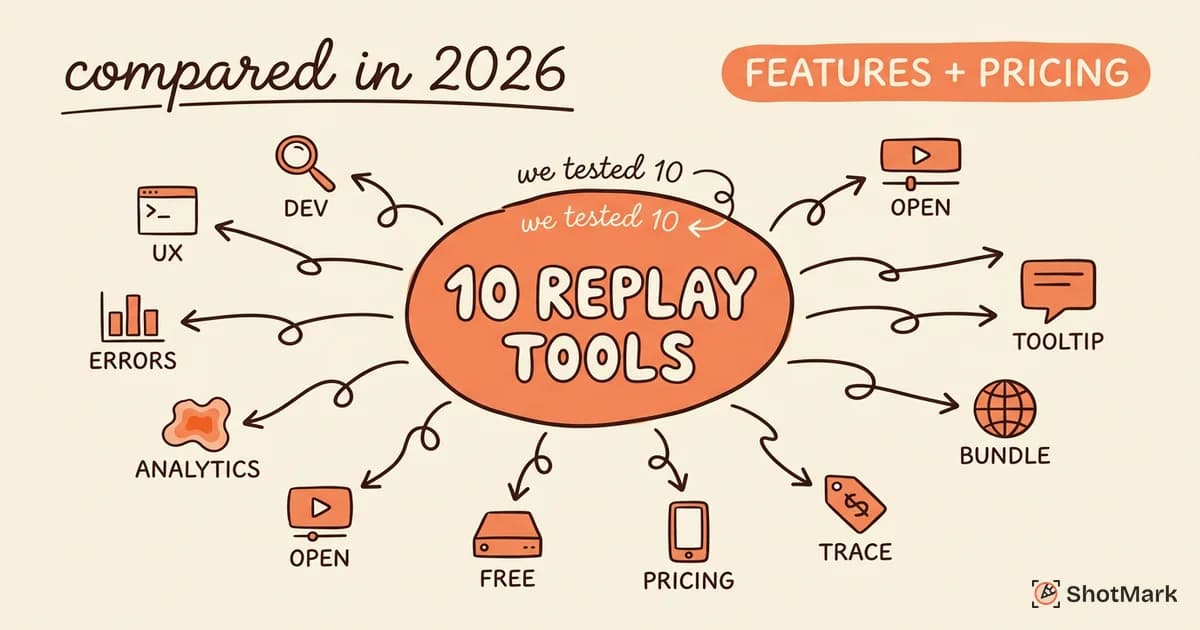
Now that you understand what is session replay and how the technology works, the next step is picking the right tool. For a detailed comparison with pricing and feature breakdowns, see our session replay tools compared guide. For a head-to-head matchup between two popular options, read our PostHog vs Hotjar session replay breakdown. And if incomplete bug reports are slowing down your development cycle, join the ShotMark waitlist to get early access to complete context on every defect.
Get new posts in your inbox.
One email when we publish: notes on QA, AI, and shipping faster. No spam, unsubscribe anytime.