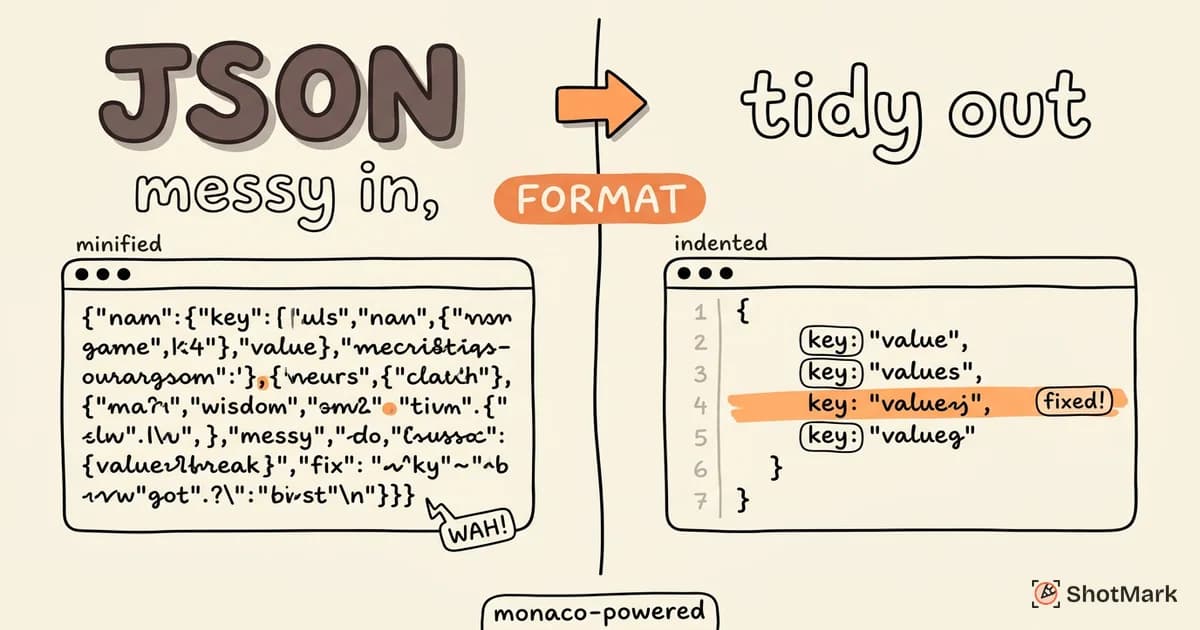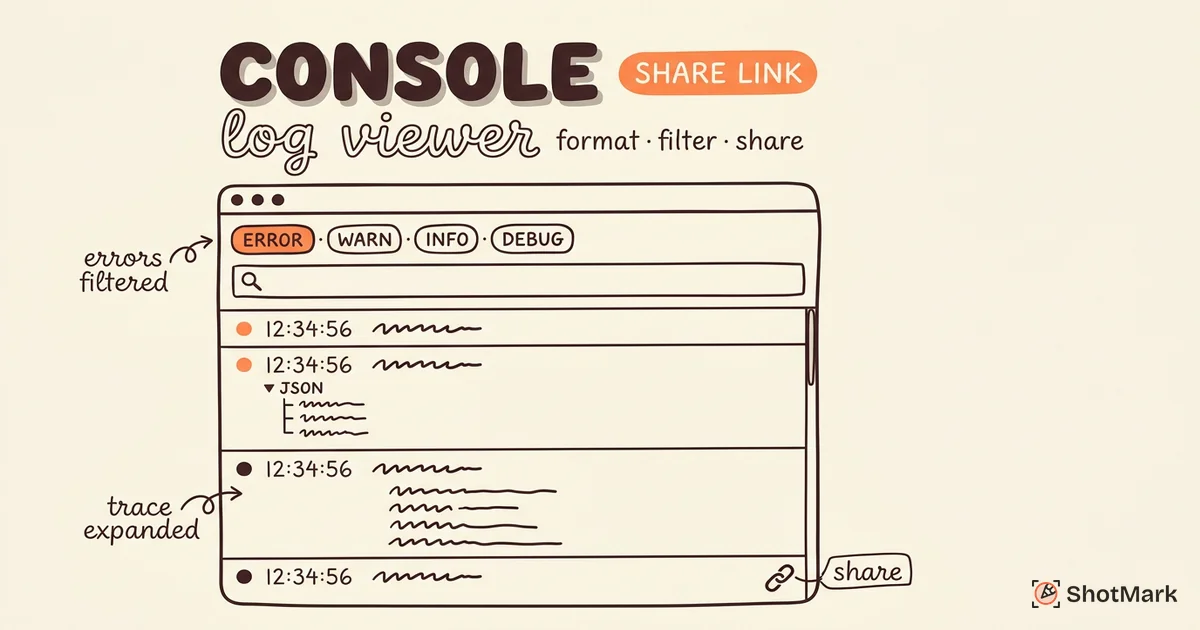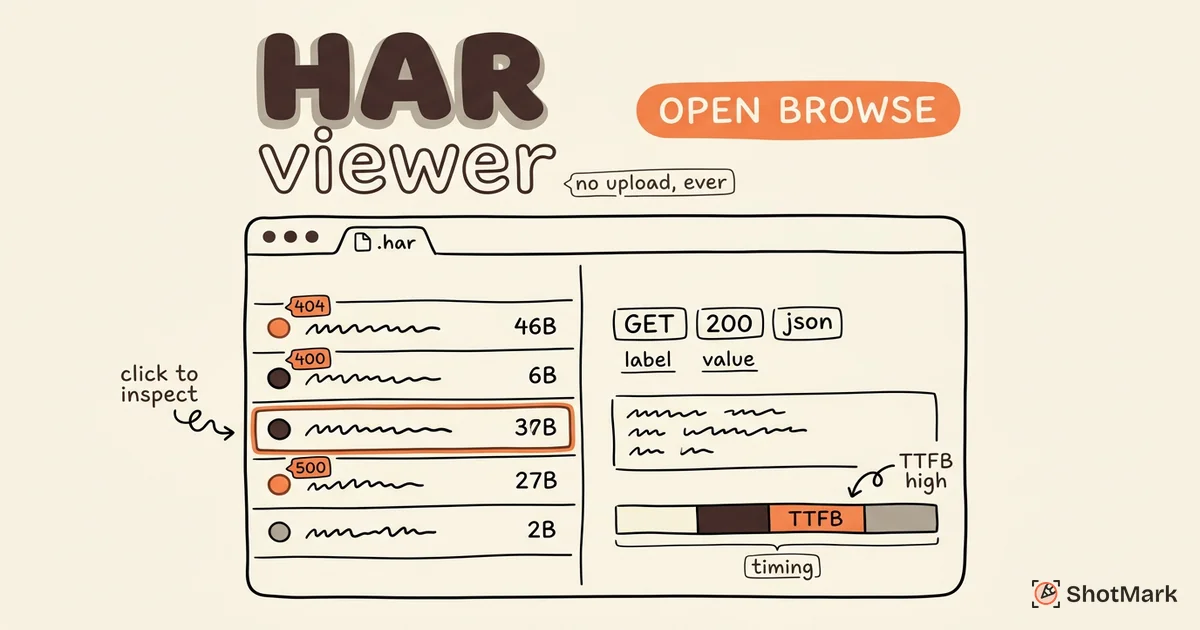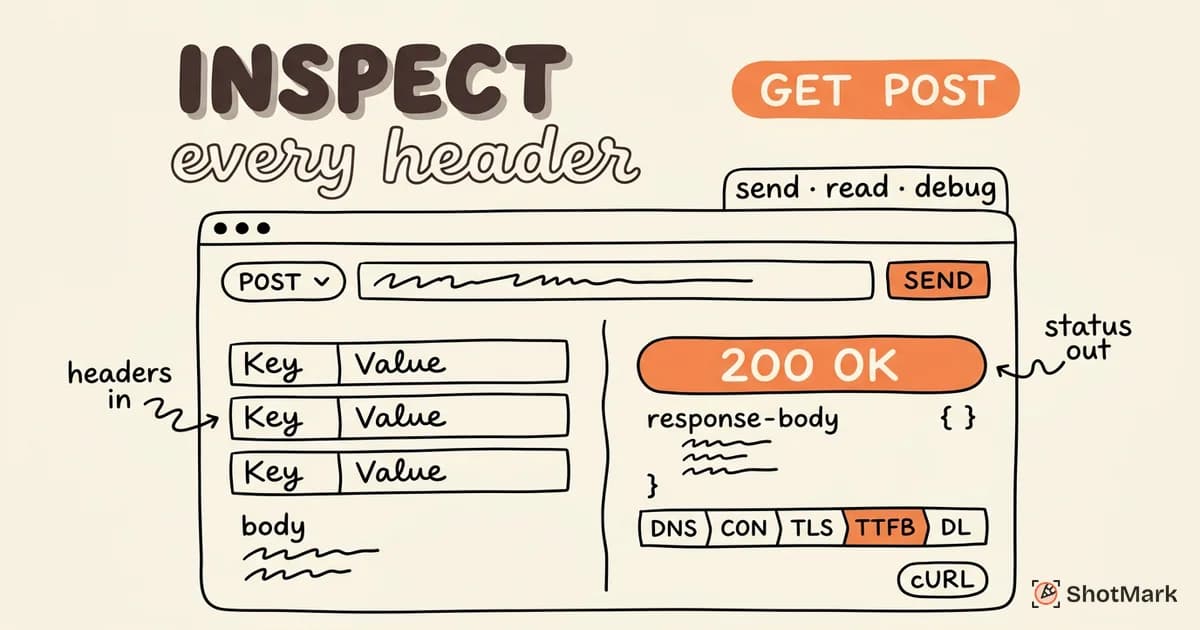
Our free network request inspector lets you send HTTP requests and read every detail of the response without opening browser DevTools. Paste a URL, set the method and headers, and see the status code, response body, and timing breakdown in seconds. It runs entirely in your browser, and HAR uploads stay on your machine.
What Is a Network Request Inspector
A network request inspector is a tool for reading the full contents of an HTTP request and response. That includes the request line (method and URL), every header sent and received, the request payload, the response body, and the timing phases the browser went through to complete the request.
Think of it as the Network tab from Chrome DevTools, but standalone and shareable. You can send a request ad hoc or upload a HAR file captured elsewhere and step through the entries. The same data, the same structure, without needing an open page under test.
Engineers reach for an http request inspector when an API misbehaves, when a CORS header is missing, or when a slow endpoint needs a timing audit. QA teams use one during bug reproduction so they can verify that the client is sending what the spec calls for, matching the MDN HTTP reference , and that the server is answering correctly. If you’re getting started with broader monitoring, our guide to error monitoring for web apps covers how request data fits into a wider observability setup.
How to Use This Network Inspector
The tool supports two modes: send a live request against a URL, or upload a HAR file and inspect individual entries. Both run client-side, and requests are proxied through a CORS proxy so the browser will actually let them through.
Inspect a URL
- Enter the target URL in the input field at the top
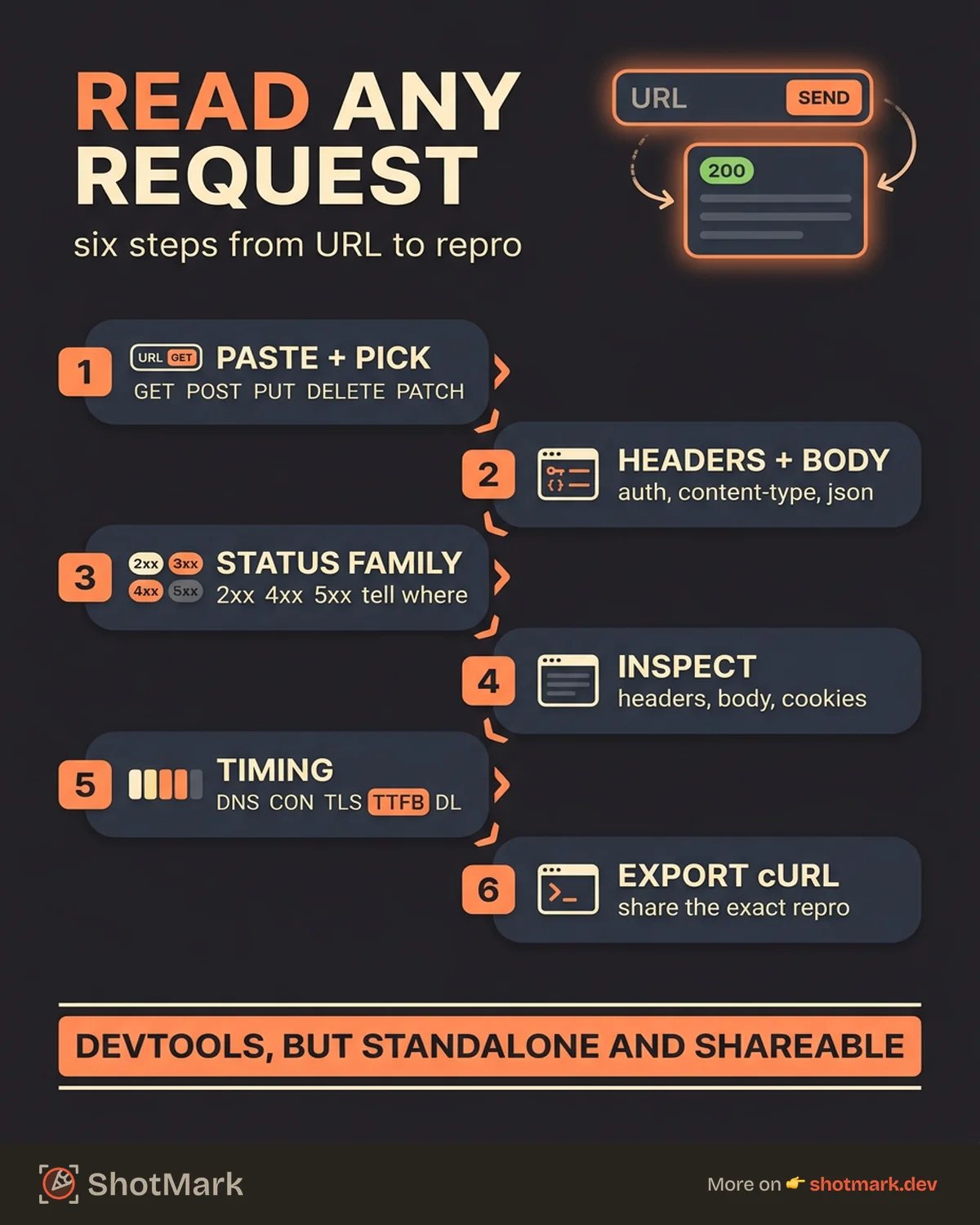
- Pick an HTTP method (GET, POST, PUT, DELETE, PATCH)
- Add headers like
AuthorizationorContent-Typeif the endpoint needs them - Paste a JSON or form body when using POST or PUT
- Click Send and read the status code, response headers, and body
The response panel renders JSON and HTML with syntax highlighting. A timing panel breaks the request into DNS, connect, TLS, TTFB, and download phases so you can pinpoint where the latency is coming from. A cURL export button generates a copy-pasteable cURL command for the exact request, which is useful for sharing repros in tickets or chat.
Recent requests are saved to your browser’s local storage. You can click back through the history to re-run or modify a previous call without retyping the headers.
Inspect a HAR File
- Switch to HAR Upload mode using the tab at the top of the tool
- Drag a
.harfile into the drop zone or click to browse - Click any entry to inspect its request and response details
- Use the filters to narrow down by status code, method, or domain
HAR mode runs entirely client-side. No bytes leave your machine. If you want deeper filtering and waterfall analysis, hand the same file to our free HAR file analyzer or just browse it in the free HAR file viewer.
Common Use Cases
A lightweight api request inspector earns its keep in a few specific situations. Here are the ones we see most often.
API Debugging
Sometimes an API call is failing and you want to know whether the problem is the client or the server. Fire the exact request through the inspector, read the response, and you have an answer. This is the fastest way to confirm an auth header format, check a 400 response body for validation hints, or verify that a new endpoint is live.
You can also compare two environments side by side: hit staging, save the response, hit production, and diff the output. No code required, no Postman collection to maintain.
CORS Troubleshooting
CORS errors show up in the browser console but tell you almost nothing useful. The network request debugger pattern is to send the same request from the inspector and read the response headers directly. If Access-Control-Allow-Origin is missing, wrong, or doesn’t match the preflight response, you’ll see it in plain text.
For preflight issues, send an OPTIONS request manually with the Origin and Access-Control-Request-Method headers. The response tells you exactly what the server allows, which is almost always more informative than the console error.
Performance Debugging
A slow API could be slow anywhere: DNS, TLS, the server, or the download. The timing breakdown separates those phases so you can point at the real culprit. A 2-second TTFB means the server is slow. A 2-second TLS handshake means certificate or connection reuse is the problem.
Run the same request a few times to check variance. Cold starts, cache misses, and regional routing all show up as timing spikes across runs.
Bug Reproduction
When a bug depends on a specific API call, the inspector gives you a repeatable way to send it. Copy the request from a failing session, paste it here, tweak the payload, and confirm the fix. Since the history panel keeps recent requests, you can retry the exact same call after a deploy without hunting through old tickets.
This is also where ShotMark fits in. ShotMark captures screenshots, console logs, network requests, and session replay together in one click, so the API call that caused the bug is already in the report. Developers can copy it into this inspector without asking the reporter to run DevTools again.
Understanding HTTP Request and Response Details
If you’re new to reading raw HTTP, here’s the quick version. The MDN HTTP reference is the canonical source when you need more depth.
Status Codes
Status codes tell you what happened in one number. The families are what matter most day to day:
- 2xx Success:
200 OKis the default.201 Createdfor new resources.204 No Contentfor successful deletes. - 3xx Redirect:
301is permanent,302is temporary,304 Not Modifiedmeans the cached copy is still valid. - 4xx Client error:
400for bad request shape,401for missing auth,403for forbidden,404for not found,429for rate limits. - 5xx Server error:
500is a generic crash,502and503usually mean upstream or gateway trouble.
When you see a 4xx, check the request. When you see a 5xx, check the server logs.
Headers
Request headers carry metadata about what you’re asking for. Authorization holds the token, Content-Type declares the body format, Accept negotiates the response format. Response headers describe what came back and how to handle it: Cache-Control, Content-Type, Set-Cookie, and the CORS Access-Control-* family.
Headers are where most real debugging lives. A missing header, a typo in a token, or a stale Cookie is usually the cause when a request looks right but the response is wrong.
Timing
The timing breakdown has five phases. DNS resolves the hostname. TCP opens the connection. TLS negotiates the encrypted tunnel. Waiting (TTFB) is the server thinking. Receiving is the download. Comparing runs against each other shows you which phase moves when something slows down.
FAQ
What is a network request inspector?
A network request inspector is a tool that shows the full details of an HTTP request and response: method, URL, headers, body, status code, and timing. It’s the standalone version of the Network tab in browser DevTools.
Is this tool free?
Yes. No sign-up, no account, no usage caps. You can send live requests or upload HAR files as often as you want.
Can I test POST and PUT requests?
Yes. Pick the method from the dropdown, add headers like Content-Type: application/json, paste your body into the request body field, and send. The response panel handles JSON, XML, HTML, and plain text.
Does this replace Postman or Hoppscotch?
For quick request inspection and one-off debugging, yes. For full API testing workflows with environments, collections, and scripting, tools like Hoppscotch and Postman offer more. This inspector is deliberately lightweight.
Is it safe to paste auth tokens?
URL requests are proxied server-side for CORS handling, so treat any credential you paste the same way you’d treat one in a shared logging system. Use test tokens for debugging whenever possible. HAR uploads stay fully client-side and are never sent to our servers.
Can I debug network requests without DevTools?
Yes. That’s exactly what this tool is for. Paste a URL, pick a method, send the request, and read the response. No browser extension, no local install, no DevTools panel required.
Automate Network Capture for Bug Reports
Manually rebuilding a failing request in a network request inspector is fine for one bug. For ten bugs a week across a QA team, the overhead adds up. Every investigation starts with “can you open DevTools and show me the Network tab,” and every investigation waits on that round trip.
ShotMark captures network requests automatically with every bug report, alongside screenshots, console logs, and session replay, in one click. An open-source SDK is planned to drop into any web app, so the data travels with the ticket and developers can inspect the exact failing request without asking the reporter for more information. Join the waitlist to get early access when we launch.
Get new posts in your inbox.
One email when we publish: notes on QA, AI, and shipping faster. No spam, unsubscribe anytime.