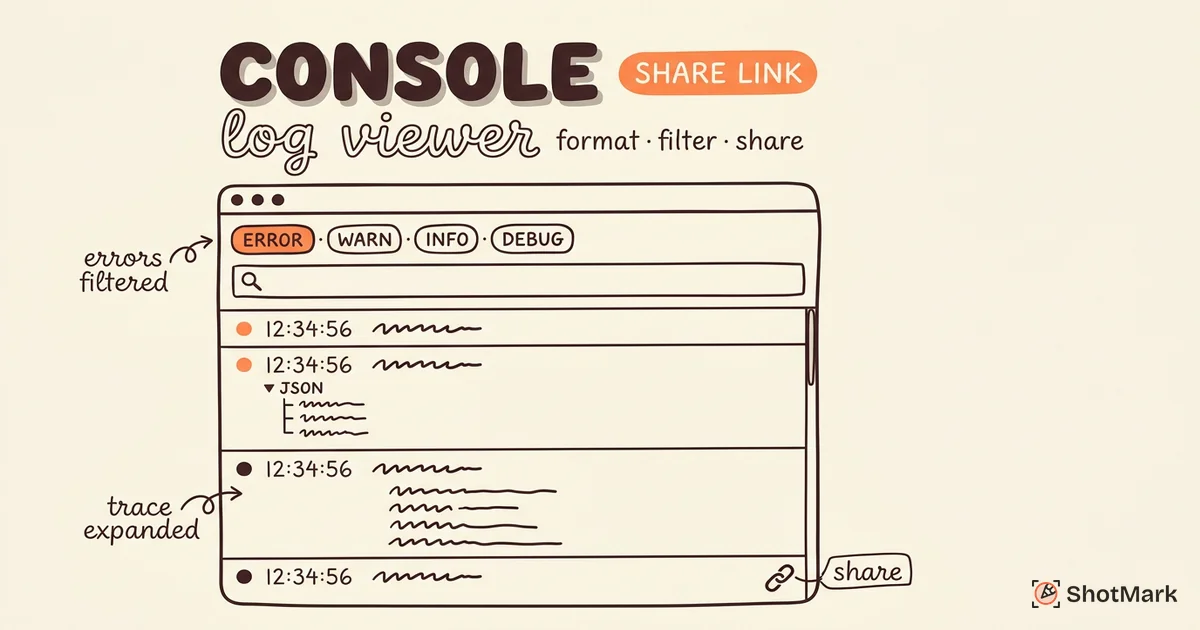
Our free console log viewer turns raw browser output into something you can actually read, search, and share. Paste a block of logs or upload a text file, and you’ll get syntax-highlighted entries, log-level filters, collapsible JSON, and a shareable link. Everything runs locally in your browser, so sensitive debug data stays on your machine.
What Is a Console Log Viewer
A console log viewer takes the messy text dump from a browser’s developer tools and makes it readable. Raw console output is a wall of timestamps, stack traces, and object blobs that’s hard to scan, especially when you’re hunting for one specific error in 500 lines.
Browser DevTools are live and ephemeral. Close the tab, refresh the page, or reopen the inspector, and the previous session’s output is gone. A dedicated viewer preserves that output, applies color coding, and lets you share it with teammates who weren’t in the session.
This is especially useful for bug reports. Instead of a developer asking the reporter to “check the console and tell me what you see,” a QA engineer can capture the output once, paste it into a viewer, and send a formatted link. For the broader context on why browser logs matter, see our guide on browser console errors and how to fix them.
How to Capture Browser Console Logs
Before you can format or share console output, you need to get it out of the browser. Three common methods cover most situations.
Method 1: Save As From DevTools
The cleanest approach is exporting the console output as a text file.
- Open browser DevTools with
F12orCmd + Option + Ion Mac - Switch to the Console tab and reproduce the issue so logs populate
- Right-click anywhere in the console output area
- Select Save as..: and save the file to your machine
- Upload that file into this viewer
Chrome, Edge, and Firefox all support this. Safari’s Web Inspector offers a similar export through its context menu.
Method 2: Copy and Paste From DevTools
When you only need a portion of the output, copy-paste is faster.
- Click inside the Console tab to focus it
- Select the lines you want (
Cmd + A/Ctrl + Afor everything) - Copy with
Cmd + C/Ctrl + C - Paste into this viewer’s input area
The viewer parses log levels, timestamps, and stack traces automatically, so pasted text gets the same formatting as uploaded files.
Method 3: Programmatic Capture
For automated testing or remote debugging, override the console methods and push entries into an array. Here’s a minimal capture pattern:
const captured = [];
const levels = ['log', 'info', 'warn', 'error', 'debug'];

levels.forEach((level) => {
  const original = console[level];
  console[level] = (...args) => {
    captured.push({
      level,
      timestamp: new Date().toISOString(),
      message: args.map(String).join(' '),
    });
    original.apply(console, args);
  };
});

// Later: JSON.stringify(captured) for upload
This pattern is what bug reporting tools use under the hood. ShotMark captures console output automatically with every report, so you never need to wire this up manually or copy-paste from DevTools.
How to Use This Console Log Viewer Online
The tool is designed to be usable in under 10 seconds. No setup, no sign-up.
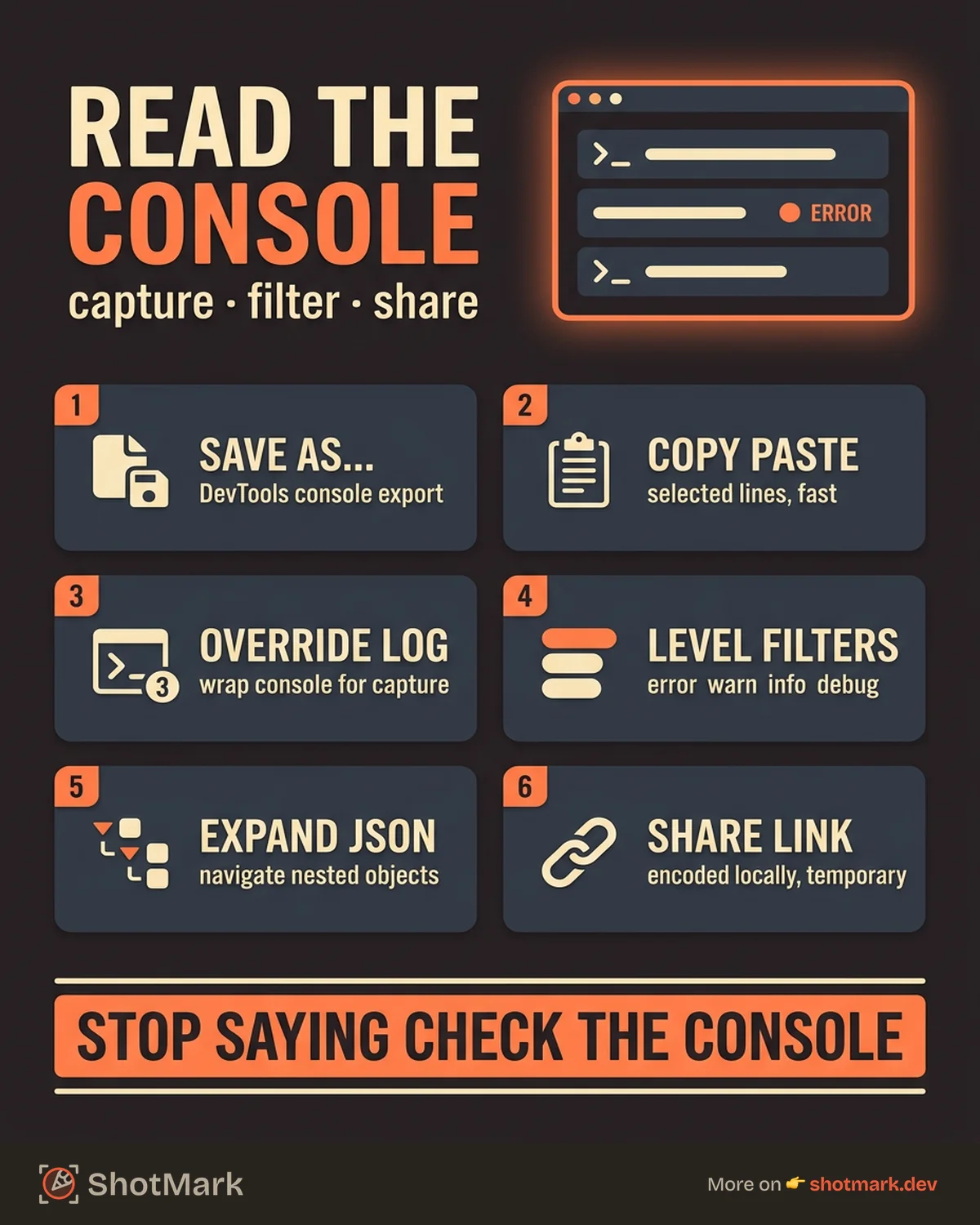
- Paste or upload: Drop a log file into the input area, or paste text directly. Files up to 25MB work without issue.
- Filter by level: Toggle errors, warnings, info, and verbose entries with the level filter buttons. Errors are red, warnings are yellow, info is blue, verbose is gray.
- Search across entries: The search box runs a full-text match across every log line. Useful for finding a specific error message, component name, or request ID.
- Expand JSON objects: Any JSON payload in your logs becomes collapsible. Click to expand nested structures without scrolling through a wall of text.
- Copy or share: Copy the formatted output to your clipboard, or generate a temporary shareable link. The link encodes the logs locally and stores them briefly for collaborators to view.
Stack traces are detected automatically and formatted with indentation so you can trace the call chain without squinting.
Use Cases
A console log viewer fits into several common workflows.
Bug Reports
QA engineers capture console output during a test run, paste it into the viewer, and attach the formatted link (or the copied block) to a Jira ticket. Developers open the link and see the exact errors, warnings, and timing data from the failed test. No back-and-forth asking for screenshots or reproduction details.
This workflow gets faster when capture is automatic. Teams that want to skip the export step entirely can look at automated bug reporting tools that bundle console logs, screenshots, and network data in a single click.
Remote Debugging
Support teams often work with users who can’t describe what’s broken but can paste from the browser. Walk the user through opening DevTools and copying the console, then drop their output into the viewer to analyze it. You’ll see the same data the user sees, formatted the same way.
This pattern is part of a broader error monitoring strategy for web apps. Console logs complement server-side error tracking by catching client-side issues that never make it to your backend.
Code Review
Staging and preview deployments produce noisy console output. Review it before merging. Filter for warnings and errors, and you’ll catch deprecated API usage, missing environment variables, and third-party script failures before they hit production.
Related Free Tools
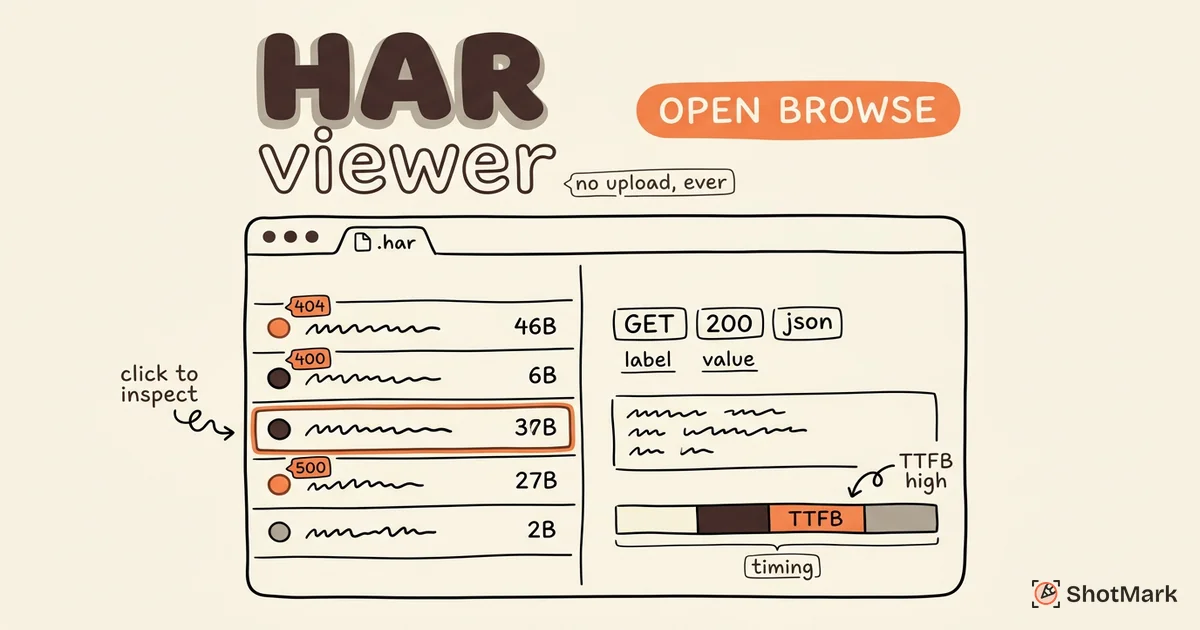
Network debugging pairs naturally with console log analysis. If your bug involves both failed API calls and console errors, our free HAR file analyzer handles the network side. Together the two tools give you a full client-side picture without installing anything.
Frequently Asked Questions
How do I capture console logs in Chrome?
Open DevTools with F12, switch to the Console tab, right-click inside the output area, and select Save as..: to export the full log as a text file. You can also select lines with Cmd + A and copy them directly. Both methods work with this viewer. The Chrome DevTools console reference documents every feature the Chrome console supports.
Can I share console logs with my team?
Yes. Use the share link feature to generate a temporary URL, or copy the formatted output and paste it into a ticket, chat message, or document. For long-term sharing, save the original log file alongside the bug report so it’s reproducible later.
Is this tool free?
Completely free. No sign-up, no account, no usage limits. The viewer runs entirely in your browser.
Does this replace browser DevTools?
No. DevTools is for live capture while you reproduce an issue. This viewer is for formatting, filtering, and sharing that output after capture. The two are complementary. For a deeper look at what the browser console can do, the MDN Console API reference covers every method and log level.
How large of a log file can I paste?
Up to about 25MB of text. Larger files may feel slow on older machines. For very large logs, filter by level before searching to keep the UI responsive.
Skip the Copy-Paste Workflow
Formatting console output with a viewer is useful, but the capture step (opening DevTools, reproducing the bug, exporting the file, attaching it to a ticket) still takes time every single bug report.
ShotMark captures console logs, screenshots, network requests, and session replay in one click. The data ships with the bug report automatically, so developers open the ticket and see everything they need. An open-source SDK is coming soon. Join the waitlist to get early access when it launches. Try the free console log viewer above whenever you need a quick format or share, and skip the manual workflow with ShotMark when you’re ready to automate it.
Get new posts in your inbox.
One email when we publish: notes on QA, AI, and shipping faster. No spam, unsubscribe anytime.