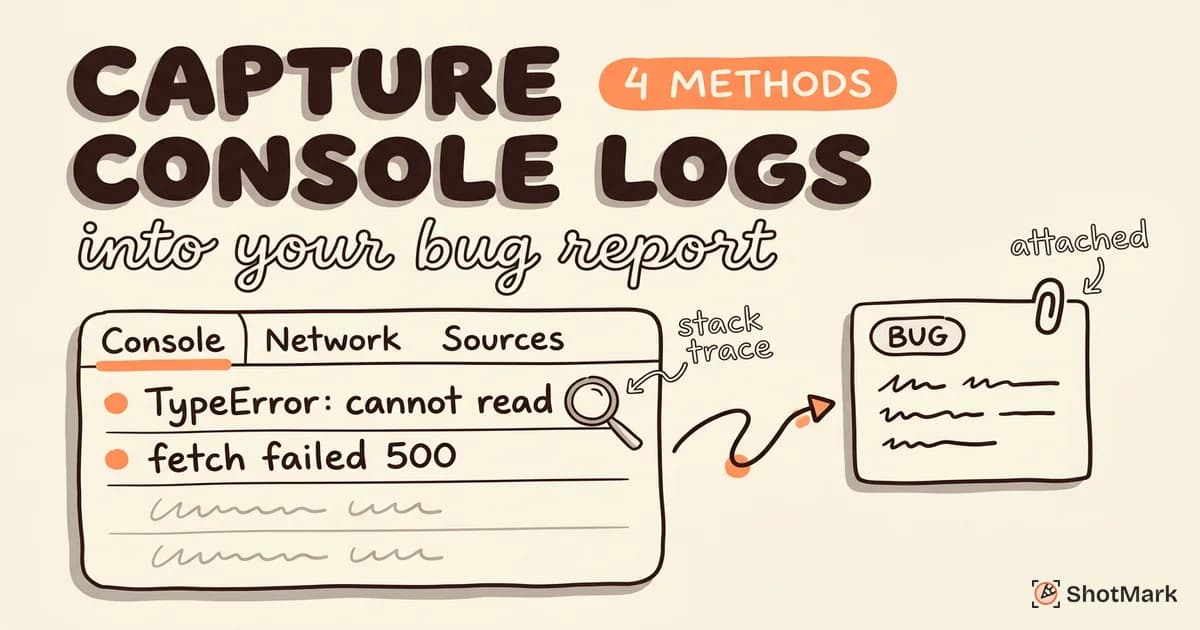
“What does the console say?” is the first question developers ask when they receive a bug report. Yet most bug reports arrive without console data, forcing developers to reproduce the issue from scratch. Console log capture is the single fastest way to turn a vague bug report into an actionable one, and most teams still aren’t doing it consistently.
The browser console contains JavaScript errors with stack traces, network failure messages, deprecation warnings, and application-specific log output. All of this data exists at the moment a bug occurs. The challenge is getting it from the reporter’s browser into the bug ticket before it disappears.
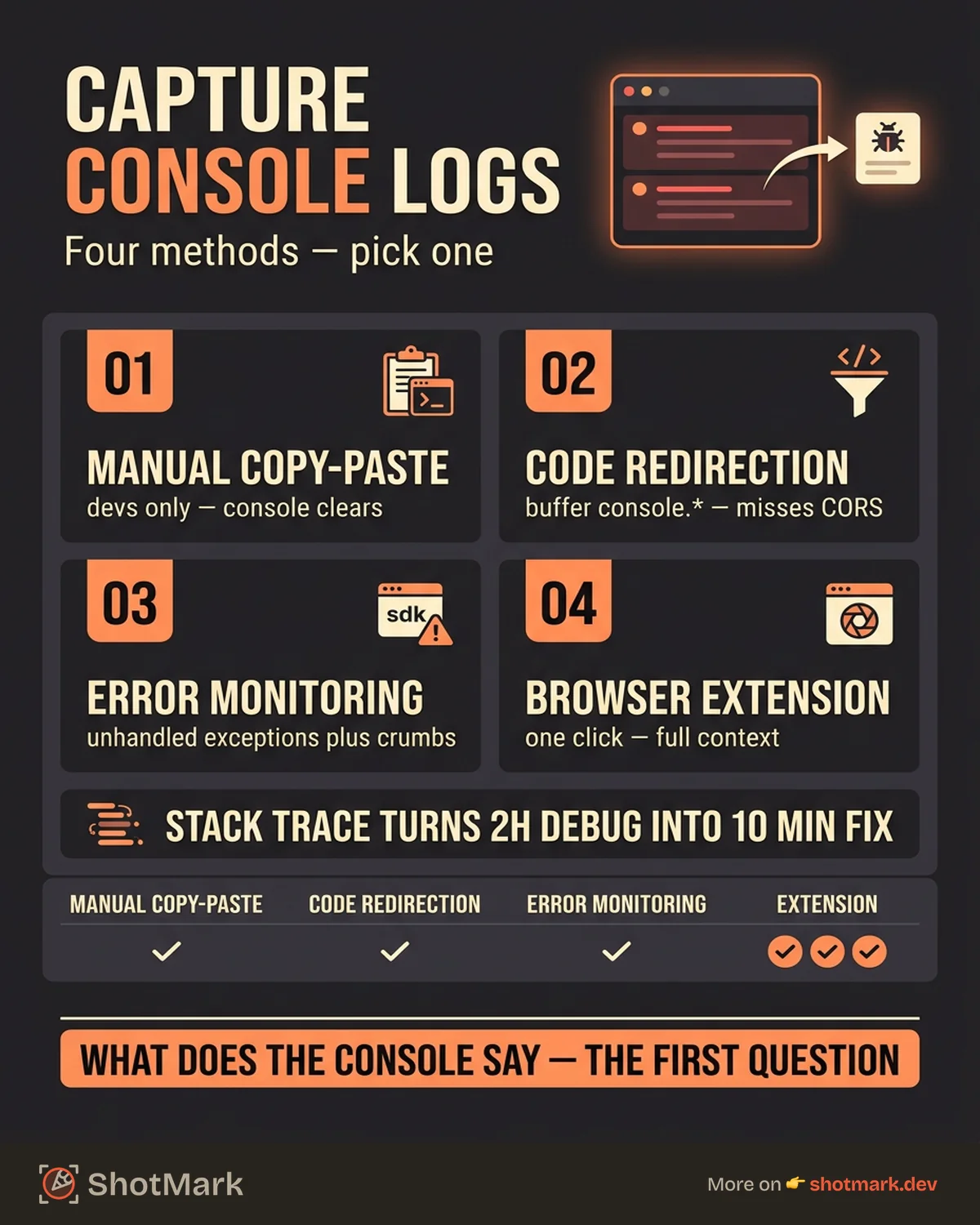
We’ll cover four methods for capturing console logs, from manual copy-paste to fully automated approaches, so you can pick the one that fits your team.
Why Console Logs Matter for Bug Reports
Console logs give developers a direct window into what went wrong. Without them, a developer receiving a bug report that says “the page doesn’t load” has to guess. With them, the same developer sees Uncaught TypeError: Cannot read property 'map' of undefined at Dashboard.jsx:47 and knows exactly where to look.
JavaScript errors with stack traces pinpoint the exact line of code where the failure occurred. A stack trace tells the developer not just what broke but the sequence of function calls that led to the failure. This can turn a 2-hour debugging session into a 10-minute fix.
Warnings reveal hidden issues: Deprecation warnings, React key warnings, and Content Security Policy violations don’t crash the app, but they signal instability. A console full of warnings often explains intermittent bugs that are impossible to reproduce reliably.
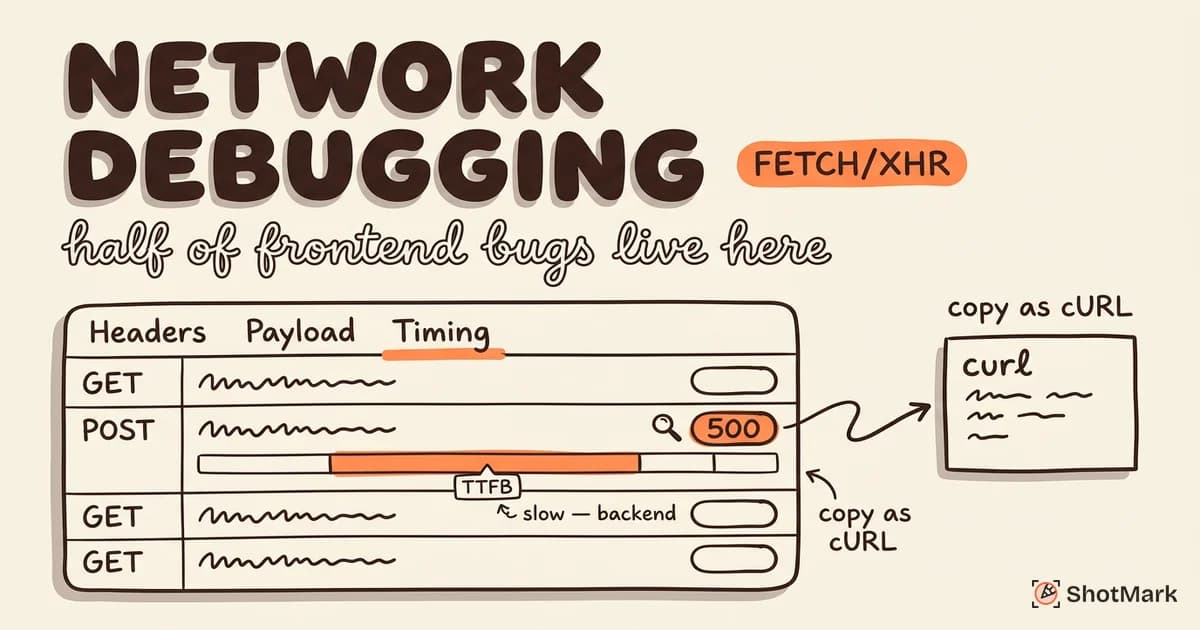
Network errors in the console connect to API failures. When a fetch call returns a 500 or a CORS error, the console logs it. These entries link directly to the backend issues causing frontend failures, bridging the gap between what the user sees and what the server did wrong.
Console logs vs. error monitoring: Tools like Sentry and LogRocket capture errors automatically in production. But they don’t capture everything. Custom console.log output, warnings, and the full sequence of console activity leading up to a bug are often missing from error monitoring dashboards. For a complete picture, you need both.
Method 1: Manual Copy-Paste From DevTools
The simplest approach. Open the browser console, find the relevant errors, and copy them into the bug report.
How to do it:
- Open Chrome DevTools with
Cmd+Option+J(Mac) orCtrl+Shift+J(Windows/Linux). For every Chrome inspect shortcut you should know, we have a dedicated reference. - Reproduce the bug while the console is open.
- Right-click in the console panel and select “Save as…” to download the full log as a
.logfile. Alternatively, select specific error messages and copy them. - Paste the console output into your bug report or attach the
.logfile.
When this works: For developers reporting bugs to other developers. The reporter already knows how to use DevTools, can identify which errors are relevant, and can include the right context.
Limitations: This requires DevTools knowledge. QA engineers who aren’t comfortable with the console will skip this step. Product managers and designers won’t do it at all. The console also clears on page navigation, so if the bug involves a redirect, the evidence might vanish before it can be captured.
Method 2: Using console.log Redirection in Code
For teams that want to capture console output programmatically, you can intercept console methods and send the data to a remote endpoint.
Here’s a basic implementation:
const originalConsole = {
  log: console.log,
  warn: console.warn,
  error: console.error,
};

const capturedLogs = [];

['log', 'warn', 'error'].forEach((method) => {
  console[method] = (...args) => {
    capturedLogs.push({
      type: method,
      message: args.map(String).join(' '),
      timestamp: new Date().toISOString(),
    });
    originalConsole[method].apply(console, args);
  };
});

// Send captured logs with a bug report
function getConsoleLogs() {
  return capturedLogs.slice(-100); // Last 100 entries
}
This script monkey-patches console.log, console.warn, and console.error to store entries in an array while still outputting them to the console normally. When a user files a bug report, call getConsoleLogs() to include the recent console history.
When this works: For teams with control over their application code who want to capture console output from all users, not just technical reporters. You can send logs to an internal endpoint or attach them to bug reports filed through your app’s feedback form.
Limitations: This only captures console.* calls made by your own code and third-party libraries. It doesn’t capture browser-level errors (like CORS failures or resource loading errors) that appear in the console but don’t go through the console API. It also requires deploying code changes, which means it’s not a quick fix for a team that needs console logs in bug reports starting today.
Method 3: Error Monitoring Tools (Sentry, LogRocket)
Dedicated error monitoring platforms automatically capture JavaScript errors, stack traces, and (in some cases) session replays that show the user’s actions before the error occurred.
Sentry captures unhandled exceptions and unhandled promise rejections automatically once the SDK is installed. Each error event includes the stack trace, browser and OS information, and breadcrumbs showing the sequence of events (clicks, navigation, console messages) that preceded the failure. Developers can search by error type, user, or release version.
LogRocket records user sessions including DOM changes, network requests, and console output. When an error occurs, developers can watch a replay of exactly what the user did and what the console showed at each step.
When this works: For catching production errors at scale. If your app has thousands of users, you can’t rely on individual bug reports. Error monitoring gives you aggregate data: which errors happen most frequently, which releases introduced new failures, and which users are affected.
Limitations: Error monitoring tools require SDK installation and configuration. They capture errors, but they don’t capture everything a developer might want to see in a bug report. A QA engineer testing a specific flow needs more than what the error monitor captures automatically. There are also privacy considerations, as session replay tools record user interactions that may include sensitive data.
For teams debugging API-related issues alongside console errors, the network request debugging guide covers the network side of the equation.
Method 4: Browser Extensions That Capture Automatically
Browser extensions can capture console logs, network requests, and screenshots together without requiring code changes or DevTools knowledge.
The extension runs in the background, monitoring console output and network activity. When the user clicks the capture button, the extension bundles the recent console history, network requests, a screenshot of the current page, and the browser environment data into a single bug report.
How extension-based capture works: Chrome extensions can access the DevTools protocol through the chrome.debugger API, which provides the same data that the Chrome DevTools console panel displays. This includes JavaScript errors, warnings, console.* calls, and network events. The extension captures this data continuously and packages it on demand.
ShotMark takes this approach. One click captures the screenshot, console logs (errors, warnings, and info messages), network requests (including status codes, response times, and payloads), and environment data (browser version, OS, screen resolution, URL). The complete bug report can be sent directly to Jira, Linear, GitHub, or Slack.
When this works: For any team where non-developers report bugs. Product managers, designers, QA engineers, and support agents can capture full technical context without opening DevTools. The developer productivity tools that senior engineers rely on often include this kind of automated capture.
Limitations: Extensions work only in the browser. Native mobile apps, desktop applications, and server-side issues need different approaches. The extension also needs to be installed on the reporter’s browser, which requires some initial setup.
Comparing the Four Methods
| Method | Console Logs | Network Data | Screenshots | Setup Effort | Non-Dev Friendly |
|---|---|---|---|---|---|
| Manual copy-paste | Yes | No | Separate | None | No |
| Code redirection | Partial | No | No | Medium | Yes (passive) |
| Error monitoring | Errors only | Varies | No | Medium | Yes (passive) |
| Browser extension | Yes | Yes | Yes | Low | Yes |
What to Include When Sharing Console Logs
Capturing console logs is step one. Formatting them for a developer to quickly parse is step two.
Error messages with full stack traces: Don’t truncate. The last line of a stack trace often contains the most useful information (the original call site). Include the complete output.
Network errors alongside console errors: A TypeError in the console might be caused by a 500 response from the API. Include both the console error and the network request that triggered it. Pair the status code, request URL, and response body.
Timestamps: When multiple errors appear in the console, timestamps show the sequence. A network error at 10:42:03 followed by a TypeError at 10:42:04 tells a different story than the reverse.
Browser and OS information: A bug that only appears in Safari 17 on macOS needs that context. Include the user agent string or, at minimum, the browser name/version and operating system.
Making Console Logs Part of Your Bug Reporting Workflow
Capturing console logs shouldn’t be a “nice to have” that happens when the reporter remembers. It should be a standard part of every bug report.
Add a console log section to your bug report template: Whether you use Jira, Linear, or GitHub Issues, add a required field or section for console output. Even if the field says “No console errors observed,” the act of checking forces the reporter to look.
Set a team agreement: Bug reports without console data get sent back. This sounds strict, but it saves more time than it costs. Developers stop wasting cycles on reproduction, and reporters learn to capture context upfront.
Automate capture for non-developers: Not everyone on your team knows how to open DevTools. For product managers, designers, and support agents, the capture method needs to be a single click. A browser extension that captures console logs automatically removes the knowledge barrier entirely.
Console log capture turns vague bug reports into precise ones. Whether you go with manual copy-paste, code-level redirection, error monitoring, or a browser extension like ShotMark, the goal is the same: make sure every bug report answers “what does the console say?” before the developer has to ask. Start with the method that matches your team’s technical distribution, and build toward automated capture as your process matures. The bugs won’t get simpler, but fixing them will get faster.
Get new posts in your inbox.
One email when we publish: notes on QA, AI, and shipping faster. No spam, unsubscribe anytime.