Backend errors get caught by server logs. Frontend error monitoring is the discipline of catching the rest, the JavaScript exceptions, silent API failures, and rendering issues that only happen inside a user’s browser. A failed fetch that breaks a component on Safari, a null pointer in a rarely used route, a chunk that fails to load after a deploy. Unless you’re actively watching client-side behavior, these issues surface as support tickets or silent churn.
This guide covers what frontend error monitoring captures, how the SDKs actually work, the tools worth comparing in 2026, and the practices that separate useful error data from noise.
What Frontend Error Monitoring Captures
Frontend error monitoring listens to events that happen between page load and page close, inside the browser. The goal is to record anything that breaks the user experience even when the server returns a clean 200.
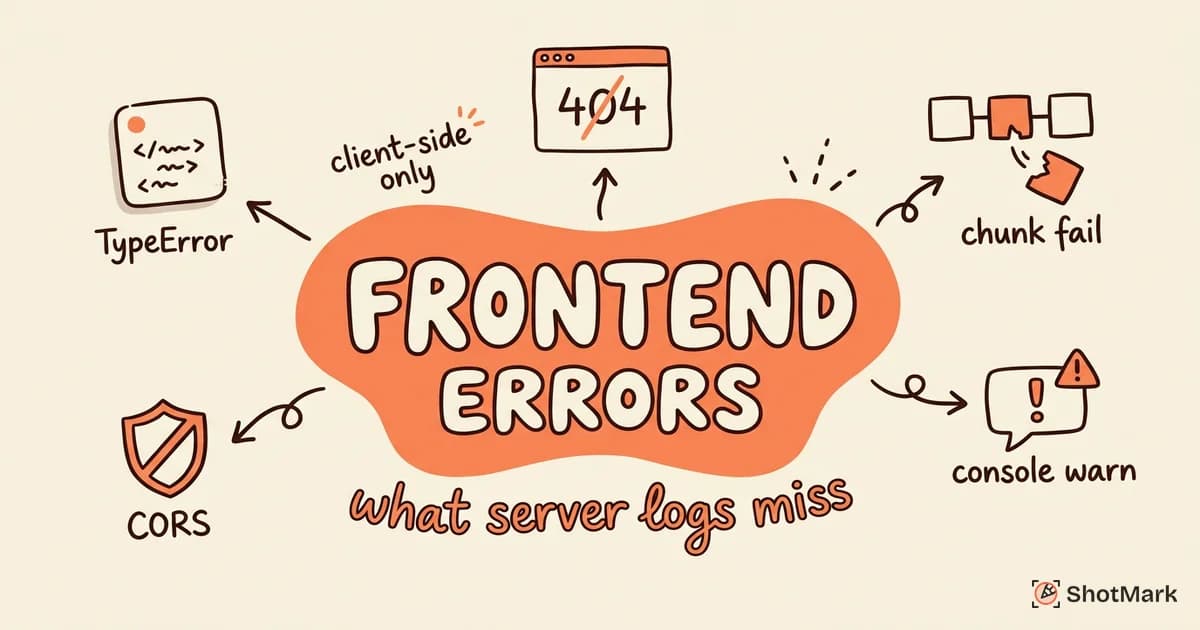
A well-configured setup captures several signal types:
- JavaScript exceptions, including uncaught errors and unhandled promise rejections
- Framework errors surfaced by React error boundaries, Vue error handlers, or Svelte error hooks
- Network request failures that the browser can observe (HTTP 4xx/5xx, timeouts, CORS blocks)
- Console errors and warnings logged by your code or third-party scripts
- Rendering issues like blank components, missing data, or infinite re-render loops
- Performance problems such as long tasks, slow renders, and layout thrashing
Each of these has a different root cause, but they share one trait: the server doesn’t know they happened. That’s why client-side error monitoring is a separate discipline from backend observability. Browser error tracking also has to deal with a long tail of environments (every browser, every version, every OS, every extension) that server logs simply never face. For a broader framing of how this fits with server-side tracking, see our error monitoring for web apps guide.
How Frontend Error Monitoring Works
The mechanics are simpler than most vendor documentation makes them sound. A small SDK loads on every page, registers global listeners, and ships captured events to a backend for grouping and display.
The core capture flow looks like this:
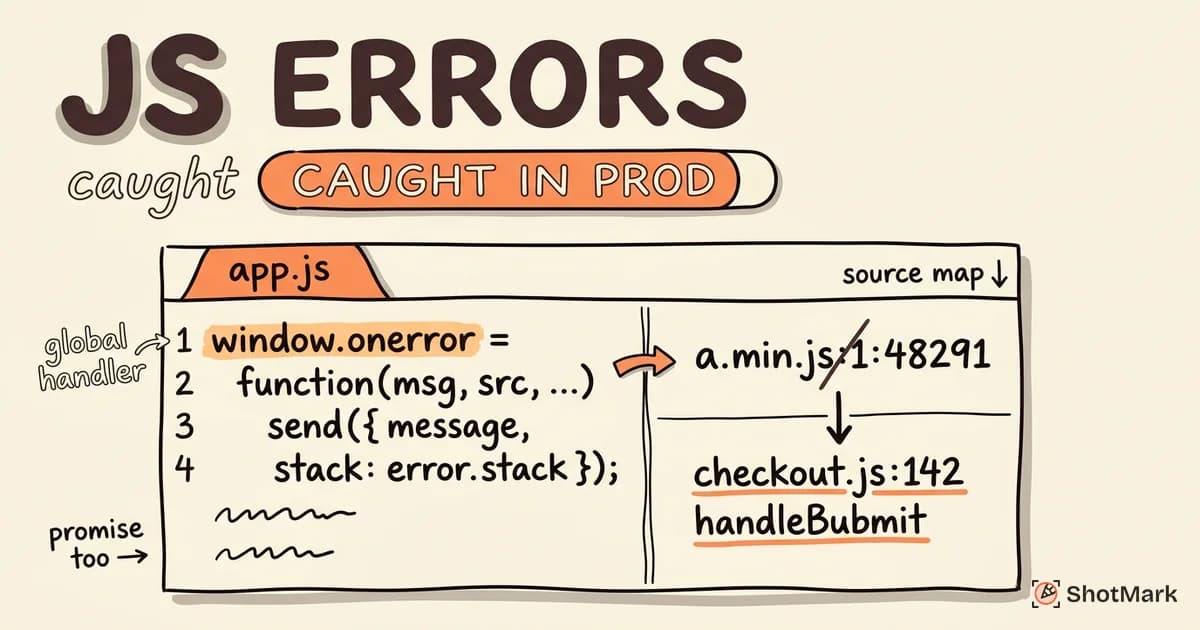
- The SDK hooks into
window.onerrorandwindow.addEventListener('unhandledrejection', ...). - When either fires, the SDK collects the error object, stack trace, URL, user context, and recent breadcrumbs.
- The payload is sent to an ingest endpoint, usually over
navigator.sendBeaconso it survives page unload. - Source maps translate the minified stack trace back to original source files and line numbers.
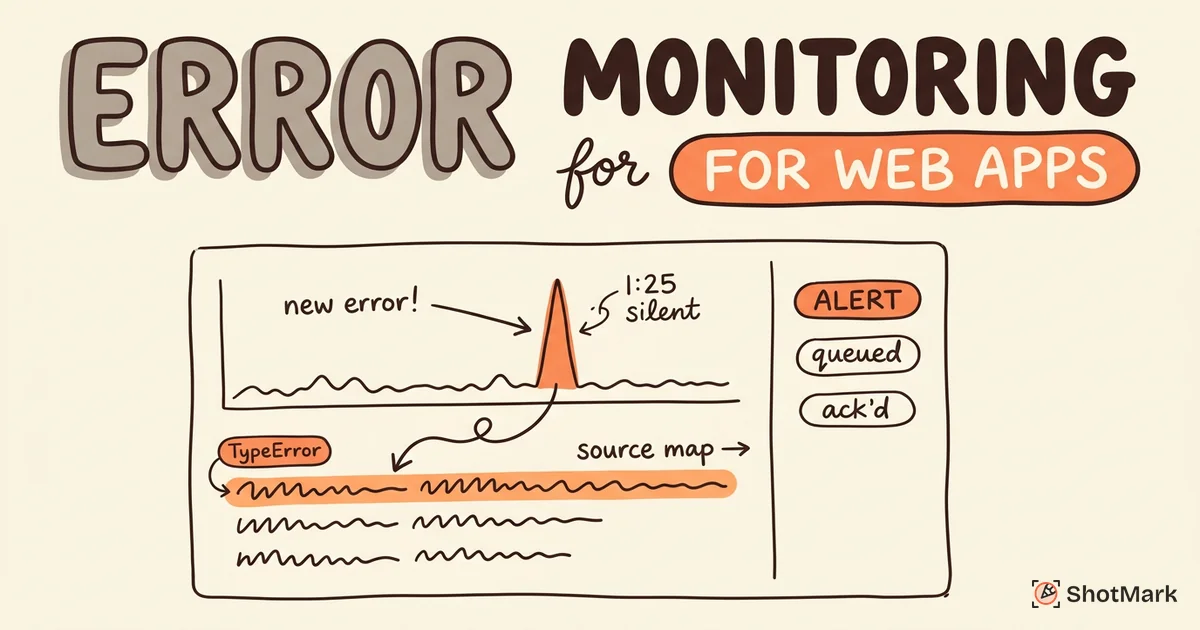
- The backend groups the event by signature (type, message, top frame) so 10,000 instances become one issue.
- Alerts fire on new signatures, spike thresholds, or affected-user counts.
The MDN Web Docs reference on JavaScript error types is the canonical list of what these stack traces actually mean. Framework integrations layer on top of this base flow. React’s error boundary, for example, catches render-phase exceptions that window.onerror would miss, then hands them to the SDK through a documented API. Vue exposes an errorHandler on the app instance for the same purpose, and Angular has its own ErrorHandler provider.
Grouping is where most teams misjudge complexity. A good error monitoring service fingerprints each event by normalizing the stack trace, stripping dynamic values from the message, and folding duplicates into a single issue. Without grouping, a memory leak that throws the same error 50,000 times would bury the actual bugs you care about.
Frontend Error Monitoring Tools Compared
There are dozens of frontend error monitoring tools on the market. Five cover the realistic buying choices for most web teams in 2026.
Sentry
Sentry is the default pick. The SDK is open source, the ingest backend has a generous free tier (5,000 errors per month), and integrations exist for every major framework: React, Vue, Angular, Svelte, Next.js, Remix, SvelteKit. Session replay is bundled in the same SDK, so you can watch what the user did before the error without installing a second tool. The Sentry frontend SDK setup guide covers installation and source map upload in depth.
Tradeoff: pricing scales quickly past the free tier, and the product surface is large. Teams that only need error tracking sometimes feel overwhelmed by the performance and profiling features.
BugSnag
BugSnag (part of SmartBear) focuses on stability. Every release gets a stability score, calculated as the percentage of sessions without crashes, which makes release-over-release comparisons easy. Mobile coverage is strong if you also ship iOS or Android clients. Free tier starts at 7,500 events per month.
Tradeoff: the UI feels dated compared to Sentry, and session replay is handled via partner integrations rather than built in.
LogRocket
LogRocket pairs error tracking with full session replay as the headline feature. When an error fires, you can scrub through the exact DOM state and Redux actions leading up to it. This is the tightest “see what happened” workflow among the options here.
Tradeoff: pricing is higher than error-only tools. Teams that don’t need replay end up paying for capability they won’t use.
Highlight.io
Highlight positions itself as full-stack observability: errors, session replay, frontend logs, and backend traces in one product. The open-source option means self-hosting is realistic for teams with data residency requirements. Free cloud tier includes 500 sessions per month.
Tradeoff: smaller ecosystem and fewer integrations than Sentry. Documentation gaps show up on less common frameworks.
TrackJS
TrackJS is the lightweight option. The SDK is under 10 KB, setup is a single script tag, and the product stays focused on JavaScript error tracking without session replay or performance monitoring bolted on.
Tradeoff: fewer features means you’ll outgrow it if you need replay, performance data, or release health metrics later.
Choosing Between Them
For most React, Vue, or Svelte teams starting fresh, Sentry is the safest default. If you already pay for session replay and want error tracking in the same tool, LogRocket consolidates vendors. If you ship mobile alongside web and care about release stability scoring, BugSnag earns its keep. Highlight.io wins when self-hosting is a hard requirement, and TrackJS works for teams who want a single-purpose tool without feature creep.
Side-by-Side Comparison
| Tool | SDK Size | Free Tier | Key Differentiator |
|---|---|---|---|
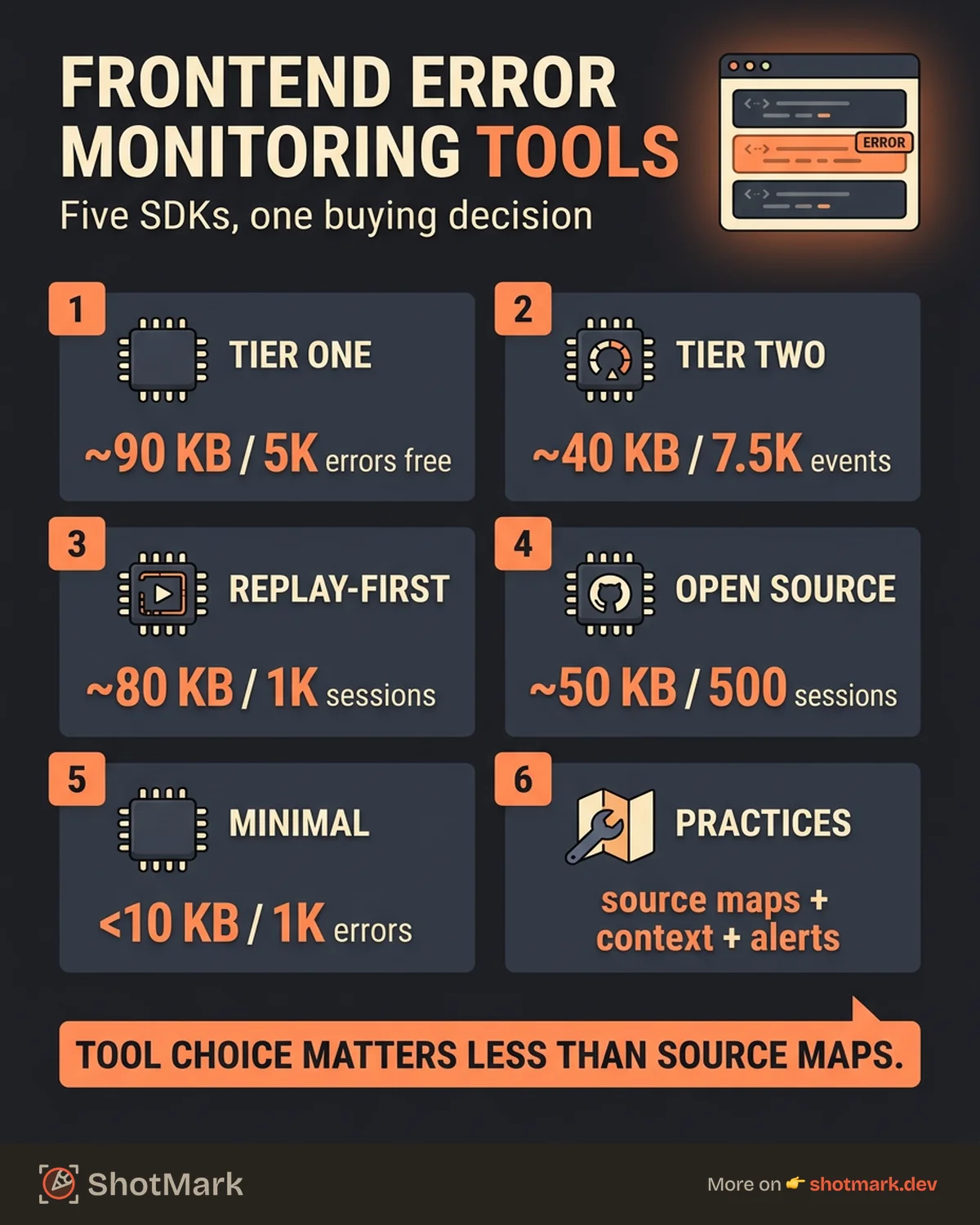
| Sentry | ~90 KB (gzipped) | 5K errors/mo | Open-source core, session replay included |
| BugSnag | ~40 KB | 7.5K events/mo | Stability score per release |
| LogRocket | ~80 KB | 1K sessions/mo | Error + full session replay |
| Highlight.io | ~50 KB | 500 sessions/mo | Open-source, full-stack |
| TrackJS | <10 KB | 1K errors/mo | Minimal footprint |
Pricing changes often. Check vendor sites before committing. According to the State of JS survey results , Sentry consistently leads adoption among frontend developers, with a long tail of smaller vendors serving specific niches.
Best Practices for Frontend Error Monitoring
Tool choice matters less than how you configure it. Teams with the same SDK get very different results based on these practices.
Upload Source Maps to Your Error Tool
Without source maps, your stack traces look like t.default@main.a1b2c3.js:1:48291. Useless. With source maps, the same frame resolves to handleSubmit@src/features/checkout/SubmitButton.tsx:42:18.
Upload source maps as part of every production build. Most SDKs ship a CLI plugin that integrates with Webpack, Vite, esbuild, or your bundler of choice. Keep source maps out of the public bundle by configuring your server to block .map requests from browsers, or by uploading them directly to the error vendor and deleting them from the deploy artifact. For a deeper walkthrough of source map setup, check our guide on JavaScript error tracking for web applications.
Attach User Context to Every Event
A raw error count tells you something is broken. A count of affected users tells you whether to wake someone up at 2 AM. Attach a user identifier (database ID, anonymized hash, or email if your privacy policy permits) to each event as early as possible in the session.
Every SDK exposes a setUser() or equivalent method. Call it immediately after authentication. Avoid shipping full PII like addresses or payment details. The goal is “how many users” and “which users” for support triage, not a profile database.
Use Breadcrumbs to Reconstruct User Actions
Breadcrumbs are a timeline of what the user did before the error. Most SDKs capture clicks, navigation, console logs, and network requests automatically. You can add custom breadcrumbs for domain events: “cart updated”, “checkout step 2 reached”, “coupon applied”.
Good breadcrumb coverage eliminates most “I can’t reproduce this” tickets. A developer opening an error with 20 breadcrumbs can often reconstruct the exact user flow without ever talking to the reporter. This matters more for React error monitoring specifically, where component state isn’t visible in the stack trace and the path the user took through the app is the only clue about what state caused the crash.
Set Up Alerting That Doesn’t Cry Wolf
Noisy alerts get muted. Muted alerts defeat the point of monitoring. Configure alerts around three axes:
- New issue signatures: alert the first time a never-seen error appears in production
- Regression signals: alert when a resolved issue reappears after a release
- Spike thresholds: alert when a known issue’s rate jumps 5x in an hour
Route alerts to the right team. Frontend errors should page the frontend team, not the backend on-call engineer. Most error tools support routing rules based on URL patterns, release tags, or component names.
Combine Error Data With Visual Bug Reports
Error monitoring tells you what broke. It doesn’t always tell you what the UI looked like when it broke, what the user was trying to accomplish, or whether the error is the actual bug or a side effect. That’s the gap visual bug reports fill.
ShotMark captures screenshots, console logs, network requests, and session replay in one click, usually during QA or internal testing. The browser extension packages everything into a structured report that flows into your issue tracker alongside production error data. Frontend error monitoring handles the reactive case (something broke in the wild). ShotMark handles the proactive case (a tester noticed something looked off and filed a complete report in 30 seconds). Join the waitlist to try it early, or see the open-source SDK on GitHub.
Common Frontend Errors and How to Handle Them
Most production error dashboards are dominated by a short list of recurring patterns. Knowing them helps you decide what to fix, what to filter, and what to investigate.
TypeError: Cannot read properties of undefined (reading 'x'). The most common frontend error by volume. Usually caused by assuming an API response includes a field that’s sometimes missing. Fix with optional chaining (user?.profile?.avatar) and defensive defaults.
ChunkLoadError: Loading chunk N failed. Happens when a user’s browser cached an old index.html that references chunks deleted by a new deploy. Fix with a service worker that checks for updates, or by catching the error globally and triggering a full page reload.
ResizeObserver loop limit exceeded. Non-critical. Chromium emits this when a ResizeObserver callback causes a layout change that triggers another observation. Filter it from your error monitoring or you’ll drown in false positives.
CORS errors. Access-Control-Allow-Origin mismatches. Always a backend configuration issue, not a frontend bug. Tag these as “infra” and route to the backend team.
Script error.. A cross-origin script threw an error, but the browser hid the details because the script lacks CORS headers. Add crossorigin="anonymous" to your script tags and configure your CDN to return Access-Control-Allow-Origin: *. For more recurring error patterns and their fixes, see our breakdown of browser console errors explained with fixes.
Putting It Into Practice
Pick a tool that matches your stack and team size, upload source maps on every build, and attach user context from the first session. Those three steps give you 80% of the value of frontend error monitoring before you ever configure a dashboard.
Pair the reactive data from your error tool with proactive visual bug reports from ShotMark, so QA catches issues with full context before they reach production users. The combination of frontend error monitoring in production and one-click visual capture during testing is how modern web teams close the loop between “something broke” and “here’s the fix.”
Get new posts in your inbox.
One email when we publish: notes on QA, AI, and shipping faster. No spam, unsubscribe anytime.