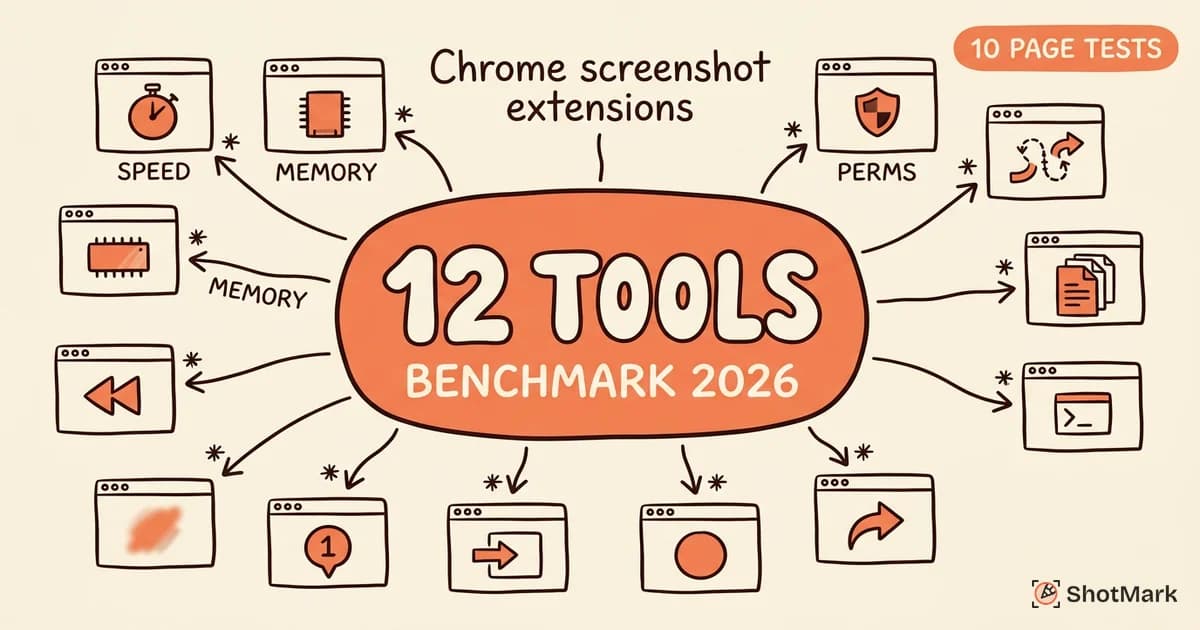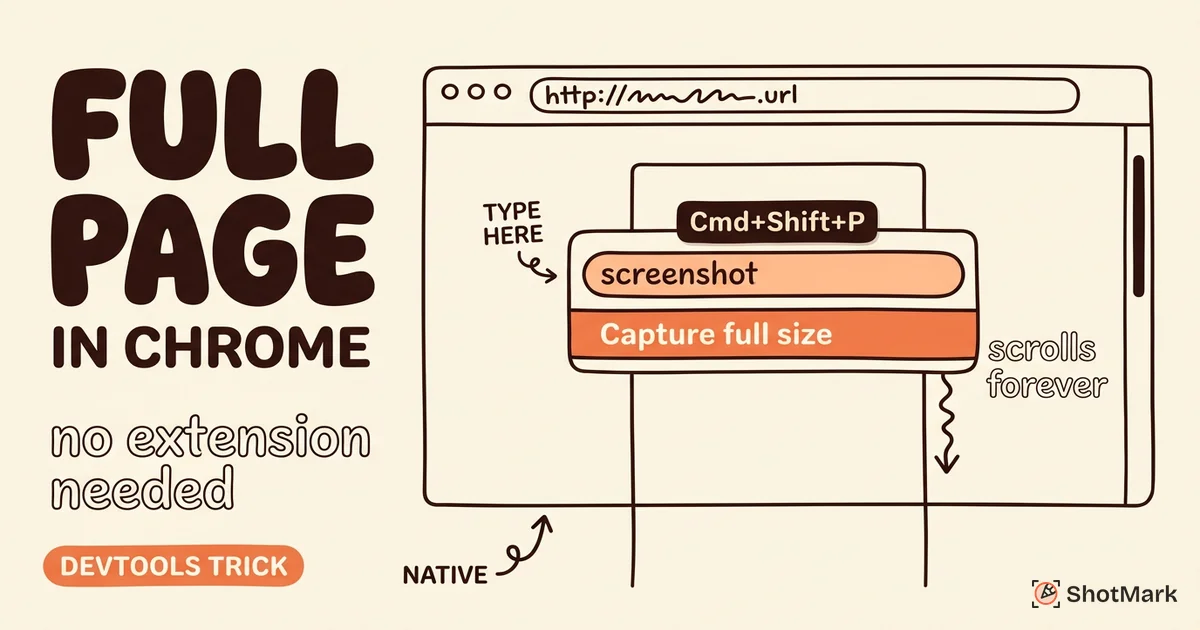
The best Chrome screenshot extension depends on what you’re capturing and why. If you’re saving recipes or archiving articles, any free extension works fine. But if you’re filing bug reports that developers need to reproduce and fix, the criteria change entirely.
We tested six of the most popular Chrome screenshot extensions through the lens of bug reporting. The question we asked: which tool minimizes the time from “I found a bug” to “the developer has everything they need to fix it”? Here’s what we found.
What Makes a Screenshot Extension Good for Bug Reporting
Generic screenshot tools are built for capture. Bug reporting tools are built for resolution. The difference matters.
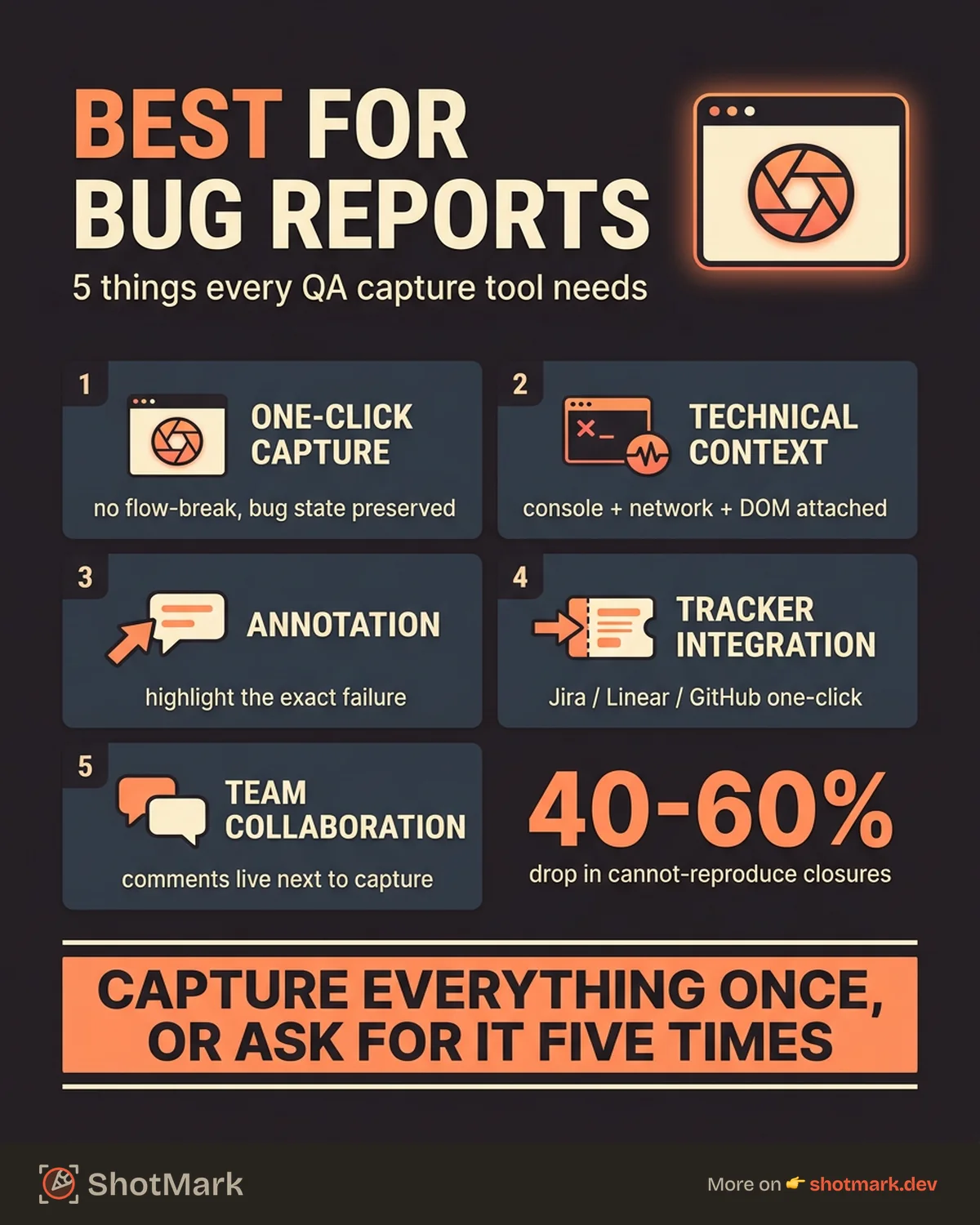
A good bug reporting extension needs five things. Speed, so one-click capture doesn’t interrupt the bug state. Context, meaning technical data like console errors, network failures, and browser metadata captured alongside the visual. Annotation, so you can highlight the exact problem area. Integration with bug trackers like Jira, Linear, and GitHub Issues. And collaboration, so team members can discuss the capture without switching tools.
Most screenshot extensions cover one or two of these. Very few cover all five. That gap is where bug reports go to die in the “cannot reproduce” pile.
Consider a typical scenario. A QA engineer finds a broken checkout flow. The button looks right visually, but clicking it throws a 500 error from the API and a console exception in the browser. A screenshot alone shows a button on a page. It doesn’t show the failed network request or the JavaScript error that explains why nothing happens when you click. That context is the difference between a bug that gets fixed in one pass and a bug that bounces back and forth between QA and engineering for three days.
6 Chrome Screenshot Extensions Ranked for Bug Reporting
We evaluated each extension on what matters for filing bugs that actually get fixed.
1. ShotMark
ShotMark captures the screenshot plus console logs, network requests, browser metadata, and DOM state in a single click. Annotations are built in. You can highlight the bug, add text callouts, and push the entire report to Jira, Linear, or GitHub Issues without leaving the browser. Team members can comment on the capture and see all the technical context in one view.
For bug reporting specifically, this is the most complete package. The capture doesn’t just show what went wrong. It shows why.
2. Jam
Jam is strong on developer-facing capture. It grabs console errors, network requests, and browser environment data alongside the screenshot. The developer experience is polished, and it integrates with popular issue trackers.
The limitation is collaboration. Jam works well for individual developers filing bugs, but it doesn’t offer the team discussion or stakeholder feedback features that larger QA workflows need. If you want to understand how it compares to other tools in terms of technical context, see our breakdown of screenshot extensions that capture technical context.
3. Marker.io
Marker.io is built specifically for bug reporting, and it shows. The widget-based capture works well for collecting feedback from non-technical stakeholders. Jira and Trello integration is solid, and the annotation tools are straightforward.
The tradeoff is technical depth. Marker.io captures the visual and basic metadata but doesn’t attach console logs or network data. For teams that need visual bug reporting without deep developer context, it’s a reasonable choice.
4. Usersnap
Usersnap focuses on feedback collection. The in-page widget lets stakeholders point and click to report issues, which works well for user acceptance testing and client feedback rounds.
For QA teams filing technical bug reports, Usersnap’s lack of console and network capture is a real limitation. It’s better suited for gathering input from people outside the engineering team.
5. Awesome Screenshot
Awesome Screenshot has been around for years and covers the basics well: visible area capture, full page, selected area, and annotation. It’s a solid general-purpose tool.
But for bug reporting, it falls short. No console logs, no network data, no browser metadata, and no direct bug tracker integration. The screenshot is all you get. For a deeper look at how it holds up for QA work, we reviewed whether Awesome Screenshot is still worth it in 2026.
6. GoFullPage
GoFullPage does one thing: full page screenshots. It’s fast, reliable, and free. That’s about it.
There’s no annotation, no technical context, no integration, and no collaboration. Useful for quick captures, but you’ll need other tools to turn the screenshot into a bug report.
Quick Comparison
| Extension | Technical Context | Annotation | Bug Tracker Integration | Collaboration |
|---|---|---|---|---|
| ShotMark | Console, network, metadata, DOM | Yes | Jira, Linear, GitHub | Yes |
| Jam | Console, network, metadata | Limited | Jira, GitHub, Slack | Limited |
| Marker.io | Basic metadata | Yes | Jira, Trello, Asana | Yes |
| Usersnap | Basic metadata | Yes | Jira, Slack, Trello | Yes |
| Awesome Screenshot | None | Yes | None | Limited |
| GoFullPage | None | No | None | No |
The Bug Report Quality Test
We took the same bug (a broken form validation that throws a console error) and reported it with each extension. The measure: how much manual data entry was required, and how many follow-up questions would a developer need to ask?
ShotMark and Jam produced reports where the developer could start debugging immediately. The console error, network request, URL, browser, OS, and viewport were all attached automatically. The developer opens the ticket, sees the stack trace, sees the failed network call, and knows exactly where to look in the code.
Marker.io and Usersnap captured the visual and some metadata, but a developer would need to ask for console output. The ticket would sit in triage until someone went back to the page, opened DevTools, and pasted the error into a comment.
Awesome Screenshot and GoFullPage produced screenshots that would require a separate manual writeup. The QA engineer would need to type out the console error, note the browser and OS, describe the reproduction steps, and attach the screenshot. That’s the old workflow, and it’s slow.
The metric that matters is time to resolution, not time to capture. A fast capture that produces an incomplete bug report wastes more total time than a slightly slower capture that includes everything the developer needs.
A good bug reporting extension should auto-capture the basics: URL, browser, OS, viewport, and timestamp. A great one also grabs console errors, network failures, and DOM state. For a broader comparison of which tools do this well, see our guide to the best screenshot Chrome extensions for QA teams.
Integration Depth: From Screenshot to Bug Tracker
The difference between a screenshot tool and a bug reporting tool is what happens after you click capture.
With basic extensions, the workflow is: take screenshot, download file, open Jira, create issue, attach file, manually type browser info and reproduction steps. That’s five to eight minutes per bug.
With integrated tools, the workflow is: take screenshot, click “send to Jira,” and the issue arrives with the screenshot, technical metadata, and annotations pre-filled. Thirty seconds per bug.
The integrations that matter most are Jira , Linear, GitHub Issues, and Slack. ShotMark and Jam support direct export to all four. Marker.io connects to Jira and Trello. The others require manual export.
Building a Bug Reporting Workflow Around Your Extension
The extension is one piece of the workflow. Here’s how to build a process around it.
First, capture. Take the screenshot or recording with full context enabled. Console logs and network data should be captured automatically, not manually.
Second, annotate. Highlight the bug area, add a text callout explaining what’s wrong, and blur any sensitive data. Our guide to annotating screenshots for bug reports covers the annotation patterns that reduce follow-up questions.
Third, export. Push the capture directly to your bug tracker with one click. The metadata should flow into custom fields automatically.
Fourth, verify. The assigned developer confirms they have enough context to reproduce and fix the bug. If they don’t, the extension’s collaboration features let them ask questions inline rather than bouncing the ticket back to QA with a vague “needs more info” label.
Fifth, measure. Track your team’s “cannot reproduce” rate before and after adopting this workflow. Teams that switch from manual screenshot-and-attach to integrated capture with technical context typically see that rate drop by 40-60%. That reduction translates directly into less time wasted on back-and-forth and more time spent on actual development.
The best Chrome screenshot extension for bug reporting is the one that captures everything a developer needs in a single click. Not just the visual, but the technical context that turns a screenshot into a fixable issue.
Get new posts in your inbox.
One email when we publish: notes on QA, AI, and shipping faster. No spam, unsubscribe anytime.