Chrome developer mode opens two doors most web developers need every day: the ability to sideload unpacked extensions and full access to DevTools for debugging any page. Flip the right toggle and you go from a casual Chrome user to someone who can inspect, modify, and ship browser extensions.
This guide walks through exactly what the term means, how to enable it, and what you can actually do once it’s on. We’ll cover the extension side, the DevTools side, and a few features most developers miss.
What Is Chrome Developer Mode?
The phrase “chrome developer mode” is used two ways, and the distinction matters. The first meaning is the Developer mode toggle on the chrome://extensions page, which lets you load unpacked extensions from your local filesystem. The second is the broader set of Chrome DevTools built into every Chrome install, which you open with a keyboard shortcut or right-click menu.
Most developers need both. Extension developer mode is how you test and debug an extension before it’s packaged and published. DevTools is how you inspect elements, debug JavaScript, and monitor network traffic on any page. They work together but they’re not the same feature. If you’re figuring out which developer productivity tools senior devs use every day, DevTools tops almost every list.
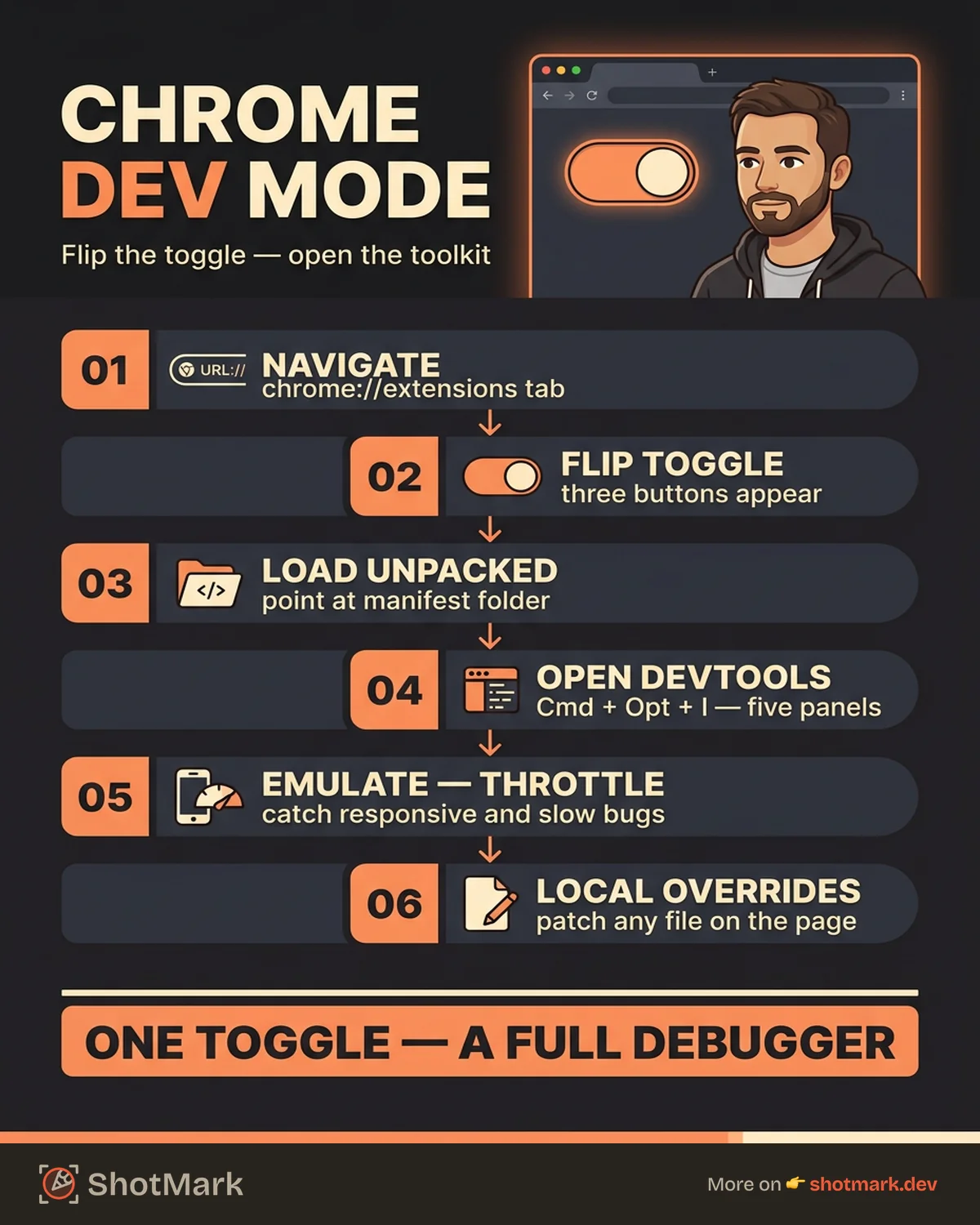
Extension developer mode enables three practical abilities: loading unpacked extension folders, inspecting extension service workers and popups, and installing extensions from outside the Chrome Web Store. DevTools gives you element inspection, console access, network monitoring, performance profiling, and application storage views. Neither one requires a special Chrome build. Everything ships with the standard browser.
How to Enable Developer Mode in Chrome for Extensions
Turning on extension developer mode takes about five seconds. The setting is per-profile, so if you use separate profiles for work and personal browsing, you’ll need to toggle it in each one.
Step-by-Step Guide to Enable Developer Mode
Follow these steps to enable developer mode chrome extensions work under.
- Open a new tab and navigate to
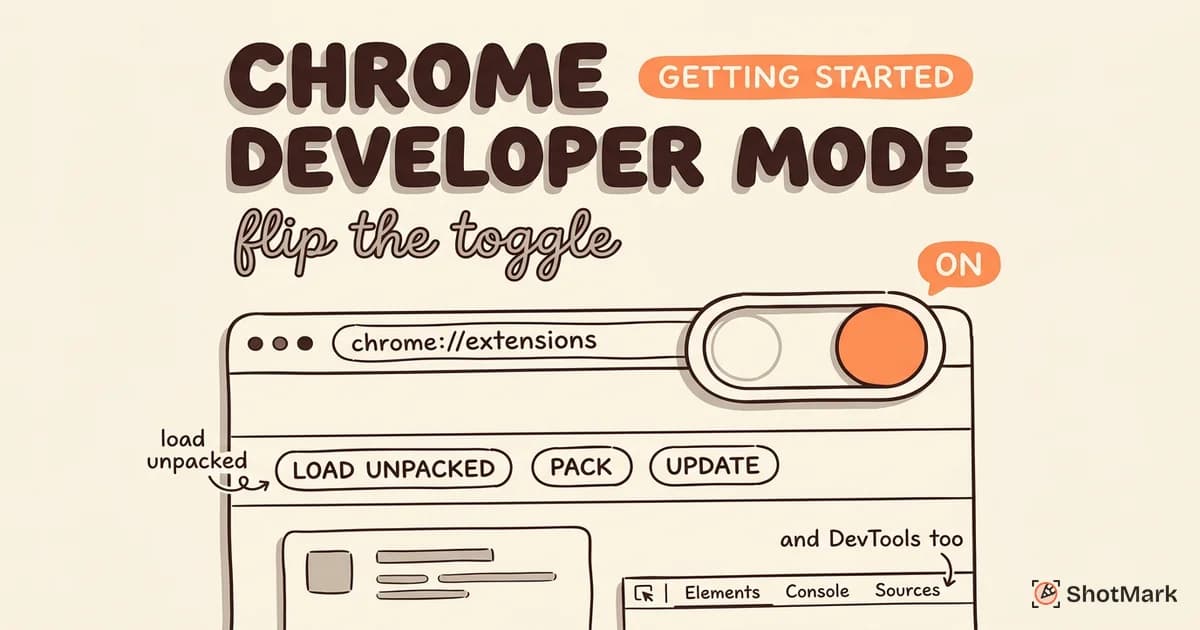
chrome://extensions. - Look for the Developer mode toggle in the top-right corner of the page.
- Click the toggle so it turns blue.
- Three new buttons appear: Load unpacked, Pack extension, and Update.
That’s it. You can now load extensions from a local folder. The Chrome extension getting-started guide from the Chrome team walks through building a first extension end to end if you want a structured starting point.
To load an unpacked extension, click Load unpacked and point Chrome at the folder that contains your manifest.json file. Chrome will either load the extension or show a detailed error if something in the manifest is invalid. Error messages here are usually specific, which is a welcome change from the opaque failures you get with packed extensions.
What You Can Do With Developer Mode Enabled
Once the toggle is on, several abilities become available that regular users don’t have.
- Sideload custom extensions: Load any extension from a local folder, including ones you’re building or private extensions your team ships internally.
- Inspect extension internals: Click the service worker or Inspect views links on an extension card to open DevTools pointed at the background script or popup. This is how you debug extension code.
- Update extensions manually: The Update button forces Chrome to check for new versions of all installed extensions, which is useful during development when you’ve made changes.
- See extension IDs and errors: Developer mode exposes extension IDs and any runtime errors directly on the extensions page, which packed extensions hide from regular users.
One thing to know: Chrome shows a persistent warning banner when developer mode is on, telling you to disable it if you don’t need it. That’s intentional. Developer mode is a security-sensitive setting because sideloaded extensions don’t go through Chrome Web Store review. Turn it off on machines where you’re not actively developing.
Chrome DevTools: The Developer’s Toolkit
Chrome DevTools is the second half of what people mean when they say chrome developer tools mode. It’s a full debugging environment built into the browser, and it’s the single most important tool for front-end work. Knowing every Chrome inspect shortcut you should know makes a surprising difference in how fast you can move through the panels.
Opening DevTools
There are three ways to open DevTools, and the right one depends on what you’re doing.
- Keyboard shortcut:
Cmd + Option + Ion macOS,Ctrl + Shift + Ion Windows and Linux, orF12on any platform. - Right-click > Inspect: The fastest way to jump straight to a specific element in the Elements panel.
- Chrome menu > More Tools > Developer Tools: The clickable path, useful when you don’t remember the shortcut.
The official Chrome DevTools overview from the Chrome team covers every panel in detail, with short videos for each workflow.
Key Panels Overview
DevTools has a dozen panels, but most developers live in five of them.
- Elements: Inspect and edit HTML and CSS live. Useful for fixing layout bugs and prototyping design changes without touching source code.
- Console: Run JavaScript, view log output, and see errors and warnings. The first place to check when something breaks.
- Sources: Set breakpoints, step through JavaScript, and view source maps. This is where real debugging happens.
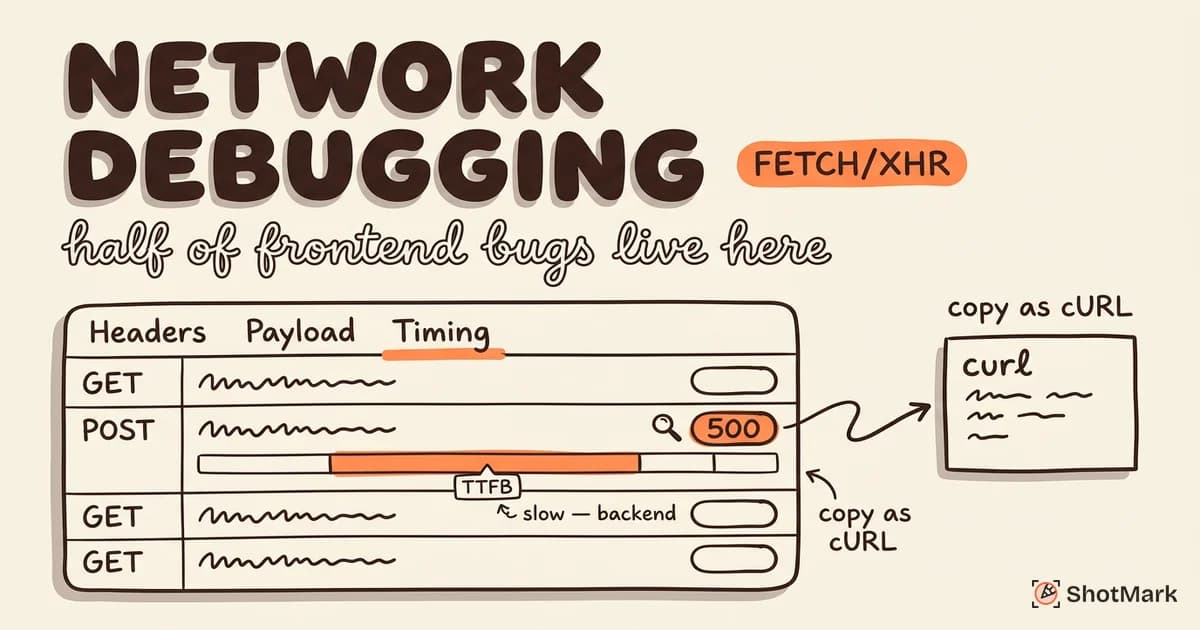
- Network: Monitor every HTTP request the page makes, with timing, headers, response bodies, and initiator chains.
- Application: Inspect localStorage, cookies, IndexedDB, service workers, and the cache. Essential for PWAs and anything that stores state client-side.
Performance, Memory, Lighthouse, and Recorder panels exist too. You’ll reach for them less often but they matter when you need them.
Chrome DevTools Features Most Developers Miss
Three DevTools features are genuinely underused, and each one saves real time.
Device emulation: The device toolbar in the top-left of DevTools lets you simulate dozens of phones and tablets, including touch events, device pixel ratio, and user agent strings. It’s not a perfect replacement for real device testing, but it catches 80% of responsive bugs.
Network and CPU throttling: The Network panel has a throttling dropdown that simulates slow connections (Slow 3G, Fast 3G, offline). The Performance panel can throttle CPU to simulate lower-end devices. Run your app with both set to the slowest option at least once. You’ll find bugs.
Local overrides: You can override any file the page loads with a local version, including production JavaScript and CSS. This lets you test fixes on live sites without touching the server. The feature lives in the Sources panel under Overrides.
Common Use Cases for Chrome Developer Mode
Knowing what’s in the box is one thing. Using it on real problems is another. Here are the three most common workflows.
Debugging a Broken Website
When a page misbehaves, DevTools is where you start. Open the Console first and check for red error messages. JavaScript errors usually include a file name and line number that tells you exactly where to look.
If the page renders wrong, move to the Elements panel and inspect the broken section. Check the computed styles on the right and look for unexpected values, specificity conflicts, or missing CSS. For anything network-related, open the Network tab, reproduce the issue, and filter by Fetch/XHR to see API calls and their responses.
Most front-end bugs fall into one of three buckets: JavaScript errors in the console, CSS specificity issues visible in Elements, or failed network requests visible in Network. Checking all three takes a minute and usually points at the problem.
Testing a Chrome Extension
Extension debugging is where developer mode really earns its place. Load your unpacked extension, then use the links on the extension card to inspect each piece.
- Popup: Right-click the extension icon and choose Inspect popup, or open DevTools while the popup is visible.
- Background service worker: Click the service worker link on the extension card in
chrome://extensions. DevTools opens a new window attached to the background script. - Content scripts: Content scripts run in the context of the host page. Open DevTools on that page, and your content script logs and breakpoints will appear in the Console and Sources panels.
If you’re shopping around for tooling, the best Chrome extensions for developers in 2026 list covers utilities that complement built-in DevTools instead of duplicating it.
Capturing Bug Context for Reports
DevTools gives you everything you need to file a complete bug report: console errors, network failures, the exact DOM state, and the environment. The catch is that capturing all of that manually takes time. You screenshot the page, export console logs, save the HAR file, note the browser version, and paste it all into a ticket.
Manual screenshots of DevTools are especially tedious. You have to scroll through the Console to find relevant errors, expand objects, take separate screenshots of the Network tab, and stitch the evidence together. By the time you’ve done it, ten minutes have disappeared. Learning how to capture console logs for bug reports makes the process faster, but it’s still a manual grind.
ShotMark handles this automatically. One click captures the screenshot, console logs, network requests, and session replay for the active tab, packages them into a structured report, and sends them wherever you need. You keep using Chrome developer mode and DevTools the way you already do. ShotMark just removes the part where you copy evidence between tabs. We’re building an open-source SDK for teams that want to self-host the capture pipeline. Join the waitlist at ShotMark to get early access when it launches.
Chrome developer mode is the foundation every web developer builds on: extension sideloading when you need it, DevTools when you’re debugging anything. Once the toggle is flipped and you know which panels to reach for, the browser becomes a debugger. And once you’ve found the bug, ShotMark turns the evidence into a report in one click.
Get new posts in your inbox.
One email when we publish: notes on QA, AI, and shipping faster. No spam, unsubscribe anytime.