Your users are hitting errors right now. Some see blank screens. Others get failed API calls. A few watch their form submissions vanish into nothing. Without error monitoring, you only find out when someone emails support or posts on social media. That reactive approach costs more in customer trust than any tool subscription ever will.
Error monitoring gives your team real-time visibility into every crash, exception, and failed request in your application. This guide covers how to set it up, which tools to evaluate, and how to build a workflow that turns error data into fixed bugs.
What Is Error Monitoring (and What It Is Not)
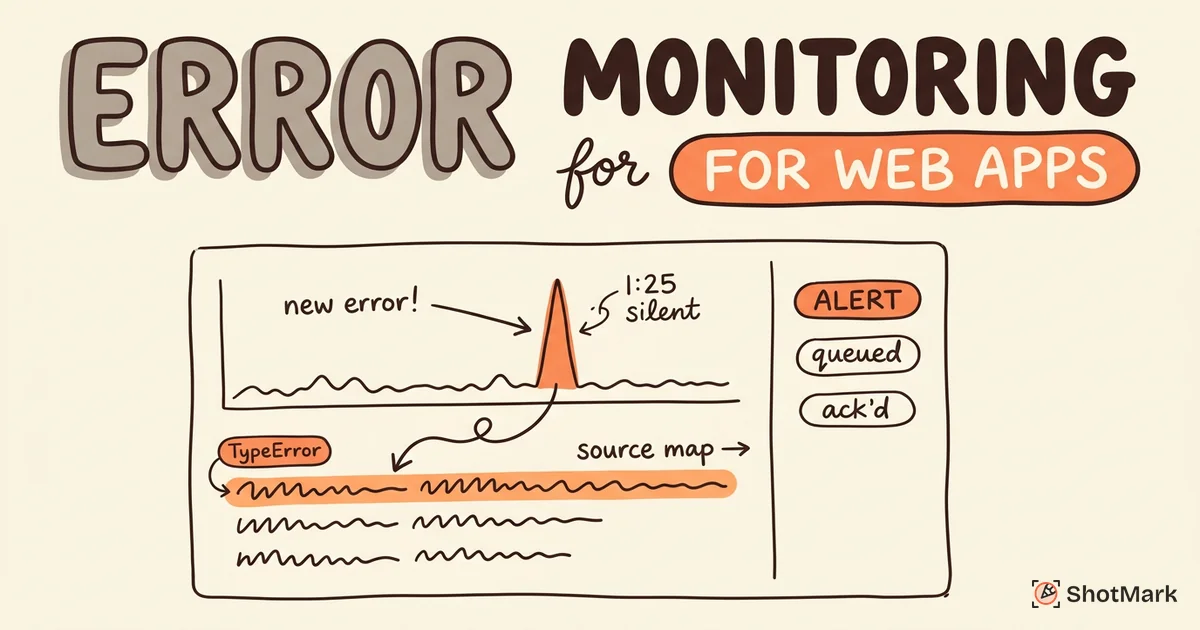
Error monitoring is the automated detection, tracking, and alerting of application errors in real time. When a user triggers an unhandled exception, error monitoring captures the stack trace, groups it with similar occurrences, and notifies your team.
That definition sounds simple, but teams often confuse error monitoring with adjacent concepts.
Error monitoring vs. logging: Logs are raw text output from your application. Error monitoring tools ingest errors, deduplicate them, group similar occurrences, and surface trends. Logs give you data. Error monitoring gives you actionable signals.
Error monitoring vs. APM: Application Performance Monitoring (APM) focuses on response times, throughput, and resource consumption. Error monitoring focuses on exceptions and crashes. Some tools (like Sentry and Highlight.io) now cover both, but the core concerns are different.
Error monitoring vs. uptime monitoring: Uptime checks whether your site responds with a 200 status code. Error monitoring checks whether it works correctly once it loads. Your site can be “up” while throwing JavaScript errors on every page.
The types of errors worth monitoring include unhandled JavaScript exceptions, API failures (4xx and 5xx responses), console errors, network timeouts, and framework-specific rendering errors.
Why Error Monitoring Matters
For every user who reports a bug, roughly 25 experience the same issue silently and leave. That ratio (documented across multiple SaaS benchmarks) means your support inbox represents a fraction of the actual problem.
Production errors cost more to fix than pre-release bugs. The further a bug travels from the developer’s editor to the user’s browser, the more expensive the context switch to understand and fix it. Error monitoring shortens that distance by alerting your team within minutes of the first occurrence.
Beyond cost, error monitoring closes the feedback loop between production and development. Without it, your team ships code and hopes for the best. With it, you know within minutes whether a deploy introduced new issues.
The business case is straightforward: reduced churn, faster incident response, and a better user experience. For regulated industries, error tracking and incident documentation may also be a compliance requirement.
What to Monitor in a Web App
Frontend Errors
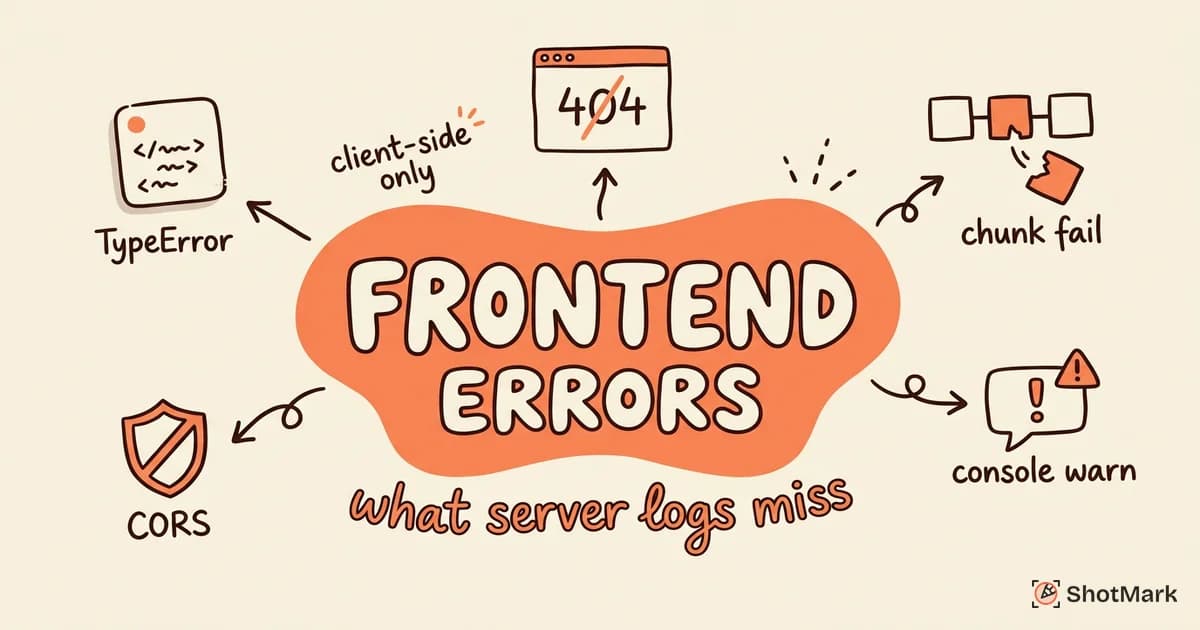
Frontend errors are what your users experience directly.
JavaScript exceptions are the most common: TypeError, ReferenceError, SyntaxError. These crash components, freeze interactions, and produce blank screens. Unhandled promise rejections (common in async code) are equally important and often overlooked.
Framework rendering errors affect React, Vue, and Svelte applications. A React error boundary catches component-level crashes, but without error monitoring, you never learn about them.
Console errors and warnings often indicate misconfiguration (missing environment variables, deprecated API usage). Network request failures (4xx, 5xx, timeouts) signal broken integrations or backend instability.
For a deeper look at frontend error monitoring tools and practices, we’ve published a dedicated guide.
Backend Errors
Backend errors are invisible to users but destructive to data integrity.
Server exceptions with stack traces are the starting point. Database query failures, authentication errors, and third-party service outages (payment APIs, email providers, search services) each need monitoring. Background job failures (queue processing, scheduled tasks) are easy to miss because no user triggers them directly.
Infrastructure Errors
Infrastructure errors sit below the application layer. Container crashes and out-of-memory (OOM) kills indicate resource constraints. DNS resolution failures and SSL certificate expirations cause outages that look like application bugs. CDN and edge function errors affect specific geographic regions or request patterns.
Most teams start with frontend and backend error monitoring. Infrastructure monitoring becomes critical as your application scales and serves traffic globally.
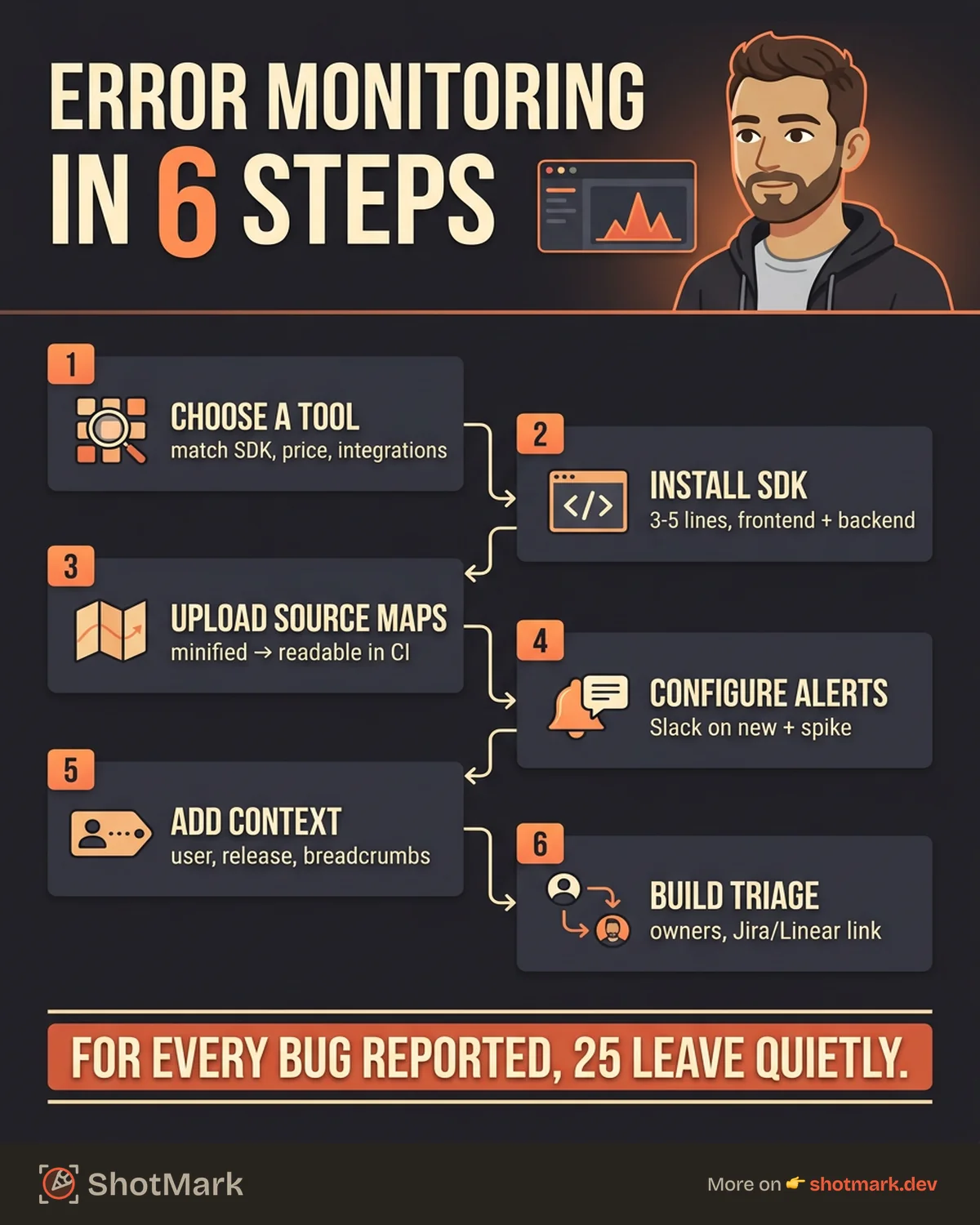
Setting Up Error Monitoring (Step-by-Step)
Step 1: Choose a Tool
The error monitoring tools market has several strong options. Here is a comparison of the most widely adopted tools for web applications.
| Tool | Best For | Free Tier | Key Feature |
|---|---|---|---|
| Sentry | Full-stack teams | 5K errors/mo | AI-powered root cause analysis |
| BugSnag | Mobile + web | 7.5K events/mo | Stability scores |
| Rollbar | CI/CD integration | 5K events/mo | Deploy tracking |
| Raygun | User-centric tracking | 1K errors/mo | User journey tracking |
| GlitchTip | Self-hosted/open source | Unlimited (self-host) | Sentry SDK compatible |
| Highlight.io | Full-stack observability | 500 sessions/mo | Session replay + errors |
Your selection criteria should include SDK support for your stack, pricing at your expected error volume, error grouping quality, and integrations with your existing tools (Slack, Jira, Linear, GitHub).
Step 2: Install the SDK
Frontend installation is typically 3 to 5 lines of code. Here is a Sentry initialization example for a React application:
import * as Sentry from "@sentry/react";

Sentry.init({
  dsn: "https://your-dsn@sentry.io/project-id",
  environment: "production",
  tracesSampleRate: 0.1,
});
For the backend, use the framework-specific SDK. Express, Django, Rails, and most popular frameworks have official integrations. Install the SDK, configure the DSN, and errors start flowing.
Step 3: Configure Source Maps
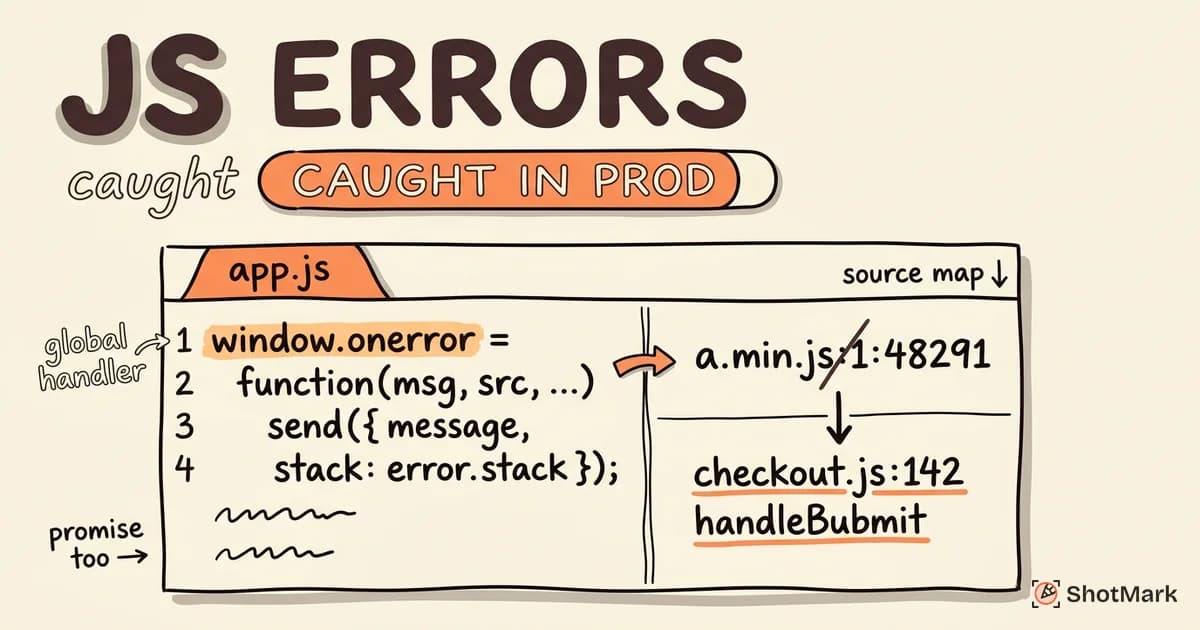
Minified stack traces are unreadable. A production error pointing to main.a3f2b1.js:1:45832 tells you nothing. Source maps restore the original file names and line numbers.
Upload source maps to your error monitoring tool during the build step. Most tools provide a CLI or webpack/vite plugin for this. Keep source maps out of the browser (don’t serve them publicly) because they expose your original source code.
This step is easy to skip and painful to do retroactively. Configure it before your first production deploy.
Step 4: Set Up Alerting
Error monitoring without alerting is just a dashboard nobody checks. Configure alerts to reach your team where they already work.
Alert channels: Slack for non-critical, email for summaries, PagerDuty for production-down scenarios.
Alert rules: Trigger on new errors (never seen before), error spikes (50% increase in 10 minutes), and specific error types (payment failures, authentication errors).
Avoid alert fatigue: Group related errors. Deduplicate repeat occurrences. Set minimum thresholds (don’t alert on a single occurrence of a non-critical error). Define escalation policies so that after-hours alerts reach the on-call engineer, not the whole team.
Step 5: Add Context to Errors
A stack trace alone is often insufficient to reproduce a bug. The best error reports include surrounding context.
User identification: Attach the user’s email, account ID, and subscription plan. When a P0 error affects your enterprise customer, you want to know immediately.
Custom tags: Tag errors with the release version, active feature flags, and environment. This lets you filter errors introduced by a specific deploy.
Breadcrumbs: Record the sequence of user actions leading up to the error: page navigations, button clicks, API calls. Breadcrumbs turn a stack trace into a story.
ShotMark extends this context further. Where error monitoring captures the technical state, ShotMark captures the visual state: a screenshot of what the user saw, the full console output, and the network requests that preceded the error. That combination gives developers reproduction context without a back-and-forth thread.
Step 6: Build a Triage Workflow
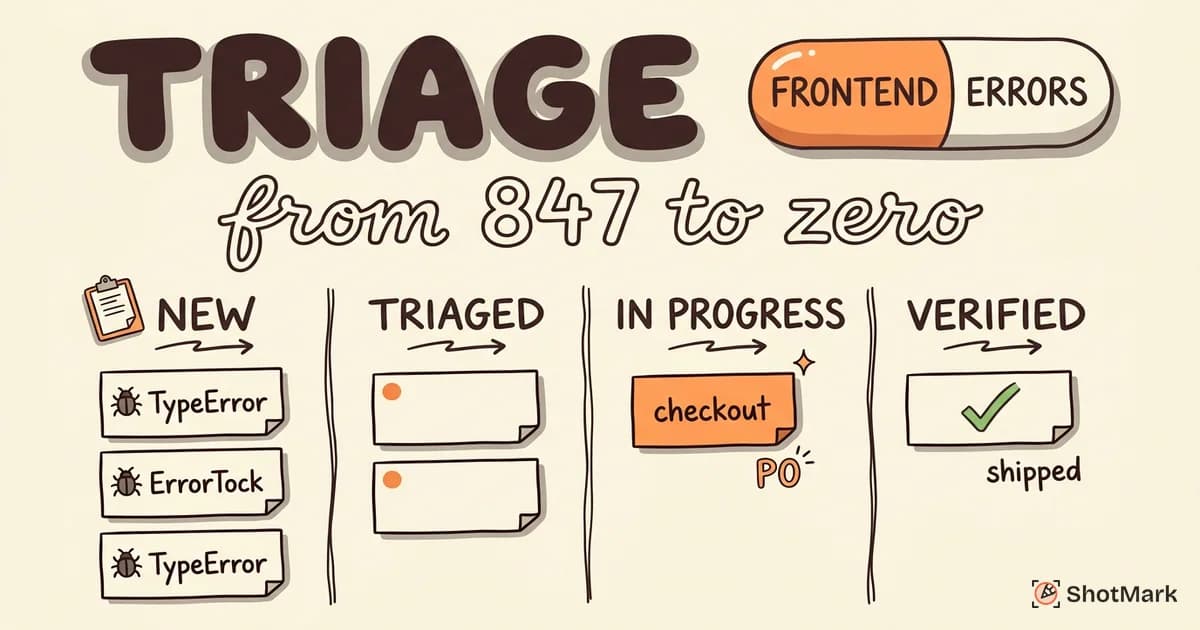
Errors without ownership get ignored. Define who triages incoming errors and how they’re prioritized.
Ownership: Assign a rotating triage engineer or distribute by module (frontend team owns frontend errors, backend team owns backend errors).
Prioritization: Rank by affected user count, frequency, and severity. An error affecting 5,000 users once is different from an error affecting 5 users 1,000 times.
Issue tracker integration: When an error is confirmed as a bug, create a ticket in Jira, Linear, or GitHub Issues directly from your error monitoring tool. Include the error details, affected user count, and first/last occurrence timestamps.
For a detailed framework on triaging frontend errors across your team, we’ve written a separate guide.
Error Monitoring Tools Compared
Choosing between error monitoring tools depends on your team size, stack, and budget. Here are the key differentiators.
Sentry is the most widely adopted open-source-origin tool. Its error grouping is mature, and the AI-powered root cause suggestions save triage time. The free tier (5K errors per month) works for small projects. Self-hosting is possible via the open-source version.
BugSnag provides stability scores that quantify what percentage of your user sessions are error-free. This metric is useful for reporting to non-technical stakeholders. Mobile support is strong.
Rollbar excels at deploy tracking. It correlates errors with specific deployments, making it easy to identify which release introduced a regression. The CI/CD integrations are well-built.
Raygun focuses on user-centric error tracking, connecting errors to individual user journeys. Useful for B2C applications where understanding user impact matters.
GlitchTip is the self-hosted, open-source alternative. It is compatible with Sentry’s SDK, so you get the Sentry developer experience with full data ownership. Ideal for teams with compliance requirements or limited budgets.
Highlight.io combines error monitoring with session replay. You can watch a recording of the user’s session where the error occurred. This is the closest to ShotMark’s approach of combining visual and technical data, though Highlight.io focuses on session replay while ShotMark focuses on one-click bug capture.
For teams evaluating error monitoring software on a tight budget, we’ve compared free tiers and open-source options in a separate post.
Best Practices for Error Monitoring
Monitor from day one: Don’t wait until after launch. Set up error monitoring in your staging environment first, then carry the configuration to production.
Configure source maps before going live: Retrofitting source map uploads after your first production incident is stressful and slow.
Use release tracking: Tag every error with the release version. When errors spike, the first question is always “what deployed recently?” Release tags answer that instantly.
Review the error dashboard weekly: Make it a standing agenda item in your team’s weekly sync. Look at new errors, error trends, and resolution rates.
Track error resolution rate as a KPI: Measure how many errors your team resolves per sprint. A growing backlog of unresolved errors signals a process problem.
Don’t ignore “known” errors: If an error is expected, silence it explicitly in your monitoring tool. If it’s a real bug that nobody wants to fix, create a ticket anyway. Unaddressed known errors mask new issues.
For a deeper reference on common errors and their fixes, see our guide on browser console errors explained. And for tracking JavaScript errors specifically, we cover the details in our JavaScript error tracking guide.
Error Monitoring and Bug Reporting
Error monitoring detects issues. Bug reporting captures the context needed to fix them. These are complementary workflows, not substitutes.
The typical flow looks like this: an error alert fires, an engineer investigates the error details, they reproduce the issue, and they file a bug report with the context required for a fix. The weak link is usually the reproduction step. Stack traces tell you what broke, not what the user did or saw.
Visual bug reports fill that gap. A screenshot of the broken state, the console output, and the network requests leading up to the error give the fixing developer enough context to start working without asking the reporter for more details.
ShotMark bridges the distance between “error detected” and “bug understood.” When your error monitoring tool flags a new issue, a QA engineer or support agent can reproduce it and capture a one-click report with ShotMark. The screenshot, console logs, and network data travel together to the developer who owns the fix.
Make Errors Visible, Then Fixable
Error monitoring transforms your team from reactive to proactive. Instead of waiting for user complaints, you see errors as they happen. Instead of guessing which deploy broke something, you trace errors to specific releases.
Start with the basics: install an SDK, upload source maps, set up Slack alerts. Then build the workflow: triage, prioritize, fix, verify. Pair your error monitoring with visual bug reports to close the loop between detection and resolution.
ShotMark captures screenshots, console logs, and network requests in one click, giving your team the context that error monitoring alone can’t provide. Join the waitlist .
Get new posts in your inbox.
One email when we publish: notes on QA, AI, and shipping faster. No spam, unsubscribe anytime.