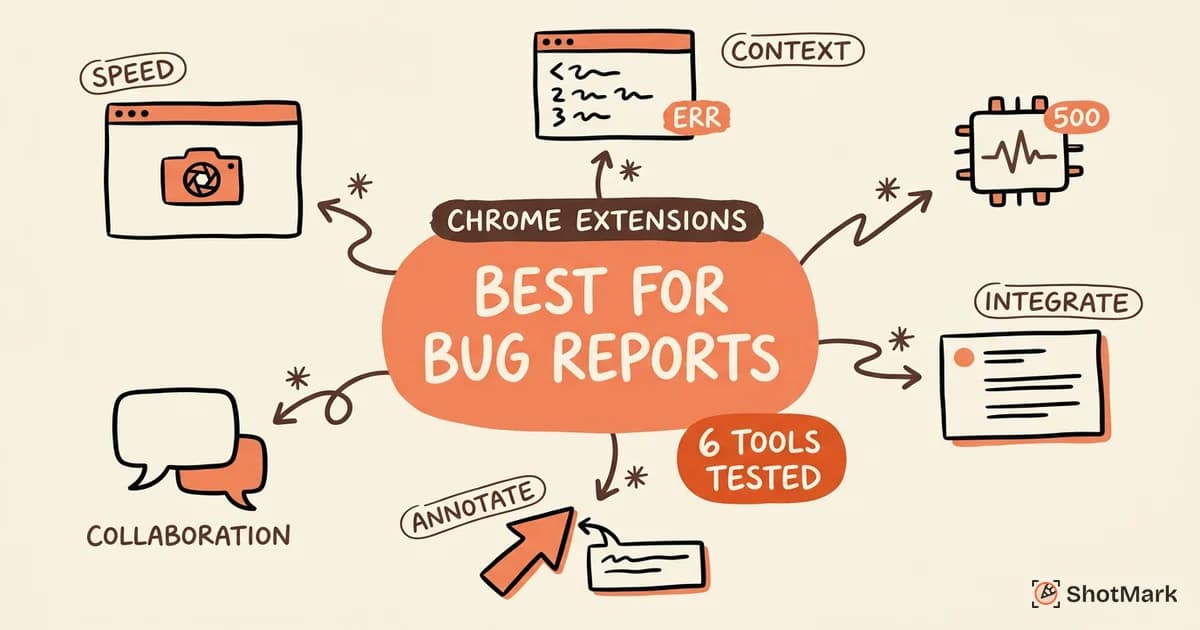
A screenshot without annotation is a guessing game. The developer sees the page but doesn’t know what you’re pointing at, which element is broken, or what it should look like instead.
Screenshot annotation turns a passive image into an actionable bug report. Done well, it reduces the back-and-forth between QA and engineering by making the problem obvious at a glance. Here’s how to annotate screenshots so developers fix the right thing on the first try.
Why Raw Screenshots Fail as Bug Reports
Developers scan a screenshot for about five to ten seconds before deciding whether they have enough information to act. If the bug isn’t immediately obvious (and it rarely is in a 1920x1080 image full of UI elements), they’ll mark the ticket as “needs more info” and move on.
Without annotation, the bug could be anywhere. Is it the button color? The alignment? The missing error message? The broken layout on the right side? The developer has to guess, and guessing wastes time.
The “can you tell me which element?” follow-up is one of the most common comments on bug tickets. It happens when the screenshot shows the page but doesn’t show the problem. Annotated bug reports reduce clarification requests significantly because the reporter is explicitly marking what’s wrong.
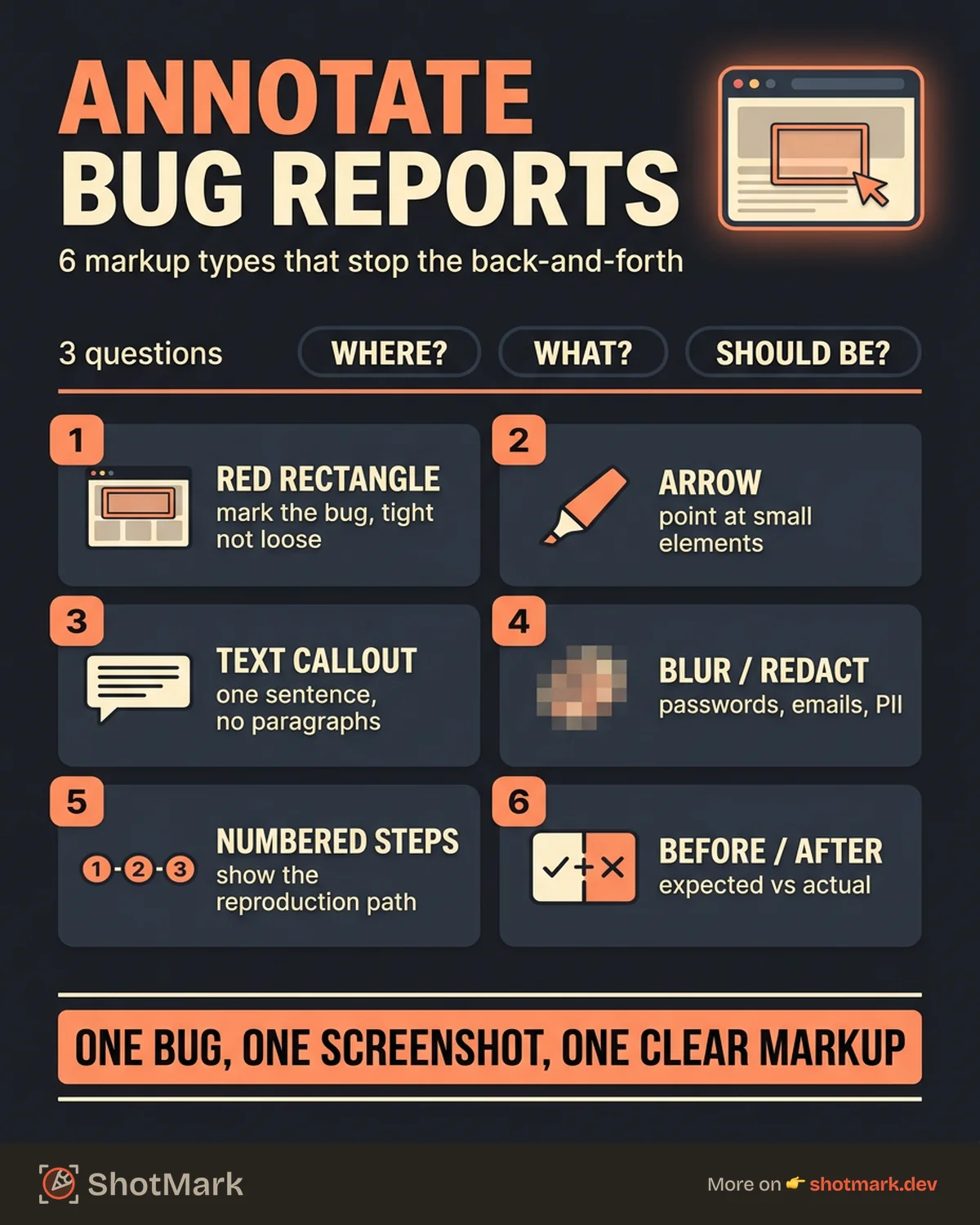
A good annotation answers three questions: where is the bug, what’s wrong, and what should it look like. If your annotation covers those three things, the developer can start fixing immediately. Jira’s bug reporting guide emphasizes this: the best bug reports are the ones that need zero follow-up.
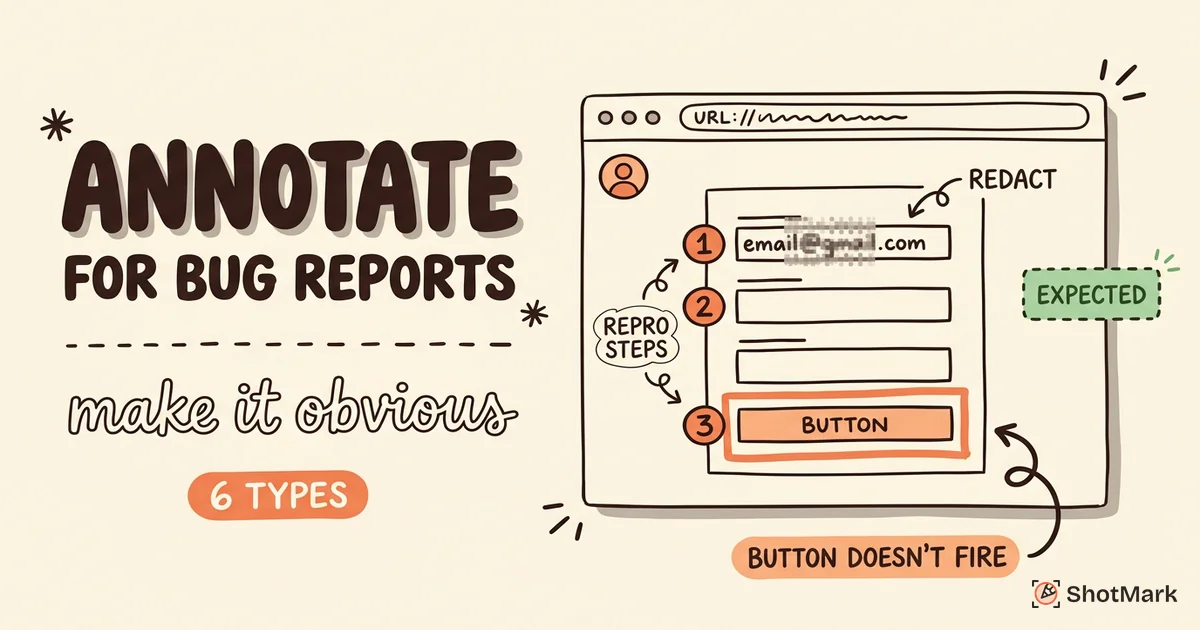
The 6 Annotation Types Every QA Tester Should Use
Not all annotations are created equal. These six types cover the majority of bug reporting scenarios.
1. Red Rectangle or Circle
This is the most important annotation. Draw a red border around the affected area to immediately direct the developer’s eye. The rectangle should be tight around the bug, not around the entire section or page. Precision matters.
A red highlight says “the problem is here.” Everything else is context. Make this the first annotation you add, every time.
2. Arrow
Use an arrow to point to a specific element, error message, or icon. Arrows work best when the affected area is small (a misaligned icon, a truncated label) and a rectangle would cover too much surrounding content.
Combine an arrow with a text callout for maximum clarity. The arrow points to the element, the text explains what’s wrong.
3. Text Callout
A text callout adds written explanation directly on the screenshot. Use it to describe what’s wrong or what was expected. “Submit button is disabled after form completion” is more useful than a red circle with no context.
Keep text callouts short. One sentence, two at most. If you need a paragraph to explain the bug, the annotation is compensating for unclear reproduction steps.
4. Blur or Redact
Blur sensitive data before sharing screenshots. Passwords, email addresses, API keys, personal user information, and internal URLs should be obscured. This is a security practice, not just a courtesy.
Most annotation tools offer a blur or pixelate option. Use it on any field that contains real user data, even in internal bug reports. Screenshots get shared more broadly than you expect.
5. Numbered Steps
When the bug requires a specific sequence of actions to reproduce, numbered annotations show the path. Place a “1” on the first element clicked, a “2” on the next, and so on. This creates a visual reproduction path directly on the screenshot.
Numbered steps work especially well for multi-step form bugs, navigation issues, and any bug that only appears after a specific interaction sequence.
6. Before/After Comparison
Show the expected behavior next to the actual behavior. This can be a side-by-side image or a single screenshot with annotations marking “expected” and “actual.”
Before/after comparisons are persuasive. They remove ambiguity about whether something is a bug or a design choice. If you can show what it should look like, do it.
For more on choosing tools that support these annotation types in a QA workflow, see our best Chrome screenshot extension for bug reporting comparison.
Screenshot Annotation Tools Compared
The tool you use affects how quickly you can annotate and how easily the result integrates with your bug tracker.
Browser Extensions
Browser-based annotation tools are the fastest option because you annotate before leaving the page. Awesome Screenshot, Marker.io, and ShotMark all offer inline annotation after capture.
The advantage is speed. Capture, annotate, and send to your tracker without context switching. The limitation is that browser extensions typically offer fewer annotation options than desktop apps.
For teams that file bugs frequently, browser-based annotation integrated with a tracker saves significant time per bug.
Desktop Apps
Snagit is the most fully-featured annotation tool available. It supports every annotation type listed above plus stamps, templates, and step-by-step documentation. TechSmith’s annotation guide covers these features in detail.
Skitch (Mac) and Windows Snipping Tool offer basic markup. They’re free and built into the OS, but lack the integrations and sharing features of dedicated tools.
The tradeoff with desktop apps is the export step. You annotate, save the file, then manually attach it to your bug tracker. That’s fine for occasional use but slow for daily QA work.
Web-Based Tools
CloudApp, Markup Hero, and Annotely run in the browser and offer sharing via link. They sit between extensions and desktop apps in terms of features and speed.
Web-based tools work well for distributed teams that need to share annotated screenshots with stakeholders outside the bug tracker. The link-sharing model makes it easy to include annotated screenshots in Slack conversations, emails, and documentation.
Quick Comparison
| Tool Type | Annotation Depth | Bug Tracker Integration | Speed | Best For |
|---|---|---|---|---|
| Browser extensions | Good | Direct (varies) | Fast | Daily QA bug filing |
| Desktop apps | Excellent | Manual export | Slow | Detailed documentation |
| Web-based tools | Good | Link sharing | Medium | Stakeholder communication |
For a broader look at browser-based tools, our guide to the best screenshot Chrome extensions for QA teams ranks extensions by annotation quality and tracker integration.
Annotation Best Practices for Bug Reports
Good annotation is consistent, clean, and focused. These practices make your screenshots more effective.
One bug per screenshot: Don’t circle five different issues in a single image. Each bug gets its own annotated screenshot. This prevents confusion when the ticket is assigned and tracked. Multiple bugs in one screenshot lead to partial fixes and forgotten issues.
Use consistent colors: Red for bugs (broken elements, errors). Green for expected behavior (what it should look like). Blue or yellow for context (additional information, related elements). A color convention makes your annotations scannable. Your team should agree on the standard and stick to it.
Keep annotations clean: Don’t cover the bug with markup. Place text callouts adjacent to the issue, not on top of it. Use arrows instead of large rectangles when the affected area is small. The annotation should highlight the problem, not obscure it.
Include the URL bar or breadcrumb: Cropping too tightly loses page context. Including the URL bar or navigation breadcrumb helps the developer identify the exact page without checking the ticket description. This small detail prevents “which page is this on?” questions.
Add browser and viewport context when relevant: If the bug is specific to a browser, screen size, or device, include that information as a text annotation or in the bug report metadata. Responsive layout bugs are particularly dependent on viewport width, so noting the dimensions directly on the screenshot is helpful.
For video-related bugs, the same annotation principles apply to video frames. Our roundup of screen recorder Chrome extensions that also annotate covers tools that handle both video and static image markup.
Building an Annotation Workflow for Your QA Team
Individual annotation skill matters, but a team-level workflow matters more. Here’s how to standardize.
Standardize on one annotation tool. When some team members use Snagit and others use browser extensions, the output format and style vary. Pick one tool that fits your workflow and train everyone on it. Consistency in the output makes bug reports easier to triage.
Create an annotation style guide. Define your color conventions, shape standards (rectangle vs. circle vs. arrow), and text callout format. Keep it short: one page with examples. The guide should answer “how do I mark this up?” in under 30 seconds.
Integrate annotations into your bug report template. Every bug report template should include a field for an annotated screenshot. Make it required, not optional. Over time, this becomes automatic for the team. Marker.io’s visual bug reporting guide covers how to structure templates around visual evidence.
Train non-technical stakeholders on basic annotation. Product managers, designers, and customer support staff often file bugs too. They don’t need the full annotation toolkit, but they should know how to draw a red rectangle and add a text callout. Five minutes of training eliminates dozens of vague “something looks off” reports.
Track the impact. Measure your team’s clarification request rate before and after implementing consistent annotation practices. If developers are asking “which element?” or “what’s wrong here?” less often, the workflow is working. Teams that combine screenshot annotation with technical context capture (console logs, network data) see the biggest improvement in first-fix rates. Our post on screenshot extensions that capture technical context covers the tools that do both.
Screenshot annotation is a skill that compounds. The more consistently your team annotates, the faster bugs get fixed, and the less time everyone spends on clarification threads. The best annotation workflow is the one your team actually uses every time they file a bug.
Get new posts in your inbox.
One email when we publish: notes on QA, AI, and shipping faster. No spam, unsubscribe anytime.