You resize the browser window, eyeball the layout, and call it tested. That approach misses touch target sizes, orientation changes, soft keyboard behavior, and the dozens of viewport widths between your breakpoints where content overflows. Responsive design testing requires a more deliberate process than dragging a browser edge.
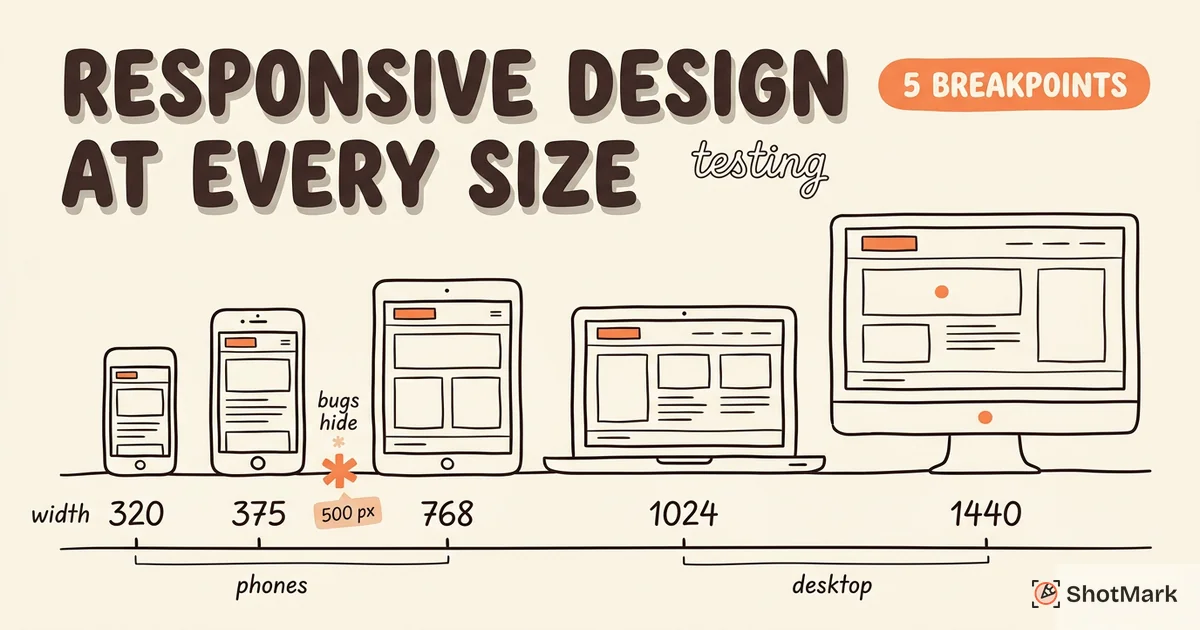
We have seen teams ship layout bugs that only appear at 500px wide, a size that falls between the standard mobile (375px) and tablet (768px) breakpoints. Those in-between widths are where most responsive bugs hide. Testing only at common breakpoints means you catch most issues but miss the ones that frustrate real users.
This guide covers what to test, how to test it, and the five breakpoints that matter most for catching layout problems before they reach production.
What Responsive Design Testing Covers
Responsive testing is not just about checking whether the layout looks right at different widths. It covers six areas that affect how real users experience your site on different devices.
Layout integrity means no overlapping, clipping, or overflowing content at any width between your minimum and maximum breakpoints. A card component that looks fine at 375px and 768px might collapse its text at 500px.
Typography must stay readable without horizontal scrolling. Font sizes should scale appropriately, and line lengths should stay within comfortable reading ranges (45 to 75 characters per line for body text).
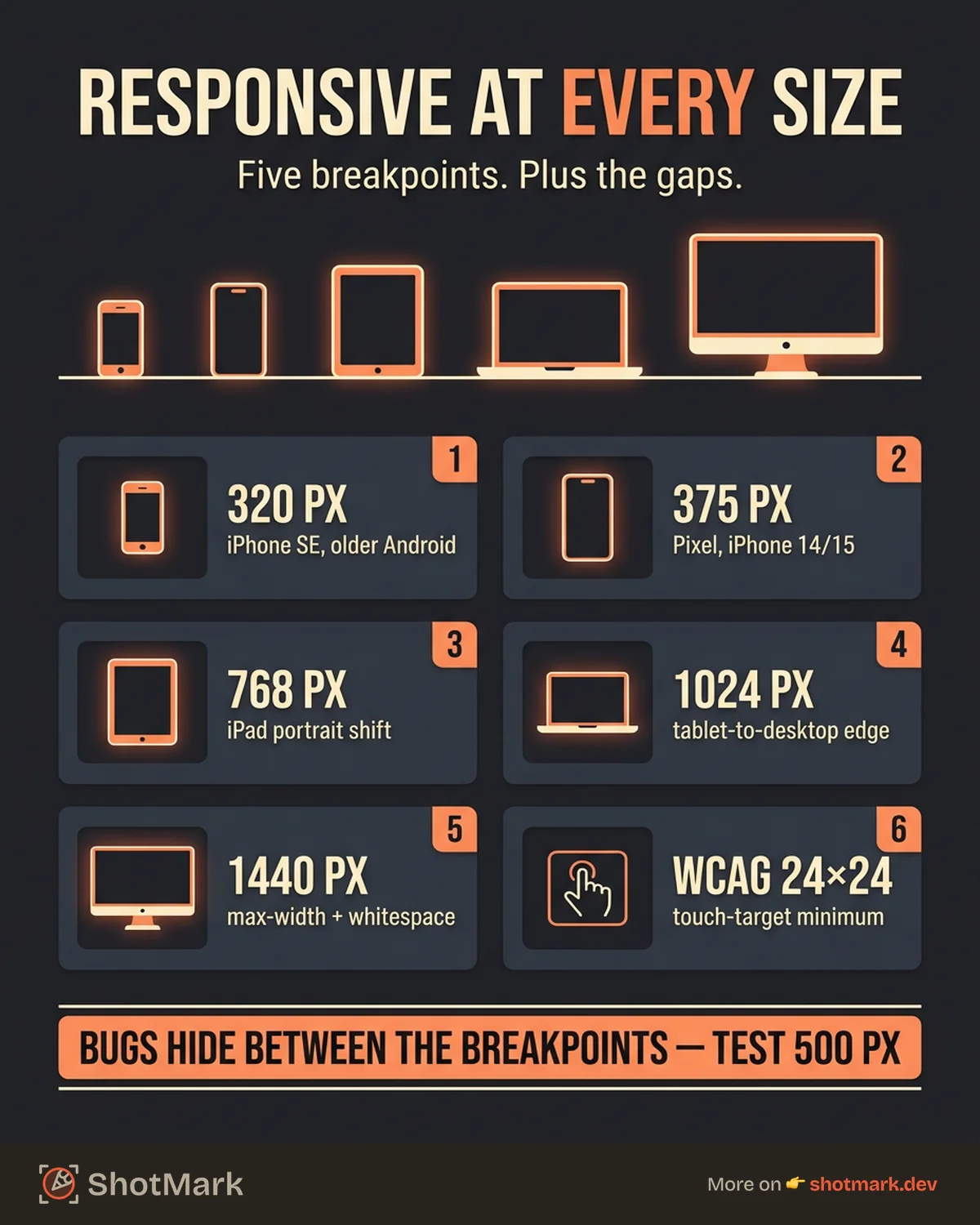
Touch targets on mobile need to meet the WCAG 2.5.8 guideline of at least 24x24 CSS pixels. Links and buttons crammed too close together cause mis-taps, especially for users with motor impairments.
Images and media should load the correct resolution for the viewport and scale without distortion. A hero image that loads its full 2400px version on a 375px screen wastes bandwidth and slows the initial paint.
Navigation must collapse and expand correctly. Hamburger menus should open and close, dropdowns should be tappable, and navigation should not push content off-screen.
Forms need to work with mobile keyboards. Input fields should not be hidden by the soft keyboard, date pickers should use native mobile controls, and select dropdowns should be tappable.
Testing Methods, From Fast to Thorough
Browser DevTools Device Emulation
Chrome and Firefox DevTools include device mode, which simulates viewport sizes, device pixel ratios, and network throttling. It is the fastest way to test responsive layouts because it is already in your browser.
To enable it in Chrome, open DevTools (Cmd+Shift+I on Mac, Ctrl+Shift+I on Windows) and click the device toggle icon (or press Cmd+Shift+M). Select a device preset or enter a custom width.
The limitation is accuracy. DevTools renders pages in the same engine your desktop browser uses, so it will not catch iOS Safari quirks, Android WebView differences, or Samsung Internet rendering behaviors. It simulates viewport size, not the actual browser runtime. Use it for layout checks during development, but do not rely on it as your only testing method.
Responsive Design Checker Tools
Online tools like Responsively App , Screenfly, and Viewport show your site at multiple sizes simultaneously. Responsively App is open-source and runs locally, which makes it faster and more private than web-based checkers.
These tools are useful for quick visual scans across common breakpoints. You can spot obvious layout breaks without manually resizing the browser. The limitation is rendering engine: most of these tools use Chromium, so they miss Safari and Firefox differences.
For teams that want a fast first pass before deeper testing, responsive checkers are a reasonable starting point. They complement cross-browser testing by catching layout issues early.
Real Device Testing
Physical devices or cloud platforms like BrowserStack and LambdaTest run actual browsers on real hardware. This catches issues that emulation misses: iOS Safari viewport behavior when the keyboard opens, Android’s back button affecting single-page apps, and Samsung Internet’s custom rendering quirks.
You do not need a device lab with 50 phones. Test on four devices at minimum: one small phone (iPhone SE or compact Android), one standard phone (iPhone 14/15 or Pixel), one tablet (iPad), and one laptop. That covers the major viewport ranges and browser engines. For broader coverage, cloud platforms give you access to hundreds of device and browser combinations without maintaining hardware.
Real device testing is the most accurate method but also the slowest. Use it for final verification before release, not for every design iteration.
Visual Regression Testing
Automated screenshot comparison tools like Percy, Chromatic, and Playwright screenshot assertions catch layout regressions on every code change. You define a set of viewports, the tool captures screenshots at each size, and it highlights visual differences between the current and previous versions.
Set up viewports in your CI pipeline to cover the key breakpoints: 320px, 375px, 768px, 1024px, and 1440px. Every pull request triggers a visual diff, and reviewers can approve or reject layout changes before merge.
Visual regression testing does not replace manual testing, but it automates the tedious part: checking that existing layouts did not break when you changed something unrelated. For teams practicing browser compatibility testing, visual regression is the automated layer that runs between manual checks.
The 5 Breakpoints You Should Always Test
These five widths cover the major device categories and catch most layout issues.
320px covers small phones like the iPhone SE and older Android devices. Content must fit without horizontal scrolling, and touch targets need adequate spacing. This is where tight layouts break first.
375px covers standard phones including the iPhone 14, 15, and Pixel devices. This is the most common mobile viewport. Test your mobile navigation, form interactions, and card layouts here.
768px covers tablets in portrait mode, primarily iPads. This width often triggers a layout shift from mobile to tablet styling. Check that the transition is smooth and nothing overlaps or clips during the shift.
1024px covers tablets in landscape and small laptops. Many responsive designs treat this as the boundary between tablet and desktop layouts. Test that your grid system handles the transition correctly.
1440px covers standard desktop monitors. Check that max-width containers work properly, that wide layouts do not stretch text lines beyond readable lengths, and that whitespace feels intentional rather than accidental.
Testing between breakpoints matters because content does not only exist at those exact widths. A user on an Android phone with a 412px viewport is between your 375px and 768px breakpoints. Use your screen resolution to understand what your users actually see, then test the widths that fall between your standard breakpoints.
Common Responsive Design Bugs
These are the bugs we see most often in responsive layouts, along with how to catch them.
Horizontal scrollbar is usually caused by a fixed-width element or an image without max-width: 100%. Open DevTools, set the viewport to 320px, and scroll right. If content appears past the viewport edge, inspect the offending element and add overflow handling.
Text overflow on narrow viewports happens with long words, URLs, and email addresses. The CSS fix is overflow-wrap: break-word on text containers. Test with real content, not lorem ipsum, because placeholder text does not contain the long strings that cause overflow.
Sticky headers covering content when the mobile keyboard opens is a well-documented iOS Safari issue . The viewport resizes when the keyboard appears, which can push fixed-position elements into the content area. Test form pages on real iOS devices.
Hover-dependent interactions without touch fallbacks break on mobile because there is no hover state. Dropdown menus, tooltips, and hover-reveal content need tap-based alternatives. Test every hover interaction on a touch device.
Container queries not triggering at expected widths is a newer issue as container queries gain adoption. If your container query uses a parent element’s width rather than the viewport width, the breakpoint triggers at a different point than expected. Test container query layouts by resizing the parent element, not just the viewport.
Building Responsive Testing Into Your Workflow
Testing responsive layouts should happen at three stages, not just before launch.
During development, use DevTools device mode while building components. Resize the viewport as you code, not after. Catching layout issues during development is 10x faster than catching them in code review.
Before merge, run visual regression tests in CI against key viewports. Automated screenshots catch regressions you might not notice in a manual review. Set up your CI pipeline to fail if visual diffs exceed a threshold.
Before release, do a manual check on two to three real devices covering iOS and Android. This catches the issues that emulation and automation miss: keyboard behavior, touch interactions, and browser-specific rendering.
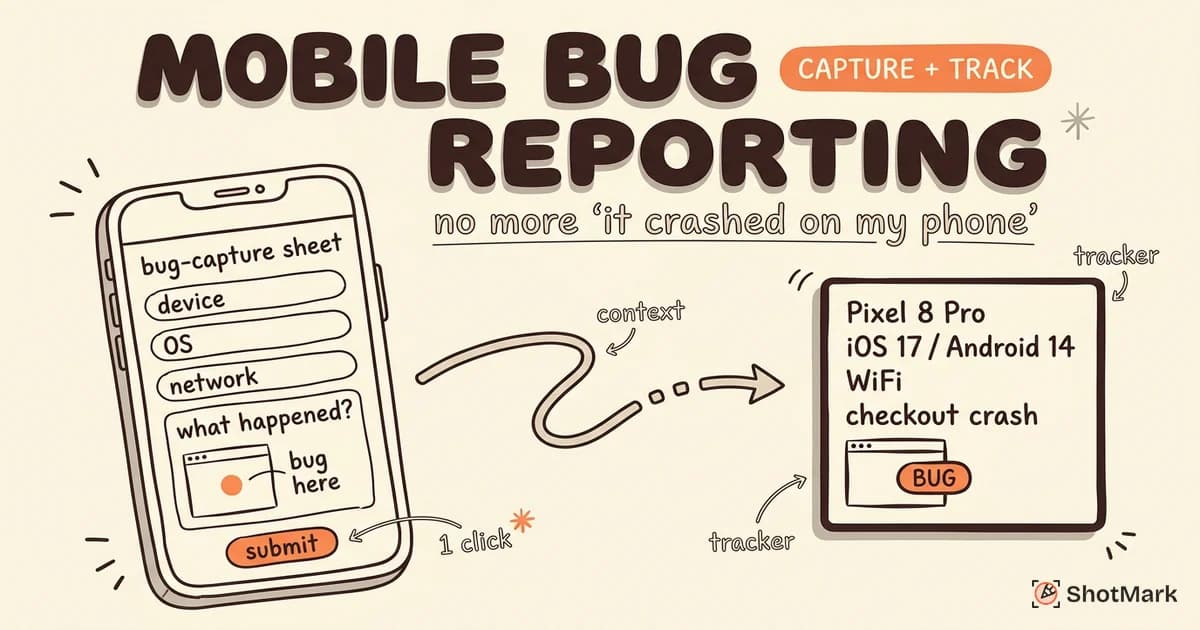
When you do find a responsive bug, report it with full context. ShotMark captures the viewport size, device info, and browser version alongside the screenshot, so developers see exactly which size broke the layout. You can read more about reporting mobile bugs effectively in our mobile bug reporting guide. Check what browser you are using as part of every responsive bug report, because the same layout can render differently across browsers at the same viewport width.
Responsive design testing is not a one-time checklist. Every new component, every content change, and every CSS update can introduce layout regressions at sizes you did not test. The teams that ship the fewest responsive bugs are the ones that test at every stage of development, not just the ones that test on the most devices.
Get new posts in your inbox.
One email when we publish: notes on QA, AI, and shipping faster. No spam, unsubscribe anytime.