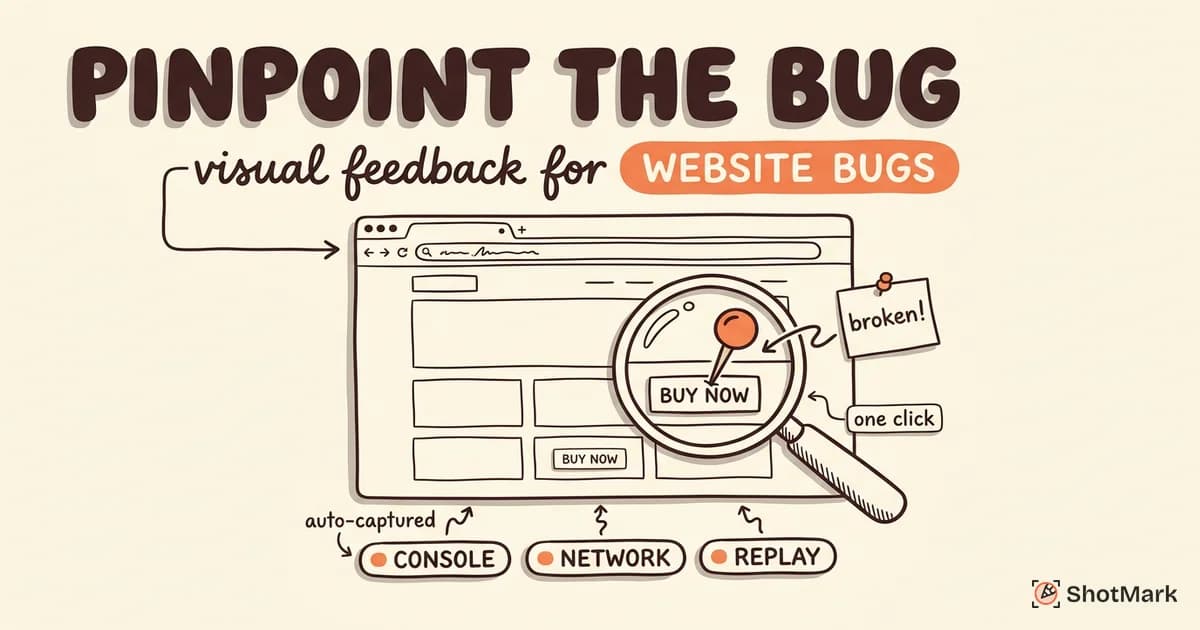
The screenshot-in-Slack workflow is broken. A QA tester captures a bug, pastes it into a chat thread, types a vague description, and hopes the developer can figure out the rest. A website annotation tool replaces that mess with pinned comments directly on the live page, full context included. We compared 8 tools to help you pick the right one for your team.
Whether you’re a QA team tracking defects or an agency managing client review cycles, the right annotation tool cuts feedback time from hours to minutes. Here’s what to look for and which tools deliver.
What Is a Website Annotation Tool?
A website annotation tool lets you pin comments, draw markups, or highlight elements directly on a live website. Instead of writing “the button on the pricing page is misaligned,” you click the button, leave a comment, and the tool captures the exact location, screenshot, and page context.
These tools serve multiple use cases. QA teams use them for bug reporting during test cycles. Agencies use them for client reviews and content approvals. Design teams use them for design feedback during development handoff.
The common thread: they replace the broken workflow of screenshots pasted into emails or Slack messages where context gets lost within hours.
What QA Teams Need vs. What Agencies Need
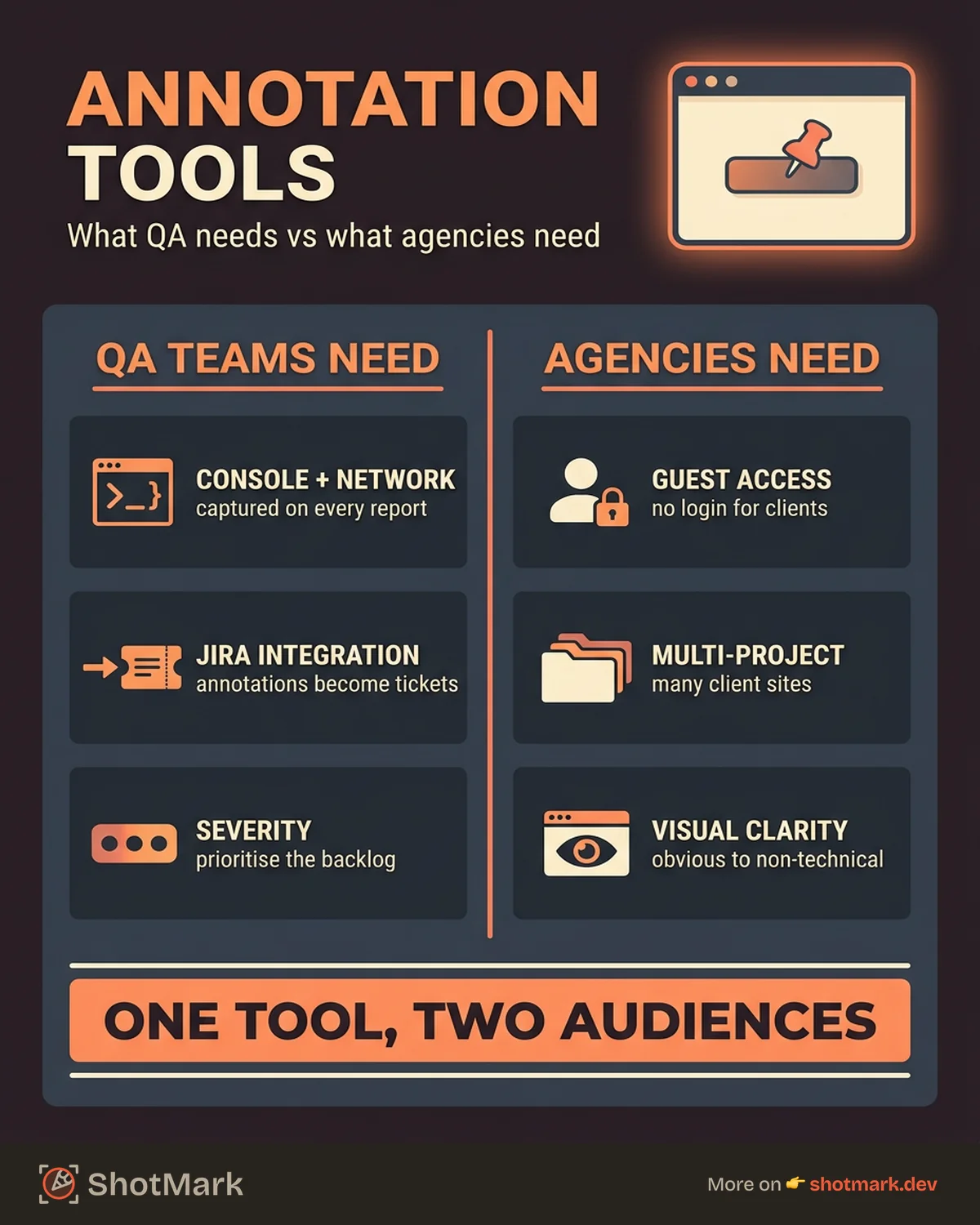
QA teams and agencies both annotate websites, but their priorities differ.
QA teams need technical context alongside their annotations. Console logs, network requests, browser version, viewport size, and operating system details matter because developers need them to reproduce and fix issues. Integration with Jira, Linear, or GitHub Issues is essential for ticket creation. Severity classification helps prioritize the defect backlog.
Agencies need guest access so clients can leave feedback without creating an account. Project-based organization keeps multiple client sites separated. Visual clarity matters because non-technical clients need to understand what they’re looking at without reading technical metadata.
Both need screenshot capture, element-level pinning, task tracking or ticket creation, and a notification system that keeps everyone in the loop. The best web annotation tools serve both audiences, but each tool tends to lean toward one side.
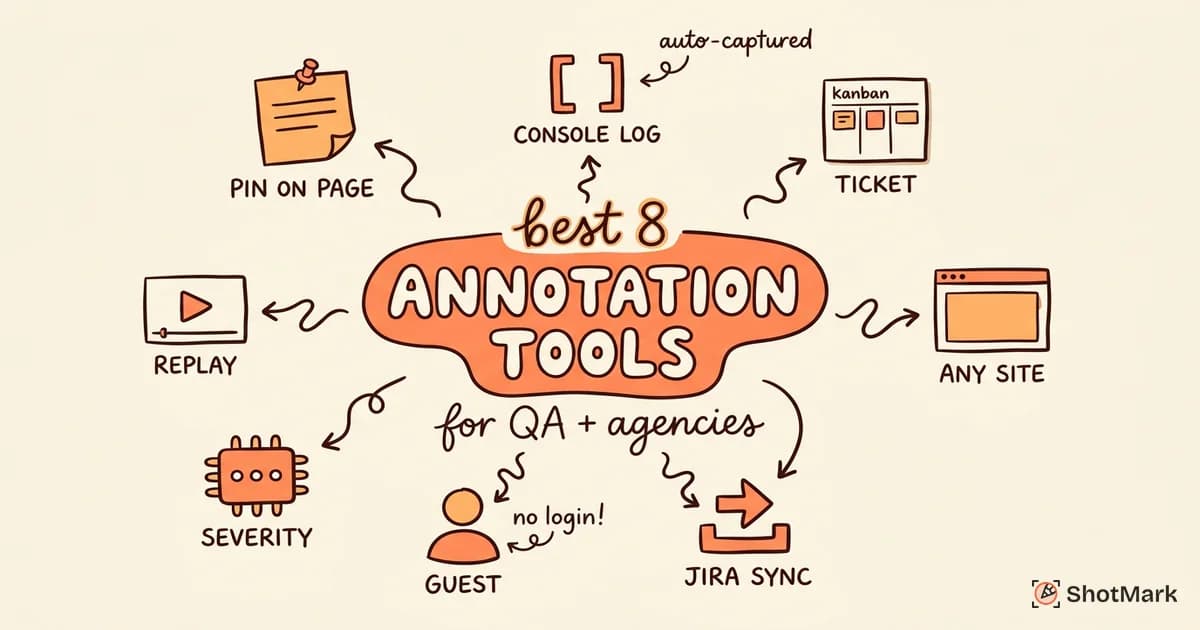
8 Best Website Annotation Tools
1. ShotMark
ShotMark captures annotated screenshots with console logs, network requests, and browser metadata in a single click. Annotations are pinned to specific elements on live websites, so feedback is always tied to the exact location of the issue.
Integration with Jira, Linear, and GitHub means annotations become trackable tickets automatically. The browser extension works on any site without requiring code changes or widget installation.
Best for: QA teams that need technical depth alongside visual annotations. The automatic context capture eliminates the back-and-forth where developers ask “what browser?” or “can you check the console?“
2. Pastel
Pastel lets reviewers click anywhere on a website to leave a comment. The standout feature is zero-friction access: reviewers don’t need to create an account or install anything. Share a Pastel link, and anyone can start annotating.
Project organization includes version tracking, so you can compare feedback across multiple rounds of revisions. The interface is deliberately simple, which keeps it accessible for non-technical stakeholders.
Best for: Freelancers and small agencies running client review workflows where ease of access matters more than technical depth.
3. Marker.io
Marker.io provides a browser extension overlay that lets QA testers and reviewers annotate directly on the page. It captures automatic metadata (browser, screen size, URL, console logs) alongside the visual markup.
The integration depth is where Marker.io stands out. It connects with Jira, Trello, Asana, ClickUp, GitHub, GitLab, and more. Annotations flow directly into your existing project management workflow.
Best for: Agencies managing multiple client projects who need deep integration with their existing project management stack.
4. BugHerd
BugHerd pins feedback directly on page elements using a sidebar overlay. It includes a built-in Kanban board for tracking feedback items through triage, in progress, and done stages.
Guest access requires no account creation, which makes it popular with agencies whose clients are not technical. The visual task board gives project managers a clear view of open feedback without switching to a separate tool.
Best for: Agencies working with non-technical clients who benefit from a built-in task management layer alongside the annotation functionality.
5. Ruttl
Ruttl covers more than just websites. You can comment on live websites, mobile apps, PDFs, and images from a single platform. Real-time collaboration lets multiple reviewers work simultaneously.
The edit mode is unique: reviewers can make CSS and content changes visually on the page, then share those edits as feedback. This bridges the gap between “move this left” and showing exactly what “left” means.
Best for: Design teams that need to review and annotate across multiple asset types, not just websites.
6. Markup.io
Markup.io provides visual proofing for websites, images, videos, and PDFs. Comment threads with version history let teams track feedback across multiple revision cycles.
The platform handles creative assets beyond websites, which makes it useful for marketing teams that review web pages, banner ads, video content, and print materials in the same tool.
Best for: Marketing teams reviewing both web content and creative assets who need a single platform for all visual proofing work.
7. Usersnap
Usersnap embeds a feedback widget directly in your application. Users and testers click the widget to capture a screenshot with annotations, which includes technical metadata automatically.
The widget supports multiple feedback types: bug reports, feature requests, and general feedback. This flexibility makes it useful beyond QA cycles for ongoing user feedback collection.
Best for: Product teams that want to embed a feedback collection mechanism directly inside their live application for both internal testers and external users.
8. Userback
Userback combines visual feedback capture with screen recording. When a user reports an issue, Userback captures the screenshot annotation plus a session replay showing what happened leading up to the feedback.
The session replay context adds depth that a static screenshot can’t provide. You see the user’s clicks, scrolls, and navigation in the moments before they filed the feedback.
Best for: SaaS teams collecting user-initiated feedback where understanding the user’s journey matters as much as the screenshot itself.
Comparison Table
| Tool | Best For | Pin on Element | Console Logs | Jira Integration | Guest Access | Free Tier |
|---|---|---|---|---|---|---|
| ShotMark | QA + technical depth | Yes | Yes | Yes | No | Yes |
| Pastel | Freelancers + agencies | Yes | No | No | Yes | Limited |
| Marker.io | Agency project management | Yes | Yes | Yes | Yes | No |
| BugHerd | Non-technical clients | Yes | No | Yes | Yes | No |
| Ruttl | Multi-format review | Yes | No | No | Yes | Yes |
| Markup.io | Creative asset proofing | Yes | No | No | Yes | Yes |
| Usersnap | In-app feedback | Yes | Yes | Yes | No | Yes |
| Userback | Session replay context | Yes | No | Yes | No | Yes |
How to Integrate Annotation Tools Into Your QA Workflow
Adding a website annotation tool to your process is straightforward. Here’s a typical integration pattern:
-
Install the browser extension or embed the widget: Most tools take under 5 minutes to set up. Browser extensions work on any site. Embedded widgets require a code snippet.
-
QA testers annotate bugs during testing sessions: Testers click on the problematic element, add a description, and the tool captures the screenshot with metadata automatically.
-
Annotations auto-create tickets in Jira, Linear, or GitHub: Each annotation becomes a trackable issue with the screenshot, URL, browser details, and the tester’s description already populated.
-
Developers see the exact location, screenshot, and technical context: No back-and-forth asking for reproduction steps. The ticket has everything needed to start fixing.
-
Fixed issues are marked resolved in the annotation tool: The feedback loop closes when the developer marks the fix complete and the tester verifies it.
This workflow integrates naturally with existing website feedback and review processes. The annotation tool sits on top of your current stack rather than replacing it.
Why Screenshots Alone Are Not Enough
A raw screenshot shows what the page looked like. It doesn’t show what went wrong underneath. Was there a JavaScript error in the console? Did an API call return a 500? Was the user on Chrome 124 or Safari 17?
Annotation tools add the visual context (pinned comments, drawn markups, highlighted elements) that screenshots lack. But the best website annotation tools go further. They capture the technical context that developers need: console logs, network requests, browser version, viewport dimensions, and operating system details.
Without this context, developers spend time reproducing issues that the reporter has already seen. With it, they can start fixing immediately.
ShotMark captures all of this in one click: annotated screenshot, console logs, network requests, and browser metadata. Every annotation is a complete defect report, ready for your issue tracker and your development team.
For teams evaluating website annotation tools for client review and approval workflows, the right tool pays for itself in the first sprint.
Join the ShotMark waitlist for website annotations with full technical context.
Get new posts in your inbox.
One email when we publish: notes on QA, AI, and shipping faster. No spam, unsubscribe anytime.