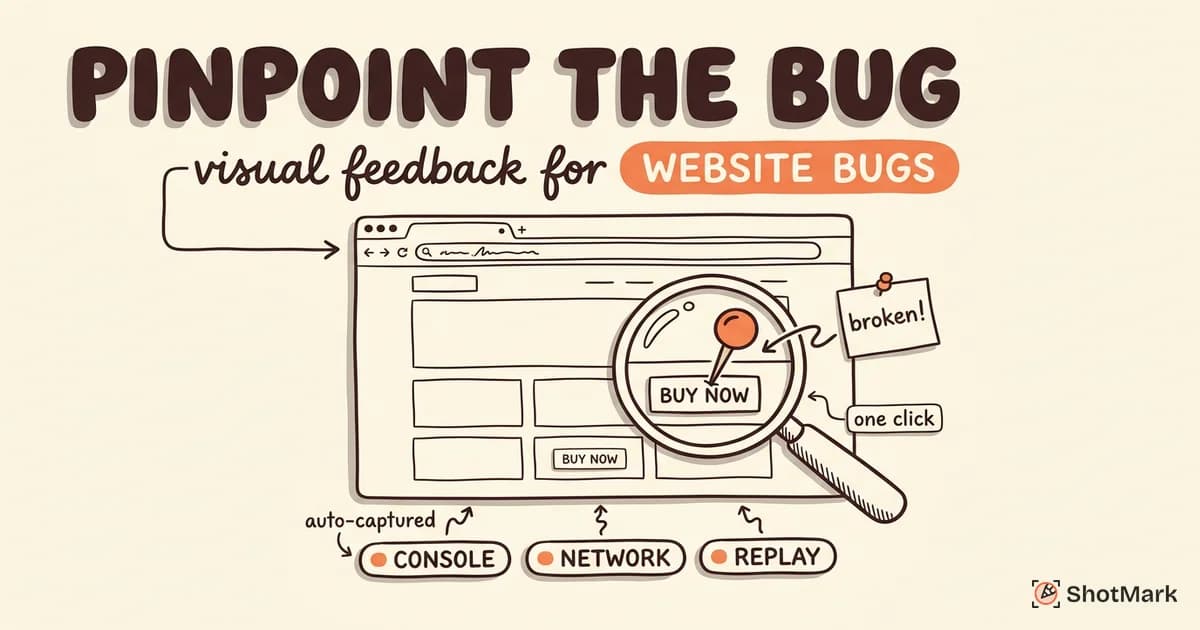
A QA engineer files a ticket that reads “checkout button broken on mobile” and attaches a grainy phone photo of a laptop screen. Two days later, the developer replies: “what browser, what viewport, what page state, can you share console errors?” The bug sits in limbo while everyone retraces their steps. A visual feedback tool exists to end this cycle by capturing the exact pixel, the exact click, and the exact technical context in one pass.
We analyzed six popular options that QA teams, agencies, and product teams actually use to pinpoint website bugs. This guide covers what makes these tools effective, how they compare on features and pricing, and how to roll one out without disrupting your current workflow.
Why Visual Feedback Matters for Bug Reporting
Text-only bug reports miss the context developers need most. A sentence like “the button is broken” can mean a styling glitch, a broken click handler, a failed API call, or a race condition. Without a screenshot, an annotated arrow, and a console trace, the developer is guessing.
Teams that switch to structured visual bug reporting resolve issues roughly three times faster in our own testing and in published industry benchmarks. The savings come from eliminating reproduction guesswork, not from faster typing. Visual QA workflows also cut the “unable to reproduce” close rate, which is where most engineering time gets wasted.
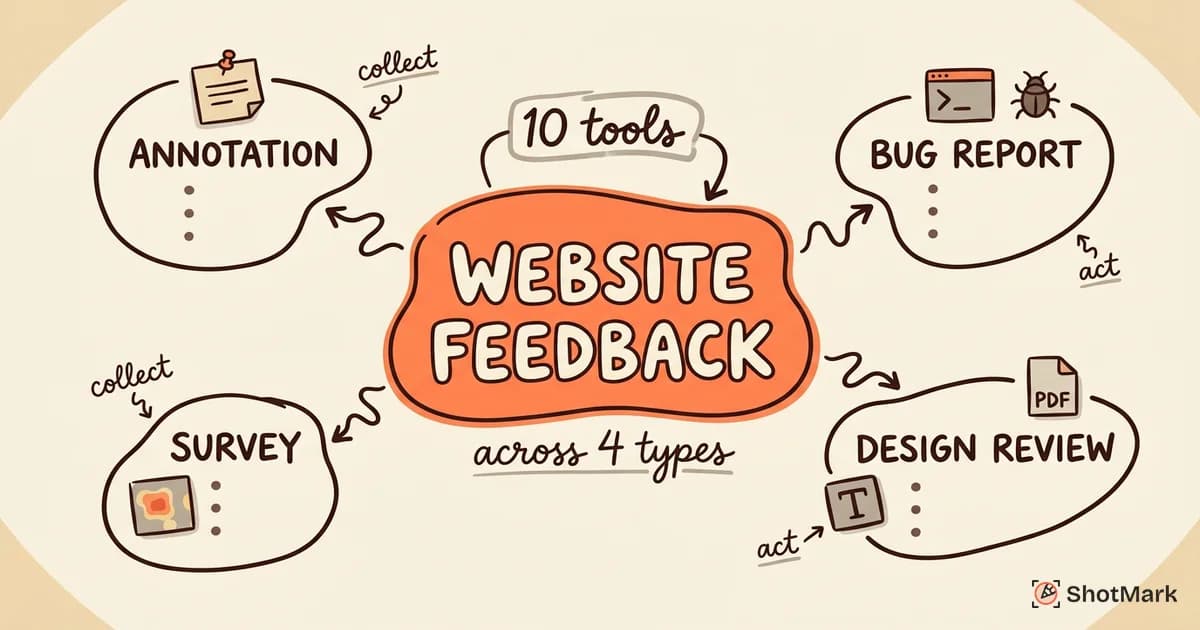
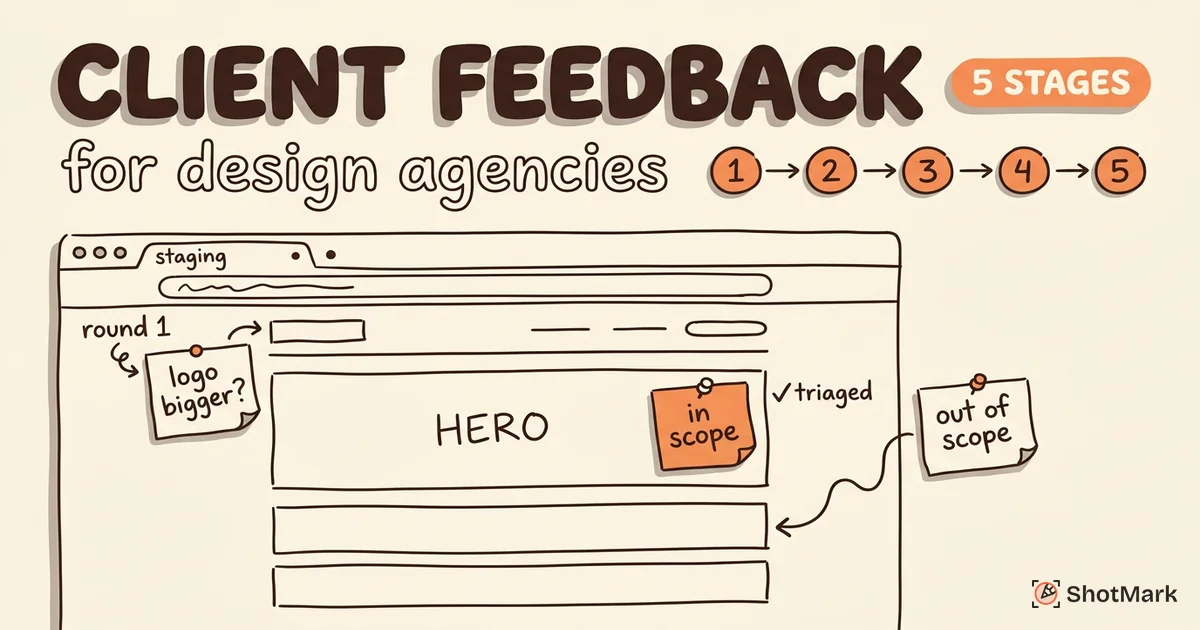
Pixel-perfect feedback matters even more for agencies working with non-technical clients. A client who can point at a page element and say “this heading is too big” produces a better ticket than one who writes three paragraphs describing the same thing. For the full agency workflow, see our guide on website feedback tools and how to collect and act on them.
What Makes a Visual Feedback Tool Effective
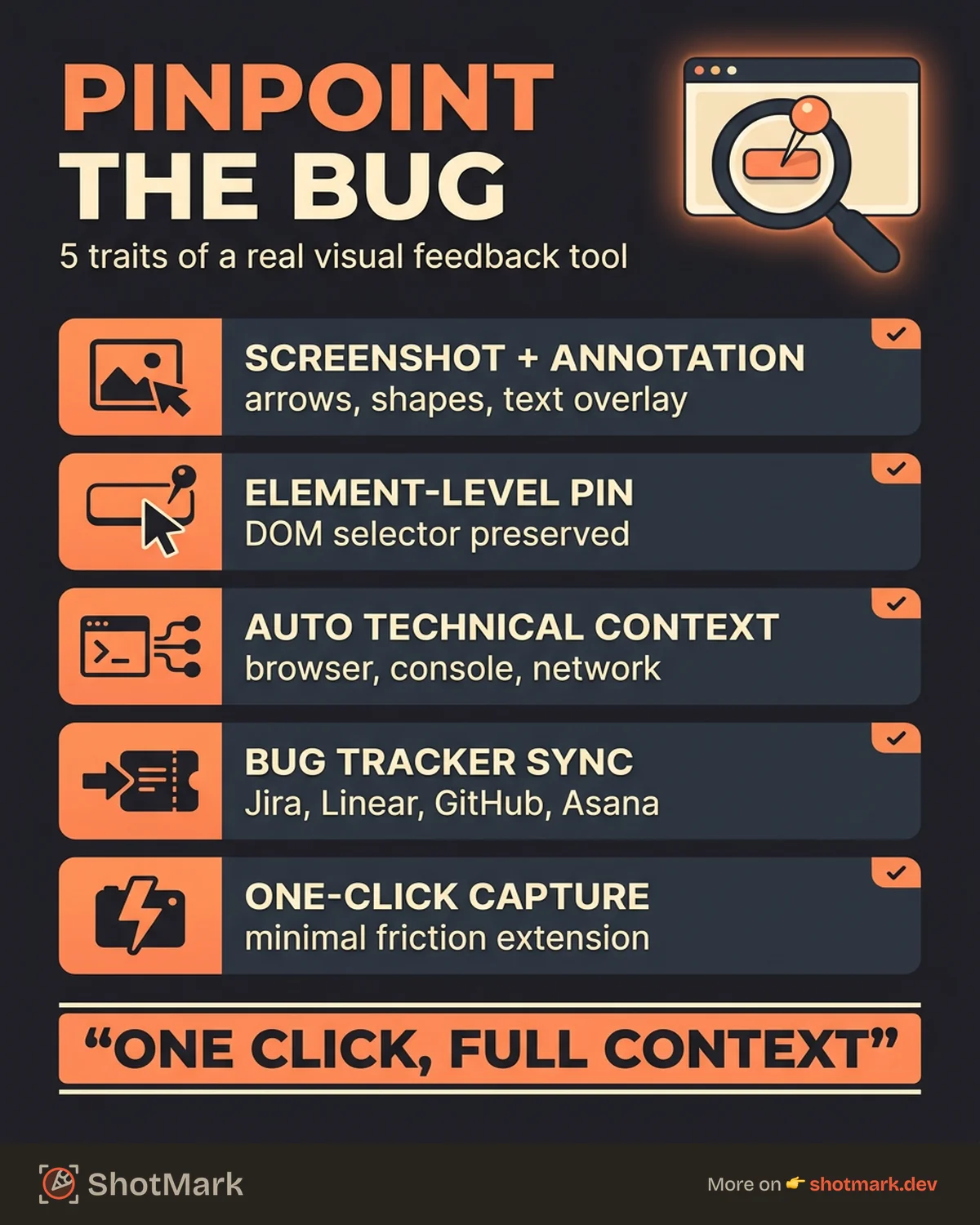
Not every tool that takes screenshots qualifies as a proper visual bug reporting tool. The ones that actually help developers share five traits.
- Screenshot capture with annotation: arrows, highlights, shapes, and text layered on the image
- Element-level pinning: click the exact broken element so the DOM selector is preserved
- Automatic technical context: browser, OS, viewport, user agent, console errors, network logs
- Bug tracker integration: Jira, Linear, GitHub Issues, Asana, Trello with field mapping
- One-click capture: minimal friction for the reporter, usually via a browser extension
The technical context piece is the hardest to get right. Most tools capture a screenshot. Few capture the full console log, the failed network requests, and the session replay leading up to the bug. That gap is why developer-friendly feedback tools have become their own category.
6 Visual Feedback Tools Compared for Website Bug Reporting
1. ShotMark
ShotMark is a visual feedback tool built for teams that need the full technical story behind every bug. A single click captures an annotated screenshot, the last 60 seconds of session replay, the console output, and every network request with headers and payloads. Everything lands in your bug tracker with a pre-filled template.
The browser extension works on any site without an SDK install, which matters for QA teams testing third-party apps or staging environments where you can’t add scripts. For product teams who want deeper capture on their own app, the open-source SDK gives you programmatic control over masking and retention.
Best for: QA teams and developers who want complete bug context without switching between five tools. Join the waitlist for early access.
2. Marker.io
Marker.io overlays a feedback widget on any website and captures annotated screenshots with automatic metadata like browser, OS, and viewport. Its Jira-native integration is the main draw. Bugs filed through Marker land as fully formatted Jira issues with screenshots embedded. For a deeper look at how Marker fits into the Jira ecosystem, check out the Marker.io website feedback tool directly.
Strengths: Tight Jira integration, clean annotation UI, session replay add-on.
Weaknesses: Per-seat pricing gets expensive for large QA teams. Console log capture is limited compared to developer-first tools.
Best for: Agencies with Jira-heavy workflows and non-technical client reporters.
3. BugHerd
BugHerd pioneered the pin-on-page model. Users click an element, type feedback, and the comment is anchored to that exact selector. It works as a sticky annotation layer on top of your website, so clients can leave feedback like Post-it notes.
Strengths: Built-in Kanban task board, screenshot and metadata capture, simple onboarding for non-technical users. See the BugHerd visual bug reporting platform for a product tour.
Weaknesses: Task board can feel redundant if your team already uses Jira or Linear. Console and network logs are less detailed than developer-focused tools.
Best for: Web agencies with client-facing feedback loops and design review cycles.
4. Usersnap
Usersnap is a broader feedback widget that covers bug reports, NPS surveys, and feature requests in one embedded tool. The visual bug reporting flow captures screenshots with annotations plus automatic technical metadata. It targets product teams gathering feedback from end users in the app itself.
Strengths: Multiple feedback types in one widget, good templating for different use cases, solid integrations.
Weaknesses: Less focused on technical debugging than QA-first tools. Learn more about the Usersnap customer feedback platform if you want a feedback-plus-NPS combo.
Best for: SaaS product teams collecting mixed feedback from real users.
5. Jam (jam.dev)
Jam is a developer-focused browser extension that auto-captures console logs, network requests, and a session replay alongside each screenshot. The UI is minimal on purpose. You hit the shortcut, add a note, and share a link.
Strengths: Fast capture, strong technical context out of the box, free tier for small teams. See the Jam.dev bug reporting tool for the developer pitch.
Weaknesses: Less focused on agency or client workflows. Annotation tools are simpler than dedicated visual feedback tools.
Best for: Developer-to-developer bug sharing inside engineering teams.
6. Userback
Userback pairs a visual feedback widget with screen recording for when a screenshot isn’t enough. You can attach a short video showing the repro steps, which is useful for timing bugs or animations that break in specific sequences.
Strengths: Native screen recording, session replay context, flexible widget placement. Check the Userback visual feedback platform for feature details.
Weaknesses: Pricing scales by project count which can surprise agencies running many client sites.
Best for: SaaS teams that want video context alongside annotated screenshots.
Feature Comparison Table
| Tool | Screenshot | Console Logs | Network Logs | Session Replay | Jira Integration | Free Tier |
|---|---|---|---|---|---|---|
| ShotMark | Yes | Yes | Yes | Yes | Yes | Waitlist |
| Marker.io | Yes | Limited | Limited | Add-on | Native | Trial only |
| BugHerd | Yes | Limited | No | No | Yes | Trial only |
| Usersnap | Yes | Yes | Limited | No | Yes | Trial only |
| Jam | Yes | Yes | Yes | Yes | Yes | Yes |
| Userback | Yes | Limited | No | Yes | Yes | Trial only |
Free tier availability changes often, so check each vendor’s pricing page before committing. Feature depth also varies inside each column. “Yes” for network logs on one tool might mean a URL list, while on another it means full request and response bodies.
Visual Feedback vs Traditional Bug Reporting
Traditional bug reporting means a Jira ticket with a text description, a manually pasted screenshot, and a reproduction list written from memory. The reporter has to remember which browser they were on, paste the user agent, find the console tab, copy errors, and type it all out. Most people skip half of that.
Visual feedback tools flip the flow. One click grabs the screenshot, the annotation, the browser details, the viewport size, the console output, and the network requests. The reporter writes a sentence of context and submits. Developers receive a ticket with everything they need to reproduce the issue without asking follow-up questions.
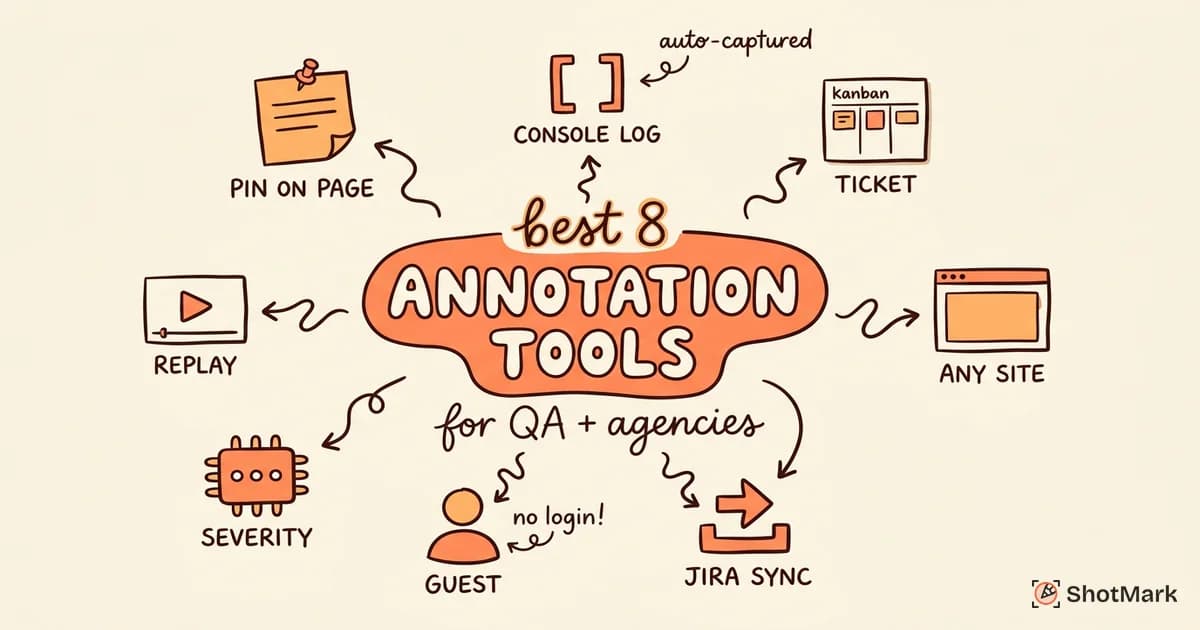
The time savings compound. QA teams using a visual bug reporting tool save an estimated 5 to 10 hours per week that previously went into reproduction ping-pong. Developers get to close tickets faster because they aren’t waiting on replies. For related annotation workflows, see our roundup of the best website annotation tools for QA and agencies.
How to Roll Out a Visual Feedback Tool on Your Team
Adoption is the hard part. The tool itself is usually the easy decision.
Step 1: Choose Based on Workflow, Not Features
A QA team debugging a SaaS product has different needs than an agency running client reviews. List your top three pain points first, then match them to tools. If your team drowns in “unable to reproduce” tickets, prioritize console and network capture. If clients send vague emails, prioritize pin-on-page annotation.
Step 2: Install the Extension or Widget
Most tools ship as a browser extension, an embeddable widget, or both. Extensions work on any site without a code change, which is ideal for QA testing across staging environments. Widgets require adding a script tag to your app and are better for collecting feedback from end users.
Step 3: Train the Team in 5 Minutes
A 5-minute walkthrough is usually enough. Show the capture shortcut, the annotation tools, and where the ticket lands. Record the demo once and share it with new hires. Don’t over-engineer the training.
Step 4: Connect to Your Bug Tracker
Configure the integration before anyone files a real ticket. Map fields like priority, component, and assignee so bugs land in the right backlog. Test with a fake bug before the team starts reporting.
Step 5: Review the First Week and Refine
After seven days, pull every bug filed through the tool and check quality. Are reporters including enough context? Are developers closing tickets faster? Adjust the template or training based on what you see. For broader QA tool selection, our guide to the best UAT testing software for QA teams covers complementary tools.
Which Visual Feedback Tool Is Best for QA?
The best visual feedback tool for QA is the one that captures the most technical context with the least friction. If your reporters are technical (QA engineers, developers, support), prioritize depth of capture: console logs, network requests, session replay. If your reporters are non-technical (clients, stakeholders, end users), prioritize ease of use: pin-on-page, simple annotation, embedded widget.
Teams that split the difference usually run two tools: one for internal QA and one for external stakeholders. That isn’t ideal, but it beats forcing a non-technical client to learn a developer-focused interface.
Can You Use a Visual Feedback Tool Without an SDK?
Yes. Browser extensions like ShotMark, Jam, and Marker.io work on any website without an SDK install. They run in the reporter’s browser and capture what that browser sees, which is enough for most QA workflows. An SDK becomes useful when you want production capture from real users, granular PII masking, or custom event tagging. For QA and agency workflows, the extension path is faster to roll out.
Get Visual Feedback With Full Technical Context
Every visual feedback tool on this list captures screenshots. The differences show up in everything else: console depth, network capture, replay, masking, and integrations. Pick the one that matches your reporters, not the one with the longest feature list.
If you want a visual feedback tool that captures annotated screenshots, console logs, network requests, and session replay in one click, ShotMark is built for that use case. The open-source SDK is in development and the browser extension is in early access. Join the waitlist to be among the first teams to ship cleaner bug reports and spend less time asking “what browser were you on?”
Get new posts in your inbox.
One email when we publish: notes on QA, AI, and shipping faster. No spam, unsubscribe anytime.