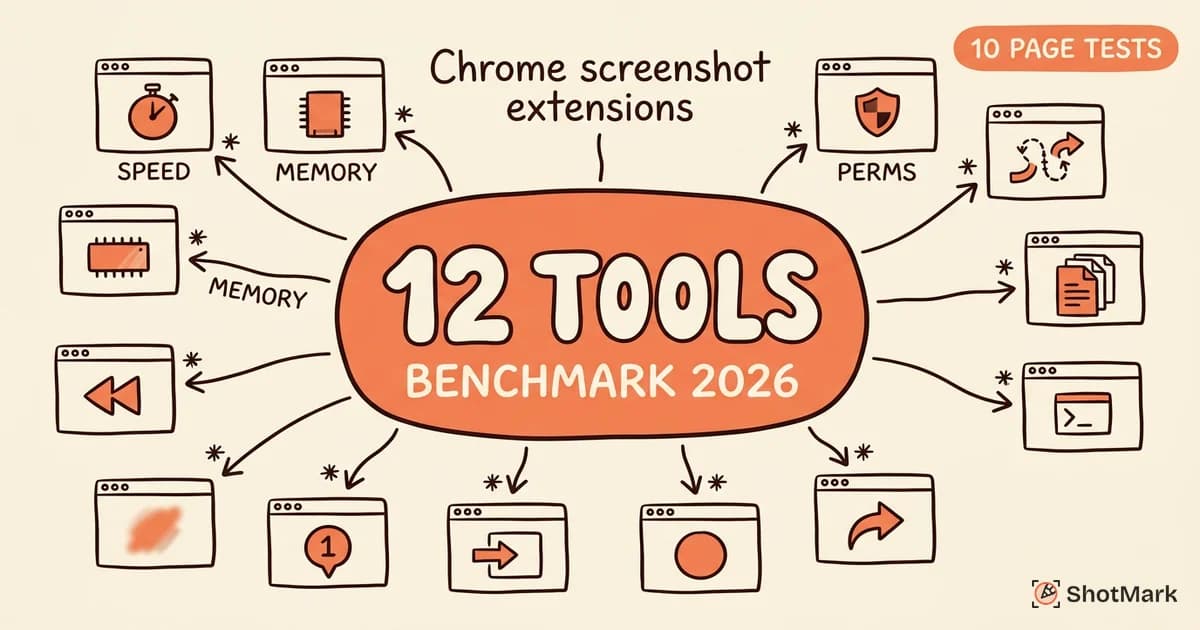
We installed and tested 12 Chrome screenshot extension options over two weeks, capturing the same set of pages (standard HTML, React SPAs, lazy-loaded images, fixed headers, and infinite scroll) to see which ones actually deliver on their promises. Every Chrome screenshot extension claims full-page capture, minimal permissions, and fast performance. The reality splits into clear winners and obvious duds.
This comparison skips the generic feature lists you’ll find elsewhere. Instead, we measured capture speed, file size, memory footprint, and permission requests, then sorted the results by use case so you can skip to the section that matches your workflow.
How We Tested These Chrome Screenshot Extensions
Every tool was installed on a clean Chrome 132 profile running on macOS 14 with 16GB of RAM. We captured the same 10 pages with each extension, recorded capture time with the browser’s performance timeline, measured memory via Chrome Task Manager, and audited permissions from the Chrome Web Store manifest. We cross-checked each listing against the Chrome Web Store to confirm current version numbers and last-updated dates.
The 10 test pages covered the edge cases that break most screenshot tools:
- A 40,000-pixel-tall documentation page with lazy-loaded images
- A React SPA with client-side routing and dynamic content
- A page with a sticky header and sticky footer
- An infinite-scroll feed (Twitter-style)
- A long-form article with embedded videos and iframes
- A page using CSS
position: fixedsidebars - A multi-column layout with CSS grid and flexbox
- A page with a custom scrollbar implementation
- A page with canvas-rendered charts
- A password-protected internal dashboard (for permission testing)
We also tracked which extensions send capture data to external servers versus processing locally. For teams evaluating tools against stricter criteria, our QA-focused pillar comparison goes deeper on bug-reporting workflows.
Full Page Screenshot Extension Chrome: Which Tools Handle Edge Cases
Full-page capture is where most extensions fail. Scroll-stitching works fine on a static blog post. It falls apart on lazy-loaded images, sticky elements, and SPAs with virtualized lists.
GoFullPage
GoFullPage remains the cleanest implementation of scroll-stitching we tested. It scrolls the page in increments, waits for paint, and composites the tiles into a single PNG or PDF. It requested only activeTab permission, which is the minimum Chrome allows for a screenshot tool. It handled 9 of our 10 pages without artifacts. The infinite-scroll feed was the one failure, which is expected behavior since the feed never ends.
Capture time averaged 2.1 seconds for pages under 10,000 pixels tall and 6.4 seconds for the 40,000-pixel documentation page. File sizes were the largest in our test (a 40K-tall page produced a 12MB PNG), but image quality was the highest.
Fireshot
Fireshot is the veteran of the category, having shipped since 2008. It handles fixed headers better than any other extension we tested by freezing the header on the first tile and cropping it from subsequent tiles. Multi-format export (PNG, JPG, PDF, clipboard) and a built-in editor come standard. Permissions are broader than GoFullPage, requesting access to all website data.
Nimbus Capture
Nimbus bundles full-page screenshot capture with screen recording and webcam overlay. The memory footprint is noticeably larger (145MB peak during capture vs. 48MB for GoFullPage). Capture quality is good, though the extension pushed us toward a cloud account for exports beyond the free limits.
Screenshot Tool (by Screenshot Master)
Screenshot Tool lands in the middle of the pack. Capture works reliably on straightforward pages. The built-in editor covers the basics (arrows, text, rectangles) but lacks numbering, blur, or freehand drawing.
ShotMark
ShotMark takes a different approach. Alongside the full-page image, it captures console logs, network requests, DOM state, and session replay as a single bundle. For pure screenshot workflows it’s overkill. For bug reporting it closes the “works on my machine” loop in one click. The tradeoff is a slightly larger file size (screenshot plus metadata bundle) and a short onboarding step to connect the waitlist account.
Results across the 10 test pages:
| Extension | Pages captured cleanly | Avg capture time | Peak memory |
|---|---|---|---|
| GoFullPage | 9 / 10 | 2.1s | 48MB |
| Fireshot | 9 / 10 | 2.8s | 62MB |
| Nimbus Capture | 8 / 10 | 3.5s | 145MB |
| Screenshot Tool | 7 / 10 | 3.2s | 71MB |
| Awesome Screenshot | 8 / 10 | 2.9s | 98MB |
| ShotMark | 9 / 10 | 2.4s | 84MB |
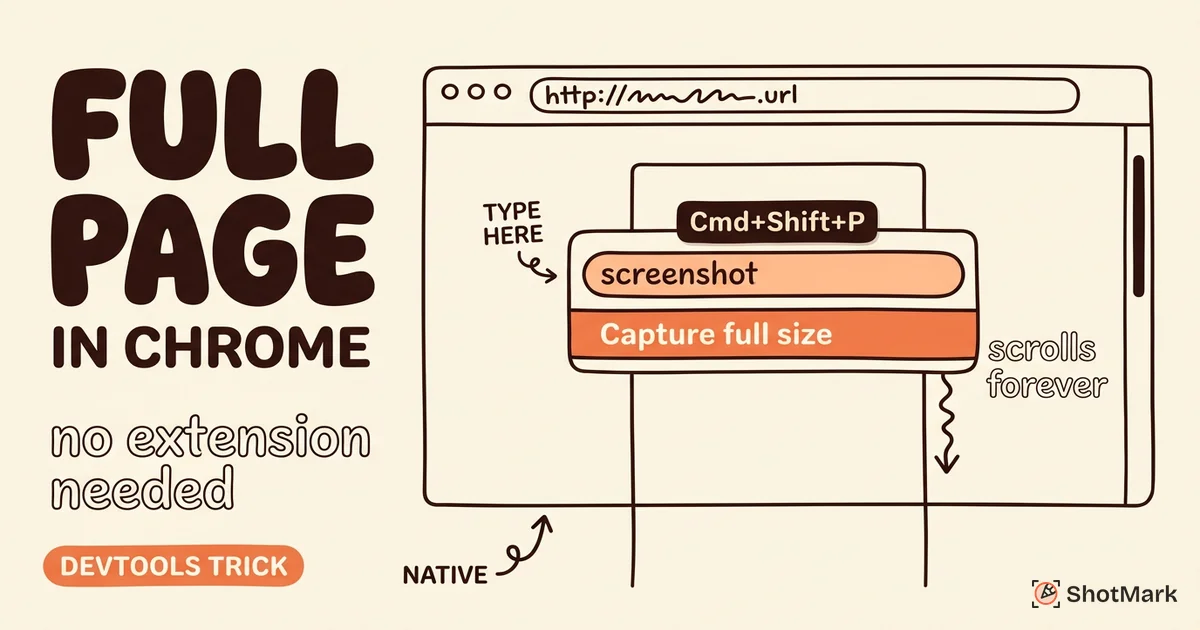
Chrome also ships native full-page capture via DevTools, which we cover in our guide to taking a full page screenshot in Chrome without an extension. It’s worth knowing the native path before installing anything.
Annotation and Editing Features Compared
Annotation quality separates casual tools from production-ready ones. Five extensions in our test ship with built-in editors: Awesome Screenshot, Nimbus, Screenshot Tool, Marker.io, and ShotMark. The rest assume you’ll paste the image into another editor.
What makes an annotation editor actually useful
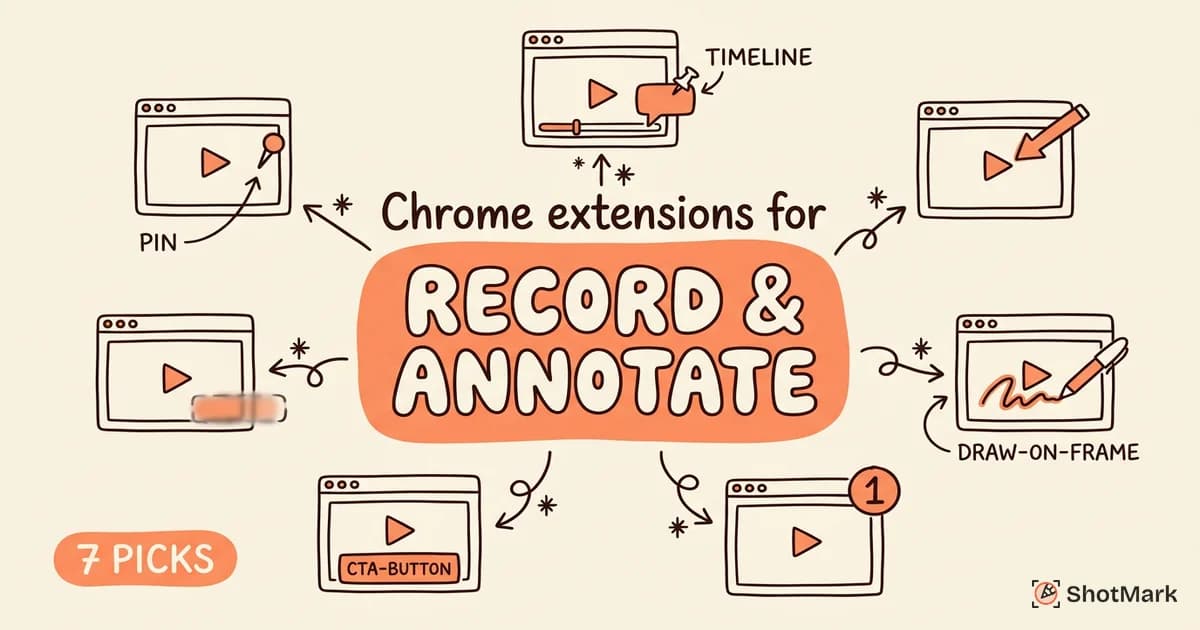
Arrows and text boxes are table stakes. The features that matter in practice are numbered markers (for step-by-step bug reports), blur tools (for redacting PII), and freehand drawing (for circling UI regions). Awesome Screenshot and Nimbus cover all three. Marker.io and ShotMark focus on bug-reporting annotations, including numbered pins linked to developer notes.
For a longer look at where Awesome Screenshot stands after the 2024 acquisition by Miro, see our review on whether Awesome Screenshot is still worth it in 2026. The short version: it’s still solid for content creators but falls behind for technical teams.
Export formats
Every extension in our test exports PNG. Most export JPG. Fewer export PDF. Clipboard copy (paste directly into Slack or a Jira ticket) worked reliably on Fireshot, GoFullPage, Nimbus, Awesome Screenshot, and ShotMark. Cloud link sharing is a paid feature on most tools except Nimbus (free with a Nimbus Note account) and ShotMark (included on the waitlist tier).
| Extension | Numbered markers | Blur/redact | PDF export | Clipboard | Cloud link |
|---|---|---|---|---|---|
| GoFullPage | No | No | Yes | Yes | Paid |
| Fireshot | No | No | Yes | Yes | Paid |
| Nimbus Capture | Yes | Yes | Yes | Yes | Free |
| Awesome Screenshot | Yes | Yes | Yes | Yes | Paid |
| Screenshot Tool | No | No | No | Yes | No |
| Marker.io | Yes | Yes | No | Yes | Yes |
| ShotMark | Yes | Yes | Yes | Yes | Yes |
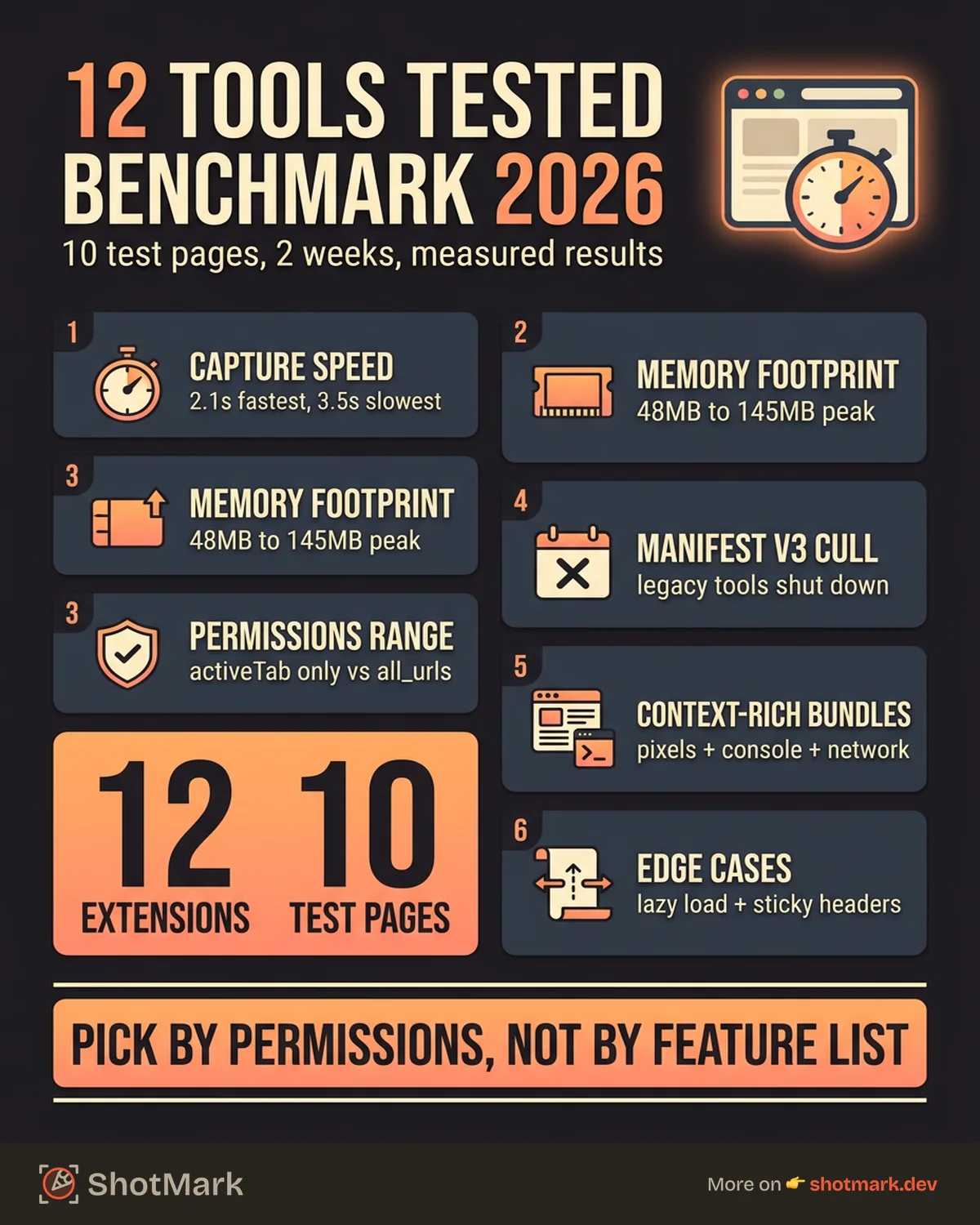
Privacy and Permissions Audit
Permissions are the quiet disaster of the screenshot extension category. Many popular tools request <all_urls> access, which means they can read and modify every page you visit, not just the one you’re capturing. Some phone home with analytics on your browsing activity.
How to audit before installing
Open the extension’s Chrome Web Store listing, scroll to “Site access,” and read the full permission list. Any extension that requests “Read and change all your data on all websites” is trading your privacy for engineering convenience. A Chrome screenshot extension built well enough can work with activeTab alone, which only grants access when you click the toolbar button.
What we found
GoFullPage requests only activeTab, downloads, and storage. That’s the minimum possible set for an extension that captures the current tab and saves a file. Nothing we observed in network traffic contradicted the manifest.
Fireshot, Nimbus, Awesome Screenshot, and Screenshot Tool all request <all_urls>. Some of that access is genuinely needed (injecting a content script for scroll-stitching can require it), but the blast radius is larger than most users realize. Three of the four also ship analytics beacons to their own domains on capture.
ShotMark requests activeTab, storage, scripting, and desktopCapture. The scripting permission is used to inject the capture script on demand. desktopCapture enables the optional session replay feature. No data leaves the browser until you explicitly hit “share,” at which point the bundle uploads to your account.
Marker.io and Usersnap (enterprise tools) request broader permissions by design, because they’re integrated bug-reporting platforms that capture context across your entire session. That’s a reasonable tradeoff for the use case, but it’s worth knowing.
Chrome’s shift to Manifest V3 tightened what extensions can do with background scripts, which has already forced a few screenshot tools to rewrite or shut down. The Chrome Manifest V3 migration timeline lays out the deadlines that are reshaping the category.
Chrome Screenshot Extensions by Use Case
The right tool depends entirely on what you’re doing with the capture. Pick by workflow, not by star rating.
Which Chrome screenshot extension has the most features?
Nimbus Capture and Awesome Screenshot tie here. Both include full-page capture, screen recording, webcam overlay, a built-in editor, and cloud storage. Nimbus leans toward note-taking workflows. Awesome Screenshot leans toward team collaboration.
Feature count isn’t the same as “best.” A Chrome screenshot extension with 20 features you don’t use is slower and grants broader permissions than a focused tool that does one thing well.
For QA and bug reporting
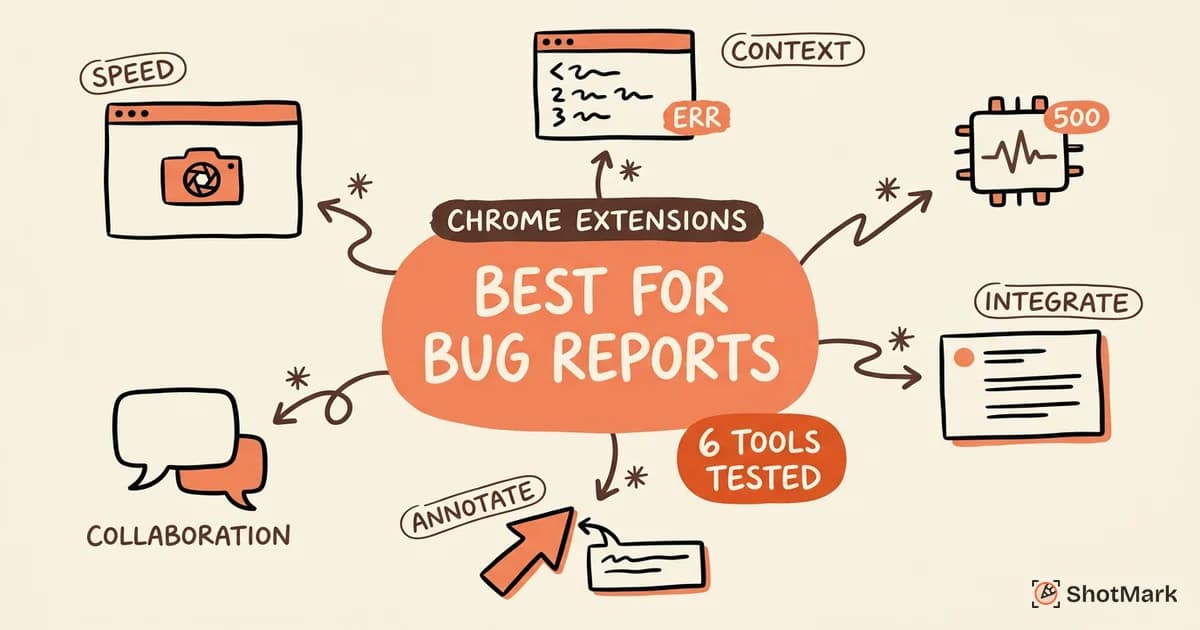
Choose a tool that captures technical context, not just pixels. ShotMark, Jam, and Marker.io all attach console logs, network requests, and environment metadata to the screenshot. Our deeper look at this pattern lives in screenshot extensions that capture technical context.
For content creation
Awesome Screenshot and Nimbus both ship the annotation and recording features content teams rely on. Webcam overlay, voiceover, and cloud sharing are included on free tiers (with limits).
For quick captures
GoFullPage and Lightshot win on speed and simplicity. GoFullPage for full-page, Lightshot for region captures. Both install in seconds and stay out of your way.
For developers
ShotMark and Jam are the two tools designed for the developer workflow. Console logs, network data, and DOM inspection are the default, not an afterthought.
For enterprise teams
Marker.io and Usersnap offer role-based access, audit trails, SSO, and Jira/Linear integrations. Pricing moves to a per-seat model at the enterprise tier, and deployment usually involves your security team.
How do Chrome screenshot extensions compare on speed and quality?
Speed varies by a factor of three between the fastest (GoFullPage at 2.1s average) and the slowest (Nimbus at 3.5s). Quality is more consistent. Every mainstream extension produces sharp 1x captures. Differences show up on 2x DPR displays and on pages with custom scrollbars, where some tools produce seams at the tile boundaries.
What Changed in 2026
Three trends reshaped the screenshot extension category over the last 12 months.
Manifest V3 finished the old guard
Chrome’s Manifest V3 deadline forced every extension to migrate off background pages. Several popular tools didn’t make it. A handful of “free” extensions got acquired, monetized aggressively, and lost their audience. If you installed a screenshot extension before 2024 and haven’t checked it lately, verify it’s still maintained.
New entrants with context-rich capture
ShotMark, CocoShot, and ScreenshotOne all launched or matured over the past year. The pattern is consistent: screenshots are no longer just images, they’re structured bundles of visual plus technical context. CocoShot’s own 2026 roundup of Chrome screenshot extensions covers the visual side. Atlassian’s older Chrome extensions for screen capture comparison captures the 2024 baseline if you want to see how fast the category has moved.
AI-powered features
Several tools added AI-generated descriptions, auto-redaction of PII, and smart cropping. The quality is inconsistent. In our tests, auto-redaction missed clearly visible email addresses about 15% of the time, which is not good enough for compliance-sensitive work. Treat AI features as helpful drafts, not finished output.
Extensions to avoid
Any tool that hasn’t been updated in 12+ months, requests <all_urls> plus browsing history access, or hides its privacy policy behind a login. The Chrome Web Store listing date and permission list tell you almost everything before you install.
If you want one-click capture that includes screenshots, console logs, network requests, and session replay in a single bundle, ShotMark is built for that workflow. The open-source SDK and waitlist are at shotmark.dev. For pure screenshots with minimal permissions, GoFullPage is still the best Chrome screenshot extension we’ve tested. Either way, pick the tool that matches the job, not the one with the longest feature list.
Get new posts in your inbox.
One email when we publish: notes on QA, AI, and shipping faster. No spam, unsubscribe anytime.