Chrome can take full page screenshots without any extension. The built-in DevTools method takes about 15 seconds and works on most pages.
But “most pages” isn’t “all pages,” and the native approach has limitations that matter for QA workflows. Lazy-loaded images don’t render. Fixed-position elements overlap in unexpected ways. Some layouts break during capture.
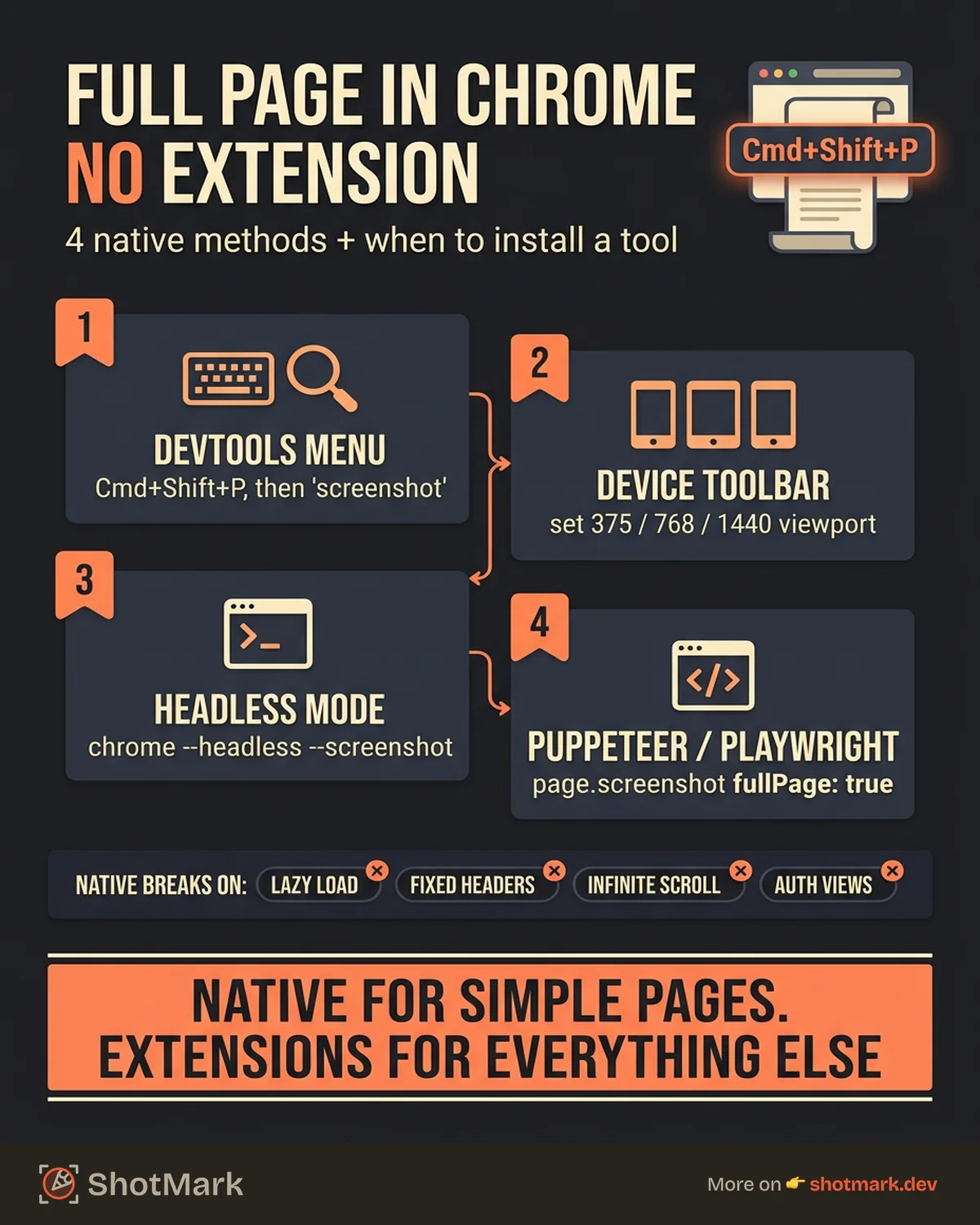
Here are four methods for capturing full page screenshots natively in Chrome, plus honest guidance on when you actually need a chrome extension full page screenshot tool instead.
Method 1: Chrome DevTools Command Menu (Fastest)
This is the quickest native method. No installation, no configuration, no extensions.
On Mac:
- Open DevTools:
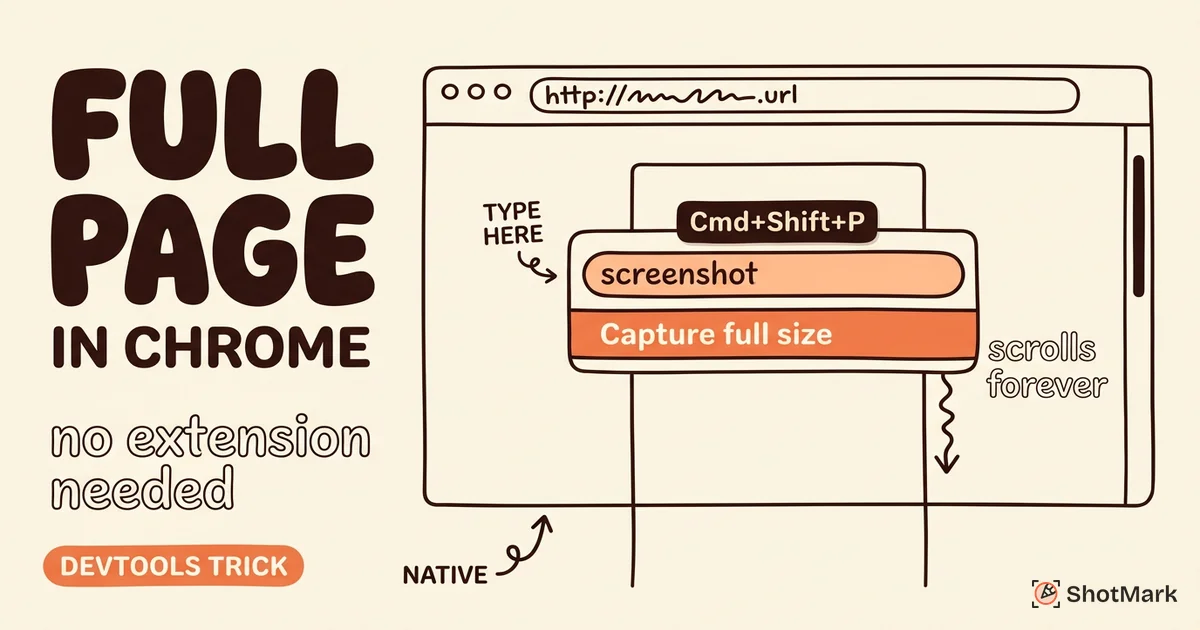
Cmd + Option + I - Open the command menu:
Cmd + Shift + P - Type “screenshot” and select Capture full size screenshot
On Windows:
- Open DevTools:
Ctrl + Shift + I - Open the command menu:
Ctrl + Shift + P - Type “screenshot” and select Capture full size screenshot
Chrome scrolls through the page internally and stitches the result into a single PNG. The file saves to your default downloads folder.
This works well on statically rendered pages. Blogs, documentation sites, and simple marketing pages capture cleanly. The output is a single PNG that includes everything from the top of the page to the bottom, regardless of how far you’d need to scroll.
The limitations are real, though. Lazy-loaded images often appear as blank space because Chrome doesn’t trigger the scroll events that load them. Fixed headers and footers overlay on every section of the stitched image, creating a repeated band across the capture. Some CSS animations freeze mid-frame. And you can’t interact with the page before capturing (accepting cookie banners, expanding collapsed sections, filling in dynamic content).
For QA teams documenting a bug on a long page, these limitations matter. If the bug is below the fold and the content there hasn’t loaded yet, the screenshot won’t show it. You’d need to scroll the page manually first, which the DevTools method doesn’t allow.
The Chrome DevTools documentation covers this feature and other capture options in more detail.
Method 2: DevTools Device Toolbar for Responsive Screenshots
The device toolbar method gives you viewport control before capturing. It’s useful when you need a full page screenshot at a specific breakpoint.
- Open DevTools:
Cmd + Option + I(Mac) orCtrl + Shift + I(Windows) - Toggle device toolbar:
Cmd + Shift + M(Mac) orCtrl + Shift + M(Windows) - Set the viewport dimensions to your target size (e.g., 375x812 for iPhone, 1440x900 for desktop)
- Open the command menu:
Cmd + Shift + P(Mac) orCtrl + Shift + P(Windows) - Type “screenshot” and select Capture full size screenshot
This captures the full page at the specified viewport width. For responsive testing, you can run this at multiple breakpoints to document how the layout renders across screen sizes. Capturing the same page at 375px, 768px, and 1440px gives you a visual record of your responsive behavior without switching devices.
The device toolbar also lets you simulate touch events, adjust device pixel ratio, and throttle the network. These settings affect the rendered page, so the screenshot reflects what a user on that device would actually see. For QA teams documenting responsive bugs, this method is more useful than Method 1 because the viewport width is controlled and reproducible.
The same limitations from Method 1 apply here. Lazy content won’t load, and fixed elements will overlap. But for documenting responsive layouts without installing anything, this method is solid. Zapier’s full page screenshot guide covers additional tips for getting clean captures this way.
Method 3: Chrome Headless Mode for Automated Screenshots
Chrome’s headless mode runs the browser without a visible window. It can capture full page screenshots from the command line, which is useful for CI/CD pipelines and visual regression testing.
chrome --headless --screenshot --window-size=1920,10000 https://example.comThe --window-size parameter sets the viewport width and height. For full page captures, set the height to a large number (10000 or higher) to ensure the entire page renders.
On Mac, the full command path is typically:
/Applications/Google\ Chrome.app/Contents/MacOS/Google\ Chrome \
  --headless --screenshot --window-size=1920,10000 https://example.com
On Windows:
"C:\Program Files\Google\Chrome\Application\chrome.exe" ^
  --headless --screenshot --window-size=1920,10000 https://example.com
The output saves as screenshot.png in the current working directory.
This method is fast and scriptable. The tradeoff is that there’s no user interaction. Pages requiring authentication won’t render correctly unless you pass cookies or use a scripted login flow. Pages with dynamic content that loads on scroll won’t capture fully without additional scripting.
You can also combine headless mode with other flags for more control. Adding --screenshot-quality=100 sets the output to maximum quality. The --default-background-color=0 flag makes the background transparent instead of white, which is useful for capturing pages with dark themes.
For one-off captures, the DevTools method is faster. For automated pipelines that run on every deploy, headless mode is the better fit.
Method 4: Puppeteer and Playwright for Programmatic Capture
Both Puppeteer and Playwright provide APIs for full page screenshots with more control than the command-line method.
Puppeteer:
const puppeteer = require('puppeteer');

(async () => {
  const browser = await puppeteer.launch();
  const page = await browser.newPage();
  await page.setViewport({ width: 1920, height: 1080 });
  await page.goto('https://example.com', { waitUntil: 'networkidle0' });
  await page.screenshot({ path: 'fullpage.png', fullPage: true });
  await browser.close();
})();
Playwright:
const { chromium } = require('playwright');

(async () => {
  const browser = await chromium.launch();
  const page = await browser.newPage();
  await page.setViewportSize({ width: 1920, height: 1080 });
  await page.goto('https://example.com', { waitUntil: 'networkidle' });
  await page.screenshot({ path: 'fullpage.png', fullPage: true });
  await browser.close();
})();
Both frameworks handle lazy-loaded content better than the native DevTools method. You can add scroll-and-wait patterns to trigger content loading before capture:
await page.evaluate(async () => {
  await new Promise((resolve) => {
    let totalHeight = 0;
    const distance = 200;
    const timer = setInterval(() => {
      window.scrollBy(0, distance);
      totalHeight += distance;
      if (totalHeight >= document.body.scrollHeight) {
        clearInterval(timer);
        resolve();
      }
    }, 100);
  });
});
This script scrolls the page in 200px increments, pausing between each scroll to let content load. After reaching the bottom, it captures the full page with all lazy-loaded content rendered.
The Playwright screenshot documentation and Puppeteer API reference cover additional options like element-specific captures, clipping regions, and image quality settings.
For teams building visual regression testing into their CI pipeline, these frameworks are the standard. They integrate with testing tools like Jest and Vitest, and they support side-by-side diff generation.
When You Actually Need a Full Page Screenshot Extension
Native methods work well for straightforward pages. They start to break down in specific scenarios.
Infinite scroll pages (social feeds, product listings, comment threads) don’t have a defined page height. DevTools captures what’s currently rendered, which isn’t the full content. Extensions that handle scroll-stitching are better here.
Pages requiring interaction (accepting cookie banners, expanding accordions, logging in to see content) need you to click things before the screenshot is useful. DevTools captures the current state, blocked banners and all. Extensions let you interact first, then capture.
Authenticated views that require login sessions are problematic for headless and programmatic methods unless you script the authentication flow. Extensions run in your active browser session, so they capture exactly what you see, including behind-login content.
Pages with heavy JavaScript rendering (single-page apps, dashboards, interactive tools) sometimes render differently during automated capture than they do during normal browsing. Race conditions between JavaScript execution and the screenshot moment can produce captures that don’t match what a human user sees. Extensions that wait for visual stability before capturing tend to handle these cases better.
For bug reporting specifically, the native methods produce a PNG file and nothing else. No annotations, no console logs, no network data, no browser metadata, and no integration with bug trackers. You get a screenshot that you then need to manually attach to a ticket.
This is where extension-based tools add real value. They handle the capture edge cases (lazy loading, fixed elements, scroll stitching) and pair the screenshot with technical context. For a comparison of which tools do this well, see our guide to screenshot extensions that capture technical context.
If you’ve tried the native methods and decided you need more, our Chrome screenshot extensions 2026 comparison covers the current landscape. And for a full ranking of tools built for QA workflows, our best screenshot Chrome extensions for QA teams post breaks down the options by use case.
Chrome’s built-in full page screenshot capabilities cover most casual needs. For QA teams filing bugs that need technical context, annotations, and tracker integration, a dedicated extension full page screenshot tool fills the gap that native methods leave open.
Get new posts in your inbox.
One email when we publish: notes on QA, AI, and shipping faster. No spam, unsubscribe anytime.