What Is a HAR File
A HAR (HTTP Archive) file is a JSON-formatted log of every network request your browser makes during a session. Every time you load a page, click a button that triggers an API call, or download an asset, that request and its response get recorded.
A single HAR file contains:
- Full URLs for every request
- HTTP method, status code, and response size
- Request and response headers (including cookies and auth tokens)
- Request payloads and response bodies
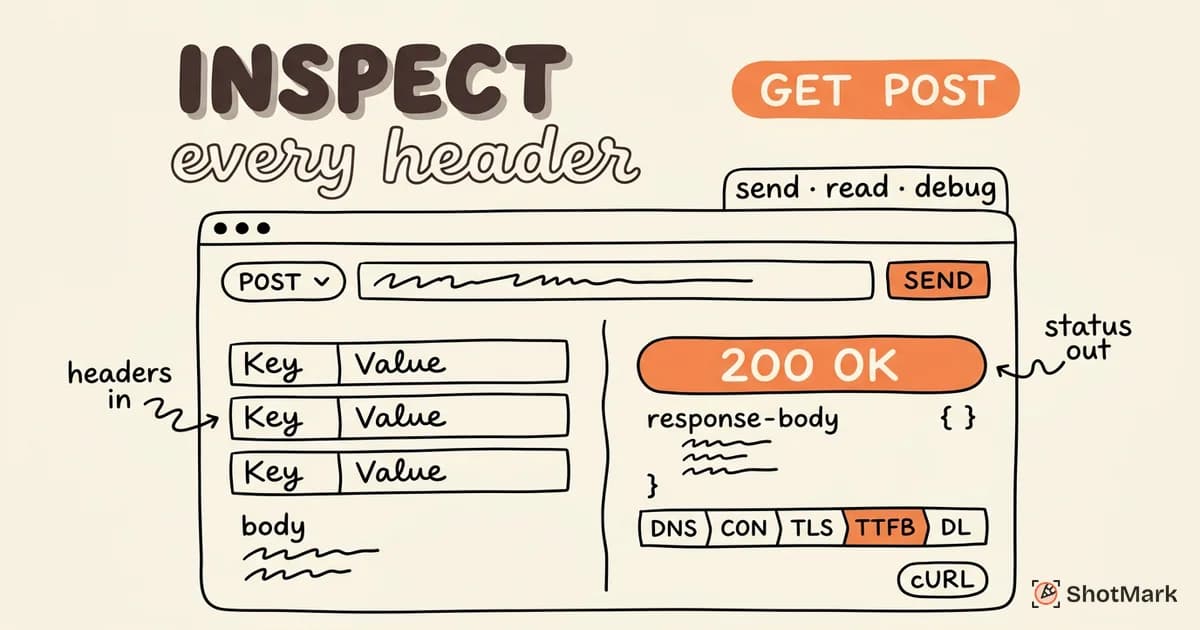
- Timing data: DNS lookup, connection, TLS handshake, waiting, and download times
- Query parameters and form data
Developers and QA engineers use HAR files for debugging network issues, analyzing page performance, and sharing exact reproduction data with support teams. Instead of describing “the API call failed,” you can hand someone a HAR file that shows exactly which request failed, what the server returned, and how long it took.
How to Generate a HAR File
Chrome
- Open DevTools (
F12orCmd + Option + Ion Mac) - Switch to the Network tab
- Make sure recording is active (the red dot should be visible)
- Reproduce the issue in the browser
- Right-click anywhere in the request list and select Save all as HAR with content
The “with content” part matters. Without it, response bodies are excluded, and you lose the most useful debugging data.
Firefox
- Open DevTools (
F12) - Switch to the Network tab
- Reproduce the issue
- Click the gear icon in the Network tab toolbar
- Select Save All As HAR
Safari
- Enable the Developer menu: go to Settings > Advanced and check “Show Develop menu in menu bar”
- Open Web Inspector (
Cmd + Option + I) - Switch to the Network tab
- Reproduce the issue
- Click Export to save the HAR file
Edge
Edge uses the same Chromium DevTools as Chrome. The steps are identical: open DevTools, go to Network, reproduce, right-click, and save as HAR.
How to Use This HAR Analyzer
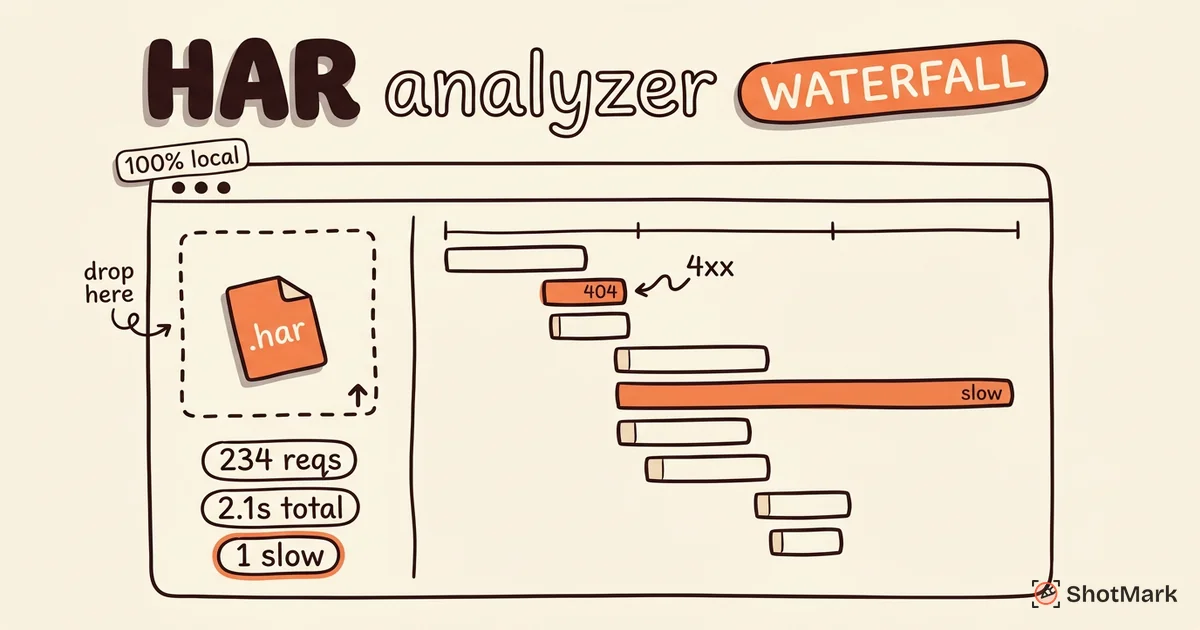
Our HAR file analyzer processes everything locally in your browser. Your file never leaves your machine and never touches a server.
Here’s how to get the most out of it:
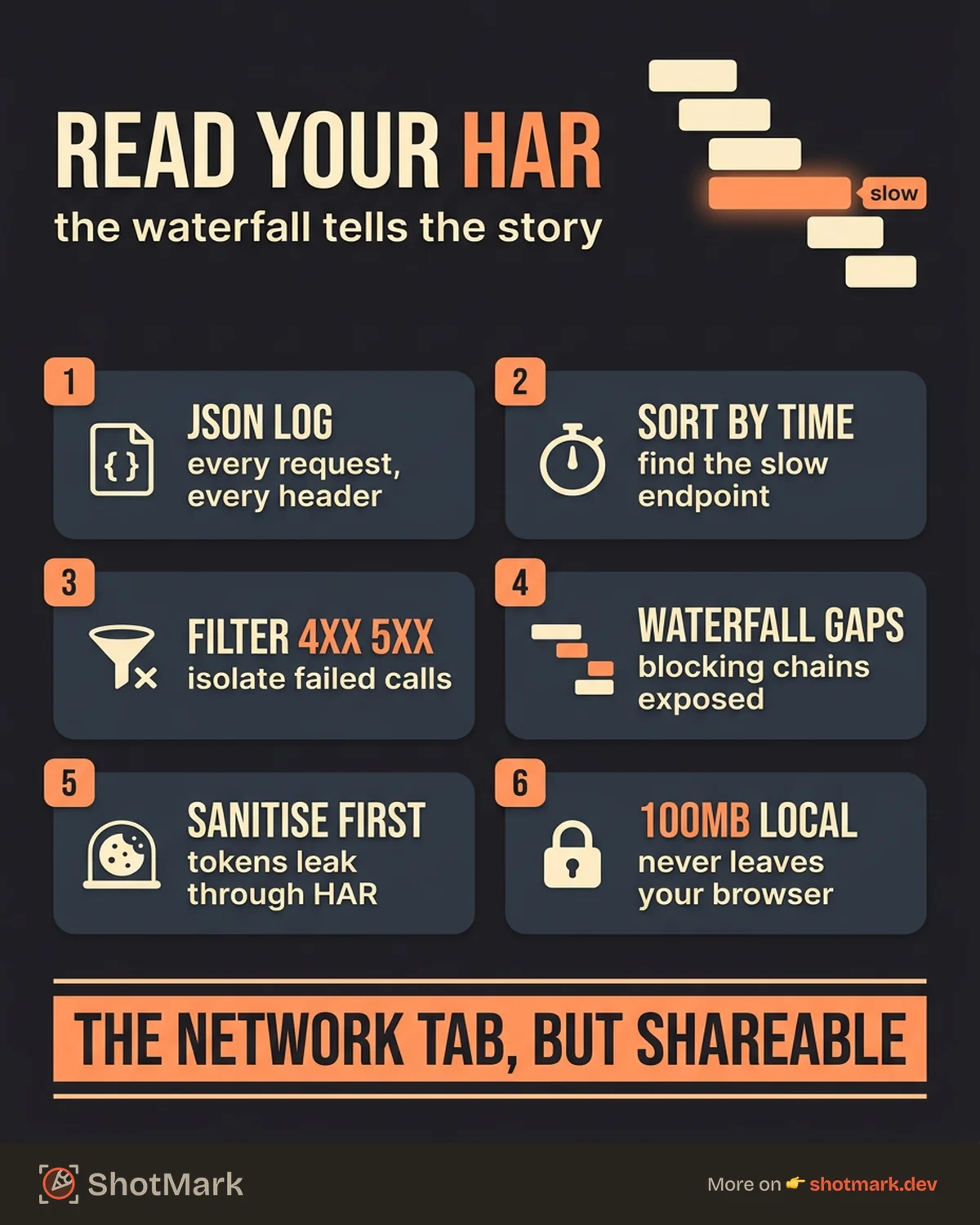
- Upload your HAR file: Drag and drop it onto the upload area, or click to browse. Files up to 100MB are supported.
- Review the summary dashboard: Total requests, total transfer size, total load time, largest request, and slowest request give you an immediate overview of the session.
- Sort by response time: Click the “Time” column header to find the slowest requests. These are your performance bottlenecks.
- Filter by status code: Click 4xx or 5xx filters to isolate failed requests. This is the fastest path to finding broken API calls.
- Click any request to inspect it: The detail panel shows headers, request payload, response body, and a timing breakdown (DNS, connect, TLS, wait, download).
- Use the waterfall chart: The visual timeline shows when each request started, how long it took, and where parallelism breaks down. Look for long sequential chains, they indicate blocking dependencies.
- Export filtered results: Download the filtered request list as CSV or JSON for sharing or further analysis.
Common Use Cases
Debugging API Failures
Filter for 4xx and 5xx status codes to find failed requests immediately. Click into each failed request to inspect:
- The request payload (was the data sent correctly?)
- Response headers (are there CORS errors or auth failures?)
- The response body (does the server return a useful error message?)
Authentication issues are the most common cause of unexpected 4xx errors in HAR files. Look for missing or expired tokens in the Authorization header.
Performance Analysis
Sort requests by response time to find the slowest endpoints. Then check:
- Total page weight: Are you loading 5MB of images on a page that should be lightweight?
- Render-blocking resources: JavaScript and CSS files that load before content appears slow down perceived performance.
- Waterfall gaps: Long pauses between request groups usually indicate JavaScript execution blocking subsequent requests.
- Parallelism: HTTP/2 and HTTP/3 allow parallel downloads. If your waterfall shows sequential loading, your server might not be configured correctly.
Sharing Reproduction Data
When you file a bug report that involves network behavior, attaching the HAR file gives the developer everything they need. No more “can you check the Network tab and tell me what you see?” back-and-forth.
Generate the HAR file while reproducing the bug, then attach it to the ticket. The developer can upload it to this analyzer (or any HAR file viewer ) and see exactly what happened.
For teams that need this workflow automated, ShotMark captures network requests alongside screenshots and console logs in one click. Instead of manually exporting HAR files for every bug, the network data is included in the report automatically.
Security Audits
HAR files contain sensitive data by design. That’s useful for security audits but dangerous if the file is shared carelessly.
During an audit, inspect:
- Cookies and session tokens in request headers
- Authentication tokens in
Authorizationheaders - Sensitive data in request payloads (passwords, API keys, personal information)
- Response bodies that may contain user data
Warning: Never share HAR files publicly without sanitizing them first. They contain cookies, tokens, and potentially personal data that could be used to hijack sessions or access accounts.
HAR File Privacy and Security
This HAR file analyzer processes files entirely in your browser. We use client-side JavaScript to parse the HAR JSON. Your file is never uploaded to any server.
This is a deliberate design choice. Alternatives like the Google HAR Analyzer and DebugBear’s analyzer take different approaches to file handling. Our tool prioritizes privacy.
Before sharing any HAR file with a colleague or attaching it to a support ticket:
- Remove cookies and session tokens
- Strip
Authorizationheaders - Check response bodies for personal data
- Never commit HAR files to public repositories
Some teams use HAR sanitization scripts that automatically strip sensitive headers before sharing. If your organization handles HAR files frequently, this is worth setting up.
Frequently Asked Questions
What is a HAR file?
A HAR (HTTP Archive) file is a JSON log of all network requests made by a web browser during a session. It follows the HAR 1.2 specification standardized by the W3C Web Performance Working Group.
Is this HAR analyzer free?
Yes, completely free. No sign-up, no account, no usage limits.
Is my data safe?
Your HAR file never leaves your browser. All parsing and rendering happens locally in JavaScript. We have no server-side component that receives your file.
How large of a HAR file can I analyze?
Files up to 100MB are supported. Larger files may perform slowly on older devices or browsers with limited memory. For very large files, filtering by domain or status code before analyzing the full dataset improves responsiveness.
What is the HAR file format?
HAR follows the HAR 1.2 specification , a JSON-based format that records HTTP transactions. The format includes a log object containing entries, where each entry represents one request/response pair with full headers, content, and timing data.
How do I create a HAR file in Chrome?
Open DevTools (F12), go to the Network tab, reproduce the issue, then right-click the request list and select “Save all as HAR with content.” For detailed steps across all browsers, see the generation instructions above.
Automate Network Capture for Bug Reports
This HAR file analyzer helps you understand network data after you’ve captured it. But the capture step itself (opening DevTools, reproducing the issue, exporting the file, attaching it to a ticket) still takes time.
ShotMark captures network requests automatically alongside screenshots and console logs, in one click. No manual HAR export needed. The network data travels with the bug report so developers can inspect requests, headers, and timing without asking the reporter to go back and capture more data. Join the waitlist .
Get new posts in your inbox.
One email when we publish: notes on QA, AI, and shipping faster. No spam, unsubscribe anytime.