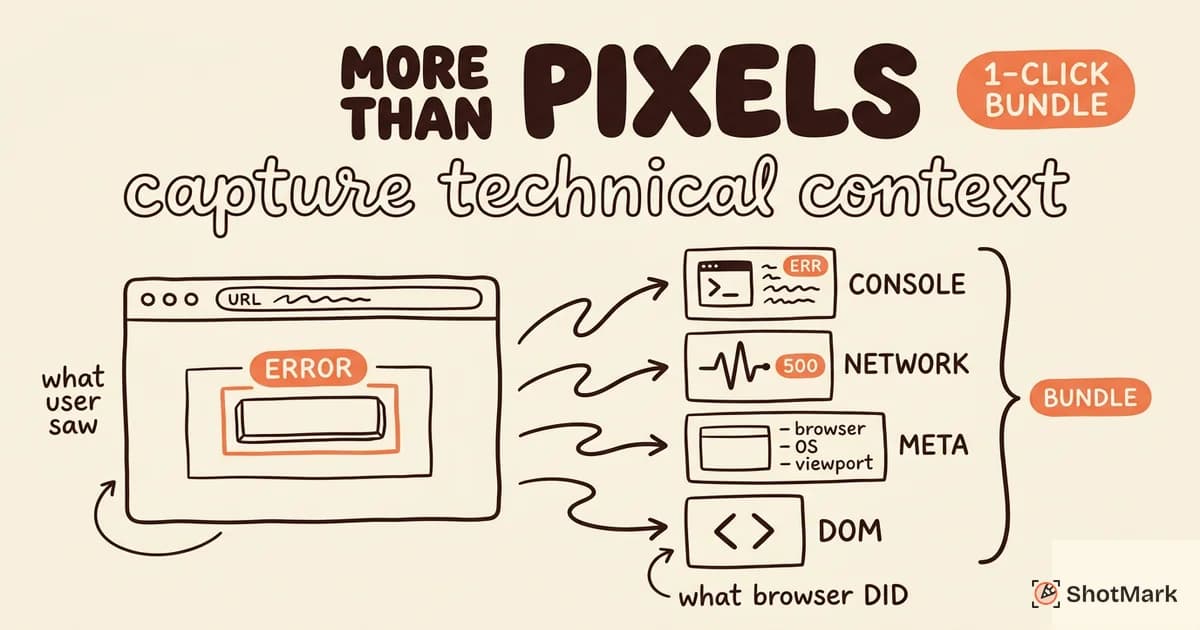
A screenshot shows what the user saw. Console logs show what the browser did. Network requests show what failed behind the scenes. Most screenshot extensions for Chrome capture the first and ignore the other two.
For QA teams and developers, that gap is the difference between a bug report that gets fixed in 10 minutes and one that bounces between “cannot reproduce” for a week. The screenshot tells you the button is broken. The console error tells you why. The failed network request tells you what to fix. Without technical context, the screenshot is just evidence that something went wrong, not a diagnosis of what.
Why Screenshots Alone Are Not Enough for Bug Reports
The “cannot reproduce” problem is the single biggest time sink in bug resolution. Developers receive a screenshot, open the page, and the bug does not happen on their machine. So they ask follow-up questions. What browser? What URL? Were there any errors in the console? The reporter does not know, because the screenshot extension did not capture that information.
Each round of clarification adds 30 to 60 minutes to resolution time. Multiply that across a team filing 50 bugs a week, and you are losing dozens of hours to incomplete reports.
What screenshots miss is everything that happened outside the visible viewport. JavaScript errors logged to the console. Failed API calls with error status codes and response bodies. The browser version, operating system, viewport dimensions, and URL. The Chrome DevTools console records all of this. A screenshot extension that captures technical context pulls that data at the moment of the screenshot and attaches it to the report.
The 4 Types of Technical Context Screenshot Extensions Can Capture
Not all technical context is equal. Different bug categories benefit from different types of captured data.
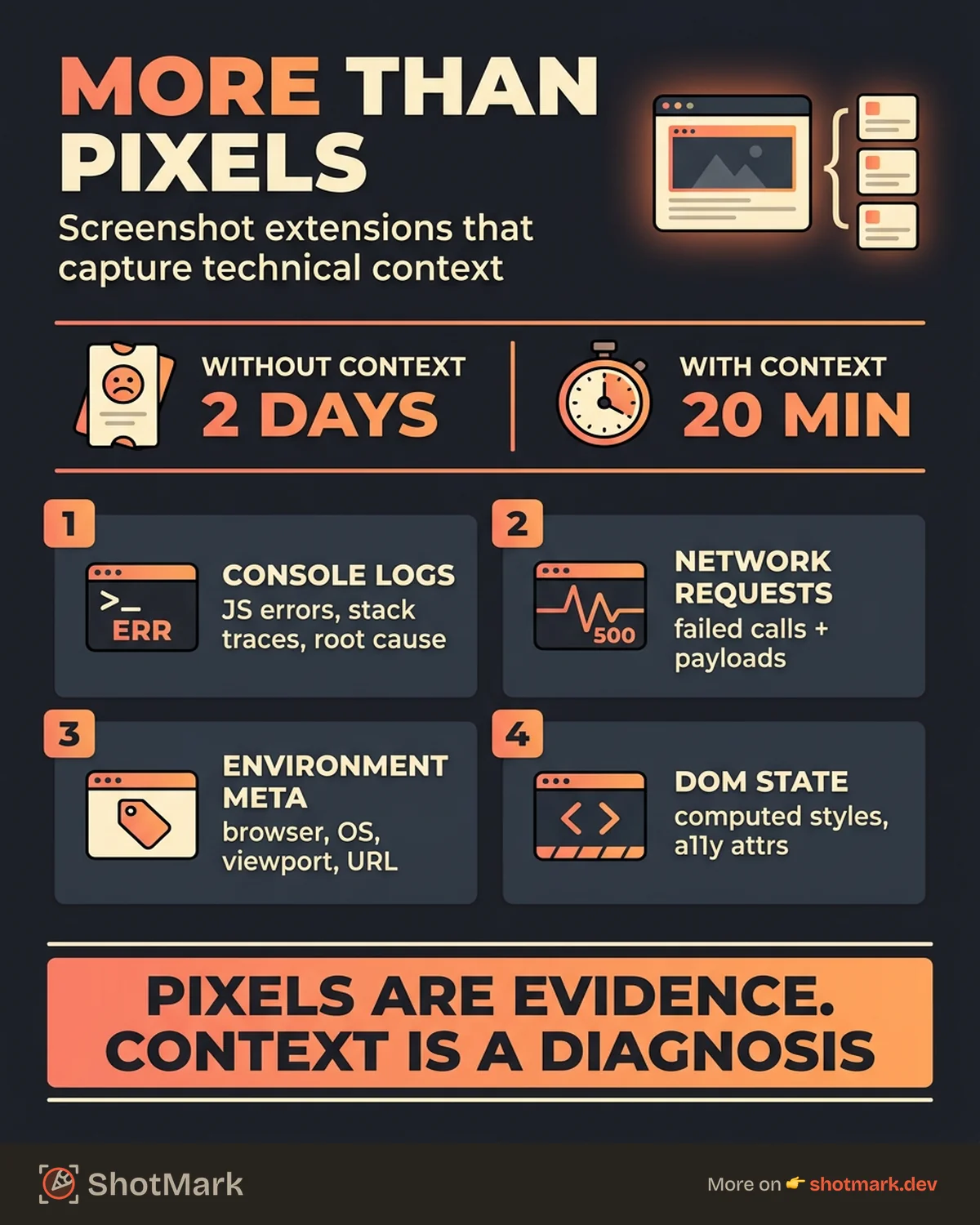
Console logs include JavaScript errors, warnings, and info messages that were logged at the time of capture. For JavaScript errors in particular, the stack trace and error message often identify the root cause before a developer opens DevTools. This is the highest-value type of technical context for most bug reports.
Network requests include failed API calls, slow responses, CORS errors, and request/response payloads. When a page fails to load data, the network capture shows exactly which request failed, what was sent, and what came back (or did not). The Chrome DevTools network panel records this data. Extensions that capture it alongside the screenshot eliminate the need for reproduction.
Environment metadata includes browser name and version, operating system, viewport dimensions, device pixel ratio, URL, and timestamp. This data resolves “works on my machine” issues immediately by showing exactly what environment the bug occurred in.
DOM state includes selected element properties, computed styles, and accessibility attributes. This is useful for layout and styling bugs where the visual screenshot alone does not reveal which CSS rule caused the issue.
For JavaScript errors, console logs matter most. For API integration bugs, network requests are critical. For layout issues, DOM state and environment metadata are the key data. The best extensions capture all four types and let the developer focus on what is relevant.
Extensions That Capture Technical Context (Compared)
Five tools take technical context capture seriously. The rest are visual-only.
ShotMark
ShotMark captures screenshots with console logs, network requests, and environment metadata in a single click. Each capture includes the full console output and network activity leading up to the moment the screenshot was taken, plus annotations for highlighting specific elements.
Technical capture: Console logs (errors, warnings, info), network requests (with request/response bodies), environment metadata (browser, OS, viewport, URL), DOM state for selected elements.
Depth: Captures all console messages and all network requests at capture time, not just errors or failures. Configurable privacy filters let you exclude sensitive headers or payloads before sharing.
Best for: QA teams and developers who want one-click capture of visual and technical context in a single bug report.
Jam
Jam captures console logs, network requests, and session replay alongside screenshots. The developer focus is strong, with deep technical capture and a fast workflow. Session replay adds the ability to replay the user’s actions leading up to the bug.
Technical capture: Console logs, network requests, session replay, environment metadata.
Depth: High. Captures full console output and network activity. Developer-oriented interface with detailed error analysis.
Best for: Developer teams that want deep technical capture and session replay, and do not need stakeholder or non-technical user workflows.
Marker.io
Marker.io captures environment metadata and limited console data, with strong integrations that push feedback directly into Jira, Asana, Linear, and other project management tools. The focus is on collecting feedback from stakeholders and converting it into engineering tickets.
Technical capture: Environment metadata, some console errors. Network capture is limited.
Depth: Moderate. Stronger on metadata and integration depth than on raw technical capture.
Best for: Teams that want to connect visual feedback directly to their project management tool with minimal friction. See our broader Chrome screenshot extensions comparison for how it stacks up in other categories.
Usersnap
Usersnap captures basic metadata (browser, OS, screen size) through a feedback widget that can be embedded in any website. The focus is on collecting feedback from end users and stakeholders rather than deep technical debugging.
Technical capture: Basic environment metadata. No deep console or network capture.
Depth: Light. Designed for feedback collection, not developer debugging.
Best for: Product teams collecting user feedback who need basic metadata attached to screenshots.
BugHerd
BugHerd pins comments to specific page elements and captures the URL, browser, and screen size. It is designed for website feedback and visual QA, with a Kanban board for triage. Technical context is limited to surface-level metadata.
Technical capture: URL, browser, OS, screen size. No console or network capture.
Depth: Minimal. Visual feedback with basic metadata.
Best for: Agencies and teams doing visual website review where technical context is less important than annotation and triage. For teams that need annotation with deeper technical capture, see our guide on how to annotate screenshots for bug reports.
| Tool | Console Logs | Network Requests | Environment Metadata | Session Replay | Privacy Filters |
|---|---|---|---|---|---|
| ShotMark | All messages | All requests | Full | Planned | Yes |
| Jam | All messages | All requests | Full | Yes | Limited |
| Marker.io | Errors only | Limited | Full | No | No |
| Usersnap | None | None | Basic | No | No |
| BugHerd | None | None | Basic | No | No |
For a broader comparison including visual-only tools, our best screenshot Chrome extensions for QA teams guide covers the full landscape.
How Technical Context Improves Bug Resolution
The impact of technical context on resolution time is not theoretical. It follows a predictable pattern.
A bug arrives as a screenshot with no technical context. The developer opens the page. The bug does not reproduce on their machine (different browser, different data state, different network conditions). They ask the reporter for more information. The reporter does not have console logs or network data because their screenshot extension did not capture it. They reproduce the bug again, this time with DevTools open, and paste the error into a comment. By the time the developer gets the information they need, two days have passed.
The same bug arrives as a screenshot with console logs and network requests attached. The developer sees a 403 error on the /api/user endpoint in the network capture. The console shows an “unauthorized” error with a timestamp. They check the auth service logs for that timestamp and find an expired session token. Fixed in 20 minutes.
Environment metadata eliminates “works on my machine” by showing exactly what environment produced the bug. Network request data pinpoints API failures without reproduction. Console errors identify the root cause before the developer opens the code. The best Chrome screenshot extension for bug reporting is the one that captures all of this automatically.
Evaluating Technical Context Depth in Screenshot Extensions
Not all “technical capture” is equal. When evaluating a screenshot extension for Chrome, look at four dimensions.
Capture timing: Does it capture data at the exact moment of the screenshot, or does it reconstruct context retroactively from a session recording? Real-time capture is more accurate for debugging because it reflects the exact state when the bug occurred.
Data completeness: Does it capture all console messages or just errors? All network requests or just failed ones? Complete data is more useful because the error that caused the visible bug might be several lines above the obvious failure in the console output.
Privacy controls: Can sensitive data (auth tokens, personal information, API keys in headers) be filtered or redacted before sharing? Technical capture is valuable, but not if it exposes credentials in every bug report.
Export format: Is the technical data structured (JSON with typed fields) or embedded as plain text in a screenshot image? Structured data integrates with issue trackers and debugging tools. Plain text in an image does not.
ShotMark captures all console messages and all network requests at capture time with configurable privacy filters, exported as structured data that integrates with issue trackers. The capture happens at the moment the screenshot is taken, so the data reflects the exact state when the bug occurred.
The screenshot is the starting point, not the finished bug report. When a developer can see the console error, the failed network request, and the browser environment alongside the visual evidence, the gap between “something is broken” and “here is what to fix” collapses from days to minutes. If your current screenshot extension for Chrome only captures the image, you are leaving the most valuable debugging data on the table. ShotMark captures all of it in one click. Join the waitlist to try it on your next bug report.
Get new posts in your inbox.
One email when we publish: notes on QA, AI, and shipping faster. No spam, unsubscribe anytime.