A bug report template jira teams can actually use isn’t just a description field with a few bullet points. It’s a structured set of custom fields that force every report to include the data developers need to reproduce and fix an issue.
Most template guides online stop at “add steps to reproduce and a screenshot.” This one gives you the complete markdown template, the custom field definitions, the configuration steps for Jira Cloud, and the automation patterns that keep reports consistent across your team.
The Complete Bug Report Template Jira Teams Can Copy-Paste
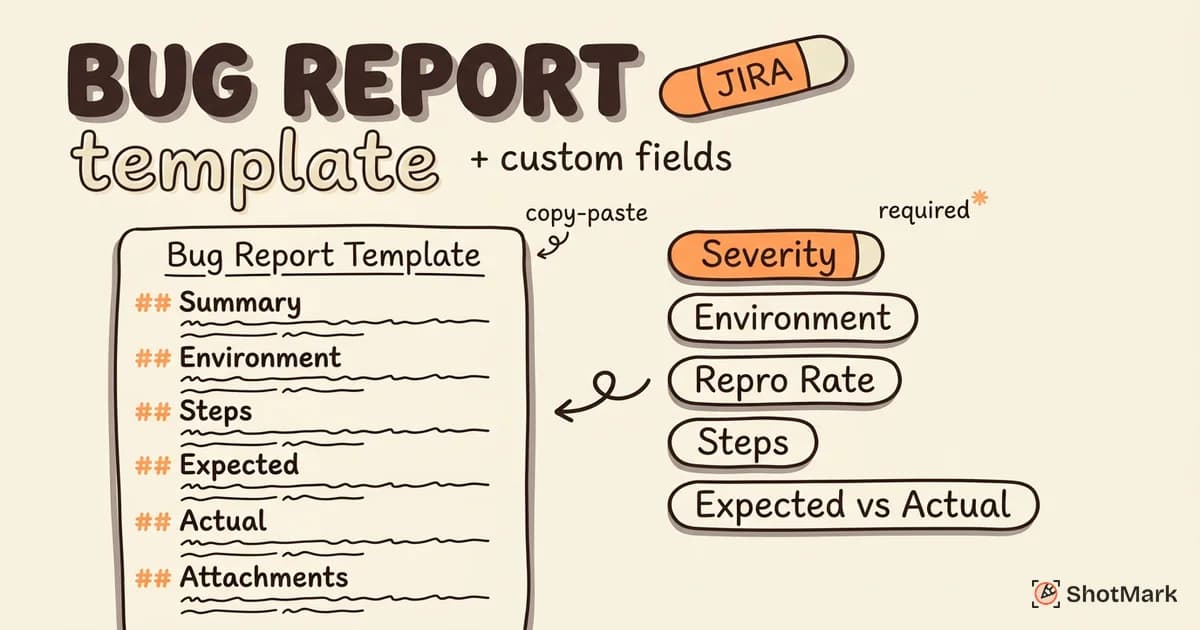
Here’s the copy-paste template that goes into the description field of every bug ticket. It works with Jira Cloud, Data Center, and Server. The structure mirrors what high-performing QA teams use, and it pairs with the custom fields described in the next section.
## Summary
[Module] Action that fails + observed result.

## Environment
- **Browser:** Chrome 124.0.6367.60
- **OS:** macOS Sonoma 14.4
- **Device:** MacBook Pro 14"
- **App version:** 2.8.1 (staging)
- **URL:** https://staging.example.com/checkout

## Prerequisites
- User is logged in as test.user@example.com
- Cart contains 3 or more items
- Feature flag `new_checkout` is enabled

## Steps to Reproduce
1. Navigate to /cart and confirm 3+ items are present.
2. Click "Proceed to Checkout."
3. Fill in shipping address with valid data.
4. Click "Submit Order."

## Expected Result
Order is created, user is redirected to /confirmation, and confirmation email fires.

## Actual Result
500 error returned. Order not created. Console shows `TypeError: Cannot read property 'id' of undefined` at `checkout.js:142`.

## Reproduction Rate
Always (5/5 attempts)

## Attachments
- Annotated screenshot (checkout-500.png)
- Console log export (console-2026-04-17.txt)
- HAR file (network-trace.har)

## Additional Notes
Only occurs on Safari 17+. Chrome and Firefox work correctly.
This is a structured general bug report template adapted to Jira’s markdown flavor. You can paste it directly into any bug ticket and fill in the bracketed sections.
How Do I Set This as the Default Description Template?
Jira Cloud doesn’t have a built-in “default description” feature, but you can get the same result three ways. First, save the template as a Jira macro using the slash command menu. Second, add it to your team’s wiki and link to it from the Bug issue type description field. Third, install a marketplace app like “Issue Templates for Jira” that auto-populates the description when a Bug is created.
If you run Jira Data Center, the “Description Templates” feature is built in under Project Settings > Issue Templates. You add the markdown above as the default, and it loads automatically when anyone files a new Bug.
For teams that want ready-made project setups, Atlassian publishes several Jira project templates including a bug tracking template that ships with sensible defaults. Use that as your starting point, then layer the custom fields in the next section on top.
Template Variations for Frontend, Backend, and Mobile
One template rarely fits every bug. Here are three variations you can add as issue type templates for different components.
Frontend bug template adds fields for viewport size, CSS framework version, and React/Vue devtools state. Use it for UI rendering issues, client-side errors, and cross-browser inconsistencies.
Backend bug template adds request ID, service name, database query (redacted), and stack trace. Use it for API failures, 500 errors, and background job problems.
Mobile bug template replaces browser fields with OS version, device model, app build number, and carrier/network type. Use it when you ship native or hybrid apps.
Custom Fields Every Jira Bug Report Needs
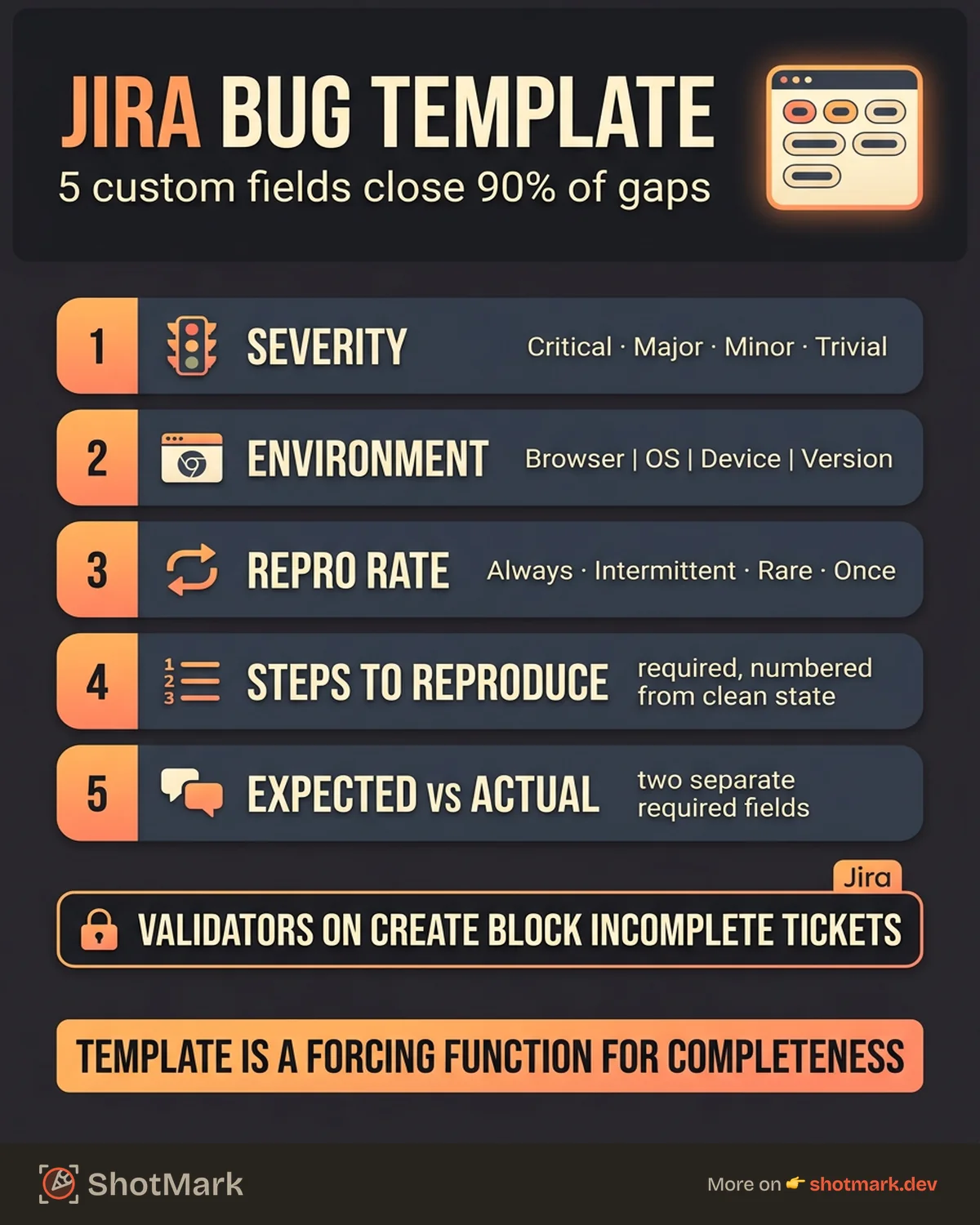
A description template alone won’t save you from missing data. Custom fields force the reporter to fill in specific values before saving. Five custom fields cover 90% of the gaps teams run into with default Jira bug reporting.
Severity (Dropdown)
Severity measures the technical impact of a bug, independent of business urgency. Priority is already a default field in Jira, but it conflates business urgency with technical severity, which confuses triage. Add a separate Severity field with these options:
- Critical: System down, data loss, or security breach
- Major: Core feature broken, no workaround
- Minor: Feature partially broken or workaround exists
- Trivial: Cosmetic issue, no functional impact
Environment (Text Field)
The default Environment field in Jira is a plain text area. Make it required and provide a placeholder format so reporters fill it consistently. Example placeholder: Browser: [name version] | OS: [name version] | Device: [model] | App version: [x.y.z].
Reproduction Rate (Dropdown)
This field tells developers whether the bug is deterministic or flaky. Options:
- Always (100%): Bug occurs every time the steps are followed
- Intermittent (50-99%): Bug occurs most of the time
- Rare (1-49%): Bug occurs occasionally
- Once: Bug observed one time, not reproduced since
- Unable to Reproduce: Reporter saw it, cannot reproduce on demand
Flaky bugs require different debugging strategies than deterministic ones. Surfacing the reproduction rate up front saves developers from chasing ghosts.
Steps to Reproduce (Multi-Line Text)
Jira’s default description field is free-form, which means reporters often forget steps or bury them in prose. A dedicated Steps to Reproduce field with a numbered format placeholder makes omissions visible. Add the field as a required multi-line text with this placeholder:
1. [First action]
2. [Second action]
3. [Third action]
Observed: [what happened]
Expected vs. Actual Behavior (Two Text Fields)
Splitting expected and actual behavior into separate fields prevents the “it doesn’t work” description problem. Two short multi-line text fields, both required. This single change has the biggest impact on report quality in our experience with QA teams.
How Do I Create a Custom Field in Jira Cloud?
Open Jira Settings > Issues > Custom Fields. Click Create Custom Field. Choose the field type (Select List, Text Field, Short Text, etc.). Give it a name and description. Associate it with the screens where you want it to appear. Full walkthrough available in the official Jira custom fields docs .
You’ll need site admin permissions. If you don’t have them, ask your Jira admin to add the fields and associate them with the Bug issue type screen. Each field creation takes under two minutes once you know the pattern.
Setting Up the Template in Jira
Custom fields exist at the site level, but they only appear on tickets when associated with a screen and attached to an issue type. Here’s the end-to-end setup for the Bug issue type.
Step 1: Create an Issue Type Scheme for Bugs
Go to Jira Settings > Issues > Issue Type Schemes. Find your project’s scheme or create a new one. Ensure the Bug issue type is included. If your team files defects under a different type name (Defect, Incident, Problem), create that issue type first and add it to the scheme.
Step 2: Add Custom Fields to the Bug Screen
Navigate to Jira Settings > Issues > Screens. Find the screen associated with the Bug issue type. Click Configure and add each custom field from the previous section. Drag to reorder so fields appear in this sequence: Summary, Description (with template), Environment, Steps to Reproduce, Expected Behavior, Actual Behavior, Severity, Reproduction Rate, Attachments.
For teams that need granular layout control, the Jira field layout configuration docs cover how to group fields into tabs and control visibility by issue type.
Step 3: Configure Required vs. Optional Fields
Go to Jira Settings > Issues > Field Configurations. Find the configuration linked to your Bug screen. Mark these fields as required: Summary, Description, Environment, Steps to Reproduce, Expected Behavior, Actual Behavior, Severity. Leave optional: Reproduction Rate (defaults to “Always”), Attachments, Affected Version, Labels.
Required fields prevent incomplete reports from being saved. Optional fields keep the form from feeling oppressive for minor tickets.
Step 4: Test the Template With a Sample Bug
File a sample bug using the template to confirm everything works. Check that required fields block submission when empty, the description template pre-populates, and custom dropdowns show the correct options. This is also a good moment to review our guide on setting up Jira as a bug tracker for broader configuration tips like workflow states and permissions.
For a walkthrough of filing bugs against this configured template, see our post on creating Jira bug reports which covers the submission flow end to end.
Can I Import a Bug Report Template Into Jira?
Yes, but not as a single file. Jira doesn’t support importing a template bundle that includes fields, screens, and descriptions in one step. Instead, you import each piece separately. Custom fields can be created via REST API or the Jira Cloud Admin UI. Screens and field configurations require manual setup. Description templates can be pasted into the Bug issue type’s default description via marketplace apps or the Data Center issue template feature.
If you want to replicate the setup across multiple projects, use Jira’s Copy Project feature to clone a fully configured project. Fields, screens, and workflows carry over. You’ll still need to re-associate any marketplace apps.
Automating Bug Reports With Pre-Filled Fields
Once your template and custom fields are in place, the next bottleneck is manual data entry. Filling in environment details, reproduction steps, and attachments takes five to ten minutes per report. Automation cuts that to under a minute.
Jira Automation Rules for Default Values
Use Project Settings > Automation to set default values based on conditions. Example rules:
- When a Bug is created with no Severity, set Severity to “Minor”
- When a Bug is filed by a user in the QA group, auto-assign to the component lead
- When a Bug is flagged as Critical, send a Slack message and create a linked incident
Automation rules don’t replace the template, but they handle the repetitive work that shouldn’t need human input.
Browser Extensions for Technical Context
Environment data, console errors, network requests, and screenshots are the slowest fields to fill manually. Browser extensions capture all of this in one click and push it directly to Jira as ticket attachments and custom field values.
ShotMark captures the active browser tab with annotated screenshots, console logs, network requests, and session replay, then sends the package to Jira with a single button. The environment field auto-populates with browser version, OS, device, and URL. The description uses your template. The QA engineer fills in the summary and reproduction steps, which are the only parts that truly need human judgment.
Teams that want a deeper look at connecting tools to Jira can see how the OAuth and REST API setup works across different capture tools.
Linking the Template to Your QA Workflow
The template isn’t a standalone artifact. It’s a checkpoint in your QA workflow. Typical flow:
- Tester discovers a defect during exploratory or scripted testing.
- Tester triggers the browser capture tool to collect technical context.
- Tester opens Jira, selects Bug issue type, and the template loads.
- Captured data auto-fills environment, attachments, and console logs.
- Tester writes summary, reproduction steps, and expected/actual behavior.
- Tester submits. Required fields block incomplete reports.
- Automation rules triage severity, assign owner, and notify the component team.
This workflow turns a 10-minute manual process into a 60-second automated one, with richer context than most manual reports include.
What Comes Next
A solid bug report template jira teams can rely on is the foundation, not the finish line. The template ensures every report has the same structure, the custom fields force completeness, and the workflow automation routes bugs to the right owner. None of that matters if your testers skip the template because capturing the data is too tedious.
Pair the template with a capture tool like ShotMark that auto-fills environment fields, attaches annotated screenshots, and packages console logs with every bug report filed in Jira. One-click capture plus a required-fields template means reports are always complete, always actionable, and always ready for the developer to start debugging. ShotMark is open source and currently in early access. Join the waitlist at shotmark.dev to try it with your Jira instance.
Get new posts in your inbox.
One email when we publish: notes on QA, AI, and shipping faster. No spam, unsubscribe anytime.