An Android bug report is the fastest way to hand a developer everything they need to diagnose a crash, ANR, or weird performance drop. The catch is that most QA teams either don’t know how to capture one, or capture it too late and end up with rotated logs that miss the actual failure.
This guide walks through both ways to capture an Android bug report, what’s inside the resulting file, and how to read it without drowning in 50 MB of logcat output. We’ll also cover how to pair device logs with visual context so your tickets don’t turn into another round of Slack threads.
What Is an Android Bug Report?
An Android bug report is a system-level diagnostic file generated by the device itself. It bundles logcat output, system service state, ANR traces, memory snapshots, battery stats, and build information into a single .zip archive that developers can open and analyze.
Think of it as a black-box recorder for your phone. When an app crashes or the system misbehaves, the bug report captures everything that was happening on the device at that moment, not just what the app itself logged. That makes it far more useful than a stack trace alone when you’re chasing flaky issues.
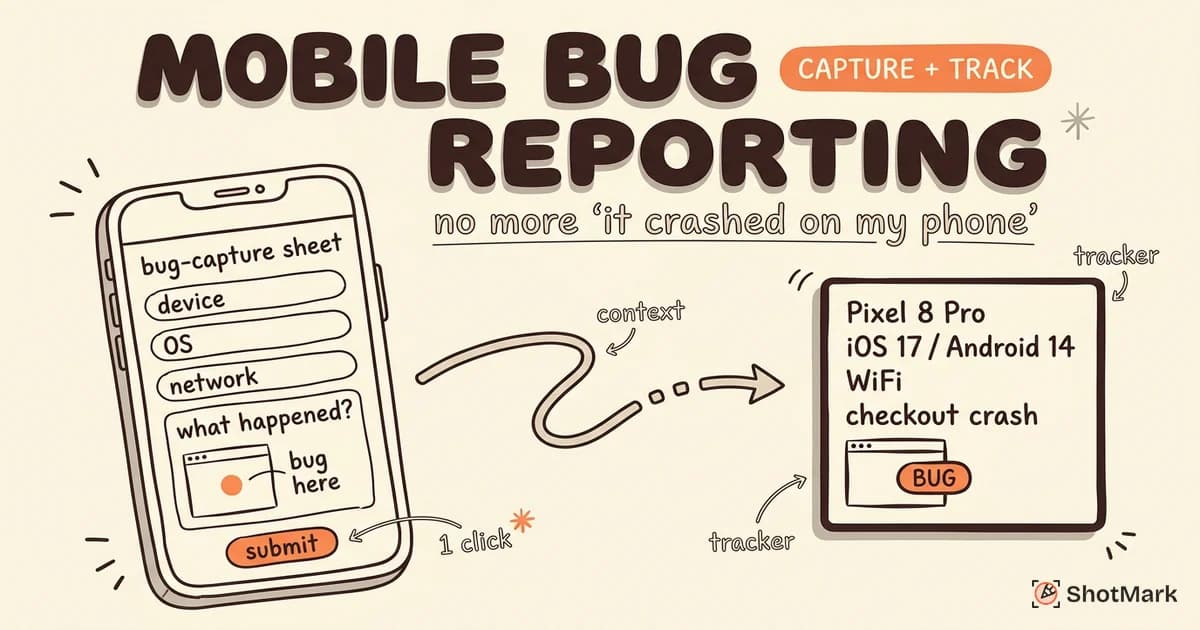
This is different from a user-facing bug report (the kind QA engineers write in Jira or Linear). A device bug report is a raw diagnostic artifact meant for developers. If you’re comparing this to mobile bug reporting workflows for product teams, the device bug report is one piece of evidence you attach, not the report itself.
Google’s engineering team built this feature specifically so third-party developers could reproduce hard-to-find issues on real devices. You’ll see it referenced throughout the Android developer documentation on capturing bug reports , which is the canonical source for the file format.
Method 1: Capture a Bug Report From Developer Options
The easiest way to take a bug report on Android is directly from the device, no computer required. This works on any modern Android phone or tablet running Android 7.0 or later.
Step 1: Enable Developer Options
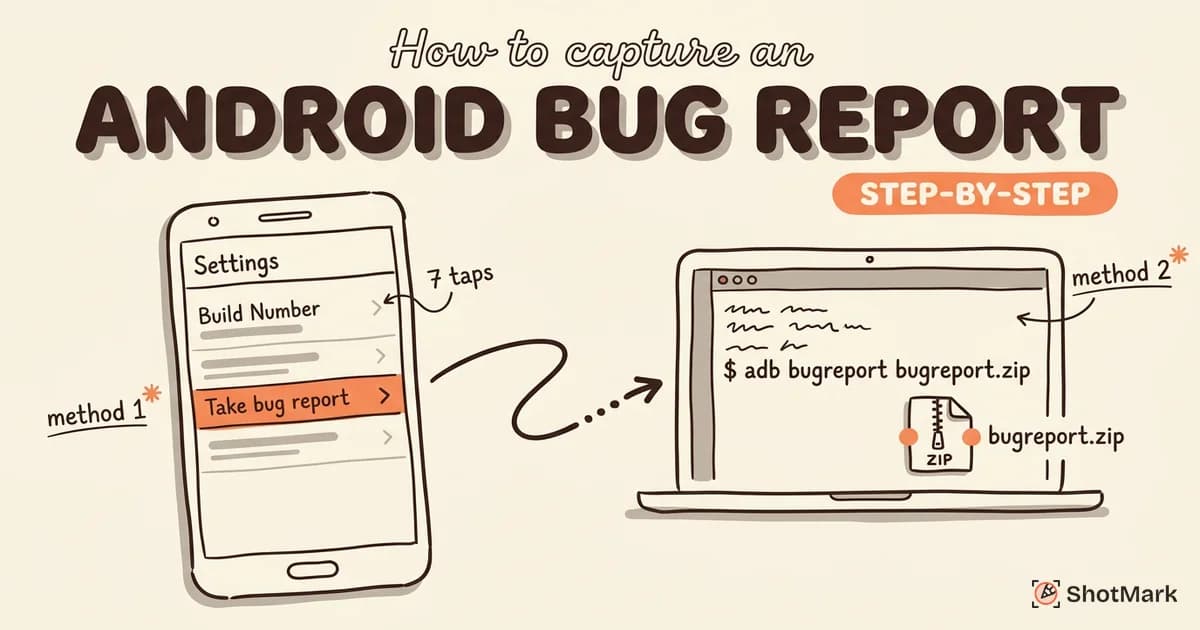
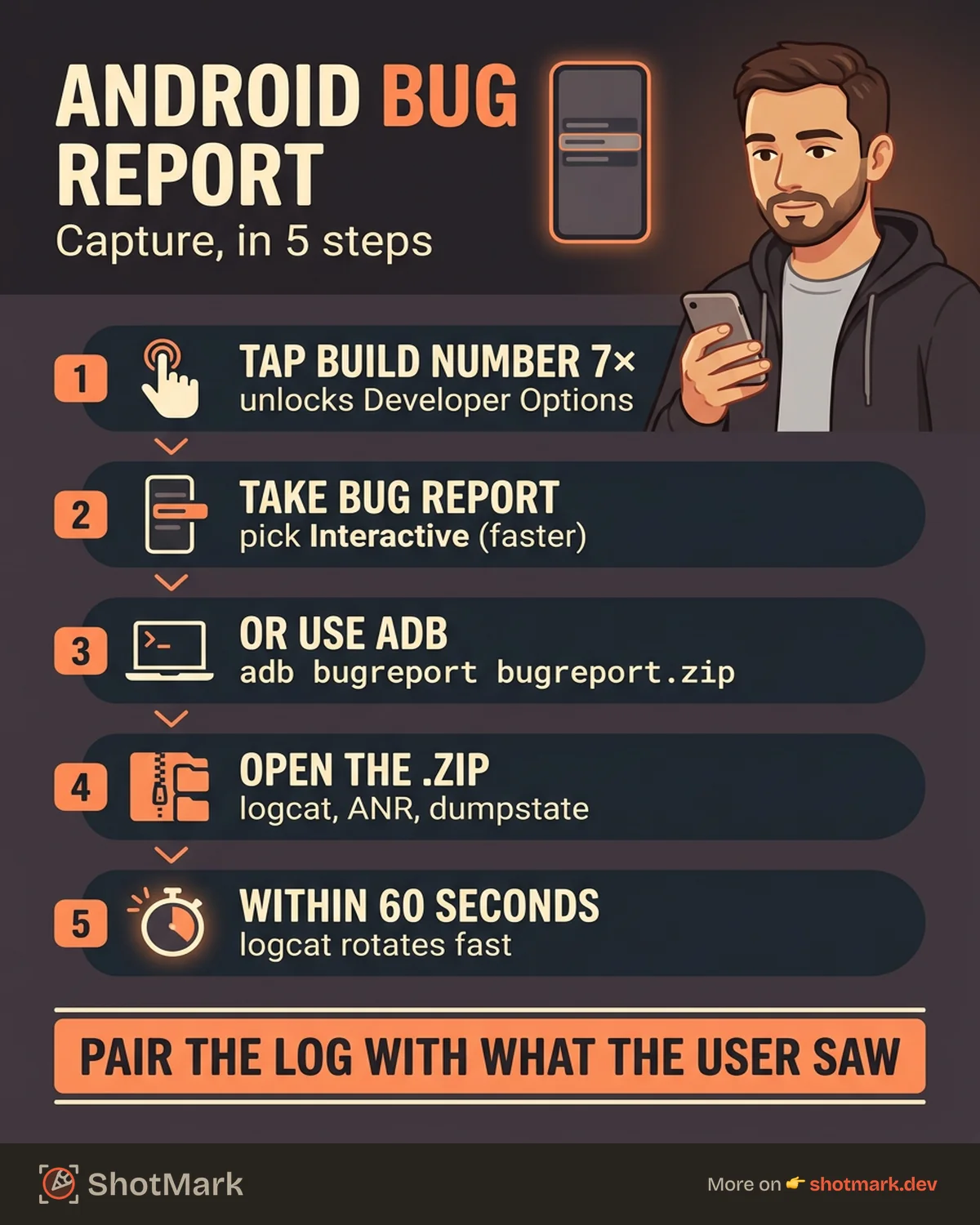
Developer Options is hidden by default. To enable it, open Settings, scroll to About Phone, find Build Number, and tap it seven times. You’ll see a toast message count down (“You are now 4 steps away from being a developer…”) until it confirms Developer mode is enabled.
On some OEM skins like One UI or MIUI, the Build Number lives under Software Information or My Device inside About Phone. The seven-tap gesture is identical.
Step 2: Open Developer Options
Go back to the main Settings screen and open System, then Developer Options. On some devices it appears at the bottom of the main Settings list. Scroll until you find Take bug report (it’s usually near the top, under Debugging).
Step 3: Choose the Report Type
Tap Take bug report and Android asks you to pick a type.
- Interactive report: smaller file, lets you add a screenshot and a written note about what happened. Recommended for most QA work.
- Full report: captures more system state, useful when the device is unresponsive or when you’re chasing a system-level bug. The file is larger and takes longer to generate.
Pick Interactive unless a developer specifically asks for the Full version.
Step 4: Wait for Generation
The notification shade shows a Bug report is being captured progress notification. It takes 1 to 3 minutes on most devices. Don’t reboot the phone during this step.
Step 5: Share the Report
When the report is ready, the notification changes to Bug report captured, tap to share. Tap it, and Android opens the standard share sheet so you can email the .zip, upload it to Drive, Slack, or attach it to a ticket.
The resulting file is named something like bugreport-[device]-[build]-[timestamp].zip. Keep the original filename. It encodes build info that matters during triage.
Method 2: Capture a Bug Report Using ADB
If you have a computer and a USB cable, the ADB method is faster, more reliable, and saves the file directly to your machine. This is the preferred approach for any QA team doing structured mobile testing.
Prerequisites
You need three things:
- ADB installed on your computer (macOS, Windows, or Linux).
- USB debugging turned on under Developer Options.
- The device connected via USB and authorized (the phone shows a “Allow USB debugging?” prompt the first time).
The Command
With the device connected, open your terminal and run:
adb devicesYou should see your device listed with device next to the serial. If it says unauthorized, unplug, reconnect, and tap Allow on the phone.
Now run the capture:
adb bugreport bugreport.zipADB streams the full report from the device to your machine and saves it as bugreport.zip in your current directory. Expect 30 seconds to 2 minutes depending on how much system data the device collects.
You can also pass a full path to save it somewhere specific:
adb bugreport ~/Desktop/bugreport-checkout-crash-2026-04-18.zipNaming the file at capture time is the easiest way to keep your bug report archive organized.
How to Install ADB
ADB ships as part of the Android SDK Platform Tools. You don’t need the full Android Studio install to get it.
- macOS:
brew install --cask android-platform-tools - Windows: download the SDK Platform Tools zip from Google , extract it, and add the folder to your PATH.
- Linux:
sudo apt install android-tools-adbon Debian/Ubuntu, or the equivalent for your distro.
Verify the install with adb --version and adb devices. If the device doesn’t appear, you usually need to enable USB debugging (Developer Options > USB debugging) and authorize the computer on the device.
Windows users sometimes need the OEM’s USB driver before the device shows up. Samsung, Xiaomi, and Huawei all publish theirs on their support sites.
What Is Inside an Android Bug Report File
Open the .zip and you’ll see a collection of files that together describe the device’s state at capture time. The main pieces are:
- bugreport-[device]-[timestamp].txt: the master log file. Contains system properties, dumpstate output, and interleaved logcat. This is where most of the diagnostic data lives.
- FS/: a folder with dumps of various
/dataand/procfiles. Memory maps, installed packages, process lists. - proto/: structured binary dumps of system services (window manager, activity manager, package manager) in protobuf format.
- version.txt: the exact build fingerprint of the device.
- dumpstate_board.txt: hardware vendor logs (modem, sensors, audio HAL).
The .txt file is where you’ll spend most of your time. Inside it, look for ANR traces (saved separately to anr/ in the archive), full logcat histories, battery stats, and a dump of every running service.
The file is dense. A typical report is 20 to 80 MB uncompressed. Don’t try to read it top to bottom. Search for what you need.
How to Read an Android Bug Report
The best tool for reading these files is Android Studio’s built-in Bug Report Viewer. Open Android Studio, go to Analyze > Inspect Bug Report, and drop in the .zip. Studio parses the file and shows a structured view with tabs for logcat, stack traces, ANRs, and system info.
If you don’t have Android Studio installed, you can unzip the file and open the main .txt in any editor. VS Code handles large files well. Keywords worth searching for:
- FATAL or FATAL EXCEPTION: app crashes.
- ANR in: Application Not Responding events.
- Exception or E/AndroidRuntime: runtime errors.
- The package name of your app: filters logcat to app-specific messages.
Pair the search with the timestamp of when you reproduced the bug. Logcat entries are timestamped down to the millisecond, so if you know the bug happened at 14:23:08, that’s where you start.
For a walkthrough of reading the output with concrete examples, the Stack Overflow thread on analyzing Android bug reports collects useful patterns from working developers.
How Do You Take a Bug Report on Android Without a Computer?
Use Method 1 (Developer Options > Take bug report). The device generates the .zip locally, and you share it through the notification. No cable, no ADB, no computer required.
Where Does the Android Bug Report File Save?
With the Developer Options method, the file lives in internal storage at /bugreports/ and is accessible through the share notification. With ADB, the file saves to whichever directory you ran the adb bugreport command from. If you passed a specific path, it saves there.
How Do You Read an Android Bug Report Log?
Open the .zip, extract the main .txt, and either load it into Android Studio’s Bug Report Viewer (Analyze > Inspect Bug Report) or search the raw text for FATAL, ANR, or your app’s package name.
Tips for QA Teams
These are the habits that separate useful bug reports from ones that sit in the backlog.
Capture immediately: Logcat rotates. By default Android keeps only the most recent 256 KB per buffer, so a report captured 10 minutes after the crash may not include the crash itself. Grab the bug report within 60 seconds of reproducing the issue.
Record the reproduction time: Note the device clock time (or a synced timestamp) when you triggered the bug. This is how you pinpoint the relevant entries in a 30,000-line log.
Name files consistently: Use a format like bugreport_[app]_[date]_[short-issue].zip, for example bugreport_shotmark_20260418_checkout-crash.zip. Future-you will thank present-you during regression investigations.
Pair with a visual report: A device bug report tells developers what happened in the system. A screenshot with an annotation tells them what the user saw. Both together make triage fast. Our guide to mobile bug reporting tools for capture and tracking walks through this pairing in detail.
Redact sensitive data if sharing externally: Bug reports capture installed packages, account names, and network activity. Review the file before attaching it to a public ticket or forwarding it outside your company.
For iOS counterparts to this workflow, see our breakdown of iOS bug reporting tools for QA teams. The artifacts are different, but the principles (capture fast, name clearly, pair with visual context) carry over.
Beyond Device Logs: Visual Bug Reporting for Mobile
An Android bug report is the gold standard for developer-facing diagnostics, but it’s not a complete bug report on its own. It’s dense, it’s technical, and it doesn’t show what the user was trying to do when the bug happened.
For mobile web apps in particular, pairing device logs with visual context removes the back-and-forth. A QA engineer who attaches a bug report plus an annotated screenshot, a short screen recording, and a clear list of reproduction steps gives the developer everything in one place. That’s the combination that actually gets bugs fixed on the first pass.
ShotMark was built for this. One-click capture bundles screenshots, console logs, network requests, and a short session replay into a structured report, and the open-source SDK lets teams extend it for their own stack. It’s complementary to the device bug report, not a replacement. Use the Android bug report for system-level diagnostics, use ShotMark for the visual and interaction context, and attach both to the ticket.
If you want a single workflow for capturing, annotating, and tracking bugs across browser and mobile web testing, join the ShotMark waitlist . We’re shipping the beta this year, and early access members get priority onboarding plus input into the mobile roadmap.
Solid mobile QA is a stack of small habits: capture an android bug report fast, pair it with clear visual evidence, and name your files so you can find them six months from now. Do that, and you’ll spend a lot less time explaining bugs and a lot more time fixing them.
Get new posts in your inbox.
One email when we publish: notes on QA, AI, and shipping faster. No spam, unsubscribe anytime.