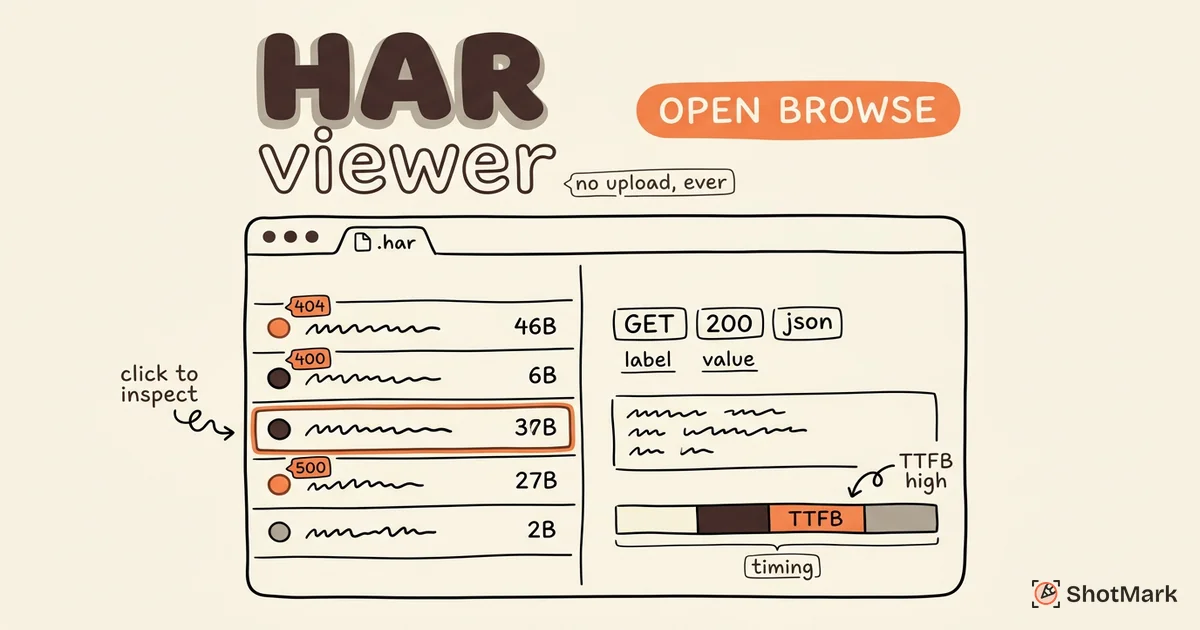
Our free HAR file viewer lets you open and browse HTTP Archive files directly in your browser. Drag and drop a .har file, and you’ll see every network request with headers, response bodies, and a visual waterfall timeline. Everything is processed locally. Your data never leaves your machine.
What Is a HAR File
A HAR (HTTP Archive) file is a JSON-formatted record of a browser’s network activity. It captures every HTTP request and response that occurs while loading a page, including URLs, methods, status codes, headers, cookies, query parameters, response bodies, and timing data.
Browsers generate HAR files through their developer tools. In Chrome, you open the Network tab, reproduce the issue, then right-click and select “Save all as HAR with content.” The resulting file is a complete snapshot of the network activity during that session.
HAR files are the standard format for sharing network-level debugging data between developers, QA engineers, and support teams. For a deeper look at filtering, sorting, and analyzing HAR data, see our free HAR file analyzer.
How to Open and View a HAR File
Using this viewer:
- Upload your HAR file by dragging it into the upload area or clicking to browse
- Browse the list of network requests sorted by time
- Click any request to see full details (headers, cookies, query params, response body)
- Use the waterfall timeline to identify slow or blocking requests
Alternative methods:
- Text editor: Open the .har file in VS Code, Sublime Text, or any editor. You’ll see raw JSON. This works for quick searches but is hard to navigate for large files.
- Chrome DevTools: Open DevTools, go to the Network tab, and drag the .har file into the panel. Chrome renders the requests the same way it shows live network traffic.
- VS Code extension: The “HAR Viewer” extension for VS Code provides structured browsing without leaving your editor.
Understanding HAR File Contents
Entries
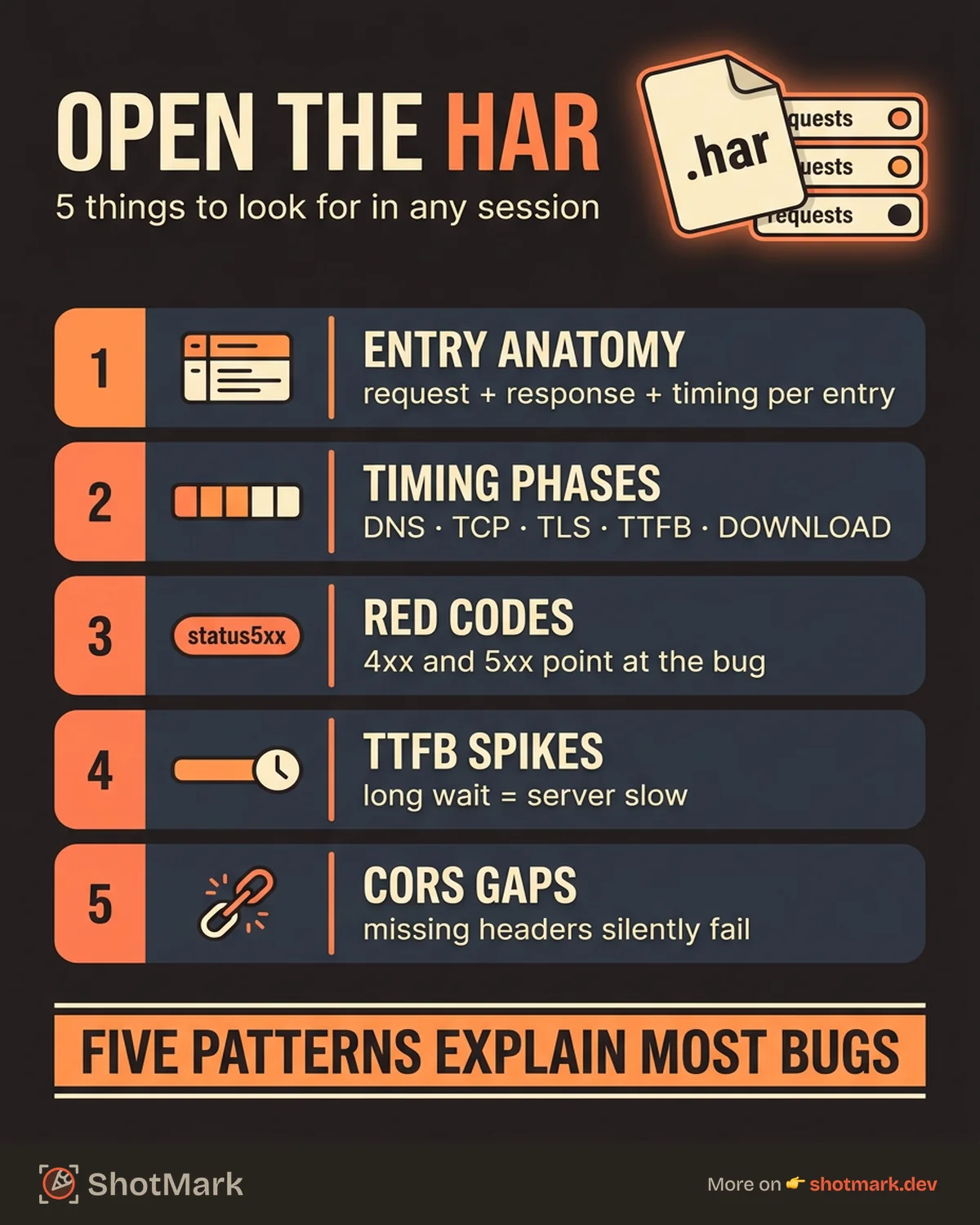
Each entry in a HAR file represents one HTTP request/response pair. An entry contains the request URL, HTTP method (GET, POST, PUT, DELETE), status code, request headers, response headers, and optionally the response body.
A typical page load generates dozens or hundreds of entries. HTML documents, CSS files, JavaScript bundles, images, API calls, and third-party tracking requests all appear as individual entries.
Timing Data
Every entry includes timing information broken down into phases: DNS lookup, TCP connection, SSL/TLS handshake, time to first byte (TTFB), and content download.
The waterfall chart in our HAR file viewer online tool visualizes these phases as colored bars on a timeline. Long DNS lookup times suggest DNS configuration issues. High TTFB indicates server-side slowness. Large content download times point to oversized responses.
Pages
A single HAR file can contain multiple page loads. Each page has its own set of entries and timing metadata. This is common when a HAR file is recorded across multiple navigation events or when testing multi-step user flows.
Common Patterns to Look For
When viewing a HAR file, pay attention to these indicators:
- Red status codes (4xx, 5xx): Failed requests that may explain broken functionality
- Large response sizes: Oversized API responses or uncompressed assets that slow page loads
- Long TTFB on API calls: Server-side performance issues that affect user experience
- Duplicate requests: The same endpoint called multiple times, often indicating a rendering or state management bug
- Missing CORS headers: Cross-origin requests that fail silently in the browser
When to Use a HAR Viewer
Debugging network issues reported by users: A support team member asks a user to export a HAR file from their browser. The HAR viewer lets you quickly browse the requests and identify which API call failed or timed out.
Reviewing HAR files attached to support tickets: When bug reports include HAR files, a viewer lets you inspect the data without setting up a local dev environment or replaying the session.
Understanding API call sequences: Complex web applications make dozens of API calls during a single user action. A HAR file viewer shows the full sequence with timing, making it easy to spot unexpected requests or missing calls.
Performance profiling: Compare HAR files captured before and after an optimization. The waterfall timeline shows whether your changes reduced load times, eliminated unnecessary requests, or improved TTFB.
ShotMark captures network request data automatically as part of every bug report, reducing the need to manually generate and share HAR files. When a QA engineer or developer captures a bug with ShotMark, the network activity is already included alongside screenshots and console logs.
For related network debugging tools, check our free network request inspector.
FAQ
How do I view a HAR file?
Upload it to this free HAR viewer or open it in any text editor to see the raw JSON. For structured viewing with a waterfall timeline and request detail panels, a dedicated HAR file viewer tool is the most efficient option.
Can I view HAR files in Chrome?
Yes. Open Chrome DevTools (F12), navigate to the Network tab, and drag your .har file into the panel. Chrome will display the requests as if they were recorded in the current session.
What is the difference between a HAR viewer and a HAR analyzer?
A viewer lets you browse and read HAR file contents: request lists, headers, response bodies, and timing. An analyzer adds filtering, sorting, search, and performance insights like slow request detection and error highlighting. Our HAR file analyzer provides these advanced features.
Are HAR files safe to share?
HAR files contain cookies, authentication tokens, API keys, and potentially sensitive request/response data. Always sanitize HAR files before sharing them publicly or with third parties. Remove or redact authorization headers, session cookies, and any personal data in request or response bodies.
Beyond Manual HAR Files
HAR files are powerful for network debugging, but generating and sharing them is a manual process. You need to open DevTools, reproduce the issue, export the file, attach it to a ticket, and hope the recipient knows how to read it.
ShotMark captures network requests, console logs, and screenshots automatically with every bug report. No manual HAR export needed. Join the waitlist .
Get new posts in your inbox.
One email when we publish: notes on QA, AI, and shipping faster. No spam, unsubscribe anytime.