Automated bug reporting eliminates the manual work that makes QA engineers dread filing tickets. Instead of copying browser info, screenshotting errors, and digging through DevTools, the right setup captures everything with a single click or, in some cases, no click at all.
This guide breaks down the three levels of automation, walks through a five-minute extension setup, and shows how to wire captured reports into Jira, Linear, GitHub, and Slack. By the end, you’ll know exactly which layers your team needs and how to turn them on without rewriting your QA process.
What “Automated Bug Reporting” Actually Means
The phrase gets used loosely, so it helps to define levels. Automated bug reporting spans three tiers, and most teams benefit from a mix rather than jumping straight to full automation.
Level 1: Auto-capture
At this level, the tester still decides when to report a bug. The difference is what happens next. A capture tool fills in the environment fields, console errors, network requests, and a screenshot automatically. The human writes the summary and reproduction steps, but the technical context is collected without manual effort.
This is where most QA teams see the biggest time savings. Filing a complete ticket drops from 10 minutes to about 30 seconds of active work.
Level 2: Auto-filing
Auto-filing extends capture by sending the bug report directly to your issue tracker. The capture tool pushes the ticket to Jira, Linear, or GitHub through their APIs, pre-filling custom fields, labels, and assignees. No tab switching, no copy-paste.
Auto-filing is the sweet spot for most engineering teams because it preserves human judgment on severity while removing the tedious clerical work.
Level 3: Auto-detection
At the top of the stack, errors trigger bug reports on their own. An error monitoring SDK detects a JavaScript exception, groups it with similar errors, and opens a ticket if severity thresholds are met. No human involved.
Auto-detection is powerful for production monitoring but risks ticket overload if noise filters aren’t tight. The right approach depends on your team size, your tolerance for false positives, and how noisy your existing stack already is.
When Each Level Makes Sense
Small QA teams usually start with Level 1 because it slots into their existing workflow. Level 2 makes sense once a team is filing more than 5 bugs a day and wants to cut the tool-switching tax. Level 3 belongs to teams with a dedicated observability function and a clear ownership model for incoming alerts.
Setting Up Auto-Capture With a Browser Extension
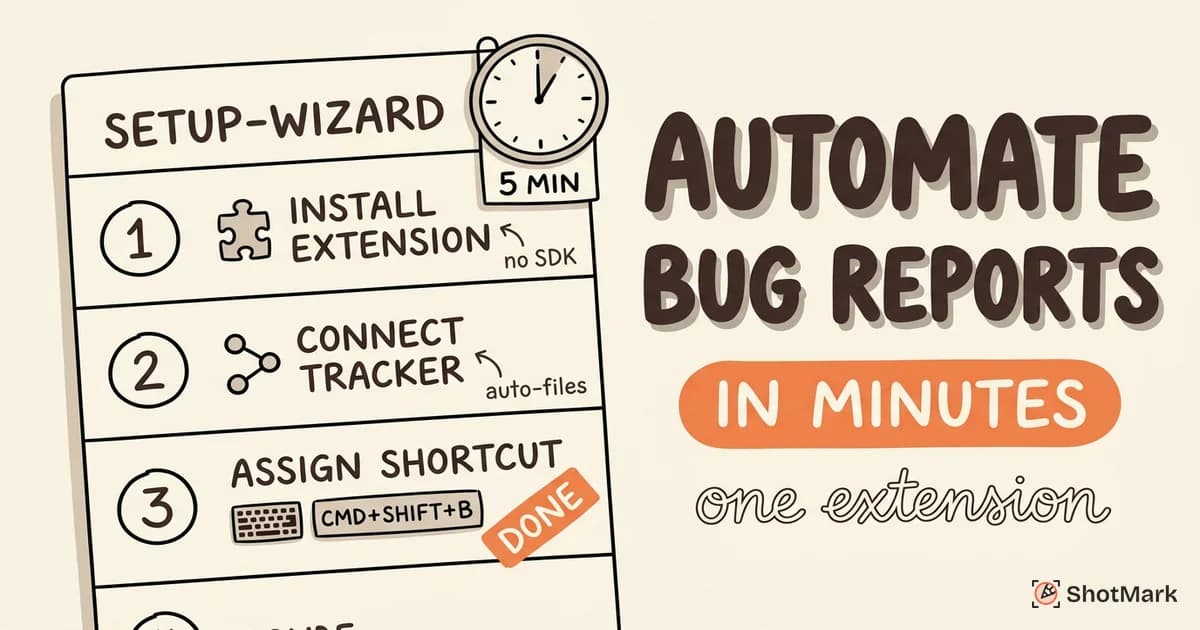
The fastest route to automated bug reporting is a browser extension. Install, authenticate, assign a shortcut, and you’re done. The whole process takes under five minutes.
How Do You Automate Bug Reporting With a Chrome Extension?
Start with a bug report chrome extension built for QA workflows. Options include ShotMark, Jam, and BetterBugs. Each one installs from the Chrome Web Store and adds a toolbar icon that triggers capture. For a wider look at the category, see our breakdown of bug report Chrome extensions for QA teams.
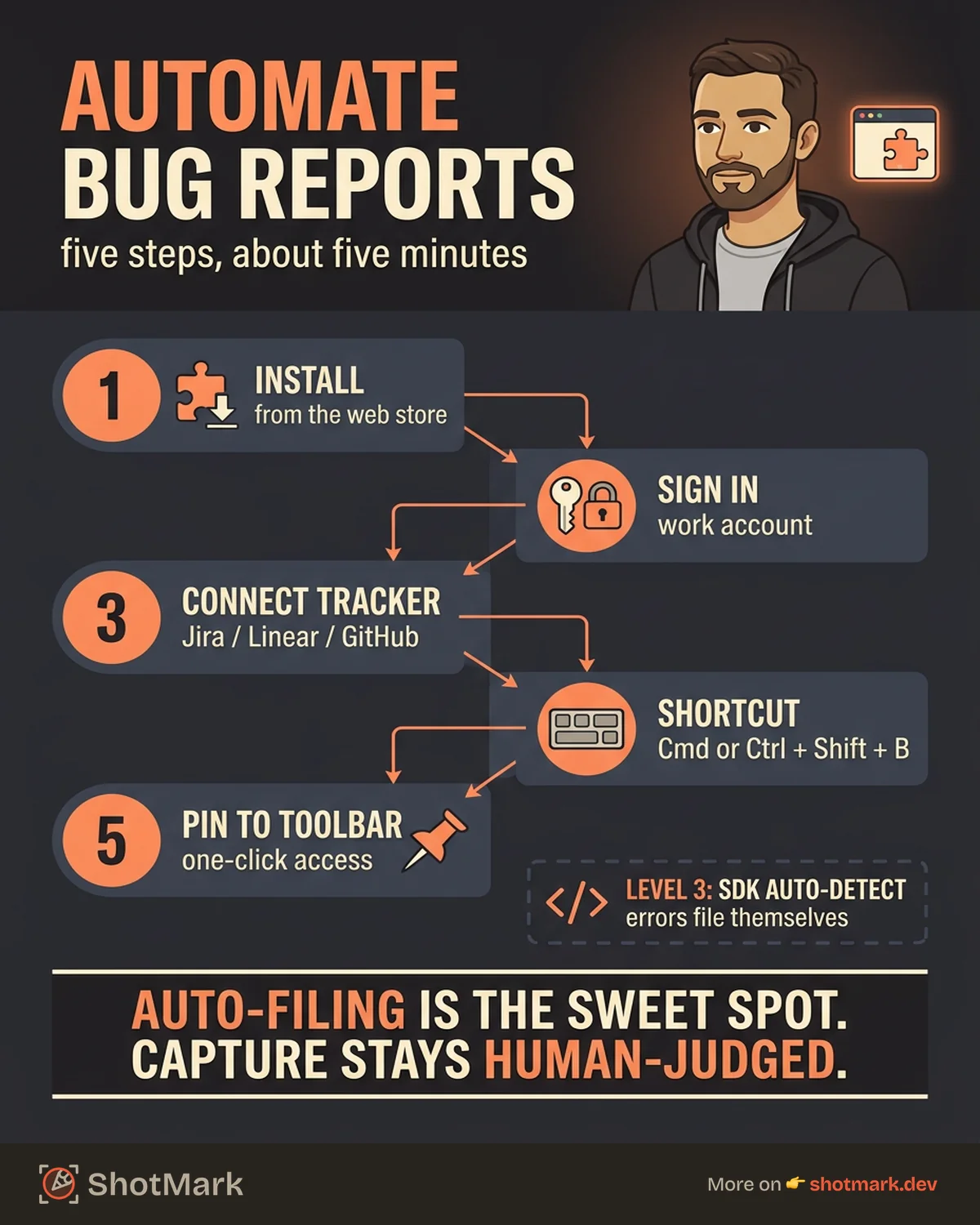
Here’s the standard setup flow:
- Install the extension from the Chrome Web Store.
- Sign in with your work email or Google account.
- Connect your issue tracker (Jira, Linear, GitHub, or Slack).
- Set a keyboard shortcut for one-click capture.
- Pin the extension to your toolbar.
That’s it. The next time you find a bug, hit the shortcut and the extension captures everything worth capturing.
What Gets Captured Automatically
A good bug reporting tool pulls the technical context a developer will ask for anyway. Most extensions capture:
- Full-page or region screenshot with annotation tools (arrows, boxes, blur)
- Console logs including errors, warnings, and info messages from the session
- Network requests with URL, method, status, headers, timing, and response body
- Environment data including browser, OS, screen resolution, viewport, and URL
- Session replay (on tools that support it) showing the last 30 to 60 seconds of user activity
ShotMark captures all of the above in a single click. The output is a structured report that maps cleanly to any issue tracker’s fields, so no data gets lost in translation.
Keyboard Shortcuts and Triggers
Assign a shortcut that doesn’t collide with browser defaults. Ctrl+Shift+B or Cmd+Shift+B works well on most systems. Some extensions also support right-click menus, toolbar clicks, and programmatic triggers for integration tests. Pick the trigger that matches how your QA engineers actually work, not the one that looks flashiest in a demo.
Connecting Auto-Capture to Your Issue Tracker
Capture without filing is still manual. The real time savings come from wiring the captured report directly into the system your engineering team lives in. This is where bug reporting software earns its keep.
Jira: Auto-Create Issues With Custom Fields Pre-Filled
Most bug reporting tools authenticate with Jira via OAuth and map captured data to Jira fields. Environment goes into the Environment field. Screenshots attach as images. Console logs land in the Description or a custom field. If you’re new to Jira automation more broadly, Atlassian’s Jira automation guide is a solid primer on rule-based triggers.
Custom field mapping is where setup takes the most time. Map once, and every future bug lands with the right project, issue type, priority, component, and assignee. See our guide on connecting to Jira for the full walkthrough, including how to handle custom workflows.
Linear: Auto-Create Issues With Labels and Assignees
Linear’s API is cleaner than Jira’s, which makes the integration easier to configure. Bug reports land as issues in a designated team, tagged with labels like bug and auto-captured. You can set default assignees per project or rotate assignment across a triage group.
GitHub Issues: Auto-Create With Templates
GitHub Issues works for teams that prefer to keep bug tracking next to the code. Most capture tools use the GitHub Issues creation API to file issues with repository-specific templates. You can include labels, milestones, and assignees, and the captured screenshots attach as image links in the issue body.
Slack: Auto-Post to a Channel for Triage
Slack isn’t a bug tracker, but it’s often the first stop for triage. Route captured reports to a #qa-triage channel where the team lead can assign priority before the ticket moves into Jira or Linear. This two-step flow keeps noise out of your main backlog while giving QA engineers immediate visibility.
Fully Automated Error Reporting
Auto-capture and auto-filing handle bugs that a human notices. Fully automated error reporting catches the ones nobody sees until a customer complains. This is where bug reporting software shades into observability.
SDK-Based Capture for Web Applications
Error monitoring tools like Sentry, LogRocket, and Rollbar install as SDKs in your web application. They catch unhandled exceptions, promise rejections, and network failures, then send them to a dashboard where your team can triage, assign, and fix. The Sentry documentation covers installation across dozens of frameworks, including React, Vue, Next.js, and plain JavaScript.
The SDK does the heavy lifting. It captures stack traces, breadcrumbs (user actions before the error), device data, and release version. Most tools also support source map uploads so stack traces point to your original code instead of minified bundles.
How to Reduce Noise
The fastest way to kill an error monitoring setup is ticket overload. A single JavaScript error in production can generate thousands of events in a few hours. Without filters, your triage channel becomes unreadable.
Three techniques keep noise manageable:
- Deduplication: group identical errors by stack trace so 10,000 occurrences become one ticket with a count
- Severity thresholds: only create tickets for errors above a certain frequency or user impact
- Smart grouping: use fingerprinting rules to treat related errors as one (e.g., all
TypeError: Cannot read propertyerrors on the same line)
Tune these before you turn on auto-filing. Otherwise, your Jira board will fill up with duplicate tickets and your engineers will start ignoring alerts within a week.
Can Bug Reports Be Generated Automatically?
Yes, and for some categories they should be. Uncaught exceptions, 500 errors, failed API calls, and performance regressions are all good candidates for auto-detection. The signal is clear, and the cost of missing them is high.
Usability bugs, layout glitches, and unclear error messages still need a human to notice them. That’s where auto-capture (Level 1) and auto-filing (Level 2) come back into the picture. For a side-by-side look at tools in this space, see our bug reporting tools compared guide.
Combining Automated Error Reporting With Manual QA Capture
The strongest setups run both. Error monitoring watches production and catches crashes before users report them. Auto-capture extensions give QA engineers a fast path to file the bugs they discover during testing. Together, they cover the full funnel from development to production.
ShotMark fits on the manual-capture side with an open-source SDK that developers can embed in staging environments. QA engineers get one-click capture in Chrome, and development teams get programmatic capture for integration test failures. The result is consistent bug data across environments, whether the report comes from a human or an automated test. For a broader catalog of options, see our roundup of bug reporting software for engineering teams.
What Tools Support Automated Bug Capture?
The short list: ShotMark, Jam, BetterBugs, Bugpilot, and Marker.io on the capture side. Sentry, LogRocket, and Datadog RUM on the error monitoring side. Each tool has a different strength, and most teams end up using one from each category.
When evaluating bug reporting tools, the questions that matter are: does it capture console logs and network requests automatically, does it file directly to your issue tracker, and does it handle the edge cases your QA team already works around manually? If the answer to all three is yes, it’s a viable pick.
Getting Started
Start with auto-capture (Level 1) and add automation layers as your team’s needs grow. A single browser extension gets you 80% of the way there in under five minutes. Wire it into Jira, Linear, GitHub, or Slack when you’re ready to skip the tab switching, and layer in error monitoring once your production traffic warrants it.
ShotMark handles the capture side with one-click screenshots, console logs, network requests, and session replay, plus an open-source SDK for teams that want to instrument their own test runs. Automated bug reporting works best when it fits your workflow instead of forcing a new one, which is why we built ShotMark to route captured reports to the tracker your team already uses. Join the waitlist at shotmark.dev for early access.
Get new posts in your inbox.
One email when we publish: notes on QA, AI, and shipping faster. No spam, unsubscribe anytime.