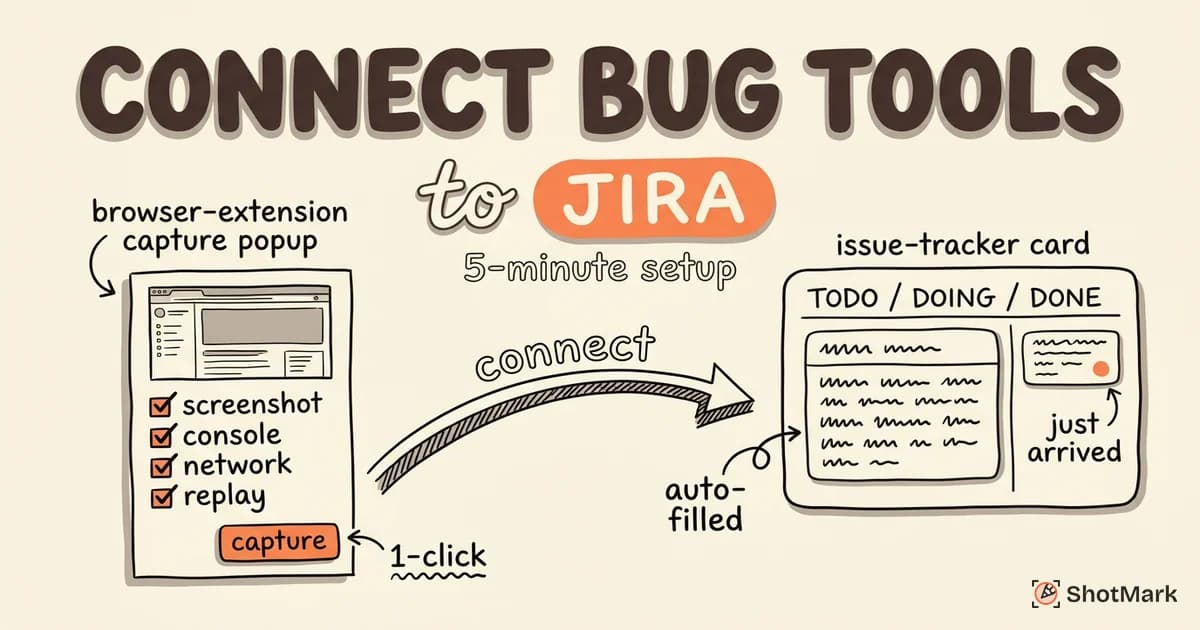
Jira bug reporting becomes significantly more effective when you connect a dedicated capture tool. Instead of manually filling in environment data and attaching screenshots, the right integration auto-creates Jira issues with complete technical context from a single click.
This guide walks through why Jira alone isn’t enough for high-quality bug capture, which tools integrate cleanly with Jira, how to set up the integration in under five minutes, and how to get the most value once data is flowing. We kept the comparison neutral so you can match the right tool to your team.
Why Jira Alone Isn’t Enough for Bug Reporting
Jira is a capable tracker. It handles lifecycle states, workflows, sprint planning, and prioritization well. What it doesn’t do is capture the technical context a developer needs to actually fix a bug.
A raw Jira ticket gives you a text field, a dropdown for severity, and an attachment area. The person filing the bug has to manually gather the screenshot, copy the console error, note the browser version, write out the URL, and paste it all in. That work adds up to roughly 10 minutes per bug, and the result is still inconsistent from one reporter to the next.
What Jira Handles Well
Jira’s strengths sit at the tracking layer. Workflow automation, custom fields, sprint boards, release tracking, and reporting dashboards are all solid. When you’re setting up Jira for bug tracking, the platform gives you a structured home for every defect and a clear path from triage to fix to verification.
What Jira Doesn’t Handle
The capture layer is missing. Jira won’t take a screenshot for you. It won’t read your browser console. It won’t grab the network waterfall. It won’t detect your OS or viewport size. Every one of those fields has to be filled in by hand, which is the main reason bug reports end up incomplete.
The Manual Tax on QA Teams
The average QA engineer files 15 to 30 bugs per week. At 10 minutes per report, that’s two to five hours of pure data-entry overhead, and it doesn’t include the follow-up questions from developers asking “which browser?” or “can you attach the console log?” Tools that integrate with Jira exist specifically to remove this tax.
Bug Reporting Tools That Integrate With Jira
A bug reporting tool sits between the tester and Jira. It captures technical context from the browser, packages it into a structured report, and creates a Jira issue with the data pre-filled. Several vendors publish integrations on the Atlassian Marketplace , and many also offer direct API integrations outside the marketplace. We looked at the main options.
ShotMark
ShotMark is a one-click capture extension that sends screenshots, console logs, network requests, and session replay to Jira with custom fields auto-filled. It’s built for QA engineers and developers who want complete context in every report without writing a word of setup.
What it captures: Annotated screenshots, full console output, network request headers and bodies, environment data (browser, OS, viewport, URL), and session replay of the steps leading up to the bug.
Best for: QA teams, product engineers, and support teams that need depth in every bug report. ShotMark also ships an open-source SDK for teams that want self-hosted capture.
Marker.io
Marker.io focuses on visual feedback and has a strong following among agencies and client-facing teams. The Jira integration creates issues from feedback left directly on a staging site, with screenshots and basic environment data attached.
What it captures: Annotated screenshots, browser and OS data, URL, and user comments.
Best for: Agencies collecting client feedback on design and staging environments.
Jam
Jam is a developer capture tool with a Chrome extension and a direct Jira connection. It captures screen recordings with console and network data synced to the timeline.
What it captures: Screen recordings, console logs, network requests, and device info.
Best for: Developer teams that prefer recordings over static screenshots.
BetterBugs
BetterBugs is a lightweight browser extension that sends one-click reports to Jira. It covers the core capture needs without the broader feature set of Jam or ShotMark.
What it captures: Screenshots, console logs, network requests, and environment data.
Best for: Small teams that want basic capture without a heavier platform.
Usersnap
Usersnap is a feedback widget designed for user research and customer feedback, with a Jira sync available on paid plans. It leans more toward qualitative feedback than technical bug capture.
What it captures: Screenshots with annotations, user comments, browser info, and custom survey responses.
Best for: Product teams collecting user feedback rather than internal QA bug reports.
Quick Comparison
| Tool | Screenshots | Console Logs | Network | Session Replay | Starting Price |
|---|---|---|---|---|---|
| ShotMark | Yes | Yes | Yes | Yes | Waitlist |
| Marker.io | Yes | Limited | No | No | $49/mo |
| Jam | Yes | Yes | Yes | Recording | $0 free tier |
| BetterBugs | Yes | Yes | Yes | No | $0 free tier |
| Usersnap | Yes | No | No | No | $39/mo |
For a broader look at the category outside of Jira integrations, see our bug reporting tools compared roundup.
What Bug Reporting Tools Integrate With Jira?
Most modern capture tools integrate with Jira Cloud through OAuth or API tokens. The ones above all publish official integrations. A broader list is available in the Atlassian Marketplace, but the core capability (turning a browser capture into a Jira issue with attachments and custom field values) is consistent across vendors. The real differences are in capture depth, field mapping flexibility, and pricing.
How to Set Up a Jira Bug Reporting Integration
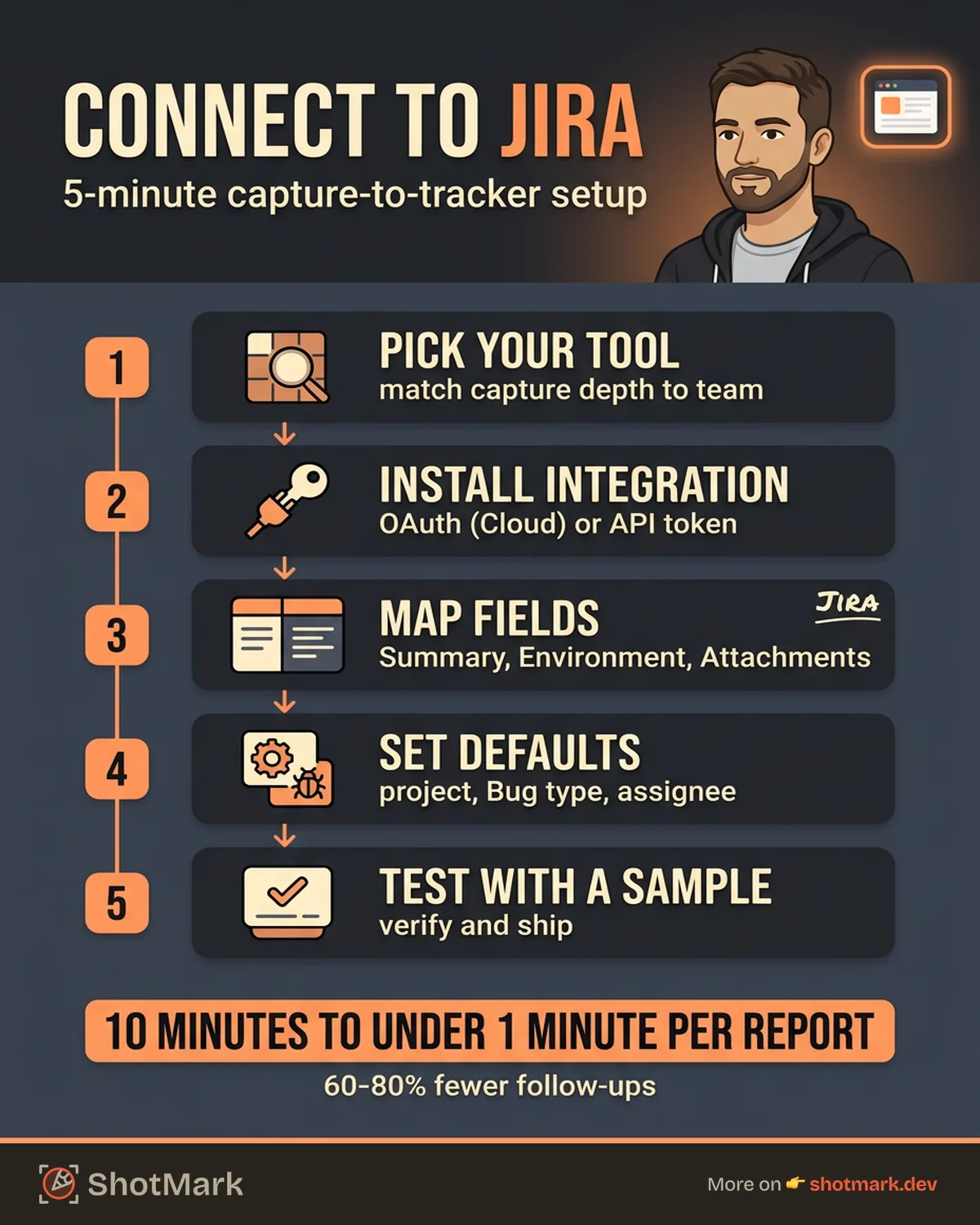
Setting up a capture-to-Jira integration takes about five minutes once you’ve picked a tool. The steps look similar across vendors because they all talk to the same Jira REST API documentation . Here’s the standard flow.
Step 1: Choose Your Capture Tool
Match the tool to your team. Heavy technical capture (console, network, replay) suits developer and QA teams. Lightweight feedback tools suit client-facing agencies. Read the comparison table above and pick based on the data you actually need in every report.
Step 2: Install the Jira Integration
Most tools use OAuth for Jira Cloud and API tokens for Jira Server. In the capture tool’s settings, click “Connect to Jira.” You’ll be redirected to authenticate with your Atlassian account, authorize the app, and return with a connection established. For API token flows, you’ll paste a token generated from your Atlassian account settings.
Step 3: Map Capture Fields to Jira Custom Fields
This is where you tell the tool how to populate Jira. Typical mappings include:
- Capture title to Jira Summary
- Capture description to Jira Description
- Browser and OS to Jira Environment
- Screenshots to Jira Attachments
- Console logs and network data to a custom field or attached file
- Session replay URL to a custom “Replay” field
If you already use a standard Jira bug report template, line up the mapping so each capture fills your existing fields. This keeps your Jira project consistent whether a bug arrives through manual entry or automated capture.
Step 4: Configure Defaults
Set a default Jira project, issue type (Bug), priority, and assignee. Some teams route new captures to a Triage column or assign them to a specific triage bot. You can also set labels automatically, which helps with filtering later.
Step 5: Test With a Sample Bug Report
File a test bug from the extension on a known page. Confirm the issue appears in Jira with the right project, type, attachments, and field values. Check that screenshots render correctly and that the console log file is readable. If any field is blank, return to Step 3 and adjust the mapping.
Common Setup Issues
Most integration problems fall into three buckets. Field mapping errors happen when a capture tool sends data to a field that doesn’t exist or has the wrong type. Fix this by matching capture field types (text, URL, attachment) to Jira field types exactly.
Permission errors appear when the OAuth app doesn’t have Create Issue permission in the target project. A Jira admin needs to grant the app access to the project. For detailed guidance on the issue creation flow itself, our walkthrough on creating Jira bug reports covers the field-by-field structure.
Rate limits can also hit high-volume teams. Jira Cloud enforces API rate limits, and bulk-filing bugs faster than the limit allows will throw 429 errors. Most capture tools queue requests automatically, but it’s worth testing at scale before a big release week.
Can Browser Extensions Send Bug Reports to Jira?
Yes. Every tool listed in the comparison table above ships as a browser extension (Chrome, Firefox, or Edge) and creates Jira issues through the REST API. The extension captures data from the active tab, packages it into a structured report, and posts it to Jira with attachments. No server-side proxy is required for Jira Cloud, though self-hosted Jira Server setups sometimes need a bridge service to handle network isolation.
Getting the Most From Your Jira Integration
Once data is flowing, the payoff comes from what you do with it. A Jira bug tracker loaded with rich capture data is the foundation for faster triage, better automation, and cleaner reporting.
Auto-Fill Environment Data
Environment fields are the number one source of follow-up questions. Configure your capture tool to push browser name and version, OS, screen resolution, viewport size, and page URL into the Jira Environment field automatically. That one change eliminates most “which browser?” messages in Slack.
Attach Console Logs and Network Requests
Raw console output and network waterfall data belong on the ticket, not in a separate thread. Most tools attach these as .log or .har files directly to the Jira issue. Developers can download the file, open it in Chrome DevTools, and replay the error state without leaving their workstation.
Use Jira Automation to Route Bugs
Jira automation rules can read captured data and act on it. Common automations include:
- Route bugs with
Criticalseverity to a#incidentsSlack channel - Auto-assign bugs tagged with a component to the component owner
- Escalate bugs that sit in Triage for more than 48 hours
- Apply a “regression” label when a bug matches a closed issue’s title
Each rule multiplies the value of rich capture data. The data is only useful if something acts on it.
Measure the Impact
Track two metrics before and after you connect a capture tool. First, time-to-file: how long does a QA engineer spend creating one bug report? Second, time-to-first-developer-response: how long until the developer stops asking clarifying questions and starts investigating?
In our testing, teams that switch from manual entry to integrated capture cut time-to-file from 10 minutes to under one minute. Developer clarification requests drop by 60 to 80 percent because the initial ticket already contains the data they would have asked for.
What Comes Next
Connecting a capture tool to Jira transforms your jira bug reporting workflow from a data-entry exercise into a one-click handoff. The integration lives quietly in the background, populating fields that used to eat your afternoon and giving developers everything they need to debug without a round trip.
ShotMark sends screenshots, console logs, network requests, and session replay straight to Jira with custom fields pre-filled, the open-source SDK is available for teams that want full control, and setup runs under five minutes. Join the waitlist at shotmark.dev to get early access and start shipping cleaner bug reports to your Jira bug tracker.
Get new posts in your inbox.
One email when we publish: notes on QA, AI, and shipping faster. No spam, unsubscribe anytime.