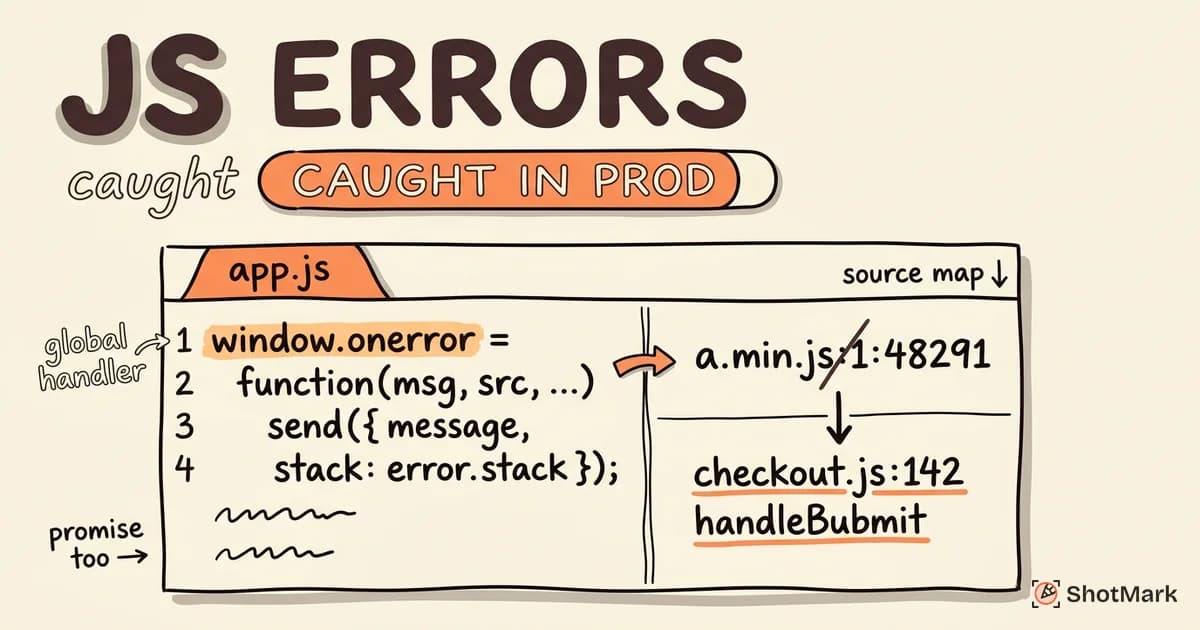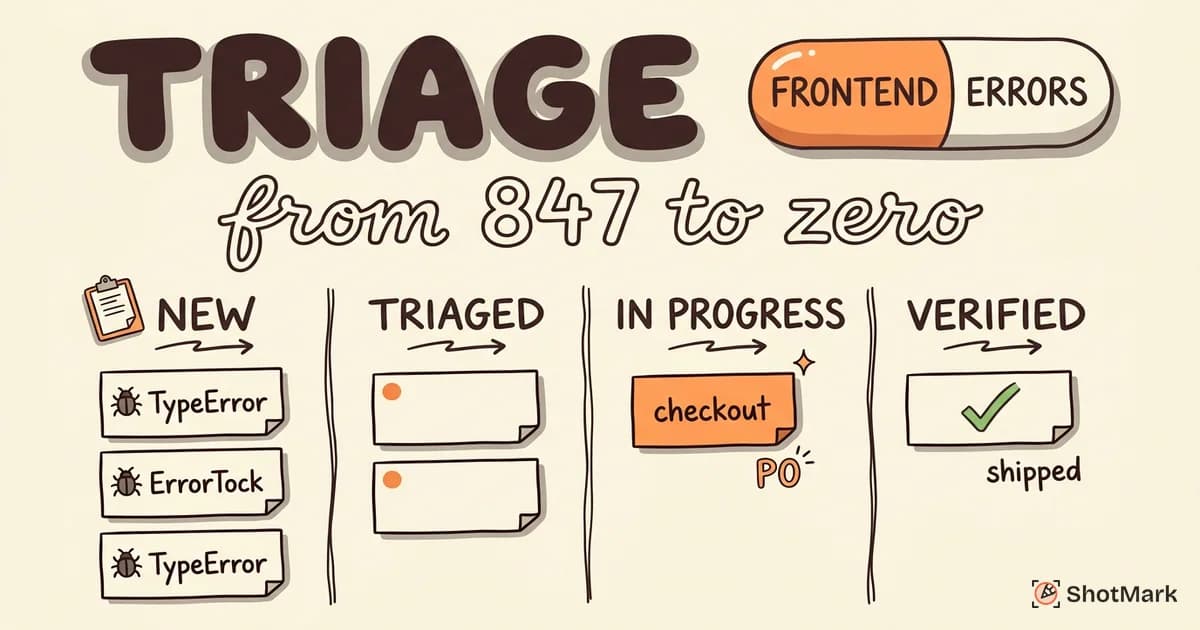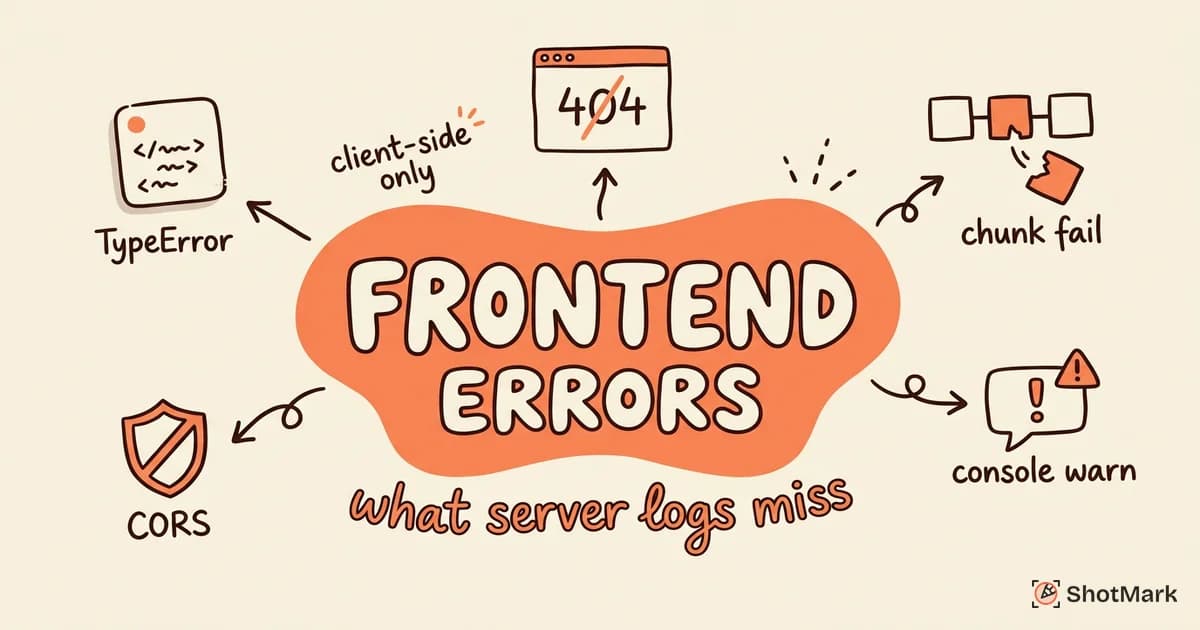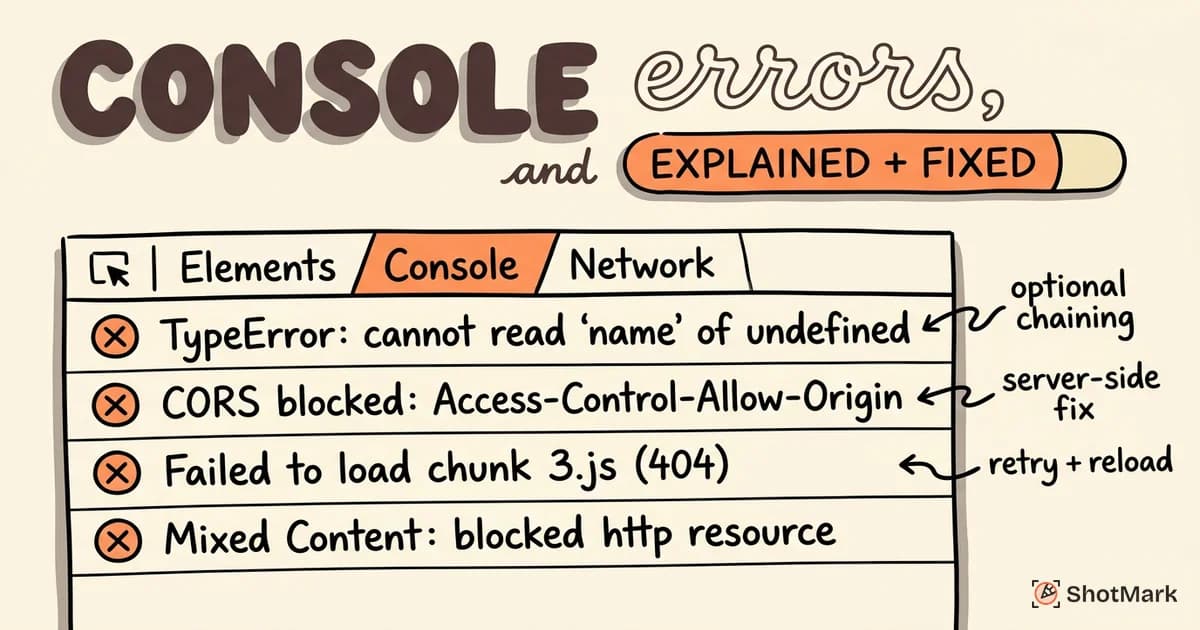
The browser console is the first place developers look when something breaks. But browser console errors range from critical (your app is crashing) to completely harmless (a browser extension logging noise). Knowing the difference saves hours of debugging. This reference guide covers the 20 most common browser console errors, explains what each one means, and shows you how to fix it.
Bookmark this page. You’ll come back to it.
How to Open the Browser Console
Every browser exposes a console. The shortcuts differ slightly.
- Chrome: Cmd+Option+J (Mac) or Ctrl+Shift+J (Windows/Linux)
- Firefox: Cmd+Option+K (Mac) or Ctrl+Shift+K (Windows/Linux)
- Safari: Cmd+Option+C (requires enabling the Develop menu in Preferences > Advanced)
- Edge: F12, then click the Console tab
The console displays messages at four levels. Errors (red) indicate something broke. Warnings (yellow) flag potential problems. Info and Verbose provide diagnostic details. When debugging, focus on errors first, then warnings.
JavaScript Runtime Errors
These are the errors your application code triggers during execution.
TypeError: Cannot read properties of undefined/null
This is the most common JavaScript error. It fires when you try to access a property or call a method on a value that is undefined or null.
Common scenarios:
- An API response is missing a field your code expects
- A React component renders before its data finishes loading
- An object chain like
user.address.cityfails becauseaddressisundefined
Fix: Use optional chaining (user?.address?.city) to safely access nested properties. Add null checks before accessing deeply nested values. In React, render a loading state until your data is available.
// Before (crashes if user.address is undefined)
const city = user.address.city;

// After (returns undefined instead of crashing)
const city = user?.address?.city;
ReferenceError: [variable] is not defined
This error means you’re referencing a variable that doesn’t exist in the current scope.
Common scenarios:
- A typo in the variable name (
userNmaeinstead ofuserName) - A missing import statement
- Referencing a variable outside its block scope (
letandconstare block-scoped)
Fix: Check the spelling. Verify the import. Confirm the variable is declared in the scope where you’re using it.
SyntaxError: Unexpected token
The JavaScript parser encountered something it can’t interpret.
Common scenarios:
- A missing closing bracket or parenthesis
- Calling
JSON.parse()on a string that isn’t valid JSON (common with API responses that return HTML error pages) - A trailing comma in older JavaScript environments
Fix: Check the exact line number in the error message. For JSON parsing errors, log the raw string before parsing to inspect what you’re actually receiving.
RangeError: Maximum call stack size exceeded
This means a function called itself (or a chain of functions called each other) infinitely, exhausting the call stack.
Common scenarios:
- A recursive function missing its base case
- A
useEffectin React that updates state referenced in its own dependency array - Two functions calling each other in a circular loop
Fix: Add or fix the base case in recursive functions. Check for circular references in your data structures. In React, audit your useEffect dependency arrays.
InternalError: too much recursion (Firefox)
This is Firefox’s equivalent of the RangeError: Maximum call stack size exceeded in Chrome. Same cause, same fix. Firefox just uses a different error name.
Network and API Errors
These errors show up when your frontend fails to communicate with a server.
Failed to load resource: net::ERR_CONNECTION_REFUSED
The browser tried to reach a server, and the server refused the connection (or wasn’t running at all).
Common scenarios:
- Your local development server isn’t running
- The API URL points to the wrong port
- A firewall is blocking the connection
Fix: Verify the server is running. Check the URL and port in your request. Test the endpoint directly in a new browser tab or with curl.
Access to fetch blocked by CORS policy
Cross-Origin Resource Sharing (CORS) errors happen when your frontend (running on one domain) makes a request to an API on a different domain, and the API server doesn’t include the necessary CORS headers in its response.
Important: CORS is a server-side configuration. You cannot fix it from the client. Browser extensions that “disable CORS” are development shortcuts, not solutions.
Fix: On the server, add the appropriate Access-Control-Allow-Origin, Access-Control-Allow-Methods, and Access-Control-Allow-Headers response headers. If you see a preflight (OPTIONS) request failing, make sure your server handles OPTIONS requests correctly.
Mixed Content: The page was loaded over HTTPS but requested an insecure resource
Your HTTPS page is trying to load a resource (image, script, API call) over HTTP. Browsers block this for security.
Fix: Update all resource URLs to use HTTPS. Search your codebase for http:// and replace with https:// (or use protocol-relative URLs). Check hardcoded URLs in your CMS or database.
404 (Not Found) / 500 (Internal Server Error)
404 means the requested resource doesn’t exist at that URL. Check the path, check for typos, and verify the resource was deployed.
500 means the server encountered an error. The fix is on the backend. Check your server logs for the stack trace. The browser console will only show the status code, not the root cause.
Security and Policy Errors
These errors relate to browser security policies that protect your users.
Refused to execute script because of Content-Security-Policy
Your page has a Content-Security-Policy (CSP) header that blocks certain script sources. CSP prevents cross-site scripting (XSS) attacks by whitelisting which scripts can run.
Fix: Update your CSP header to allow the blocked source. For inline scripts, use a nonce (nonce-abc123) or hash. Avoid 'unsafe-inline' in production, as it undermines the purpose of CSP.
SecurityError: Blocked a frame with origin
You tried to access the contents of an iframe from a different origin. Browsers block this to prevent clickjacking and data theft.
Fix: Use the postMessage API for cross-origin iframe communication. The parent page sends a message; the iframe listens for it and responds. Direct DOM access across origins is not possible by design.
Browser and DOM Errors
These errors come from browser APIs and DOM interactions.
ResizeObserver loop completed with undelivered notifications
This error appears when a ResizeObserver callback triggers a layout change that would require the observer to fire again, creating a potential infinite loop.
Good news: This is almost never a critical error. The browser catches the loop and logs the warning. Your application continues to function.
Fix: Debounce the callback or wrap it in requestAnimationFrame. If the error comes from a third-party library, you can safely suppress it in your error monitoring tool to reduce noise.
Uncaught (in promise) DOMException: play() request was interrupted
Browsers block autoplaying media with sound. When your code calls video.play() without a preceding user interaction, the browser rejects the promise.
Fix: Always call play() in response to a user action (click, tap). If you need autoplay, mute the video first (video.muted = true). Handle the promise rejection gracefully:
video.play().catch((error) => {
  // Autoplay was prevented. Show a play button instead.
  showPlayButton();
});
Script error. (no details)
This frustratingly vague message appears when a script from a different origin throws an error. The browser hides the details for security reasons.
Fix: Add the crossorigin attribute to your <script> tag and configure CORS headers on the server hosting the script. Once both are in place, the browser will report the full error details.
React and Framework-Specific Errors
Modern frameworks add their own layer of error messages.
React: Minified error #XXX
In production, React minifies its error messages to reduce bundle size. You’ll see something like Minified React error #185 instead of a helpful description.
Fix: Copy the error number and look it up at reactjs.org/docs/error-decoder.html . The decoder shows the full error message with the variables filled in.
Hydration mismatch (Next.js / SSR)
Server-side rendering (SSR) produces HTML on the server. When the client-side JavaScript takes over (hydration), React compares the server HTML with what the client would render. If they differ, you get a hydration mismatch.
Common causes: Using Date.now() or Math.random() during render. Accessing window or localStorage in a component that renders on the server. Browser extensions injecting elements into the DOM.
Fix: Wrap browser-only code in useEffect or check for typeof window !== 'undefined'. Use React’s suppressHydrationWarning prop sparingly and only when the mismatch is intentional.
ChunkLoadError: Loading chunk [X] failed
Code-split applications load JavaScript chunks on demand. When a chunk URL returns a 404 (often because a new deploy deleted old chunk files), this error fires.
Fix: Implement retry logic in your lazy loading. Add a global error handler that detects ChunkLoadError and triggers a page reload. Configure your hosting to keep old chunks available for a grace period after deploys.
// Retry once on chunk load failure
const LazyComponent = React.lazy(() =>
  import("./HeavyComponent").catch(() => {
    window.location.reload();
  })
);
How to Share Console Errors With Your Team
Finding the error is half the work. Communicating it to the developer who can fix it is the other half.
Copying error text manually loses context. You get the error message but miss the state of the page, the network requests that led to the failure, and the user actions that triggered it. Screenshots of the console are better, but stack traces get truncated and you can’t search or copy text from an image.
ShotMark captures the full console output alongside a screenshot of the page state. The developer sees exactly what the tester or user saw: the visual state, the console errors (including stack traces), and the network requests, all in one report. No more asking “what browser were you using?” or “can you copy the full error message?”
For working with console output regularly, our free online console log viewer helps you format and search through captured logs.
From Error Message to Fix
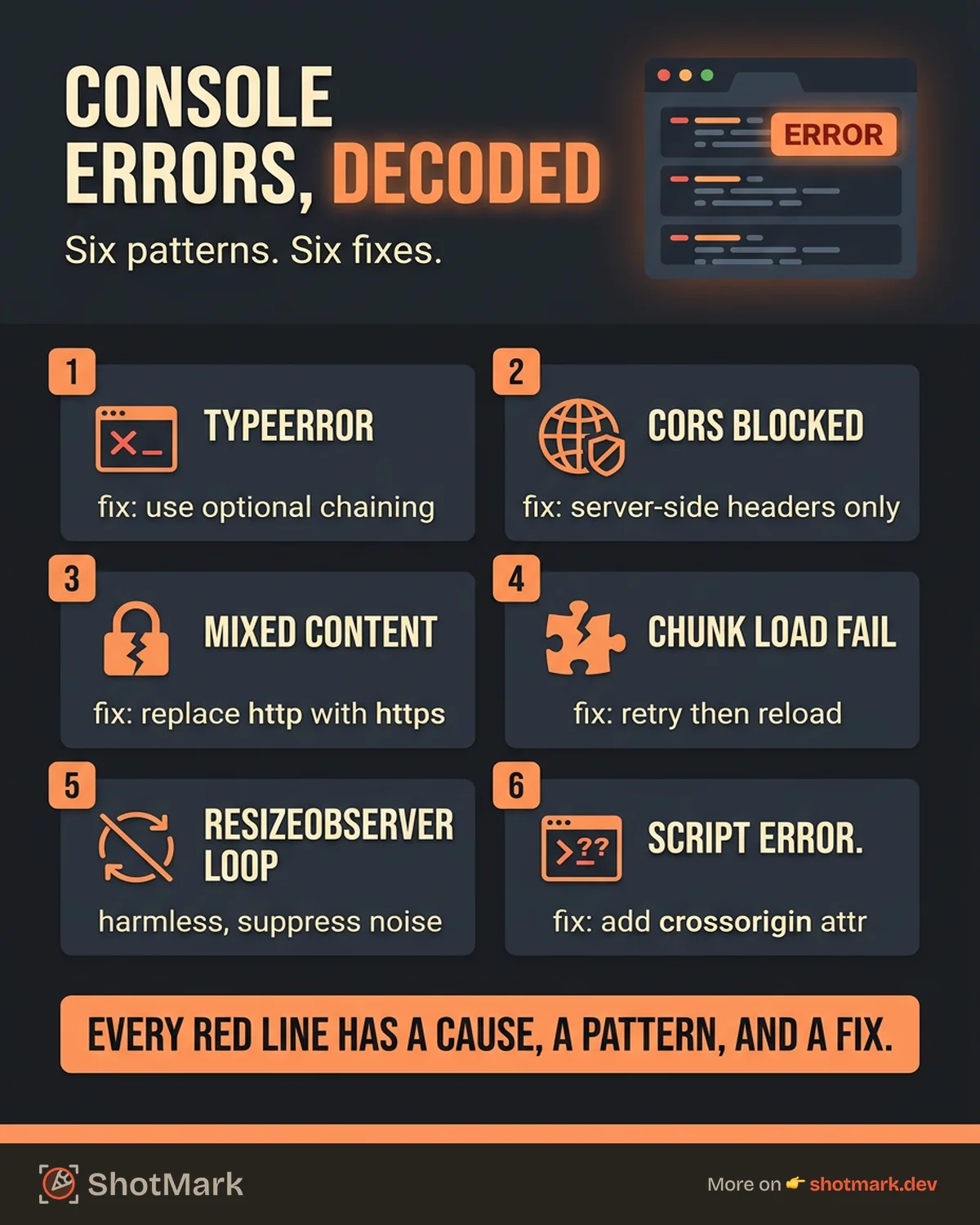
Browser console errors are signals, not mysteries. Every red line in the console has a cause, a pattern, and a fix. The skill is in reading the error type, checking the source location, and knowing where to look next.
Keep this reference handy for the errors you encounter repeatedly. Over time, you’ll recognize most of these at a glance. For the errors that need collaboration, give your team the full picture instead of a truncated screenshot.
ShotMark captures browser console errors, network requests, and the visual page state in one click. When you spot a console error that needs attention, capture it with full context and send it to the right developer. Join the waitlist .
For a broader look at setting up automated error detection, see our pillar guide on error monitoring for web apps.
Get new posts in your inbox.
One email when we publish: notes on QA, AI, and shipping faster. No spam, unsubscribe anytime.