There are over 200 screenshot Chrome extension options in the Web Store, and most comparisons rank them on the same three criteria: full-page capture, annotation tools, and export formats. That’s useful if you’re screenshotting recipes. For QA teams, the screenshot is just the starting point.
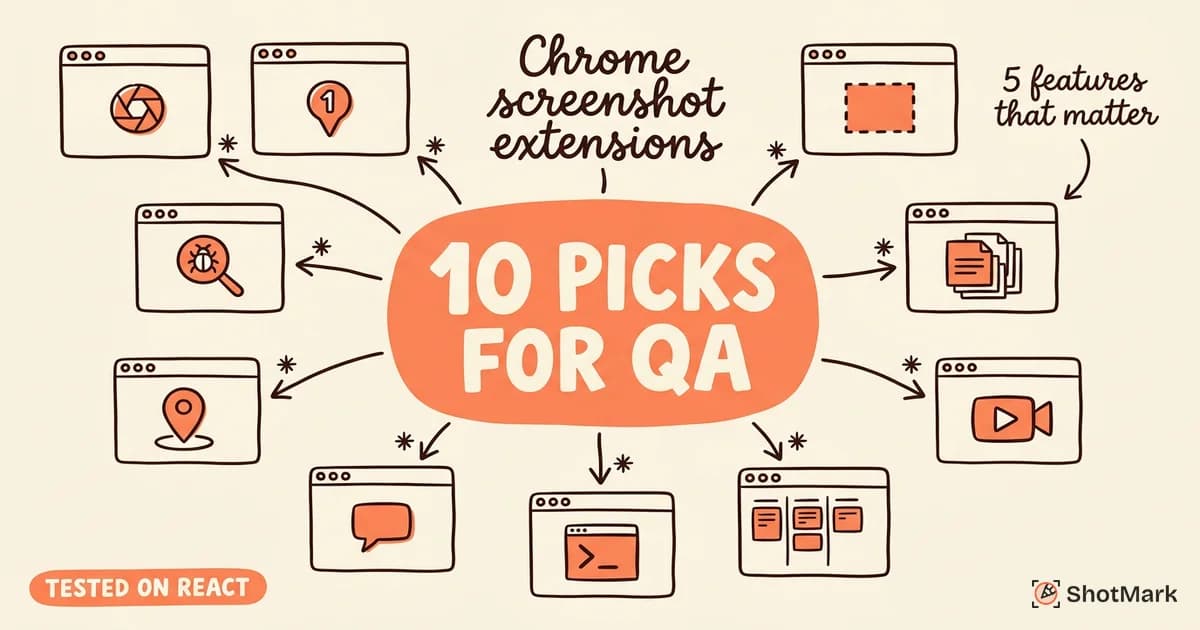
What actually matters is the technical context captured alongside the image. Console errors, network failures, browser metadata, reproduction data, the fields a developer needs before they can even start debugging. This post evaluates 10 popular extensions through a QA lens and shows which ones pull their weight when a bug lands on your board.
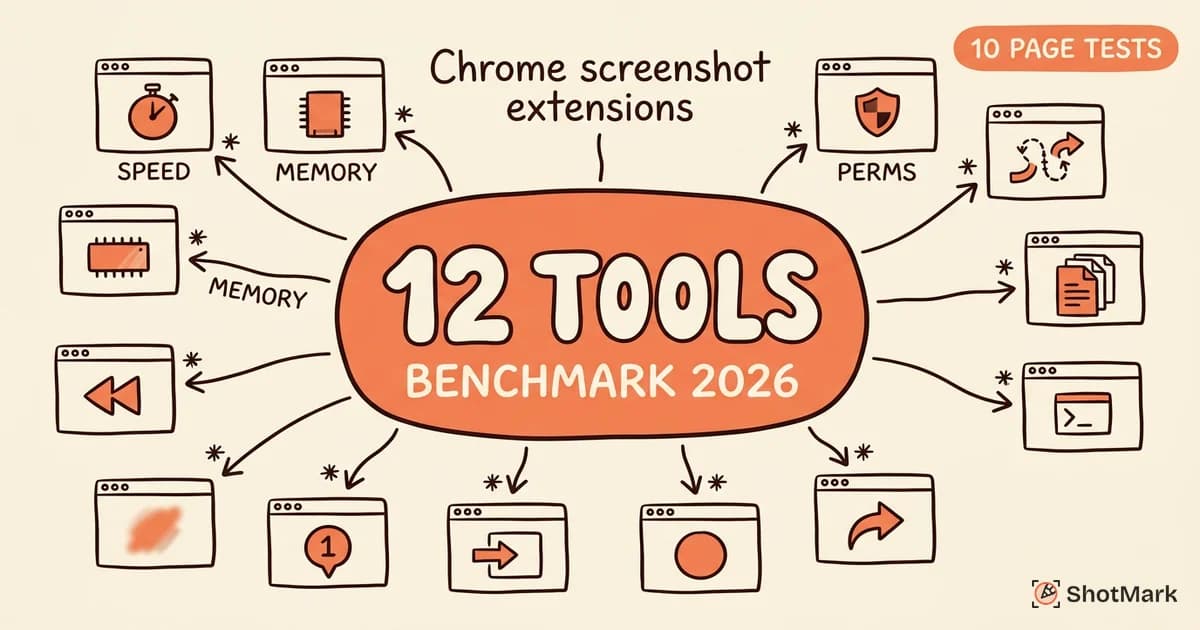
We tested each extension on a React application with client-side errors, failing API calls, and mixed content loading. The goal was simple: find the screenshot chrome extension that turns a visual bug into an actionable ticket without a follow-up Slack thread.
What QA Teams Need From a Chrome Screenshot Extension
QA workflows have different requirements than general-purpose capture. A marketer screenshotting a landing page needs full-page export and a blur tool. A QA engineer filing a bug ticket needs a reproducible record of what broke, where, and why.
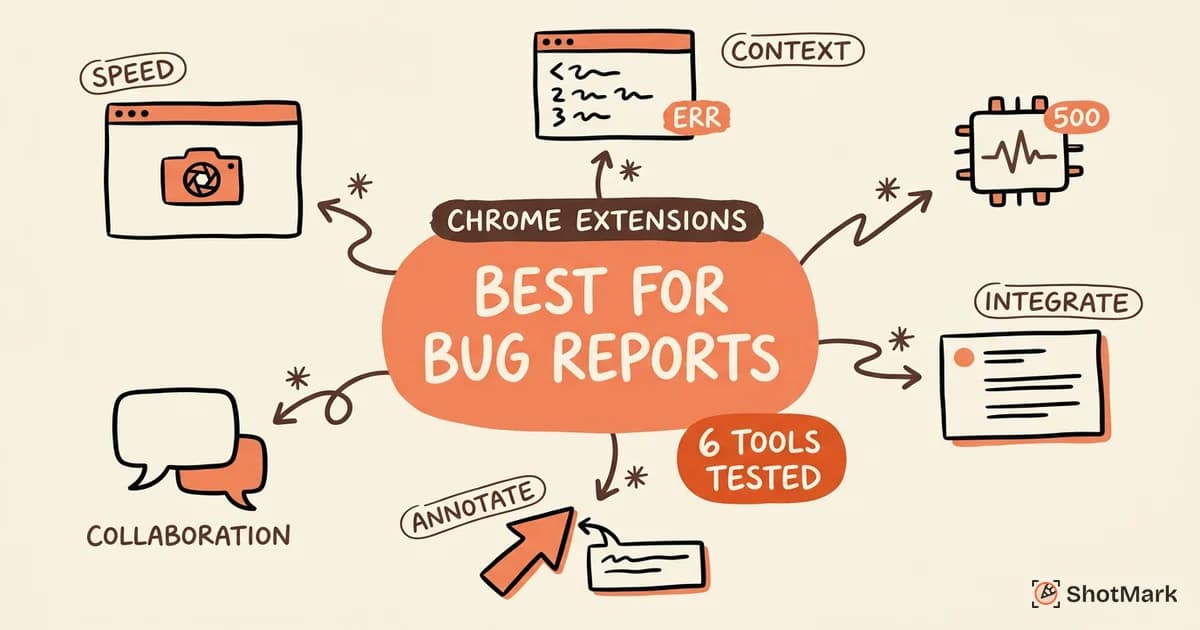
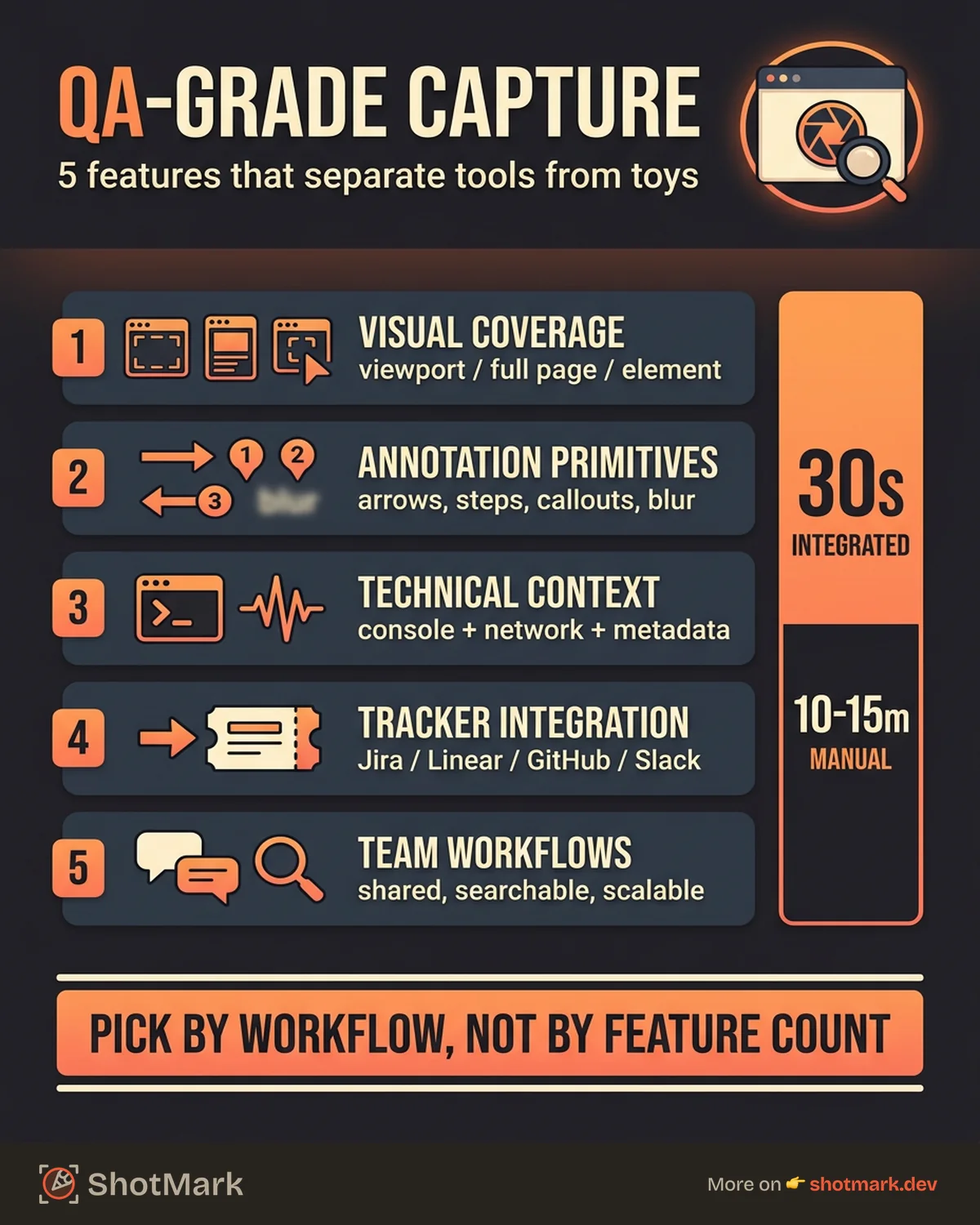
Five features separate a capable screenshot tool from a useful QA tool.
Visual capture that covers every surface
The extension should handle three capture modes at minimum: the current viewport, the full page (including scroll-hidden content), and a single element selected from the DOM. Region selection is a bonus, but less critical in QA workflows where bugs live inside specific components.
Full-page capture sounds trivial but often isn’t. Lazy-loaded images, fixed headers, sticky footers, and infinite scroll pages all trip up naive scroll-and-stitch implementations. The better extensions detect these patterns and adjust.
Annotation built for communication
Arrows, numbered steps, text callouts, blur for redaction, and highlight rectangles. These are the primitives of a useful bug annotation. Without them, the developer has to guess which pixel in the screenshot is the actual bug.
Color-coded arrows and step numbers matter when you need to walk a developer through a multi-step interaction in a single image. If you want to go deeper on this, we’ve written about how to annotate screenshots for bug reports with real before-and-after examples.
Technical context beyond the pixels
This is where most extensions fall short. A visual screenshot tells you what the user saw. It doesn’t tell you what the browser was doing underneath.
For QA, the missing context usually includes console errors, network requests (especially failing ones), browser version, viewport size, operating system, the full URL, and the user agent. Without these, “cannot reproduce” is the default developer response.
Integration with your bug tracker
Exporting to Jira, Linear, GitHub Issues, ClickUp, or Slack in one click saves real time. QA engineers file dozens of bugs a week, and each copy-paste loop between tools adds friction.
The integration depth varies. Some extensions drop a screenshot attachment into the ticket. Better ones pre-fill fields like environment and URL. The best ones include a permalink to a full capture record with console logs and network data.
Team workflows and shared history
If three QA engineers and two product managers are all filing bugs, the extension should support shared workspaces, comment threads on screenshots, and a searchable capture history. Personal tools that only live in one user’s browser create knowledge silos.
10 Screenshot Chrome Extensions Compared for QA
The extensions below span free and paid tiers, single-purpose and multi-feature tools, and developer-focused and stakeholder-focused products. For each one, we note what it does well, where it falls short for QA, and the specific workflows it fits. For a broader feature-by-feature matrix across every option, see our deeper Chrome screenshot extensions 2026 comparison.
GoFullPage
GoFullPage is the most downloaded full-page capture tool in the Chrome Web Store. It focuses on one job: scroll the page, stitch the frames together, and export a PNG, JPG, or PDF.
Strengths: Fast, zero-permission install, handles long pages reliably, no account required. The capture button produces a full-page export in two clicks.
QA gaps: No annotation. No console log capture. No network request data. No bug tracker integration. Output is a flat image with no technical metadata attached.
Fits: Solo developers or designers who need quick full-page captures for reference, not bug reporting.
Awesome Screenshot
Awesome Screenshot bundles capture, annotation, and screen recording into a single extension. It’s one of the most recognized names in the space and supports cloud storage, team libraries, and basic collaboration.
Strengths: Broad feature set, decent annotation tools, screen recording in the same extension, cloud-based sharing with comment threads. Free tier is generous.
QA gaps: No console log or network capture. The “bug report” integrations are mostly attachment handoffs, not structured data. Annotation works but feels dated compared to newer tools.
Fits: General-purpose teams that need screenshot and video capture in one tool and don’t mind the lack of technical context.
Lightshot
Lightshot is optimized for speed. Press a hotkey, drag a region, copy or share the link. It’s been a staple for years among users who want minimal friction.
Strengths: Fastest region-to-clipboard workflow in the category. Supports basic annotation before upload. Cloud sharing via a short URL.
QA gaps: No full-page capture. No console or network data. No integrations beyond clipboard and URL share. The annotation toolset is basic.
Fits: Individuals who need a quick region screenshot tool and don’t need the full QA context stack.
Fireshot
Fireshot is the extension QA teams reach for when they need reliable full-page capture in multiple formats. It handles PDF export better than most competitors and works well on print-heavy pages.
Strengths: Multi-format export (PDF, PNG, JPG), solid full-page capture, keyboard shortcuts for every action, works offline. The Pro tier adds OCR and batch capture.
QA gaps: Annotation exists but is minimal. No console or network capture. Integrations are limited to email, print, and cloud upload.
Fits: Teams that need multi-format export and print-ready documentation of bugs, not real-time debugging context.
Nimbus Capture
Nimbus Capture combines screenshots, video recording, and annotation with cloud storage. It’s positioned as a productivity suite more than a developer tool.
Strengths: Combined screenshot and video capture, annotation directly in the browser, cloud library with folders and tagging, webcam overlay for recorded walkthroughs.
QA gaps: No console logs or network data. Integrations focus on Google Drive, Slack, and email rather than bug trackers. Premium features are gated behind a paid plan.
Fits: Cross-functional teams where product managers, designers, and QA all use the same tool for visual communication.
Marker.io
Marker.io is purpose-built for bug reporting. It captures annotated screenshots and sends them to Jira, Trello, Asana, GitHub, GitLab, and other trackers with pre-filled ticket fields.
Strengths: Native bug tracker integrations with field mapping, annotation optimized for QA workflows, shareable feedback widgets for external stakeholders, URL and viewport auto-capture.
QA gaps: No console log capture. No network request data. Pricing scales quickly with team size. The widget-based model is best for collecting feedback from external users, not always ideal for internal QA.
Fits: Teams that want a Jira-integrated capture tool and mostly deal with visual bugs, not JavaScript errors or API failures.
Jam
Jam is the most developer-focused extension on this list. It captures screenshots along with console logs, network requests, and environment data in a single click.
Strengths: Rich technical context capture (console, network, user agent, viewport), one-click bug link with all data, recent support for video capture. The free tier is generous.
QA gaps: Collaboration features are limited compared to team-focused tools. No built-in annotation tool as powerful as Marker.io. Integrations exist but are fewer than dedicated bug trackers.
Fits: Small engineering teams where developers also file their own bugs and need technical context front and center.
Usersnap
Usersnap uses a widget model. You install a small script on your site, and end users can submit feedback with screenshots and annotations from any page.
Strengths: Widget-based feedback collection from customers, visual regression tracking, good for public beta programs, integrates with Jira and Slack.
QA gaps: The widget model is less useful for internal QA running against staging builds. Technical context is thinner than developer-first tools. Pricing is high for smaller teams.
Fits: Product teams that need to collect structured feedback from users or clients, not internal QA engineers running test suites.
BugHerd
BugHerd pins comments directly on page elements. Reviewers click where a bug is, type a note, and the feedback stays attached to that element even as the page updates.
Strengths: Unique pin-on-element workflow, great for client review cycles, integrates with project management tools, automatic browser and URL metadata capture.
QA gaps: No console or network data. The pin-on-element workflow is better for design feedback than complex technical bugs. Pricing is on the higher end for the feature set.
Fits: Agencies and teams that run external client review cycles on web projects.
ShotMark
ShotMark is the extension we’re building. It captures screenshots alongside console logs, network requests, and session replay in one click, and ships with an open-source SDK so you can embed capture inside your own products.
Strengths: One-click capture of screenshots plus console logs plus network requests plus session replay. Annotation built in. Open-source SDK for teams that want to embed capture in customer-facing apps. Integrations with Jira, Linear, GitHub, and Slack pre-fill ticket fields with full technical context.
QA gaps: Currently on the waitlist, not yet generally available. Mobile app support is on the roadmap, not shipped.
Fits: QA and engineering teams that want a single tool for visual capture, technical context, and bug tracker handoff, without managing three separate products.
Feature comparison at a glance
| Extension | Full-page | Annotation | Console logs | Network data | Bug tracker integration |
|---|---|---|---|---|---|
| GoFullPage | Yes | No | No | No | No |
| Awesome Screenshot | Yes | Yes | No | No | Partial |
| Lightshot | No | Basic | No | No | No |
| Fireshot | Yes | Basic | No | No | No |
| Nimbus Capture | Yes | Yes | No | No | Partial |
| Marker.io | Yes | Yes | No | No | Yes |
| Jam | Yes | Basic | Yes | Yes | Partial |
| Usersnap | Yes | Yes | Partial | No | Yes |
| BugHerd | Yes | Yes | No | No | Yes |
| ShotMark | Yes | Yes | Yes | Yes | Yes |
Full Page Screenshot Extensions: What to Know
Full-page capture is the feature most QA teams need and the one extensions most often get wrong. Before picking a tool, understand how the capture works and where it breaks.
How full-page capture actually works
Two techniques dominate. Scroll-and-stitch extensions scroll the page programmatically, capture each viewport as an image, and merge the frames into one tall PNG. This is how GoFullPage and Fireshot operate.
DOM-render extensions take a different approach: they serialize the page’s DOM and render it to an image using headless logic. This handles fixed headers and sticky elements better but can fail on pages with heavy JavaScript rendering or canvas elements.
Neither approach is universally better. Scroll-stitch handles modern web apps with dynamic content more reliably. DOM-render produces cleaner results on static pages.
Where full-page capture breaks
Lazy-loaded images are the biggest culprit. A naive scroll-stitch capture moves too fast and snapshots empty placeholders instead of loaded images. Extensions with a pre-scroll pass (scroll first to trigger lazy loads, then capture) avoid this.
Fixed headers and footers are the second problem. Without handling, they appear in every stitched frame, producing a screenshot with the header repeated down the page. GoFullPage and Fireshot detect and remove duplicates; weaker tools don’t.
Infinite scroll pages are mostly uncapturable. If the page loads content as the user scrolls and never stops, there’s no sensible “full page” to capture. The best an extension can do is snapshot a defined depth.
Canvas elements, WebGL scenes, and iframes from different origins add more edge cases. Extensions that work in the DOM can’t reach inside sandboxed iframes without special permissions.
Chrome’s built-in full-page screenshot
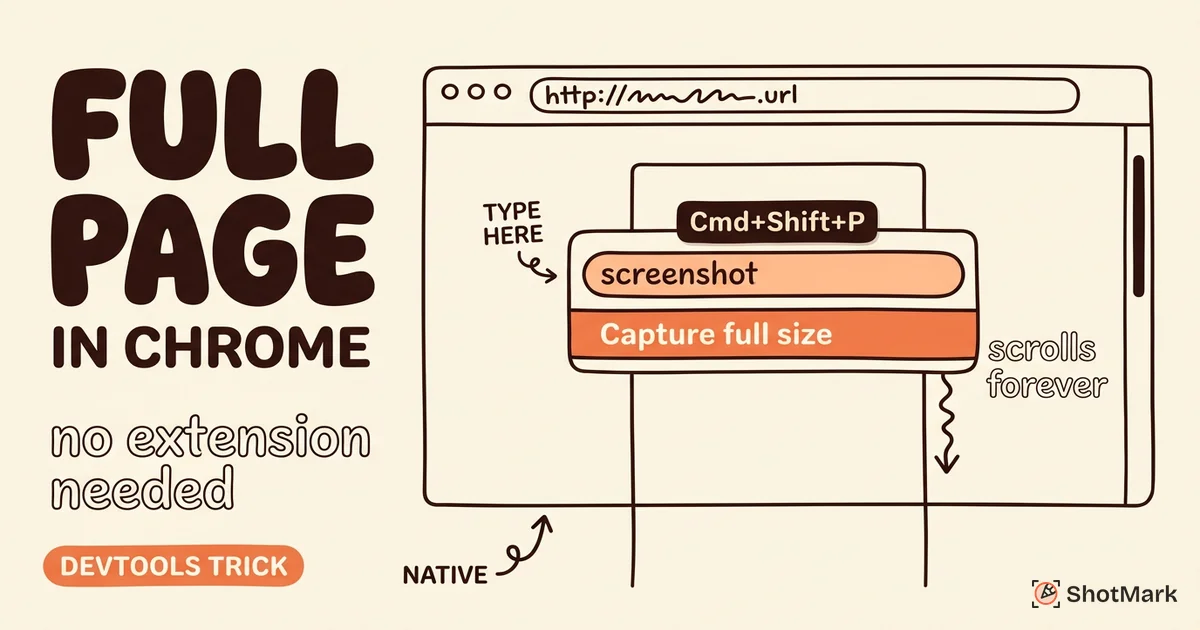
Chrome ships a hidden full-page capture in DevTools. Open DevTools, press Cmd+Shift+P (Mac) or Ctrl+Shift+P (Windows) to open the command menu, and type “Capture full size screenshot.”
The result is a PNG of the entire page. No extension required. No annotation. No technical context attached. For a pure visual capture with zero install, it works. For anything beyond that, you need a real tool, which we cover in our walkthrough on taking a full page screenshot in Chrome without an extension.
Screenshot Extensions That Capture Technical Context
A screenshot without context is a guessing game for the developer who receives it. The ticket opens, the image loads, and the first question is always the same: what was happening at the time?
Why screenshots alone lead to “cannot reproduce”
QA filed a bug with a screenshot of a broken checkout. The developer opens the ticket, pulls up staging, and the checkout works fine. Cannot reproduce.
Hours later, after a Slack thread with screenshots of browser versions, a screen-share call, and a request to re-test on the QA engineer’s machine, the team discovers the bug only happens when a specific API returns a 500 error, which happened during a brief deployment window. A single screenshot couldn’t surface any of that.
The fix is simple: capture technical context alongside the visual, automatically. For a deeper look at this category, we’ve compiled the screenshot extensions that capture technical context with examples of what each one records.
Which extensions capture console logs
Jam and ShotMark are the two extensions on this list that ship console log capture as a core feature. Both record warnings, errors, and log output from the page’s JavaScript console and attach them to the screenshot record.
Usersnap offers partial console capture in its paid tiers, but it’s oriented around customer-facing widgets rather than internal QA use.
Console capture matters because most front-end bugs throw errors. A TypeError: Cannot read property 'id' of undefined in the console tells a developer exactly where to start. A screenshot of the broken UI without that error tells them nothing.
Which extensions capture network requests
Jam and ShotMark also capture network request data. The record includes request URLs, HTTP methods, status codes, response headers, and (for failing requests) the response body. HAR export is available for compatible tools.
Network capture solves the other half of the “cannot reproduce” problem. When a UI breaks because an API returned a 500 instead of the expected 200, the developer needs to see the actual failed request, not an inferred one.
Atlassian’s guide to Chrome extensions for screen capture covers general-purpose tools but doesn’t evaluate technical context capture. Newer entrants like CocoShot’s best Chrome screenshot extensions for 2026 roundup lean general-purpose too.
Environment metadata that should come for free
Any capture tool worth using should attach the following automatically:
- Browser name and version
- Operating system
- Viewport size and device pixel ratio
- Full URL at time of capture
- User agent string
- Timestamp
None of these are hard to collect. All of them are expensive to recover after the fact if the capture tool didn’t record them.
The real cost of missing context
Reopened tickets are the invisible tax on thin bug reports. A developer marks a bug as cannot reproduce, QA re-tests with more info, the ticket bounces back, and a five-minute fix stretches into a three-day ping-pong match.
The cost compounds. Teams with strong capture tooling close bugs faster and have fewer cannot-reproduce closures. Teams without it burn engineering time on triage that should have been handled at capture time.
How to Choose the Right Extension for Your QA Workflow
There’s no universal best. The right extension depends on the team, the workflow, and the kind of bugs you deal with most.
If you need speed and simplicity
Pick GoFullPage or Lightshot. Both are free, both install in seconds, and both do one job well: capture a page and move on.
Use these when you’re taking screenshots for personal reference, lightweight documentation, or sharing with non-technical stakeholders who don’t need deeper context.
If you need annotation for stakeholder feedback
Pick Awesome Screenshot or Marker.io. Both ship strong annotation toolkits and integrate with common team platforms.
Use these when you’re collecting visual feedback from product managers, designers, or clients who need to mark up specific areas of a page.
If you need technical context for bug reports
Pick Jam or ShotMark. Both capture console logs and network data alongside the visual screenshot, which is what makes a bug ticket actually actionable for a developer.
Use these when the bugs you file involve JavaScript errors, API failures, or any behavior that’s not fully visible in the UI.
If you need team collaboration
Pick ShotMark or Usersnap. Both support shared workspaces, comment threads on captures, and a searchable history that doesn’t live in one user’s browser.
Use these when multiple QA engineers, product managers, and developers file and review bugs against the same product.
Quick decision matrix
| Team size | Main workflow | Budget | Recommended |
|---|---|---|---|
| Solo | Personal reference | Free | GoFullPage, Lightshot |
| 2-5 | Internal QA | Free to low | Jam, ShotMark |
| 5-20 | Cross-functional | Medium | ShotMark, Marker.io |
| 20+ | Enterprise QA | Higher | ShotMark, Marker.io, Usersnap |
| Agency | Client review | Medium | BugHerd, Usersnap |
What about Chrome’s built-in tools?
Chrome DevTools can capture full pages, inspect network requests, and log console output. All of it is free, and all of it is already installed.
What DevTools can’t do is package all three into a single shareable artifact. A developer on your team can pull console logs from their own browser. A QA engineer can’t ship their console logs to the developer with a screenshot in one click. That gap is what extensions fill.
How QA Teams Actually Use Screenshot Extensions
Extensions don’t exist in a vacuum. They plug into bug-reporting workflows that already exist, and the best ones reduce the steps between finding a bug and filing it.
The typical QA capture flow
A test case fails. The QA engineer needs to file a ticket. Without good tooling, that means: take a screenshot, crop it, annotate it in a separate tool, type out environment details, copy the URL, open Jira, create a ticket, attach the image, fill in fields, assign, submit. Ten to fifteen minutes per bug.
With good tooling: press a hotkey, annotate in-browser, click “send to Jira,” and the ticket is created with environment data, URL, and screenshot already filled in. Thirty seconds per bug.
The difference is the integration depth, not the capture quality. A screenshot tool that makes you copy-paste into Jira saves you almost nothing. A screenshot tool that creates the ticket for you saves you ten minutes.
Reporting bugs with reproduction steps
A screenshot shows what broke. It doesn’t show how the user got there. Modern extensions are starting to close this gap by capturing session replay alongside screenshots, so the developer can see the full click sequence leading up to the failure.
Session replay is heavy (DOM snapshots and event streams), which is why most lightweight screenshot extensions don’t include it. The tradeoff is worth making for any team that files complex multi-step bugs.
Handling sensitive data
QA often runs against staging data that mirrors production. That means real-looking PII, customer names, email addresses, payment information. Screenshot tools that blur or mask sensitive regions before export matter for compliance.
Look for extensions with element-level blur, region blur, and selective text redaction. Some tools let you define masking rules in advance (for example, always mask any element matching [data-pii="true"]), which is useful when a single capture contains multiple sensitive areas.
Scaling the workflow across a team
A personal screenshot tool is fine for one person. A team of 20 QA engineers needs shared conventions: standard annotation colors, shared workspaces, searchable history, tag taxonomies, audit logs.
This is where lightweight extensions fall short and purpose-built QA tools earn their keep. The overhead of a paid tool disappears once you account for the time saved on unclear bugs and re-tested tickets.
Frequently Asked Questions
What is the best screenshot Chrome extension?
There’s no single answer. For general-purpose full-page capture, GoFullPage is hard to beat. For QA workflows with technical context, ShotMark and Jam lead. For bug tracker integration, Marker.io is the most mature. Pick based on your workflow, not on feature lists alone.
How do I take a full page screenshot in Chrome?
Chrome’s built-in DevTools can do it without an extension. Open DevTools, press Cmd+Shift+P (or Ctrl+Shift+P on Windows), and type “Capture full size screenshot.” For better output and annotation, use GoFullPage, Fireshot, or ShotMark.
Which screenshot extension works for bug reporting?
The extensions designed for bug reporting are Marker.io, Jam, Usersnap, BugHerd, and ShotMark. They differ in how much technical context they capture and which bug trackers they integrate with. ShotMark and Jam capture the richest technical context; Marker.io and BugHerd have the widest tracker integration coverage.
Can Chrome extensions capture console logs with screenshots?
Yes, some can. Jam and ShotMark capture console logs as a core feature. Most general-purpose screenshot tools (GoFullPage, Lightshot, Fireshot, Awesome Screenshot) do not. If console capture matters for your workflow, start with the developer-focused tools.
Which Chrome screenshot extension captures full pages and annotations?
Awesome Screenshot, Fireshot, Nimbus Capture, Marker.io, and ShotMark all handle full-page capture plus annotation. Among those, ShotMark and Marker.io have the strongest annotation toolkits for QA use.
How do QA teams use screenshot extensions for bug reporting?
The common pattern: capture the bug with screenshot and technical context, annotate to highlight the failure, send to Jira or Linear with environment fields pre-filled, and optionally attach session replay for multi-step bugs. The extensions that do this end-to-end save the most time.
The right screenshot chrome extension isn’t the one with the most features. It’s the one that fits your team’s actual workflow without forcing a copy-paste loop between tools. Most QA teams don’t need a 50-feature suite; they need capture, annotation, technical context, and one-click handoff to their bug tracker.
If your team is still working around extensions that only capture pixels, ShotMark is worth a look. We’re building the tool we wanted when we were filing bugs ourselves, and you can join the waitlist to get early access.
Get new posts in your inbox.
One email when we publish: notes on QA, AI, and shipping faster. No spam, unsubscribe anytime.