Awesome Screenshot has been the default Chrome screenshot extension for over a decade. With 2 million users and a feature set that covers screenshots, recordings, and annotations, it’s earned its place on a lot of toolbars.
But the Chrome extension landscape has shifted since it launched. Newer tools now capture console logs, network requests, and environment data alongside the screenshot. The question is whether the Awesome Screenshot Chrome extension still earns its spot in 2026, especially if your work involves bug reporting and QA.
What Awesome Screenshot Does Well
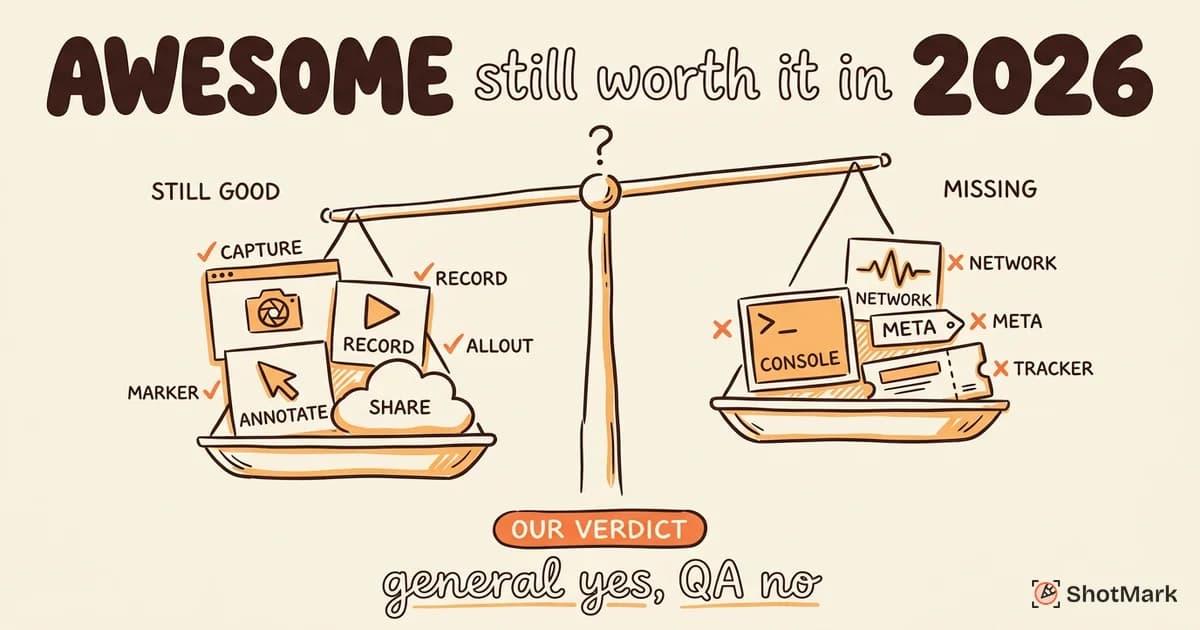
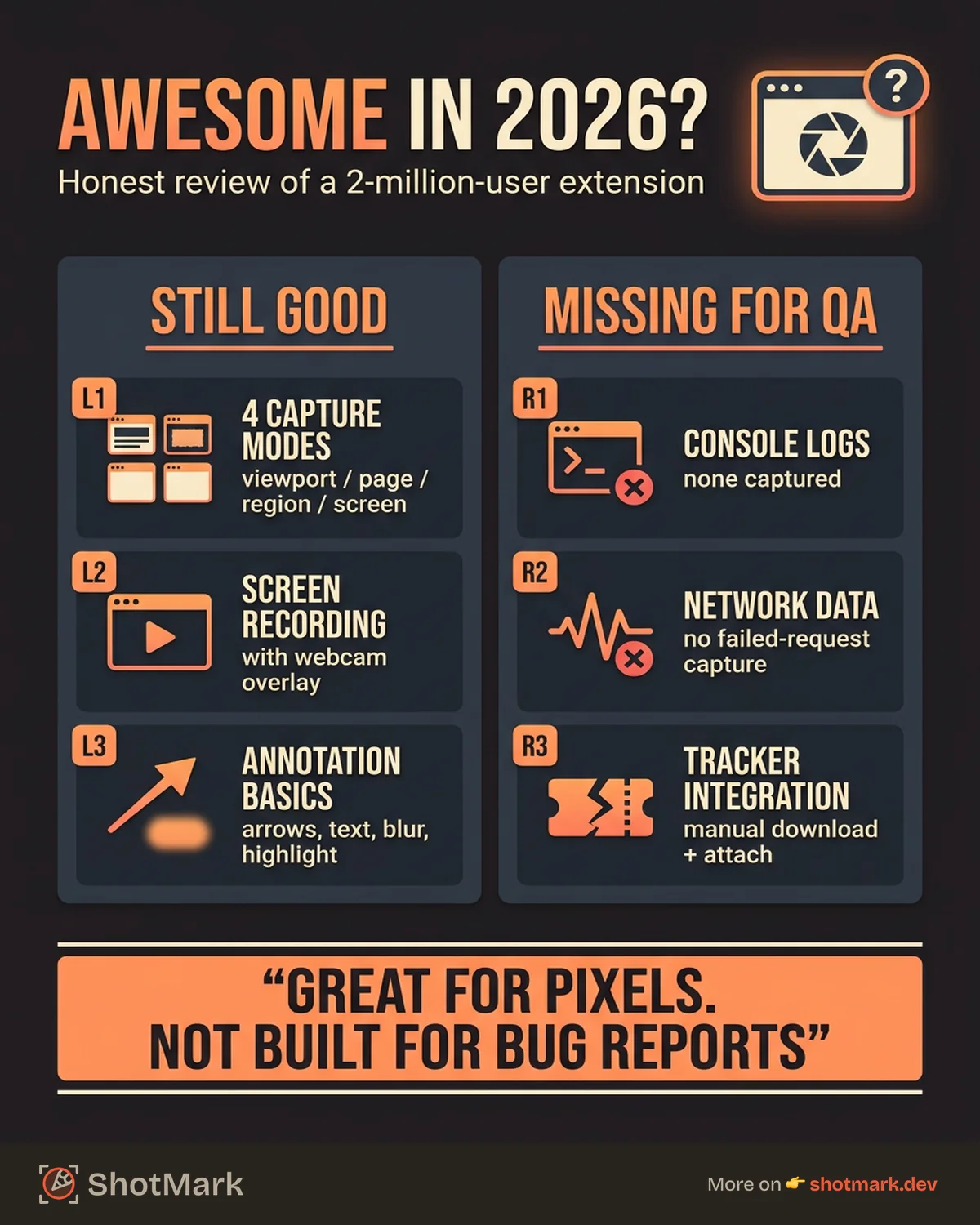
The core screenshot functionality is solid. You get four capture modes: visible area, full page, selected area, and entire screen. Each one works reliably across most websites without rendering issues.
Screen recording is built in, with support for webcam overlay, system audio, and tab-only recording. Having capture and recording in a single extension is convenient. Not many tools offer both. For teams that need recording alongside screenshots, this dual capability is one of Awesome Screenshot’s genuine strengths.
Annotation covers the basics. Arrows, text, shapes, blur, highlight, and crop are all there. You can mark up a screenshot before saving or sharing it. The annotation tools aren’t as deep as a dedicated markup app, but they’re enough for general use.
Cloud storage and instant link generation make sharing straightforward. Capture, annotate, and send a link in under a minute. The Chrome Web Store listing shows consistent updates, so maintenance isn’t a concern.
For a broader look at how screenshot tools compare across QA use cases, our guide to the best screenshot Chrome extensions for QA teams covers the full landscape.
Where Awesome Screenshot Falls Short for QA Teams
Here’s where the tool shows its age. Awesome Screenshot was designed as a general-purpose capture tool, not a bug reporting extension. That distinction matters for QA workflows.
No console log capture. The screenshot is all you get. If a JavaScript error is causing the visual bug, you’ll need to open DevTools separately, copy the error, and paste it into your bug report.
No network request data. API failures are invisible in an Awesome Screenshot capture. If the bug is a failed endpoint or a slow response, the screenshot doesn’t help.
No browser or OS metadata. You have to manually type your browser version, operating system, viewport size, and URL into the bug report. That’s tedious and error-prone.
Limited bug tracker integrations. There’s no native export to Jira, Linear, or GitHub Issues. The workflow is: capture, download, open your tracker, create an issue, and attach the file manually. That’s slow.
Post-capture annotation only. There are no comment threads, no team discussion, and no way for multiple people to mark up the same capture. Annotation is a solo activity.
The real-world impact of these gaps is measurable. A QA engineer using Awesome Screenshot to file a bug has to manually gather console errors, copy network request URLs, note their browser version, and type all of this into the bug description. That process takes 5-10 minutes per bug. Multiply that across a team filing 20-30 bugs per day, and the overhead becomes significant.
User reviews on G2 echo these points. The tool is well-liked for general use, but QA teams consistently mention the lack of technical context as a gap.
Awesome Screenshot vs. 4 Alternatives for Bug Reporting
Let’s look at how it stacks up against tools that take a different approach to capture.
Awesome Screenshot vs. GoFullPage
GoFullPage is simpler and faster. It does one thing (full page screenshots) and does it well, with minimal permissions. But it has no annotation, no recording, and no bug reporting features at all. If you just need clean full-page captures quickly, GoFullPage wins. For anything beyond that, Awesome Screenshot has more to offer.
Awesome Screenshot vs. Marker.io
Marker.io is purpose-built for bug reporting. It captures screenshots with basic metadata and pushes them directly to Jira, Trello, and Asana. The annotation tools are comparable. Marker.io lacks screen recording but gains deep bug tracker integration. For teams that file bugs daily, Marker.io saves time that Awesome Screenshot wastes on manual export. The widget-based capture also makes it easier for non-technical team members to report visual issues.
Awesome Screenshot vs. Jam
Jam targets developers directly. Every capture includes console errors, network requests, and browser environment data. It integrates with Jira, GitHub, and Slack. The tradeoff is that Jam doesn’t offer the annotation depth or the recording features that Awesome Screenshot provides. For developer-to-developer bug filing, Jam is faster. For general screenshot needs, Awesome Screenshot is broader. Our post on screenshot extensions that capture technical context goes deeper on this comparison.
Awesome Screenshot vs. ShotMark
ShotMark combines visual capture with full technical context (console, network, DOM, metadata), annotation, and team collaboration. Captures push directly to Jira, Linear, and GitHub Issues with all context attached. It’s designed for the full bug reporting workflow, not just the screenshot step.
Where Awesome Screenshot gives you a screenshot and stops, ShotMark gives you the screenshot plus everything a developer needs to reproduce and fix the issue. The tradeoff is that ShotMark is narrower in scope. It’s built for bug reporting, not for general-purpose screenshot and recording needs. If you need to capture a marketing mockup or record a tutorial video, Awesome Screenshot is the better fit.
Quick Comparison
| Feature | Awesome Screenshot | GoFullPage | Marker.io | Jam | ShotMark |
|---|---|---|---|---|---|
| Screenshot modes | 4 | 1 | 3 | 2 | 3 |
| Screen recording | Yes | No | No | Yes | Yes |
| Annotation | Yes | No | Yes | Limited | Yes |
| Console/network capture | No | No | No | Yes | Yes |
| Bug tracker integration | None | None | Jira, Trello | Jira, GitHub | Jira, Linear, GitHub |
| Team collaboration | Limited | No | Yes | Limited | Yes |
For a detailed breakdown focused on bug reporting workflows, see our post on the best Chrome screenshot extension for bug reporting.
Who Should Still Use Awesome Screenshot
Awesome Screenshot isn’t bad. It’s just not built for bug reporting.
Content creators who need quick screenshots with basic markup will find it perfectly adequate. Teams that value having screenshot and recording in a single extension have few alternatives. People who don’t need technical context in their captures won’t notice what’s missing.
If your use case is “take a screenshot, annotate it, share it,” the Awesome Screenshot extension does that well. The free tier covers most needs, and the premium plan adds cloud storage and team features. It’s one of the most installed screenshot extensions for a reason.
For teams that have standardized on Awesome Screenshot and are reluctant to switch, a hybrid approach works too. Keep Awesome Screenshot for general capture and recording tasks. Add a bug-reporting-specific tool for when the screenshot needs to become a ticket with full technical context.
For recording-focused workflows, our roundup of screen recorder Chrome extensions that also annotate covers tools that handle both video and markup.
When to Switch to a QA-Focused Alternative
Consider switching when your team regularly files bug reports that come back as “cannot reproduce.” That’s the clearest signal that your screenshots are missing context developers need. The screenshot might show the visual symptom, but without the underlying error data, the developer can’t recreate the conditions that triggered it.
If developers ask for console logs or network data after every screenshot you file, your tool isn’t capturing enough. That follow-up cycle costs 10-15 minutes per bug, which adds up fast across a QA team filing dozens of issues per sprint.
If you need direct integration with your bug tracking tool, the manual download-and-attach workflow gets old quickly. Teams filing more than five bugs per day feel this pain acutely.
And if your QA workflow requires team collaboration on captured evidence, the solo annotation model stops working once more than two people need to weigh in.
The good news is that switching doesn’t have to mean uninstalling Awesome Screenshot. Many teams run two extensions: Awesome Screenshot for general-purpose capture and a bug-reporting tool for the captures that become tickets. The overhead of managing two extensions is minimal compared to the time saved on each bug report that doesn’t require a follow-up conversation.
The Awesome Screenshot Chrome extension built its user base by being a solid, general-purpose tool. That hasn’t changed. What has changed is the market around it. Tools designed specifically for QA and bug reporting now offer capture depth that general screenshot extensions can’t match. Whether that matters depends entirely on what you’re capturing and why.
Get new posts in your inbox.
One email when we publish: notes on QA, AI, and shipping faster. No spam, unsubscribe anytime.