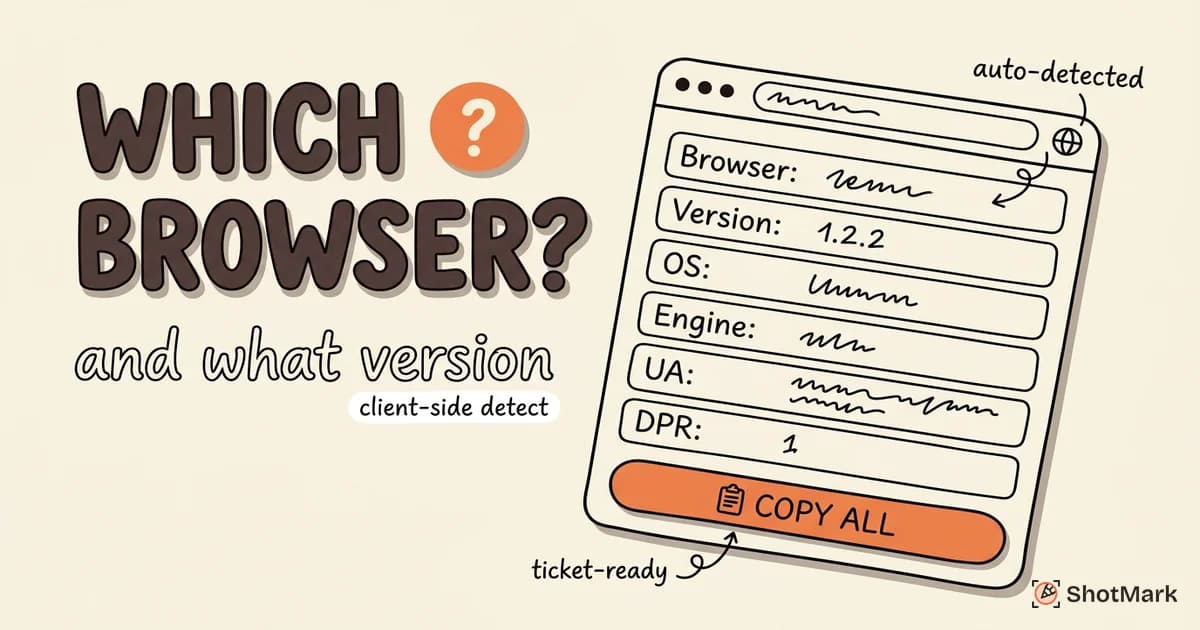
The tool above detects your browser details automatically. You did not have to click anything or install an extension. It reads your browser name, version, operating system, rendering engine, screen resolution, and user agent string the moment the page loads. Below the detection panel you will find a Copy All button that formats everything into a clean report you can paste straight into a support ticket or bug report.
If you have ever been asked “what browser am I using” during a support chat, this page gives you the answer in under one second. No menus to dig through, no about pages to find. Just open, read, copy.
Why You Need to Know Your Browser
Technical support teams ask for your browser details before anything else. It is not a formality. The browser you are running determines whether a website renders correctly, whether a specific feature is available, and whether a known security patch has been applied. When you file a bug report without browser and version information, the developer receiving it has to guess which environment to test against.
Some web features only work in specific browsers. CSS container queries, the View Transitions API, and passkey authentication all have different levels of support across Chrome, Firefox, Safari, and Edge. If a website behaves differently for you than for a colleague, the browser is usually the reason.
Browser settings also affect how websites behave. Cookie policies, tracking prevention, JavaScript permissions, and Do Not Track headers all vary by browser and version. A bug that appears in your browser checker results might stem from a privacy setting rather than a code defect.
When you know your exact browser version, you can check whether a reported issue is already fixed in a newer release. You can also confirm whether your current version is still receiving security updates. Running an outdated browser is a risk that is easy to overlook.
How to Use This Tool
Getting your browser info takes four steps.
- Open this page. The tool detects your browser details on load.
- Review the information displayed in the detection panel above. It shows browser name, version, OS, rendering engine, and more.
- Click the Copy All button to copy a formatted summary to your clipboard.
- Paste the copied text into your support ticket, bug report, or email.
That is it. No installation, no sign-up, and no data leaves your browser. Everything runs client-side using the Navigator API built into every modern browser.
How to Check Your Browser Manually
If you prefer to find your browser version through the browser itself, here are the steps for the four most common browsers.
Chrome
Click the three-dot menu in the top-right corner of Chrome. Select Help, then click About Google Chrome. A new tab opens showing the current version number and whether Chrome is up to date.
Firefox
Click the hamburger menu (three horizontal lines) in the top-right corner. Select Help, then click About Firefox. A small window appears with the version number and update status.
Safari
On macOS, click Safari in the menu bar at the top of the screen. Select About Safari. A dialog box shows the version number. Safari updates are bundled with macOS updates, so if your version is outdated you need to update your entire operating system.
Edge
Click the three-dot menu in the top-right corner of Edge. Select Help and feedback, then click About Microsoft Edge. Edge will check for updates and display the current version.
What Your Browser Info Means
The detection panel above shows more than just a browser name. Here is what each field tells you.
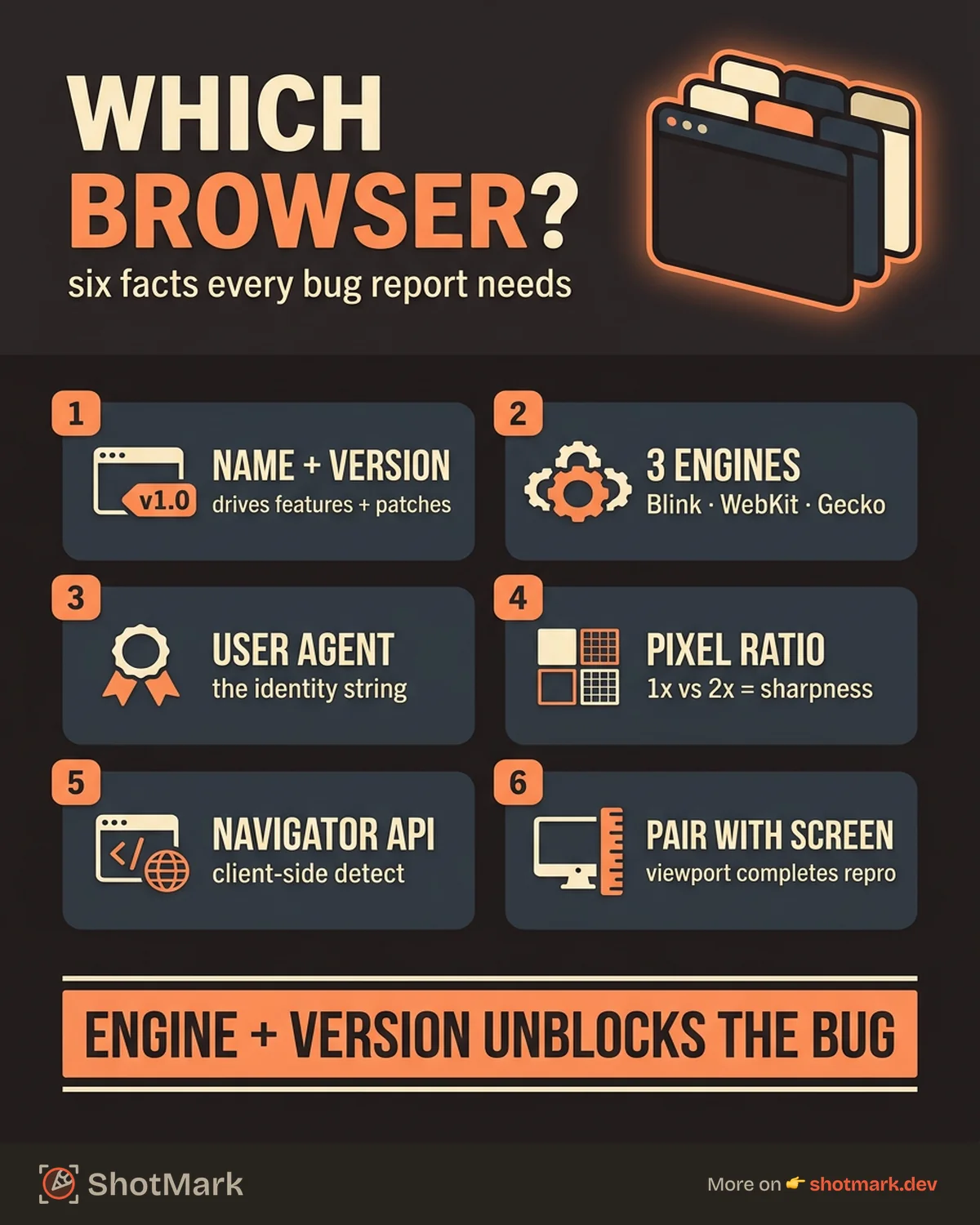
Browser version: The version number indicates which features your browser supports and which security patches are applied. Major versions often introduce new capabilities, while minor versions focus on stability and security fixes. If a website works in Chrome 120 but not in Chrome 110, the version difference is likely the cause.
Rendering engine: Browsers use one of three engines: Blink (Chrome, Edge, Opera, Brave), WebKit (Safari), or Gecko (Firefox). Pages can look and behave differently across engines because each one interprets CSS and JavaScript with slight variations. A layout bug that appears in WebKit might not show up in Blink at all.
User agent string: Your browser sends this string to every website you visit. It identifies your browser, version, operating system, and sometimes your device type. Websites use it to serve compatible content, though modern practices favor the User-Agent Client Hints API for more structured detection. You can copy your user agent from the tool above and paste it into a bug report so developers know exactly what environment to test.
Device pixel ratio: This number tells you how many physical pixels map to one CSS pixel. A ratio of 2 means your display uses four physical pixels for every CSS pixel, making text and images appear sharper. This matters when a layout looks crisp on a Retina display but blurry on a standard monitor.
If you want to pair your browser details with your display information, our screen resolution checker detects viewport size, device pixel ratio, and color depth in the same one-click format.
FAQ
What browser am I using?
The detection panel at the top of this page shows your browser name and version automatically. If you cannot see it, try scrolling up to the tool section.
How do I find my browser version?
You can find it manually through your browser’s About menu (see the steps above for Chrome, Firefox, Safari, and Edge). Or use this tool to detect it instantly without navigating any menus.
Is this tool free?
Yes. No sign-up, no account, and no limits on how many times you use it. All detection runs in your browser.
Does this work on mobile?
Yes. The tool detects browser info on phones and tablets as well as desktops. Open this page in any mobile browser and the detection panel will display your browser and device details.
What is a user agent string?
A user agent string is a text identifier your browser sends to every website. It typically includes the browser name, version, operating system, and rendering engine. Developers use it to diagnose compatibility issues and reproduce bugs.
Why does my browser matter for bug reports?
Developers need to reproduce a bug before they can fix it. Your browser and version determine how a website renders and which features are available. Without that context, a developer has to guess your environment. Including browser details in your report saves time for everyone involved. For a deeper guide on writing effective reports, see our post on how to write bug reports developers actually fix.
Browser Compatibility Goes Beyond Detection
Knowing what browser you are using is the first step. Understanding how your website performs across all major browsers is the next one. Our posts on browser compatibility testing for modern web apps and cross-browser testing tools and common pitfalls cover the testing side in detail.
For quick reference alongside browser detection, our Base64 encoder and decoder is another free tool that runs entirely in your browser with no server processing.
Tired of asking users for their browser details? ShotMark captures browser, OS, viewport, and device info automatically with every bug report. Join the waitlist
Get new posts in your inbox.
One email when we publish: notes on QA, AI, and shipping faster. No spam, unsubscribe anytime.