Taking a screenshot of a video in Chrome sounds simple until you try it. Standard screenshot tools capture the player controls, the progress bar, and sometimes a black frame instead of the actual content.
A video screenshot extension for Chrome solves this by extracting clean frames directly from the video element. We tested five options across YouTube, Vimeo, and generic HTML5 video players to see which ones actually deliver usable frames.
Whether you’re documenting a video playback bug for your QA team or capturing a specific frame for a presentation, the right extension makes the difference between a clean capture and a mess of player controls.
Why Regular Screenshot Tools Fail on Video
Standard screenshot extensions weren’t designed with video in mind. The problems are specific and frustrating.
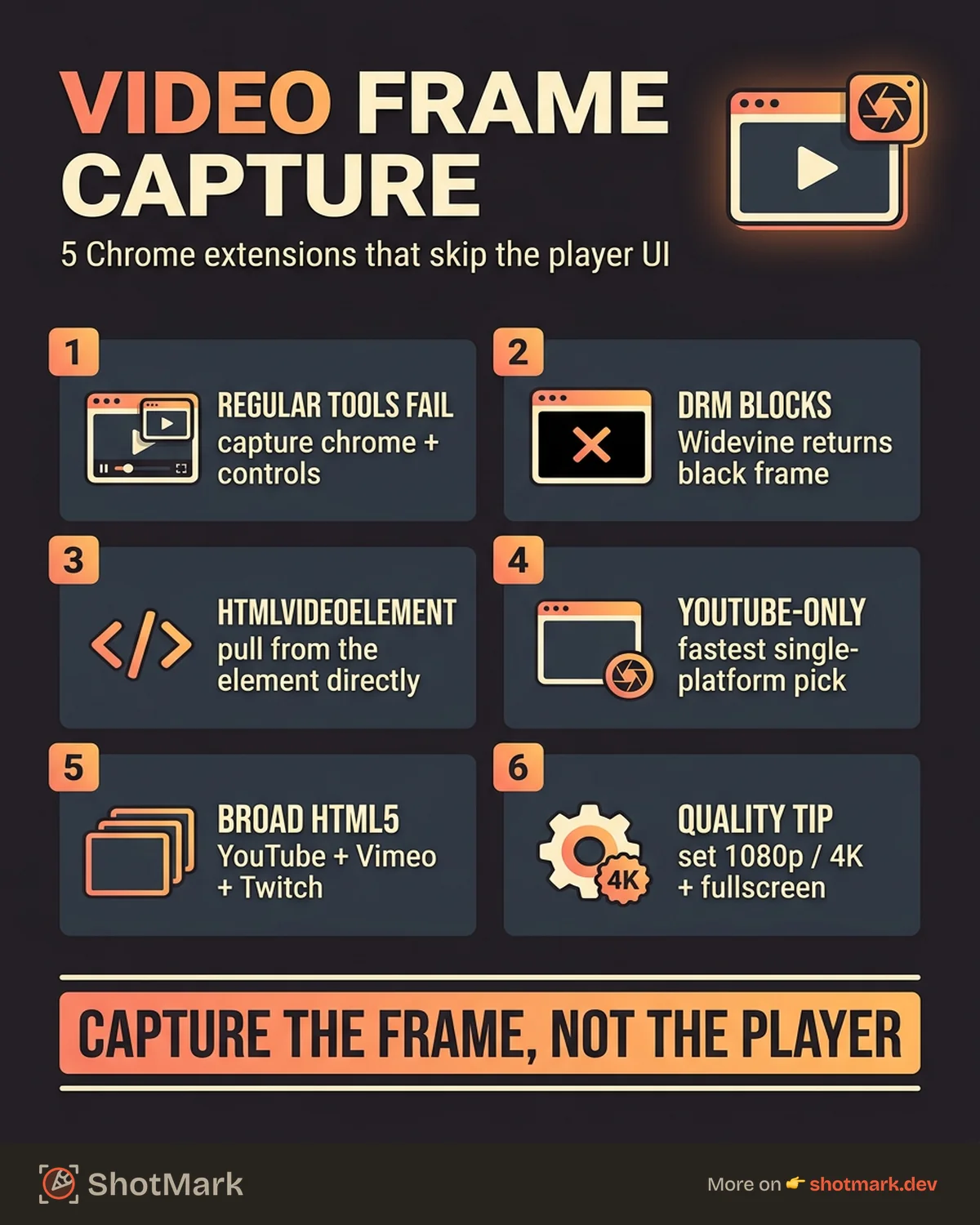
First, player chrome shows up in the capture. Every screenshot includes the play/pause button, progress bar, volume slider, and any overlay text. These elements obscure the actual video content you want.
Second, timing. Pausing the video to screenshot it changes the frame. The play/pause overlay appears on screen. Some players drop resolution when paused, giving you a lower quality frame than what was playing.
Third, DRM. Some streaming platforms use Widevine protection, which blocks screenshot capture entirely. You get a black rectangle instead of the video frame.
Fourth, resolution. Screenshotting a 1080p video displayed in a 720p viewport gives you a 720p image. The capture resolution matches the browser window, not the video source.
These issues are why a dedicated video frame capture extension exists as a category. They pull frames from the HTMLVideoElement directly, bypassing the browser’s rendering pipeline.
5 Video Screenshot Extensions for Chrome
We tested each extension on YouTube, Vimeo, and a local HTML5 video player. Here’s what we found.
1. Screenshot YouTube
A single-purpose extension that does exactly what the name suggests. It adds a camera icon to the YouTube player controls and captures the current frame as a PNG.
The strength is simplicity. One click, one frame, no configuration. Keyboard shortcut support means you can capture without moving the mouse (and without the mouse cursor appearing in the shot).
The limitation is obvious: it only works on YouTube. Vimeo, Twitch, and other platforms aren’t supported. For YouTube-only workflows, it’s the fastest option.
2. Video Screenshot
Video Screenshot takes a broader approach. It works on any HTML5 video element, which covers YouTube, Vimeo, Twitch, and most modern video players.
Frame accuracy is decent. The extension captures the current displayed frame rather than forcing a re-seek. Quality matches the video’s playback resolution, so set the video to 1080p or 4K before capturing.
The extension adds a small overlay button on detected video players. It’s unobtrusive and doesn’t interfere with playback. For teams that work across multiple video platforms, this is the most versatile free option.
3. Nimbus Capture
Nimbus Capture is a general screenshot tool with a video frame capture mode. It handles visible area, full page, selected area, and video element capture.
The video capture mode works on HTML5 videos but isn’t as frame-accurate as the dedicated extensions. It sometimes captures the player UI alongside the frame. On the plus side, Nimbus includes annotation tools, so you can mark up the frame immediately after capturing it.
If you already use Nimbus for general screenshots, the video mode is a bonus. If you need frame-perfect video captures, the dedicated tools above are more reliable.
4. Fireshot
Fireshot is one of the older screenshot extensions, and it handles video elements better than most general-purpose tools. The capture engine renders the full page including the current video frame, which works well for documenting video playback issues in context.
Quality depends on the video’s playback resolution and the page layout. Fireshot captures the entire page, not just the video element, so you get the surrounding UI as well. That can be useful for bug reports where context matters, but less useful when you need a clean video frame.
5. ShotMark
ShotMark captures video frames alongside the full page context, including console logs and network data. For QA teams documenting video playback bugs (stuttering, wrong frame rendering, aspect ratio issues), this combination is useful because the visual evidence is attached to the technical data that explains why the issue occurred.
The frame capture works on HTML5 video elements across platforms. Annotation tools let you highlight the specific area of the video that’s problematic before pushing the capture to your bug tracker.
Quick Comparison
| Extension | YouTube | Vimeo | HTML5 | Frame Quality | DRM Bypass | Annotation |
|---|---|---|---|---|---|---|
| Screenshot YouTube | Yes | No | No | High | No | No |
| Video Screenshot | Yes | Yes | Yes | High | No | No |
| Nimbus Capture | Yes | Yes | Yes | Medium | No | Yes |
| Fireshot | Yes | Yes | Yes | Medium | No | Limited |
| ShotMark | Yes | Yes | Yes | High | No | Yes |
For a broader look at how these tools compare to other capture extensions, our Chrome screenshot extensions 2026 comparison covers the full landscape.
How to Capture High-Quality Video Frames
The extension handles the capture, but a few settings determine whether you get a usable frame.
Set the video quality to maximum before capturing. On YouTube, click the gear icon and select 1080p or 4K. The YouTube player defaults to auto-quality, which often drops to 720p or lower on slower connections. Your screenshot will match whatever resolution is playing.
Full-screen the video before capturing. This gives you the highest possible frame resolution and eliminates surrounding page elements from the capture.
Use keyboard shortcuts to trigger the capture instead of clicking a button. Clicking moves the mouse, which can cause hover overlays or tooltips to appear on the video frame. Extensions like Screenshot YouTube support shortcut-based capture for exactly this reason.
Choose your export format based on the use case. PNG preserves quality but creates larger files. JPG works fine for bug reports where exact pixel detail isn’t critical. Most extensions default to PNG, which is the safer choice.
Video Screenshots for QA and Bug Reporting
Video frame captures have specific QA use cases that go beyond general screenshot needs.
Documenting video playback bugs requires capturing the exact frame where the issue occurs. A stutter might only be visible for one or two frames. A rendering glitch might appear at a specific timestamp. Frame-accurate capture from the video element is the only reliable way to document these.
Streaming UI bugs (overlay positioning, subtitle rendering, controls layout) need the video frame plus the surrounding player UI. Tools that capture the full page are better here than tools that isolate the video element.
Attaching video frame evidence to bug reports works best when the frame is paired with context: the URL, the timestamp, the browser, and any console errors that fired during playback. A raw screenshot without that data usually generates follow-up questions.
Sometimes a video recording is better than a video screenshot. If the bug is a playback stutter or a timing issue, a short recording shows the problem more clearly than a single frame. For those cases, our roundup of screen recorder Chrome extensions that also annotate covers tools that handle both capture types.
Limitations and Workarounds
No video screenshot extension for Chrome can bypass DRM. Netflix, Disney+, HBO Max, and other platforms that use Widevine protection will return a black frame regardless of which tool you use. This is a platform-level restriction, not an extension limitation. The Chrome Web Store listings for these extensions are clear about this.
For non-DRM content that still resists capture, Chrome DevTools can sometimes extract frames via the Canvas API. Open DevTools, run a script that draws the video element to a canvas, and export the canvas as an image. This is a manual process and doesn’t work on protected content, but it’s a fallback when extensions fail.
Frame accuracy is another limitation. Most extensions capture the nearest displayed frame, not an exact frame at a precise timestamp. If you need frame-level precision (for example, matching a subtitle to a specific moment), you may need to use a desktop video player with frame-step capability instead.
For a full comparison of screenshot tools across QA workflows, see our guide to the best screenshot Chrome extensions for QA teams.
The right video screenshot extension depends on where you’re capturing from and what you need the frame for. YouTube-only users can go simple. Cross-platform QA teams need something broader. And anyone filing bugs should pair the visual capture with the technical context that explains what went wrong.
Get new posts in your inbox.
One email when we publish: notes on QA, AI, and shipping faster. No spam, unsubscribe anytime.