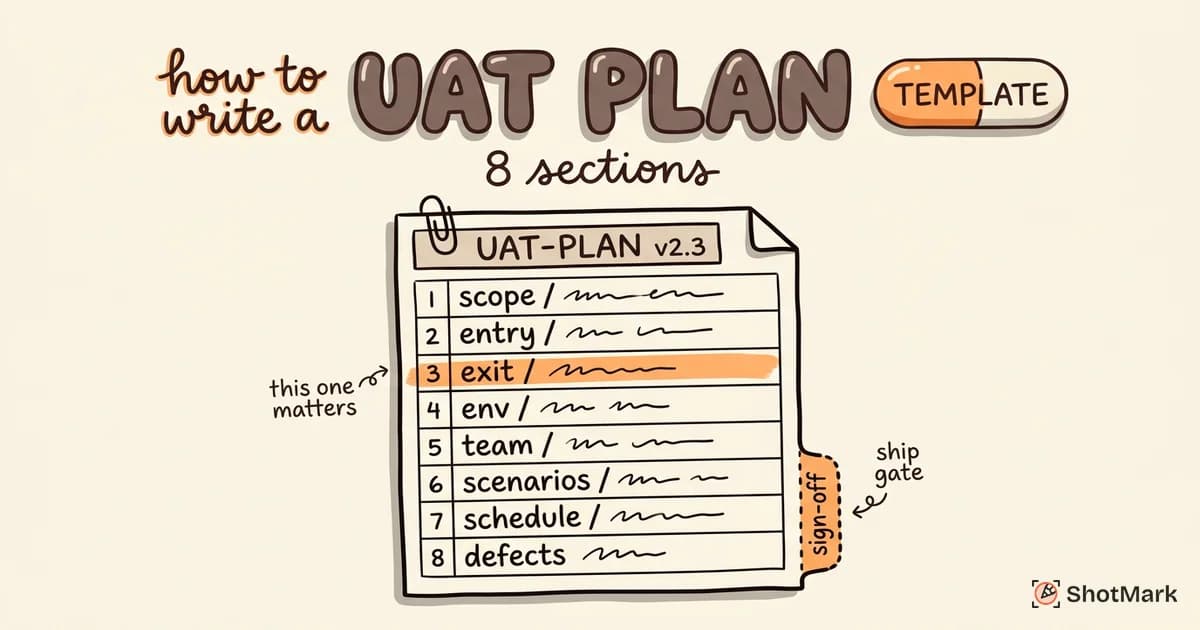
A user acceptance testing template turns an ad hoc “click around and check things” approach into a repeatable, auditable process. Without one, every tester documents results differently, defects lack context, and stakeholder sign-off becomes a guessing game. With one, your team tests consistently, tracks progress in real time, and produces an audit trail that protects everyone.
We built free UAT templates for Excel, Google Sheets, and Notion that you can download and start using today. This post walks through what a good user acceptance testing template includes, how to structure each format, and how to fill it out with real examples.
If you need broader context on the UAT process itself, start with our complete guide to user acceptance testing.
Why You Need a UAT Template
Teams without a UAT template run into the same problems every cycle.
Inconsistent documentation: One tester writes detailed notes. Another marks “pass” or “fail” with no context. A third documents results in an email thread. When it is time to aggregate results, nobody can tell what was actually tested.
Missing acceptance criteria: Without a structured template, testers often skip defining what “pass” actually means. They test based on intuition rather than documented criteria. This makes sign-off subjective instead of data-driven.
No audit trail: When a post-launch issue surfaces and someone asks “Did we test this?”, you need documented evidence. A template provides that trail: who tested, when, what the result was, and what evidence supports it.
The “I tested it and it looked fine” problem: Verbal sign-off is not sign-off. A template captures explicit pass/fail results, defect references, and formal approval records.
What a Good UAT Template Includes
Every UAT template should contain these fields, regardless of whether you use Excel, Notion, or another tool.
- Test case ID: A unique identifier for tracking and reference (e.g., UAT-001, UAT-002)
- Test case description: A plain-language summary of what the test validates
- Business requirement or user story reference: Links each test case back to the requirement it validates. This is your traceability
- Preconditions: What must be true before the test can run (user account exists, data is loaded, feature flag is enabled)
- Test data: Specific data values the tester should use (login credentials, product IDs, input values)
- Step-by-step execution instructions: The exact sequence of actions, written for someone unfamiliar with the feature
- Expected result: What should happen at each step and at the completion of the test
- Actual result: What actually happened (filled in during execution)
- Pass/fail status: A clear status for each test case: Pass, Fail, Blocked, or Not Started
- Defect reference: If the test failed, a link to the defect report in your tracking system
- Tester name and date: Who executed the test and when
- Comments/notes: Additional observations, workarounds, or context
- Sign-off section: Stakeholder names, approval dates, and any conditions
Free UAT Template for Excel and Google Sheets
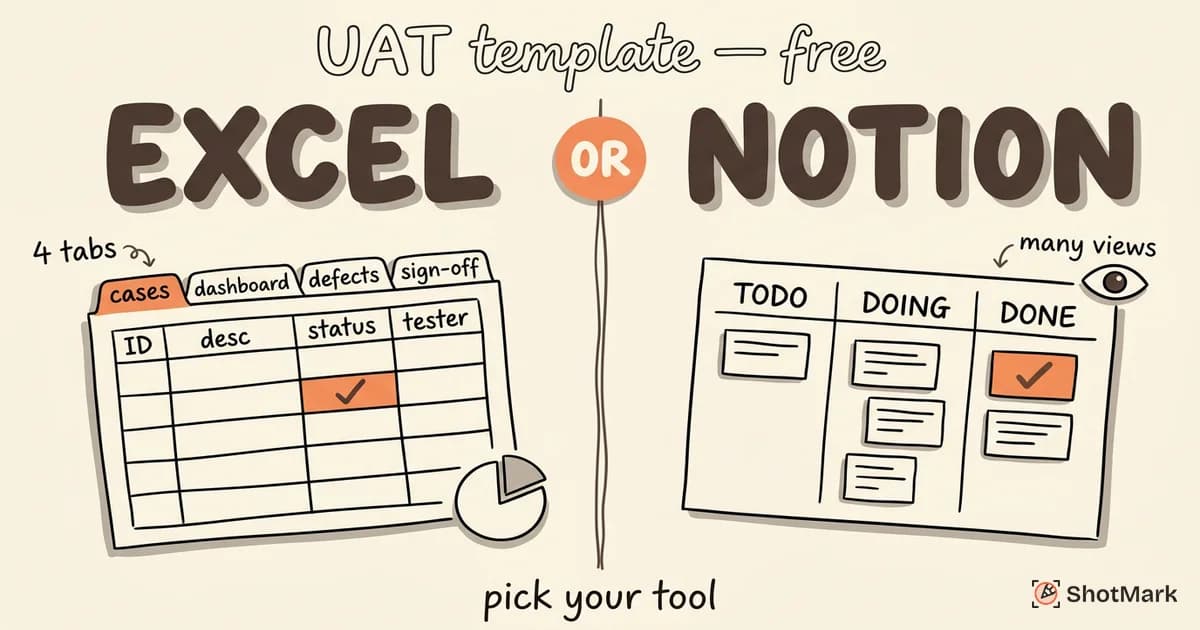
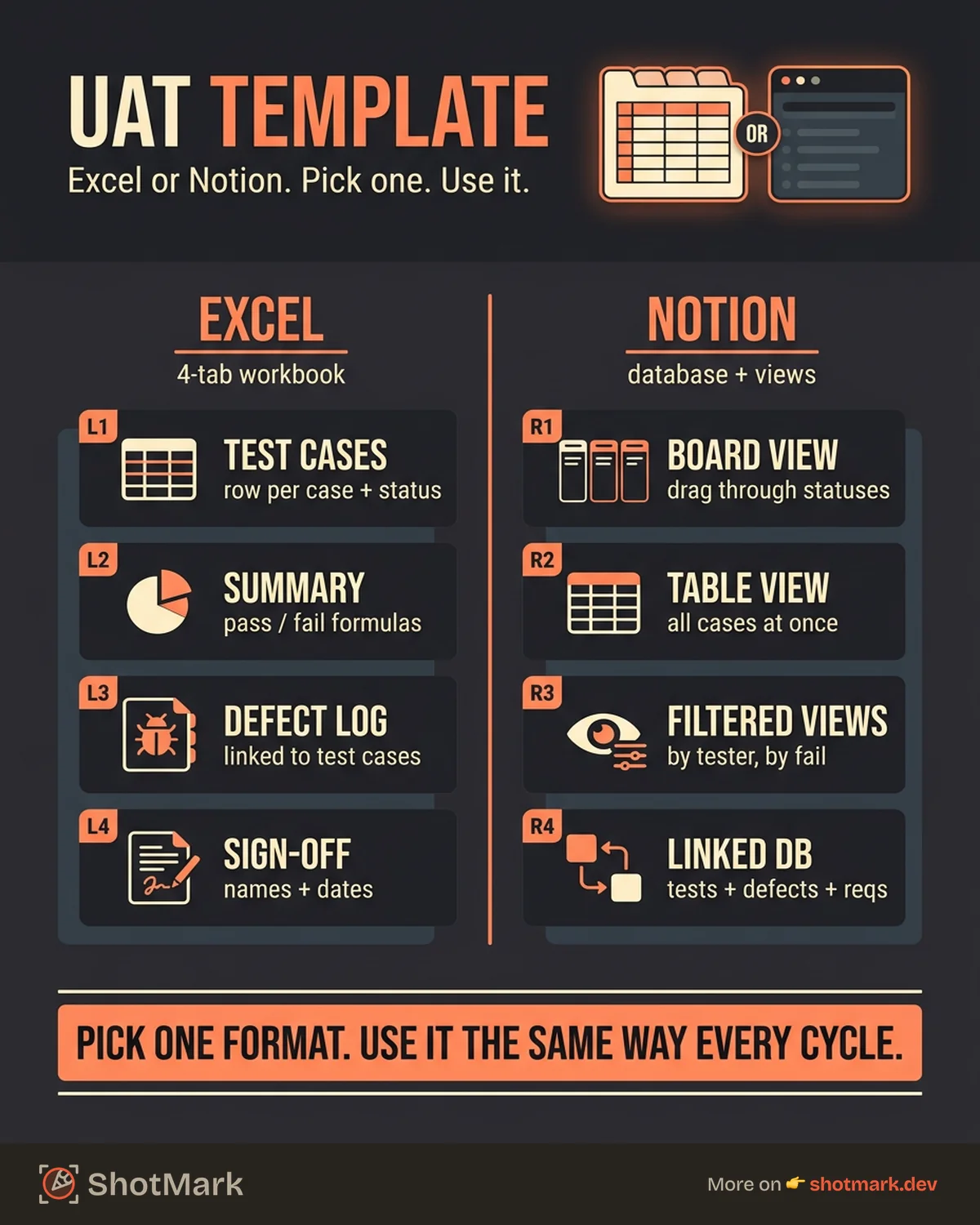
The Excel template is organized into four tabs that cover the full UAT tracking workflow.
Tab 1: Test Cases (Core Tracking Sheet)
This is the main sheet where testers execute and record results. Each row is a test case with all the fields listed above. The columns are:
| Test Case ID | Description | Requirement Ref | Preconditions | Test Data | Steps | Expected Result | Actual Result | Status | Defect Ref | Tester | Date | Notes |
|---|---|---|---|---|---|---|---|---|---|---|---|---|
| UAT-001 | Returning customer completes checkout | REQ-042 | User account exists with saved payment | Login: user@test.com | 1. Log in 2. Add item 3. Checkout 4. Use saved card 5. Confirm | Order created, confirmation email received | (filled during test) | (Pass/Fail/Blocked) | (if failed) | (name) | (date) | (notes) |
Use conditional formatting to highlight failures in red and blocked tests in yellow. This gives an instant visual status of the UAT cycle.
Tab 2: Summary Dashboard
The summary tab aggregates data from the test cases tab using formulas. It should display:
- Total test cases: Count of all test cases
- Passed: Count and percentage
- Failed: Count and percentage
- Blocked: Count and percentage
- Not started: Count and percentage
- Completion rate: Percentage of test cases with a final status (Pass or Fail)
- Defect count: Total defects filed, broken down by severity
A simple bar chart or pie chart visualizing pass/fail distribution makes status meetings faster.
Tab 3: Defect Log
A dedicated defect log tab tracks every issue found during UAT. Columns include:
- Defect ID
- Related test case ID
- Description
- Severity (Critical, High, Medium, Low)
- Priority
- Status (Open, In Progress, Fixed, Verified, Deferred)
- Assigned to
- Screenshot/evidence link
- Resolution notes
This tab serves as a companion to your primary defect tracking tool (Jira, Linear, GitHub Issues). Some teams use this as the sole defect tracker for smaller projects.
Tab 4: Sign-Off Sheet
The sign-off tab formalizes UAT completion. It includes:
- Project name and release version
- UAT cycle dates
- Total test cases and final pass rate
- List of open defects (if any) with agreed disposition
- Stakeholder name, role, signature, and date
- Any conditions or caveats attached to the approval
This tab becomes the official record that UAT was completed and the release was approved.
Free UAT Template for Notion
Notion’s database structure makes it a natural fit for UAT tracking. Instead of rows in a spreadsheet, each test case is a database entry with properties.
Database Properties
- Status: Select field with options: Not Started, In Progress, Pass, Fail, Blocked
- Priority: Select field: Critical, High, Medium, Low
- Assigned To: Person field (links to Notion team members)
- Related Requirement: Text or relation field linking to a requirements database
- Defect Link: URL field pointing to the defect in your tracking system
- Test Data: Text field
- Steps: Text or toggle block with step-by-step instructions
- Expected Result: Text field
- Actual Result: Text field
- Tester Notes: Text field
- Date Executed: Date field
Views
The power of Notion for UAT comes from multiple views of the same data:
- Board view (by status): Drag test cases from “Not Started” to “In Progress” to “Pass” or “Fail.” This gives a Kanban-style overview of progress.
- Table view (all cases): A traditional spreadsheet view for detailed review and data entry.
- Filtered view (by tester): Each tester sees only their assigned test cases.
- Filtered view (failures only): Quick access to all failed test cases for triage meetings.
Linked Defect Database
Create a separate Notion database for defects and link it to the test case database using Notion relations. Each defect entry tracks severity, status, assigned developer, and resolution notes. When a tester marks a test case as “Fail,” they create a linked defect entry in one click.
Excel vs Notion: Which Format to Use
Use Excel or Google Sheets when:
- Your UAT testers include non-technical stakeholders who are comfortable with spreadsheets
- You need to share the file as an email attachment or in a shared drive
- Your organization does not use Notion
- You need offline access during UAT sessions
Use Notion when:
- Your team already uses Notion for project management
- You want real-time collaboration without version conflicts
- You need flexible views (board, table, filtered) of the same data
- You want linked databases connecting test cases, defects, and requirements
Either format works. The key is consistency. Pick one and make sure every tester uses it the same way.
How to Fill Out Your UAT Template (With Examples)
Templates are only useful if testers know how to fill them out. Here are two completed examples showing a passing test and a failing test.
Example 1: E-Commerce Checkout (Pass)
| Field | Value |
|---|---|
| Test Case ID | UAT-012 |
| Description | Returning customer completes checkout with saved payment method |
| Requirement Ref | US-042: Returning customers can use saved payment methods |
| Preconditions | Test account user@example.com exists with saved Visa card |
| Test Data | Login: user@example.com / Pass: TestPass123 |
| Steps | 1. Log in 2. Search for “Running Shoes” 3. Add first result to cart 4. Click Checkout 5. Select saved Visa 6. Click Confirm Order |
| Expected Result | Order confirmation page with order number, items, and delivery estimate |
| Actual Result | Order #ORD-8843 created. Confirmation page displayed with correct items and delivery date. Email received at 2:14 PM. |
| Status | Pass |
| Defect Ref | N/A |
| Tester | Sarah Chen |
| Date | 2026-04-17 |
| Notes | Checkout flow completed in 45 seconds. No issues. |
Example 2: User Login with Two-Factor Authentication (Fail)
| Field | Value |
|---|---|
| Test Case ID | UAT-007 |
| Description | User logs in with two-factor authentication enabled |
| Requirement Ref | US-019: Users with 2FA see a code entry screen after password |
| Preconditions | Test account admin@example.com has 2FA enabled via authenticator app |
| Test Data | Login: admin@example.com / Pass: AdminTest456 / 2FA: authenticator app |
| Steps | 1. Navigate to login page 2. Enter email and password 3. Click Sign In 4. Enter 2FA code from authenticator 5. Click Verify |
| Expected Result | User is redirected to the dashboard after 2FA verification |
| Actual Result | After entering the 2FA code, the page shows a spinner for 15 seconds and then redirects back to the login page. No error message displayed. |
| Status | Fail |
| Defect Ref | BUG-1147 |
| Tester | Marcus Rivera |
| Date | 2026-04-17 |
| Notes | Reproduced 3 times. Happens with correct 2FA code. Session may not be persisted after verification. |
For more UAT scenario examples across different web application types, see our UAT examples for web apps.
Tips for Getting the Most Out of Your Template
A template is only as good as the process around it. These practices ensure your user acceptance testing template delivers value instead of gathering dust.
Pre-populate test cases before UAT begins: Do not ask business users to write test cases and execute them simultaneously. The QA coordinator should have all test cases documented, reviewed, and ready before the first day of testing.
Train business users on the template: Spend 15 minutes walking testers through the template before UAT starts. Show them a completed example. Explain what “expected result” and “actual result” mean. Clarify the difference between “Fail” and “Blocked.”
Use conditional formatting in Excel: Color-code the status column: green for Pass, red for Fail, yellow for Blocked, gray for Not Started. Visual cues make status reviews faster.
Review results daily during the UAT cycle: Do not wait until the last day to look at results. A daily 10-minute stand-up reviewing new failures and blocked tests keeps the cycle on track.
Pair the template with a visual bug reporter: Your template tracks which tests passed and failed. A bug reporting tool captures the evidence of what went wrong. Linking the two creates a complete UAT record. Check out our UAT checklist for a pre-go-live readiness review.
Capture UAT Defects With Full Context
Templates track status. Bug reporters capture evidence. You need both.
When a tester marks a test case as “Fail” in your UAT template, the defect reference field should link to a report that includes screenshots, console errors, network requests, and browser metadata. Without that evidence, the “Fail” status is just a label with no actionable information.
ShotMark bridges this gap. One click captures a screenshot with annotations, console logs, network requests, and full browser metadata. The tester pastes the defect link into the template’s “Defect Ref” column, and the developer opens a report with everything they need.
No more chasing testers for “Can you describe what you saw?” No more defect reports that say “something is wrong with the login page.” Every failed test case in your user acceptance testing template links to a complete, reproducible report.
Join the ShotMark waitlist to capture UAT defects your template can reference. Pair structured tracking with rich evidence, and your UAT cycles become faster, more reliable, and easier for everyone involved.
Get new posts in your inbox.
One email when we publish: notes on QA, AI, and shipping faster. No spam, unsubscribe anytime.