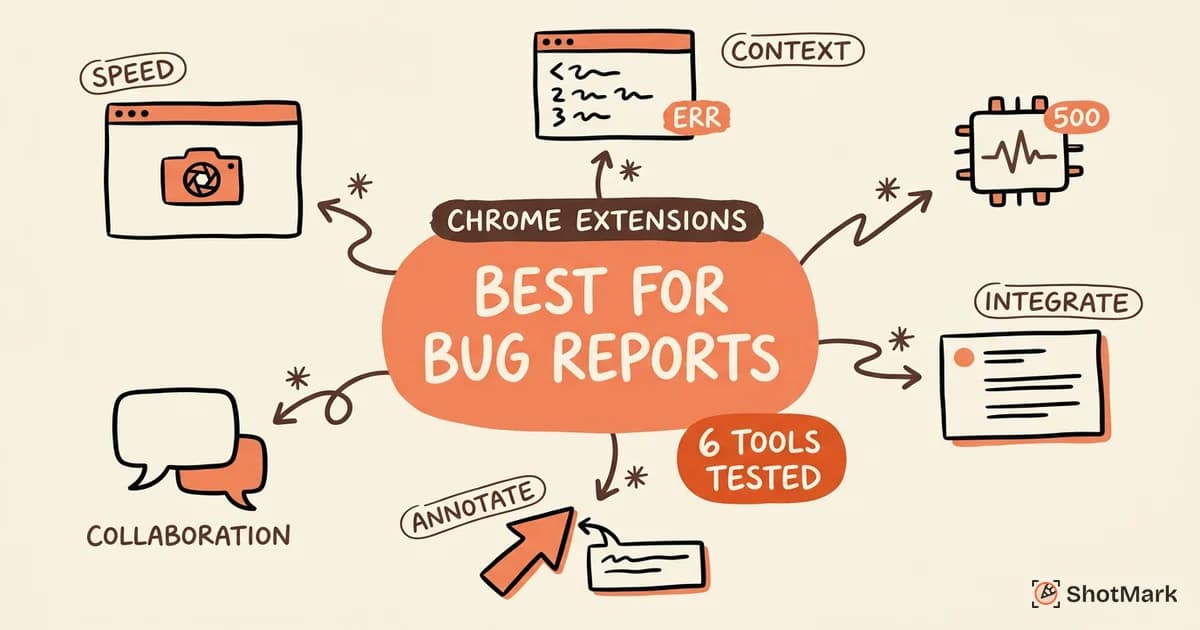
A screen recorder Chrome extension is easy to find. A screen recorder Chrome extension that also lets you annotate the recording in a useful way is a much shorter list. Most tools record your screen in HD and stop there, leaving viewers to guess where the bug actually happened.
We tested the extensions that claim both capabilities and scored them on annotation depth, recording quality, and workflow fit. This guide covers seven options, the trade-offs between free and paid tiers, and when a screenshot beats a recording for bug reporting.
Why Annotation Matters in Screen Recordings
A three-minute video without annotation forces the viewer to scrub the timeline hunting for the moment something breaks. That friction is expensive when developers need to reproduce a QA bug or designers need to sign off on a review. Adding a circle, arrow, or callout cuts the cognitive load in half because the viewer knows exactly where to look.
The use cases are broad. QA engineers record bug walkthroughs with annotated highlights around broken UI. Designers drop comments on specific frames of an interaction review. Developers annotate handoff videos to flag the exact element they want changed. Customer success teams circle the button a client missed during onboarding.
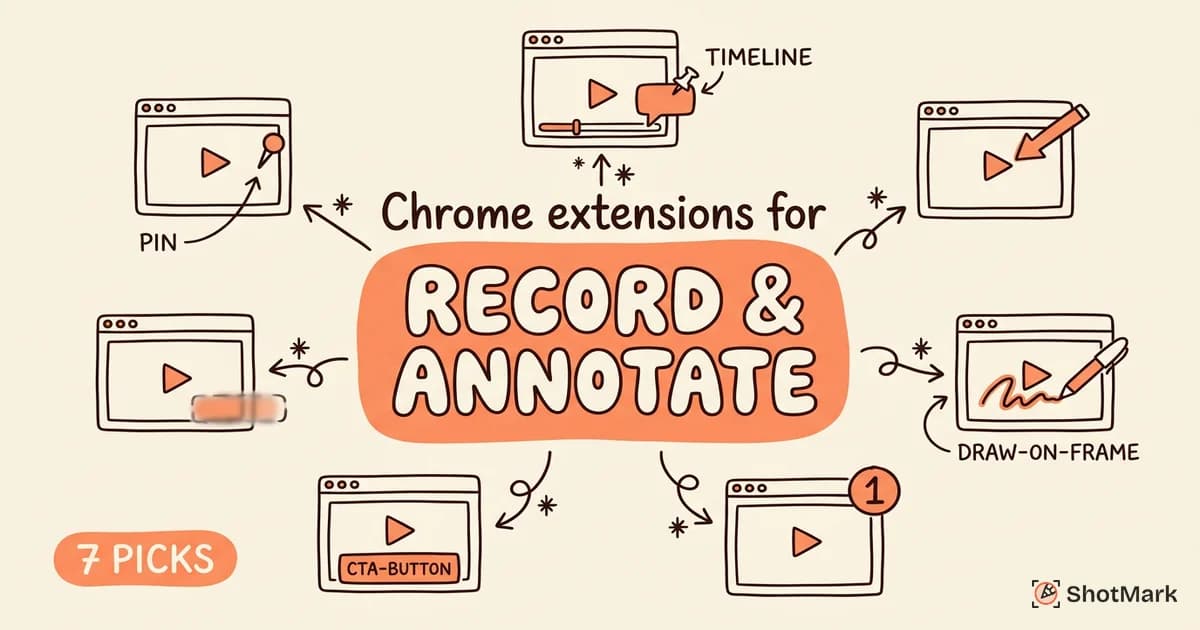
There’s an important distinction between two annotation styles. Draw-on-frame lets you scribble on a paused frame, usually as a post-recording overlay. Timestamp-linked annotation pins a comment to a specific moment in the video so it surfaces only when the playhead reaches that point. Timestamp-linked annotation is more useful for async feedback because multiple reviewers can leave structured notes without painting over each other’s work. If you’re comparing tools purely for static captures, our screenshot Chrome extension for bug reporting guide covers the image-first side of the workflow.
7 Screen Recorder Chrome Extensions With Annotation Features
Here are the seven tools we actually use or recommend, evaluated on recording quality, annotation depth, free-tier generosity, and integration with bug-reporting workflows.
Loom
Loom is the default choice for async communication and has been since it acquired wide adoption among remote engineering teams. The Chrome extension records screen, camera, and microphone, uploads to the cloud, and generates a shareable link within seconds. Annotation comes through timestamped comments that viewers can drop directly on the timeline, plus basic drawing tools for highlighting UI elements during playback.
Strengths: Fast cloud upload, viewer insights (who watched, for how long), transcript generation, and integrations with Slack, Jira, and GitHub.
Weaknesses: The free plan caps recordings at five minutes and limits you to 25 videos. Drawing tools during recording are basic, and there’s no pen-on-video annotation during capture itself.
Best for: Remote teams sending async video updates, bug walkthroughs, and design reviews where timestamp comments are the primary feedback channel.
Awesome Screenshot
Awesome Screenshot started as a capture tool and added recording later, which explains why its annotation toolkit is more mature than most pure recorders. You get screen and webcam recording, post-recording markup (arrows, text, shapes, blur), and a shared workspace for team feedback. If you want a closer look at the capture side, we covered it in is Awesome Screenshot still worth it in 2026.
Strengths: Broad feature set (screenshot + recording + annotation in one extension), generous free tier for short clips, Jira and Trello integrations, and workspace-based sharing.
Weaknesses: The UI can feel cluttered because so many features compete for attention. Longer recordings require a paid plan, and some annotation tools are gated behind the Pro tier.
Best for: Teams that want a single extension for both screenshots and short recordings without installing two tools.
Nimbus Capture
Nimbus Capture sits between Loom and Awesome Screenshot in terms of feature depth. It offers screen and webcam recording, post-recording annotation, cloud storage, and a free tier that’s more generous than most competitors. You can record up to an hour on the free plan, which is rare.
Strengths: Long free recordings, annotation during playback, and direct upload to Nimbus Note (their companion knowledge base).
Weaknesses: Cloud storage caps on the free tier mean you’ll rotate or delete recordings regularly. Mobile recording support is limited, and some annotation features require a paid subscription.
Best for: Solo creators and small teams that need longer free recordings with solid markup tools.
Screencastify
Screencastify focuses on education first, which shows in its interface and feature priorities. Drawing tools are available during recording (not just after), which is unusual and useful for teachers walking students through code or interfaces. Embedded questions and assessments are built in.
Strengths: In-recording drawing tools, Google Classroom integration, auto-upload to Google Drive, and a clean, no-nonsense interface.
Weaknesses: The free plan caps recordings at five minutes with a watermark. Annotation is less flexible than Loom or Awesome Screenshot for post-recording markup.
Best for: Teachers, trainers, and anyone recording walkthroughs where live annotation helps the viewer follow along.
Vidyard
Vidyard positions itself as a sales tool first, recording tool second. It captures screen and camera, adds call-to-action overlays, tracks viewer engagement, and integrates with CRMs like Salesforce and HubSpot. Annotation is limited compared to the others on this list, but CTA overlays and personalized intros fill a niche that other recorders don’t.
Strengths: CRM integrations, CTA overlays, viewer analytics, and a clean interface built for sales outreach.
Weaknesses: Annotation tools are basic. If you need circles, arrows, or markup for bug reports, this isn’t the tool.
Best for: Sales development reps sending personalized video messages to prospects.
Marker.io
Marker.io is purpose-built for bug reporting. The Chrome extension captures screenshots, screen recordings, and session data, then pipes everything directly into Jira, Trello, Asana, or GitHub with annotation baked in. Technical metadata (browser, OS, console logs) attaches automatically.
Strengths: Tight integration with project management tools, automatic technical metadata, and annotation optimized for reproducible bug reports.
Weaknesses: No free plan beyond a trial. Pricing starts at $39 per user per month, which adds up for larger QA teams. Recording length and features vary by plan.
Best for: QA teams that already use Jira or a similar issue tracker and want bug reports to land in the right place with minimal friction.
ShotMark
ShotMark is the extension we’re building, and it addresses the gap between screenshot tools and session replay platforms. One-click capture bundles the annotated screenshot or recording with browser console logs, network requests, and a short session replay, then sends the whole package to Jira, Linear, or GitHub. For the full context on where it fits compared to broader extension lists, see our best screenshot Chrome extensions for QA teams roundup.
Strengths: Captures everything a developer needs to reproduce a bug in one click. Annotation toolkit includes arrows, shapes, blur, and text. Open-source SDK for teams that want to self-host. Currently free during the waitlist period.
Weaknesses: Still pre-launch, so the feature set is evolving. Full session replay and longer recordings are on the roadmap rather than shipping today.
Best for: QA engineers and developers who want bug reports with technical context automatically attached, not just a pretty video.
Comparison Table
| Extension | Annotation Type | Max Free Duration | Bug Report Integration | Starting Price |
|---|---|---|---|---|
| Loom | Timestamp comments, basic draw | 5 min | Slack, Jira, GitHub | Free / $15 per user |
| Awesome Screenshot | Full markup (arrows, text, blur) | Short clips | Jira, Trello, Slack | Free / $4 per user |
| Nimbus Capture | Post-recording markup | 60 min | Nimbus Note, Slack | Free / $4.08 per user |
| Screencastify | In-recording drawing | 5 min (watermark) | Google Drive, Classroom | Free / $10 per user |
| Vidyard | CTA overlays, basic | Short clips | Salesforce, HubSpot | Free / $19 per user |
| Marker.io | Bug-focused markup | Trial only | Jira, GitHub, Linear, Asana | $39 per user |
| ShotMark | Shapes, arrows, blur, text | Waitlist (free) | Jira, Linear, GitHub | Free (waitlist) |
Recording + Annotation Workflows for QA Teams
Bug reproduction recordings are the highest-value use case for QA teams. A written bug report with “the button doesn’t work on Firefox” is nearly useless. A two-minute annotated recording showing the exact click sequence, the network request that failed, and a circle around the broken element turns a multi-day investigation into a same-day fix.
Regression test walkthroughs benefit from the same treatment. When a tester runs through a suite and hits a pass/fail checkpoint, recording the run with annotated markers at each decision point creates documentation that the next engineer can actually use. For a deeper walkthrough on structuring the annotations themselves, see how to annotate screenshots for bug reports.
Stakeholder demo recordings are the third common pattern. A product manager presenting a new feature to executives wants callouts on the UI elements that demonstrate the value, not a raw screen capture that looks like every other demo. Annotation turns a recording into a pitch.
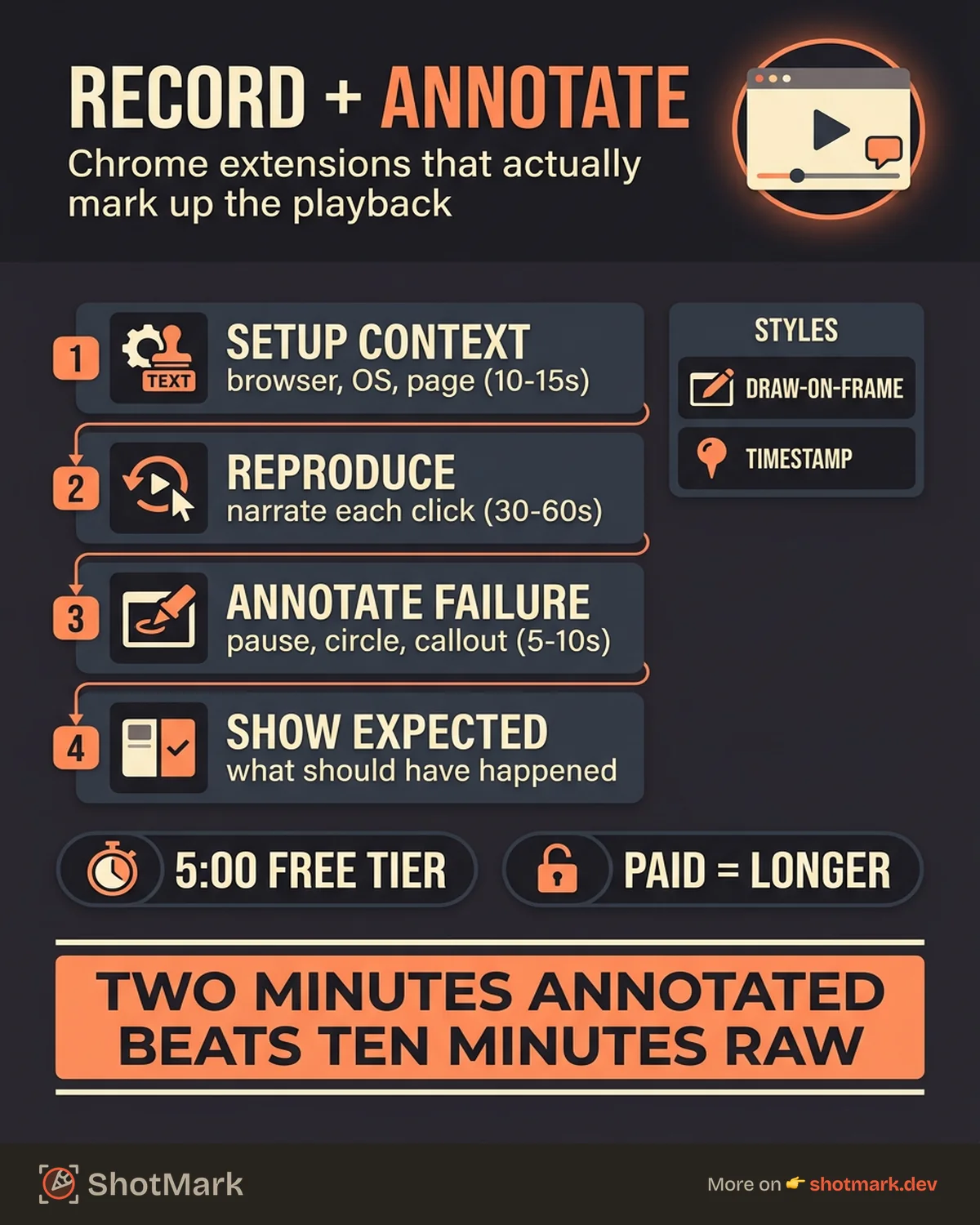
Here’s a structure that works for QA bug walkthroughs:
- Setup context (10-15 seconds): state the browser, OS, and the specific page or feature
- Reproduce the bug (30-60 seconds): follow the exact reproduction steps, narrating each click
- Annotate the failure (5-10 seconds): pause, circle the broken element, add a text callout
- Show the expected behavior (optional): walk through what should have happened
Developers who receive recordings structured this way can triage in under two minutes. Compare that to a Slack message that says “login is broken for some users” and the time savings compound across every bug.
Free vs. Paid Screen Recorder Extensions
The free tier is generous enough for many teams. Loom gives you 5 minutes per recording and 25 videos. Nimbus Capture offers up to 60 minutes free. Screencastify allows 5 minutes with a watermark. For occasional bug reports or design reviews, that’s often enough.
Paid tiers unlock four things worth paying for. Longer recordings remove the five-minute cliff that cuts most tutorials short. Cloud storage and retention keep recordings available beyond the 30-day window most free plans enforce. Team features like shared workspaces, permissions, and usage analytics become essential above three users. Deeper integrations with Jira, Linear, or Salesforce save manual copy-paste work.
Hidden costs deserve attention. Watermarks on free tiers make recordings look unprofessional for client-facing work. Resolution limits can blur small UI text that you actually need to see. Storage caps mean recordings disappear or rotate, which breaks links shared weeks earlier. Atlassian’s Chrome extension roundup notes these gotchas in detail and recommends auditing your actual usage before committing to a paid plan.
Free is enough when your recordings are under five minutes, internal, and don’t need CRM integrations. Paid saves time when recordings are longer, client-facing, or need to automatically land in your issue tracker.
Choosing Between Screenshot + Annotation vs. Recording + Annotation
Recording isn’t always the right format. A layout bug on a static page, a typo in a button, or a visual regression in a design system is faster to capture as an annotated screenshot than a 30-second video. Screenshots are also easier to attach to tickets, paste into Slack, and reference later.
Recording wins when the bug involves interaction, timing, or multi-step reproduction. A dropdown that only breaks on the second click. A form that accepts input but silently fails on submit. A race condition between two network requests. These can’t be captured in a still frame, and a recording with annotated timestamps is worth the extra weight.
Some tools do both well. Awesome Screenshot, Nimbus Capture, and ShotMark all support screenshots and recordings in a single extension, which removes the decision friction. You hit the capture shortcut, pick the format based on the bug, and annotate without switching tools.
Which Chrome Extensions Let You Record Your Screen and Annotate?
Loom, Awesome Screenshot, Nimbus Capture, Screencastify, Marker.io, and ShotMark all support both recording and annotation in a single Chrome extension. Vidyard records but has minimal annotation. The best choice depends on whether you need async communication (Loom), bug reports (Marker.io or ShotMark), or general-purpose capture (Awesome Screenshot or Nimbus).
Can You Annotate While Screen Recording in Chrome?
Yes, a few extensions support live annotation during recording. Screencastify offers drawing tools that appear on the video as you record. Most other tools (Loom, Awesome Screenshot, Nimbus) add annotation after recording ends. Live annotation is useful for tutorials and presentations. Post-recording annotation is more flexible for detailed bug reports because you can zoom, pause, and add precise callouts without rushing.
What Is the Best Free Screen Recorder Chrome Extension With Annotation?
For free recordings under five minutes, Loom is the most polished. For longer free recordings (up to an hour), Nimbus Capture wins on duration. For combined screenshot + recording + annotation in one free tool, Awesome Screenshot is the most flexible. Each free tier has trade-offs around storage, watermarks, and integrations, so match the tool to your primary use case.
A good capture workflow uses the right format for each bug type. Static bugs get screenshots. Interaction bugs get recordings. Both get annotation, and both live in the same issue tracker. That’s how QA teams stop wasting developer time on “can you reproduce this?” follow-ups and start shipping fixes instead.
Picking the right screen recorder Chrome extension is less about features and more about fit. Loom and Marker.io solve different problems. Awesome Screenshot and Nimbus overlap more than they differ. ShotMark captures what the rest miss, the console logs and network requests that make a bug reproducible, and bundles it with the screenshot or recording in one click. Join the ShotMark waitlist if that’s the workflow you’ve been looking for.
Get new posts in your inbox.
One email when we publish: notes on QA, AI, and shipping faster. No spam, unsubscribe anytime.