50+ Shortcuts, and You Probably Use 5
Chrome DevTools has over 50 keyboard shortcuts. Most developers know how to open the inspector and maybe clear the console. That means dozens of time-saving chrome inspect shortcuts go unused every day.
We organized every shortcut worth knowing by panel, with Mac and Windows/Linux keys side by side. Bookmark this page. You’ll come back to it.
Opening DevTools
These are the shortcuts you’ll use most. They open DevTools directly to the panel you need.
| Action | Mac | Windows / Linux |
|---|---|---|
| Open DevTools (last panel) | Cmd + Option + I | F12 or Ctrl + Shift + I |
| Open Console panel | Cmd + Option + J | Ctrl + Shift + J |
| Open Elements panel (inspect mode) | Cmd + Option + C | Ctrl + Shift + C |
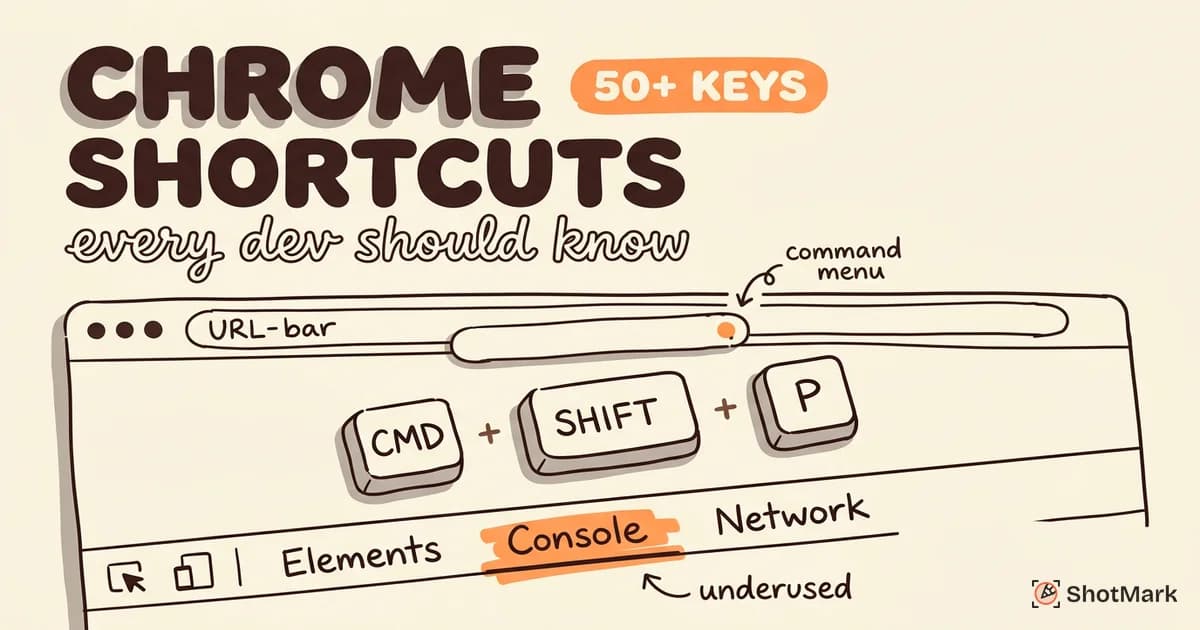
| Open Command Menu | Cmd + Shift + P | Ctrl + Shift + P |
| Toggle DevTools dock position | Cmd + Shift + D | Ctrl + Shift + D |
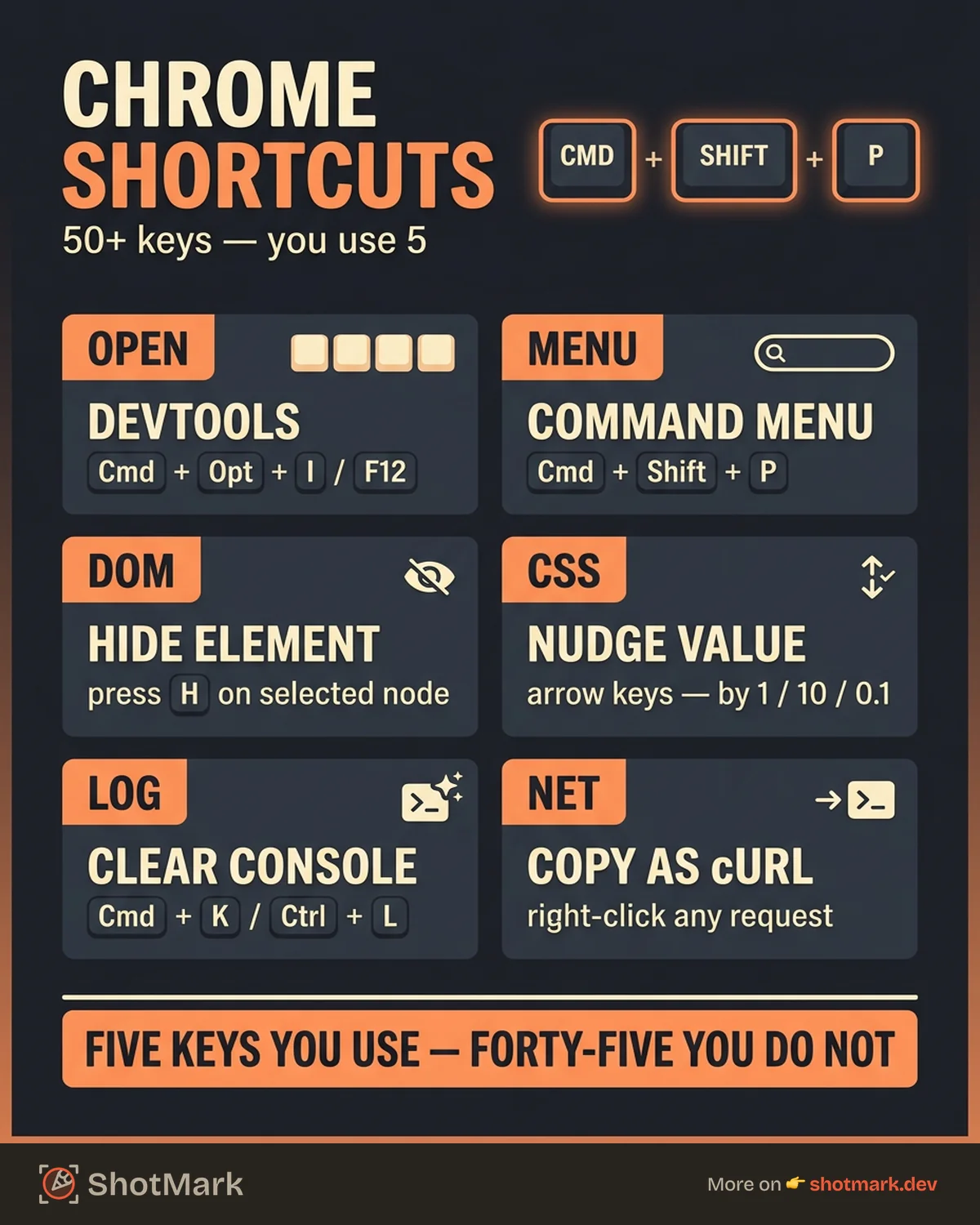
The Command Menu (Cmd + Shift + P) is the most underused shortcut on this list. It works like VS Code’s command palette. You can switch panels, toggle settings, take screenshots, and run DevTools experiments from a single search bar.
Opening to a Specific Panel
If you always start in the Network tab or Sources panel, the Command Menu is faster than clicking through tabs. Type “Network” or “Sources” after opening it, and you’ll jump directly there.
For developers who keep DevTools open all day, Cmd + Shift + D cycles through dock positions (bottom, right, undocked window) without touching the mouse.
Elements Panel Shortcuts
The Elements panel is where you inspect and edit the DOM. These shortcuts speed up navigation and style editing.
Navigating the DOM
| Action | Mac | Windows / Linux |
|---|---|---|
| Move up/down through nodes | Up / Down arrows | Up / Down arrows |
| Expand node | Right arrow | Right arrow |
| Collapse node | Left arrow | Left arrow |
| Edit as HTML | F2 | F2 |
| Hide element (toggle) | H | H |
| Delete element | Delete or Backspace | Delete |
| Search DOM by string, selector, or XPath | Cmd + F | Ctrl + F |
The H shortcut is particularly useful for debugging layout issues. It toggles visibility: hidden on the selected element, letting you see what’s behind it without removing it from the flow.
Editing Styles
| Action | Mac | Windows / Linux |
|---|---|---|
| Increment value by 1 | Up arrow | Up arrow |
| Decrement value by 1 | Down arrow | Down arrow |
| Increment by 10 | Shift + Up | Shift + Up |
| Decrement by 10 | Shift + Down | Shift + Down |
| Increment by 0.1 | Option + Up | Alt + Up |
| Increment by 100 | Cmd + Up | Ctrl + Up |
| Toggle property on/off | Click the checkbox | Click the checkbox |
| Add new style rule | Click + in Styles pane | Click + in Styles pane |
When tweaking CSS values (padding, margins, font sizes), the increment shortcuts save significant time. Instead of selecting the value, deleting it, and typing a new one, just press Up or Down to nudge it.
Console Panel Shortcuts
Command Line Shortcuts
| Action | Mac | Windows / Linux |
|---|---|---|
| Clear console | Cmd + K | Ctrl + L |
| Multi-line input | Shift + Enter | Shift + Enter |
| Previous command | Up arrow | Up arrow |
| Next command | Down arrow | Down arrow |
| Focus console prompt | Ctrl + backtick | Ctrl + backtick |
Cmd + K (clear console) is worth memorizing if you haven’t already. When debugging, a clean console makes new errors easier to spot.
Console Utilities You Should Know
These aren’t keyboard shortcuts, but they’re console commands that act like shortcuts:
$0returns the currently selected element in the Elements panel. Select a node, switch to Console, type$0.textContent, and you get its text without writingdocument.querySelector().$_returns the result of the last evaluated expression. Useful for chaining operations without assigning to variables.copy()copies any value to your clipboard.copy($0.outerHTML)grabs the full HTML of the selected element.monitor(functionName)logs every call to that function with its arguments. Callunmonitor()to stop.monitorEvents(element, 'click')logs every click event on an element. Great for debugging event handlers.
Network Panel Shortcuts
Filtering and Navigation
| Action | Mac | Windows / Linux |
|---|---|---|
| Search requests | Cmd + F | Ctrl + F |
| Clear network log | Cmd + K | Ctrl + L |
| Toggle recording | Cmd + E | Ctrl + E |
| Select next/previous request | Up / Down arrows | Up / Down arrows |
The Network panel’s filter bar supports type filters without keyboard shortcuts. Type is:from-cache to show cached requests, status-code:404 to find broken requests, or domain:api.example.com to isolate API calls.
Debugging Network Requests
Right-clicking any request in the Network panel gives you options that replace manual work:
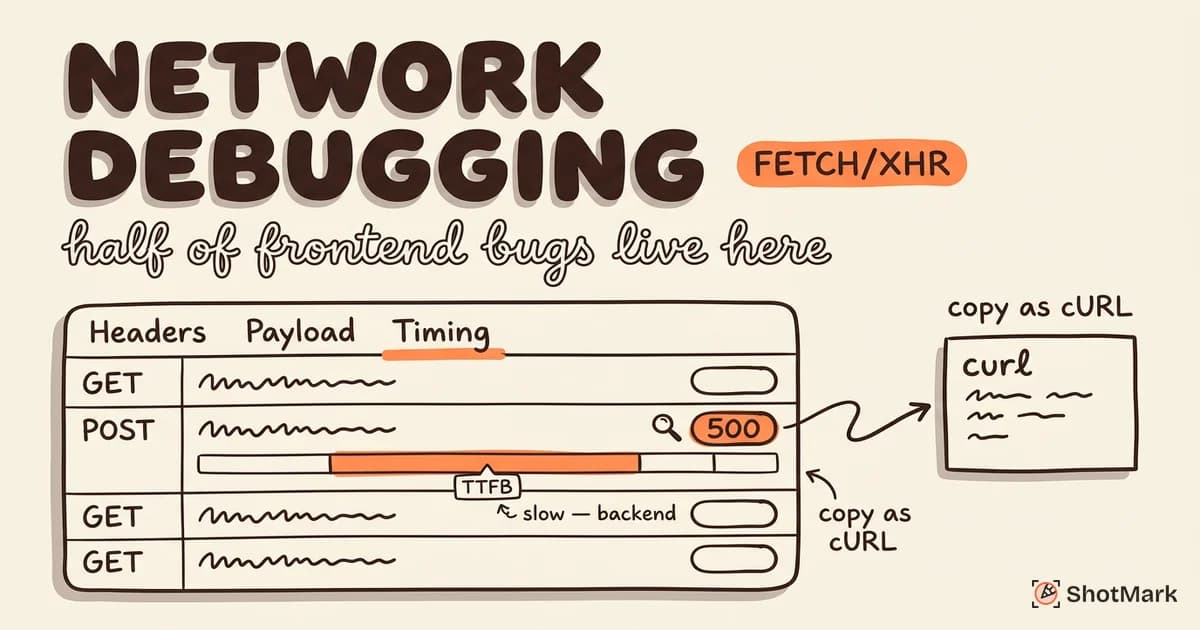
- Copy as cURL: Generates a cURL command you can paste into a terminal or share with a teammate. This is the fastest way to reproduce an API issue outside the browser.
- Copy as fetch: Same idea, but generates JavaScript
fetch()code. - Replay XHR: Re-sends the request with the same headers and payload. Useful for testing API changes without refreshing the page.
- Block request URL: Simulates network failures for specific endpoints. Helpful for testing error handling.
For deeper network request debugging workflows, we have a dedicated guide.
Sources Panel and Debugging
Breakpoint Shortcuts
| Action | Mac | Windows / Linux |
|---|---|---|
| Toggle breakpoint | Cmd + B | Ctrl + B |
| Toggle breakpoint enabled | Right-click breakpoint | Right-click breakpoint |
| Pause / Continue | F8 or Cmd + \ | F8 or Ctrl + \ |
| Step over | F10 or Cmd + ' | F10 or Ctrl + ' |
| Step into | F11 or Cmd + ; | F11 or Ctrl + ; |
| Step out | Shift + F11 or Cmd + Shift + ; | Shift + F11 or Ctrl + Shift + ; |
If you set breakpoints by clicking line numbers, that works. But Cmd + B sets a breakpoint on the current line without moving your hands off the keyboard.
Code Navigation
| Action | Mac | Windows / Linux |
|---|---|---|
| Go to file | Cmd + P | Ctrl + P |
| Go to line | Ctrl + G | Ctrl + G |
| Search across files | Cmd + Option + F | Ctrl + Shift + F |
Cmd + P (Go to file) works like your editor’s file opener. Type a filename, and it opens in the Sources panel. This is faster than navigating the file tree, especially in large applications.
Shortcuts That Save the Most Time
If you only learn 10 chrome inspect shortcuts from this entire reference, make it these:
Cmd + Option + I(Open DevTools) - the one everyone knowsCmd + Shift + P(Command Menu) - the one everyone should knowCmd + Option + C(Inspect mode) - click any element to jump to itCmd + K(Clear console) - start fresh when debuggingH(Hide element) - debug layouts without deleting nodesCmd + P(Go to file) - navigate source files fastCmd + B(Toggle breakpoint) - set breakpoints from the keyboardF8(Pause/Continue) - control execution during debuggingUp/Downin Styles (Increment values) - tweak CSS without typing- Copy as cURL (right-click in Network) - share API reproduction steps instantly
These 10 shortcuts cover the most common debugging tasks across Elements, Console, Network, and Sources panels.
When Shortcuts Aren’t Enough
Keyboard shortcuts make you faster at using DevTools. But they don’t help when you need to share what DevTools is showing you with a teammate.
Copying console errors by hand, screenshotting the Network tab, and pasting it all into a Slack message or ticket takes time. And it misses context: the screenshot doesn’t include the console log, the console log doesn’t include the network failure, and none of it includes the user’s viewport or browser version.
This is the gap that console log capture tools fill. Instead of manually exporting data from each DevTools panel, you capture everything in one action.
ShotMark grabs what DevTools shows you (screenshots, console logs, network requests) in a single click. The developer productivity tools that save the most time are the ones that eliminate manual data collection.
Keep This Reference Handy
Chrome DevTools shortcuts are the kind of knowledge that compounds. Learning one or two new chrome inspect shortcuts per week adds up to hours saved per month. The tables above cover every shortcut worth knowing, organized by the panel where you’ll use them.
ShotMark captures everything DevTools shows you, automatically. No more copying console errors or screenshotting the Network tab. Join the waitlist .
Get new posts in your inbox.
One email when we publish: notes on QA, AI, and shipping faster. No spam, unsubscribe anytime.